

DigitalZen is the best Linux website blocker because it provides full desktop-level control, app and website blocking, and mindful productivity tools designed for Linux, Mac, and Windows. Unlike browser-only extensions, it has a native Linux agent, adaptive locks, and wellness timers that help users stay focused and manage screen time effectively.
Key Takeaways
- Top Pick: DigitalZen is the only cross-platform blocker with native Linux desktop support.
- Why It’s Best: Combines website and app blocking with wellness timers and adaptive focus locks.
- For Linux Users: Works offline, supports all major browsers, and requires no complex setup.
- Alternatives: Open-source and browser-based tools such as Chomper, Pluckeye, and LeechBlock cater to different user needs.
- Best Overall Use Case: Professionals, students, and teams who want distraction-free productivity on Linux.
Linux Website Blockers and Their Best Use Cases
1. DigitalZen

Image source: DigitalZen official website
DigitalZen is a cross-platform productivity tool with full desktop-level blocking for Linux, Mac, and Windows. It provides a native Linux agent that blocks both apps and websites while promoting mindful focus through adaptive locks and wellness timers.
Key Highlights:
- Native Linux desktop agent with true system-wide blocking
- Website and desktop app control in one interface
- Adaptive locks, including code, cooldown, friend, schedule, and money
- Built-in protection against uninstall or extension removal
- Predefined focus templates and wellness reminders
- Works offline and supports all major browsers
DigitalZen also includes curated filters for adult and gambling sites, effectively serving as a Linux porn blocker that promotes cleaner, distraction-free screen time.
Limitations:
The browser extension is still required for complete website blocking, and mobile apps are under development.
Use Case Fit:
Ideal for professionals, students, and remote teams who need reliable, distraction-free productivity on Linux. Take a look at the DigitalZen Linux blocker to see how it works in practice.
2. LeechBlock
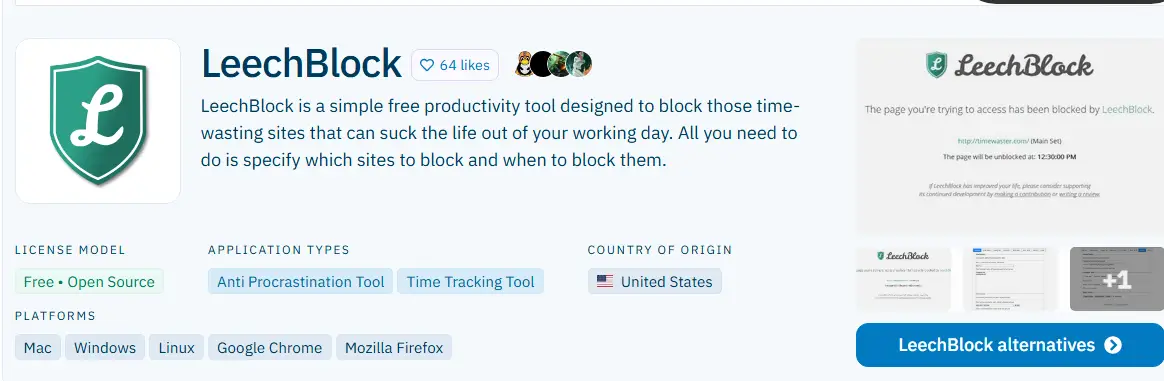
Image source: AlternativeTo.net (LeechBlock page)
LeechBlock is a free, open-source browser extension for Chrome and Firefox that helps Linux users stay productive by limiting access to distracting websites. It is lightweight, customizable, and ideal for setting detailed time-based blocking schedules.
For instance, users can easily block YouTube on Linux during study hours while keeping access to other productive sites.
Key Highlights:
- Works on Chrome and Firefox across Linux, macOS, and Windows
- Allows scheduling by specific times, days, or durations
- Fully free and ad-free
- Customizable rule creation for different website groups
- Suitable for productivity or parental control use
Limitations:
LeechBlock works only inside supported browsers, so it cannot block desktop apps or provide system-wide protection. It also has no safeguards against being disabled or uninstalled, and settings do not sync across multiple devices.
Unlike more comprehensive blockers, it does not include ready-made filters for adult sites, gambling content, or social media, so users must manually create these lists themselves. Manual rule setup may also take up new users’ time.
Use Case Fit:
Best for Linux users who want a flexible, browser-based blocker to manage daily browsing habits and reduce procrastination.
3. Freedom

Image source: Freedom App official website
Freedom is a cross-platform productivity app that helps users block distracting websites and apps across devices. On Linux, it operates via browser extensions for Chrome and Firefox, seamlessly connecting with Freedom’s ecosystem on Windows, macOS, and mobile for synchronized focus sessions.
Key Highlights:
- Works as an extension only on Linux, with desktop apps for macOS and Windows, and browser extensions for Chrome and Firefox.
- Syncs sessions across multiple devices
- Custom blocklists and scheduling options
- Includes optional focus sounds and Pomodoro timers
Limitations:
Freedom works only inside supported browsers on Linux, so it cannot block desktop apps or provide offline protection. It also lacks uninstall safeguards and does not offer advanced focus features such as adaptive or layered lock options found in more comprehensive blockers.
Use Case Fit:
Ideal for users already using Freedom on other platforms who want consistent, cross-device website blocking.
4. Chomper
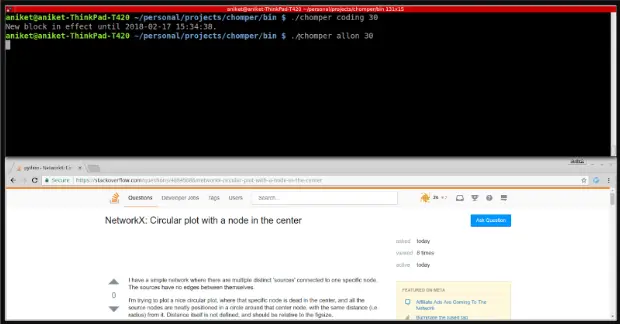
Image Source: GitHub (Chomper repository)
Chomper is a Linux-native, open-source website blocker designed for users who prefer technical control. It runs entirely through the command line and uses a transparent proxy to filter outgoing requests, allowing precise URL- or path-level blocking instead of full-domain bans.
Key Highlights:
- True Linux-native command-line tool
- Granular control down to individual URLs or paths
- Supports both blacklist and whitelist configurations
- Free and open source under the GPL license
- Full documentation available on ReadTheDocs
Limitations:
Requires terminal knowledge and manual setup. It does not support app blocking or advanced focus features such as timers or adaptive locks.
Use Case Fit:
Best for developers and technical Linux users who want full customization and control over what content gets blocked.
5. Pluckeye

Image source: Pluckeye official website
Pluckeye is a self-control internet filter that helps users build discipline by using delay-based blocking instead of passwords. Any changes to the filter take effect only after a waiting period, giving users time to reconsider impulsive browsing decisions. By default, it blocks images and videos to minimize distractions and promote mindful internet use.
Key Highlights:
- Network-level filtering for Linux, macOS, and Windows
- Delay system that enforces reflection before changes
- Allows selective blocking of URLs or media types
- Designed for long-term habit formation and digital discipline
- Free to use with optional paid support or donations
Limitations:
Setup requires manual terminal commands, and it has no graphical interface for easier configuration. Pluckeye also does not support granular URL-level filtering (such as allowing specific subpages while blocking the rest), and it lacks features like adaptive locks, dedicated focus modes, or cross-device syncing.
Use Case Fit:
Perfect for Linux users who value discipline and want to strengthen self-control over their online behavior over time.
6. Time Companion
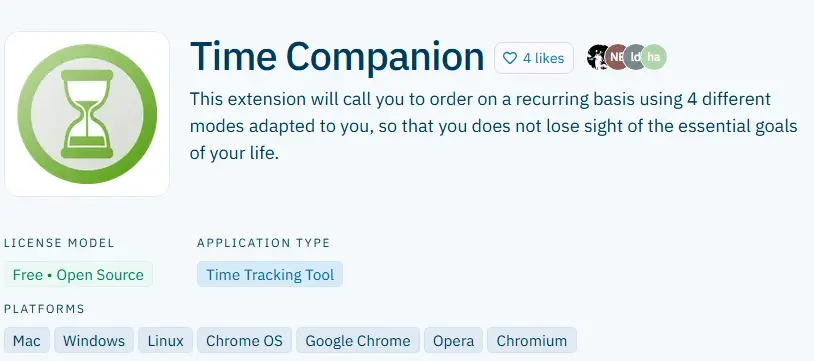
Image source: AlternativeTo.net (Time Companion page)
Time Companion is a free, open-source browser extension that helps users block distracting websites and stay focused through recurring reminders. It works on Chrome, Opera, and Chromium browsers, offering a lightweight, browser-level way to build consistent focus habits across Linux, macOS, and ChromeOS.
Key Highlights:
- Free and open source browser extension
- Works with Chrome, Opera, and Chromium
- Reminder-based blocking to encourage focus
- Lightweight and easy to install
- Supports Linux, macOS, and ChromeOS
Limitations:
It cannot block desktop applications and lacks advanced scheduling, adaptive features, or wellness tools. Documentation and updates are limited.
Use Case Fit:
Ideal for students or casual Linux users who want a simple browser-based solution to manage focus and build mindful screen habits.
7. Twert
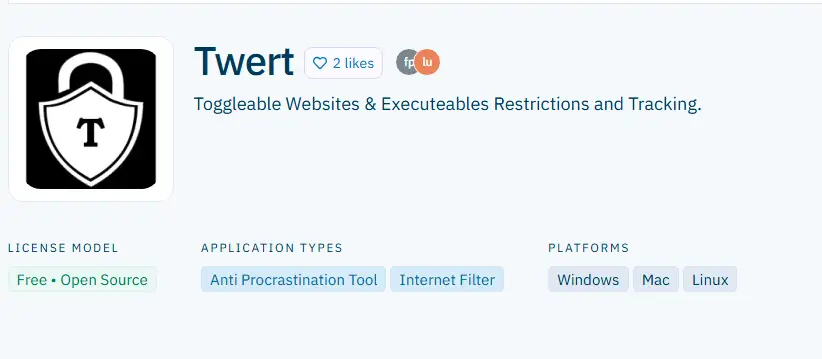
Image source: AlternativeTo.net (Twert page)
Twert is a free, open-source anti-procrastination tool that blocks both websites and desktop applications on Linux. It’s designed for simplicity, allowing users to toggle restrictions on or off without registration, complex setup, or technical commands.
Key Highlights:
- Works on Linux, Windows, and macOS
- Blocks both websites (domain-level only) and executable applications
- Free and open source with no account required
- Focused on manual, anti-procrastination blocking
- Quick toggling between restricted and unrestricted states
Limitations:
The blocking method is not clearly documented, and site filtering works only at the domain level. Twert also lacks automation, scheduling, adaptive lock options, focus or wellness tools, and has no protections against being disabled or uninstalled.
Use Case Fit:
Great for Linux minimalists who want a simple, no-cost blocker that offers instant, manual control without complicated setup.
8. SelfControl Linux Port
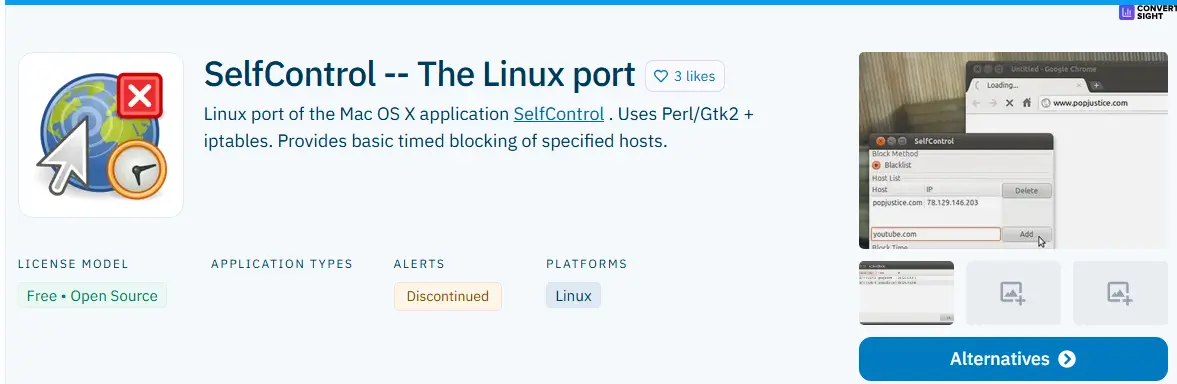
Image source: AlternativeTo.net (SelfControl Linux Port page)
SelfControl Linux Port is a free, open-source adaptation of the macOS SelfControl app, built specifically for Linux users. It uses Linux’s iptables firewall to block websites system-wide for a set time, ensuring the restriction remains active even after restarting your computer.
Key Highlights:
- Uses iptables for true system-level blocking
- Simple timed blocking sessions that can’t be bypassed
- Works offline and independently of browsers
- Free and open source
- Originally designed for Debian-based Linux systems
Limitations:
The project is discontinued and may require manual configuration or dependency adjustments to run on newer Linux distributions.
Use Case Fit:
Best for Linux users who prefer basic, timer-based blocking without relying on modern interfaces or frequent updates.
9. AdGuard for Linux

Image source: AdGuard official website
AdGuard for Linux is the world’s first system-wide ad blocker built specifically for Linux. It runs entirely through the command line, filtering ads, trackers, and phishing threats across all browsers and applications. Unlike browser extensions, it operates at the network level, offering protection that doesn’t depend on individual browsers.
Key Highlights:
- Command-line ad blocker with device-wide filtering
- Blocks ads, banners, and trackers across browsers and apps
- Protects against phishing, malware, and unsafe sites
- Offers customizable filters and user-defined blocking rules
- Includes privacy tools like cookie blocking and IP masking
Limitations:
AdGuard for Linux is designed primarily for ad and tracker filtering, not as a website blocker or productivity tool. While it can block domains, it does not offer focus features, adaptive locks, or scheduling tools. It also requires command-line setup and a paid license after the trial period, and it is not intended as a distraction-management solution.
Use Case Fit:
Ideal for Linux users who want system-level privacy protection and ad blocking across all browsers and apps. Best suited for users comfortable with the command line who prioritize privacy and network-wide filtering over cosmetic ad removal.
Why You Need a Website Blocker on Linux
Linux users often struggle to find reliable focus tools. Many popular productivity apps are designed for Windows or macOS, leaving Linux users with limited or browser-only options. Some tools even require command-line setup, which adds complexity and discourages consistent use.
A dedicated website blocker built for Linux solves these problems by providing:
- System-wide control: Blocks both desktop apps and websites, not just browser tabs.
- Simpler setup: Works with a user-friendly interface instead of terminal commands.
- Cross-browser support: Keeps distractions away across Chrome, Firefox, Opera, and others.
- “One-ring-to-rule-them-all”: Instead of configuring separate rules for every browser extension, you can manage all blocking and focus settings from one place that works across browsers and devices.
- Uninstall protection: Prevents users from turning it off with a simple extension uninstall.
- Focus and wellness features: Adds timers, breaks, and scheduling to encourage balanced screen habits.
- Safer browsing options: Helps users stay productive by blocking gambling sites or other high-distraction pages that often derail focus.
In short, a true Linux-compatible blocker helps you reclaim focus, remove distractions, and manage your digital habits with the same convenience available on other operating systems.
How to Choose the Best Linux Website Blocker

Choosing the best Linux website blocker depends on how you work, the level of control you need, and whether you prefer free or premium tools. The right blocker should fit naturally into your workflow, help you stay consistent, and reduce digital friction instead of adding complexity.
If you’re just starting out, it helps to understand the basics of blocking websites on Linux, whether through browser extensions, DNS filters, or desktop-level agents. This gives you a clearer idea of which blocker aligns best with your goals.
Match Features to Your Workflow (Developers vs Students vs Teams)
Each type of user benefits from different blocking features.
- Developers sometimes prefer command-line or open-source control. Tools like Chomper let you customize blocking through terminal commands and URL-level filters.
- Students or ADHD users thrive with structure and reminders. Options like DigitalZen offer focus sessions, adaptive timers, and wellness prompts.
- Remote teams and professionals benefit from cross-device or desktop-level blocking. DigitalZen and Freedom provide scheduling tools and synchronization across multiple platforms.
- Minimalists who prefer simplicity can rely on Time Companion or SelfControl Linux Port for quick, distraction-free sessions.
Matching your blocker to your daily workflow makes it easier to maintain focus without breaking your productivity rhythm.
Evaluate Free vs. Premium Linux Blockers Wisely
Free Linux blockers are a great starting point, but premium tools often deliver more reliability, automation, and depth.
- Free tools like Chomper, Twert, and LeechBlock help you experiment with open-source control and find the right setup.
- Premium tools like DigitalZen include full desktop agents, adaptive locks, and focus templates that justify the small investment through better stability and user experience.
Instead of focusing only on price, evaluate how each tool improves your focus over time. Paying for a robust system-wide blocker can make your time and productivity worth much more.
Prioritize Tools with Native Linux Support
Most website blockers that claim Linux compatibility are limited to browsers. That means they cannot block desktop apps, do not offer uninstall protection, do not protect you on browsers without extensions, and cannot block system-wide distractions.
If you need complete control, choose tools with a native Linux agent. These provide offline functionality, better performance, and true app-level blocking.
DigitalZen stands out for offering native Linux integration alongside browser extensions, letting you manage both web and desktop distractions from a single dashboard. For serious focus, native support makes the biggest difference.
Conclusion: Choosing the Right Linux Website Blocker for Focus and Balance

Linux users no longer need to rely on browser-only tools to stay focused. Modern blockers now offer real desktop-level control, giving you the same productivity power found on other operating systems.
DigitalZen leads the list with its native Linux agent, app, and website blocking, and built-in wellness tools that encourage balance and focus. For those who prefer open-source freedom, lightweight simplicity, or habit-forming approaches, tools like Chomper, LeechBlock, Pluckeye, and Twert provide strong alternatives tailored to specific workflows.
The key is finding a blocker that aligns with your routine and using it consistently. Whether you’re coding, studying, or managing remote work, the right Linux website blocker can help you protect your focus and work with purpose every day.
Frequently Asked Questions
What Is the Best Linux Website Blocker for Both Apps and Browsers?
The best Linux website blocker for both apps and browsers is DigitalZen. It’s the only tool with a native Linux desktop agent that blocks websites and applications at the system level. Unlike browser-only extensions, it also works offline, supports adaptive locks, and includes focus and wellness timers for balanced productivity.
How Do I Choose Between Free and Premium Linux Website Blockers?
Free Linux website blockers, such as Chomper and LeechBlock, are great for testing basic blocking functionality. However, premium options like DigitalZen offer full desktop control, adaptive locks, and wellness features that justify the small investment. Choose based on your workflow, required depth of control, and need for cross-platform syncing.
Is There a Linux Website Blocker That Can Block Adult or Gambling Sites?
Yes. Tools like DigitalZen and Pluckeye can block adult or gambling sites on Linux. DigitalZen includes built-in filters for adult and gambling content, while Pluckeye allows custom rules that restrict unwanted websites. Both help users maintain safe, focused, and distraction-free browsing environments.
Can Linux Website Blockers Work Offline?
Most Linux website blockers work offline once installed, especially those with native desktop agents or system-level filtering. However, browser extensions and cloud-synced tools may require an internet connection to start or sync sessions.
References:
- https://alternativeto.net/software/leechblock/about/
- https://freedom.to/
- https://github.com/aniketpanjwani/chomper
- https://www.pluckeye.net/what-is-pluckeye.html
- https://alternativeto.net/software/time-companion/about/
- https://alternativeto.net/software/twert/about/
- https://alternativeto.net/software/selfcontrol-linux/about/
- https://adguard.com/en/adguard-linux/overview.html