
Linux users have multiple alternatives to Cold Turkey for blocking distractions. Tools like DigitalZen, Freedom, Chomper, Pluckeye, Twert, Time Companion, SelfControl Linux Port, and LeechBlock provide various options for website and app blocking, helping users stay productive across different Linux setups and technical skill levels.
Key Takeaways
- Technical Requirements: Range from simple one-click installation to advanced setups requiring command-line experience.
- Blocking Methods: Tools use a mix of browser extensions, desktop agents, proxies, and system-level configurations for restriction control.
- Notable Features: Include adaptive locks, Pomodoro timers, wellness schedules, URL-level blocking, and self-control delay systems.
- Best Use Cases: Vary from lightweight browser extensions for casual focus sessions to full desktop solutions for complete productivity management on Linux.
Why Linux Users Need Cold Turkey Alternatives
Since Cold Turkey does not support Linux, users need a reliable Linux alternative to manage distractions and stay focused. Unlike Windows and Mac, Linux users have fewer options for a tool that blocks websites and provides comprehensive productivity control.
An effective Linux website blocker should handle both site filtering and desktop applications, work across multiple distributions, and deliver reliable restrictions that cannot be easily bypassed.
1. DigitalZen
Image source: DigitalZen official website
DigitalZen Linux Website Blocker is one of the few tools that truly supports Linux desktops with full app blocking capabilities. Unlike other tools that only work through browser extensions, DigitalZen provides a native desktop agent for Linux, alongside Windows and Mac.
The platform combines website blocking, desktop app blocking, and mindful screen time management. Users can set daily limits on websites or desktop apps, block them entirely, or rotate blocking times. The Focus Mode lets you select apps and websites to focus on or block everything, set a timer, and start achieving your goals.
Features
- Simple Setup: Easy to install and configure with no technical skills required. Users can select apps and websites from a list instead of manually entering file paths or complex URL patterns.
- Multiple Adaptive Locks: Includes several ways to stay disciplined, such as:
- Code: Requires entering a long, generated code to unlock, giving you time to reconsider.
- Cooldown: Starts a timer before unlocking to prevent impulsive decisions.
- Friend: Sends an unlock code to a chosen friend’s email for accountability.
- Schedule: Locks access until a future date you set yourself.
- Money: Adds a small financial penalty to discourage frequent unlocking.
-
- Lock Screen Reminders: Display helpful messages like “stretch and drink coffee” while distractions are blocked.
- Pre-Defined Templates: Comes with ready-made configurations for quick setup.
- Content Blocker: Includes curated blocklists for adult, gambling, and social media sites.
- Wellness Presets: Provides automatic downtime during nights or weekends to encourage healthy screen habits.
- Work-Life Balance Tools: Allows scheduling breaks, learning sessions, or focus periods at specific times of the day.
- Moderation Controls: Let you limit gaming or social media to a set amount of minutes daily.
- Protection Features (Desktop App):
-
- Prevents browser extension removal
- Blocks attempts to stop or kill the app
- Offers uninstall protection for maximum self-control
- One-Click Focus Sessions: Start a saved focus session instantly with a single click from the app icon.
Installation
- Install browser extension: Simply install the browser extension to get started and enjoy distraction-free browsing right away.
- One-click setup: With just a single click, you can set everything up and have DigitalZen running in seconds, no tech skills required.
- Desktop agent: If you also want to block desktop apps, you can install the optional desktop agent directly from within the app.
The desktop agent is designed to launch at startup by default.
Pricing
| Plan | Price | Features |
| Basic (Free) | $0 | Block websites, 2 Adaptive Schedulers, Focus time, Pomodoro |
| Premium | $3/month (billed annually, normally $5) | All Basic features unlimited, Block desktop apps, Ultra anti-procrastination lock, Windows/Mac/Linux, Advanced features, Smart Adaptive locks, VIP Customer support |
| Premium Lifetime | $119 one-time (normally $199) | All premium features, Price lock – no inflation |
Disadvantages
- Some Features Depend on Internet Connectivity
- Works offline for most functions
- Friend unlock and collaborative focus modes need an internet connection
- Browser Extension Still Required for Full Website Blocking
- The desktop app handles app blocking
- Advanced website blocking needs the browser extension installed
- Mobile Apps Not Yet Available
- Android and iOS versions are scheduled for 2026
- Cross-device blocking and syncing are not yet supported
Best For
DigitalZen works best for Linux users wanting an easy-to-use, comprehensive blocking solution. Perfect if you need both website and application blocking without command-line complexity.
2. Chomper
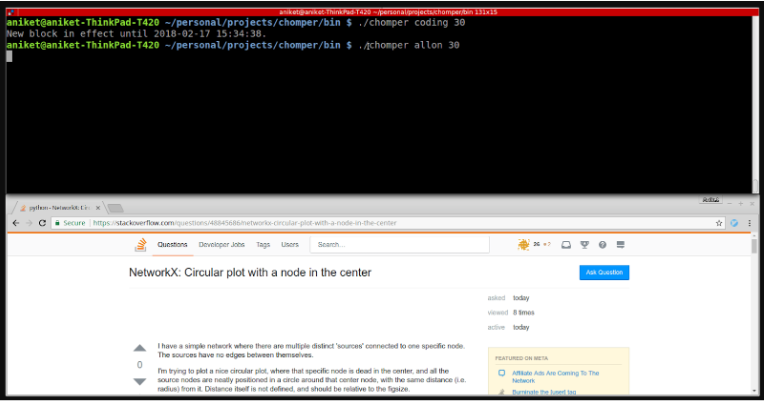
Image Source: GitHub (Chomper repository)
Chomper is an open-source internet blocker for Linux, created to help users prevent procrastination and mindless web surfing. The developer built it after noticing that existing blockers like Cold Turkey or SelfControl did not support Linux, and other similar projects had been inactive for years.
Unlike most programs that modify the hosts file to block entire domains, Chomper uses a transparent proxy to filter outgoing requests. This allows users to block specific URLs or pages (for example, amazon.com/gp/video/) while keeping access to other parts of the same site.
Features
- Platform: Linux (supports all distributions; automated installation for Debian-based systems)
- Interface: Command-line interface (CLI)
- Blocking Method: Transparent proxy to filter outgoing requests
- Granular Control: Can block specific pages or paths, not just domains
- Blacklist/Whitelist Options: Can either block distracting websites or allow only productive ones
- License: GPL-licensed (open source)
- Documentation: Full documentation available on ReadTheDocs
Installation
- For Debian-based systems (Ubuntu, Linux Mint)

The script installs all UNIX dependencies, installs pyenv, installs Python 3.6.4 in ~/.pyenv/ subdirectory, clones Chomper into ~/chomper, and appends a Chomper executable to your PATH.
- For non-Debian-based distributions:
No automated installation available. The documentation suggests looking at the automated installation script for guidance.
Pricing
Free and open source under the GPL license.
Disadvantages
- Requires Command-Line Knowledge
-
- No graphical interface (CLI-only)
- Users must run commands and edit settings manually
- Limited Installation Options
-
- Automated setup available only for Debian-based systems
- Other distributions require manual installation steps
- No App Blocking Capabilities
-
- Works only for website and URL filtering
- Cannot block desktop applications like games or chat tools
- Lacks Adaptive or Wellness Features
-
- No adaptive locks, focus reminders, or wellness scheduling tools
- Lacks built-in templates for easier configuration
Best For
Chomper suits Linux users comfortable with command-line tools and who want granular URL-level control. Ideal for developers and technical users preferring open-source solutions.
3. Freedom App
Image source: Freedom App official website
Freedom is a cross-platform productivity app that helps users block distracting websites and apps. For Linux and ChromeOS, Freedom operates through a dedicated Chrome browser extension that enables website blocking directly within the browser.
While this version lacks the full functionality of the Mac and Windows apps, it still connects Linux users to Freedom’s multi-device blocking ecosystem.
Features
- Platform Support: ChromeOS, Linux, macOS, Windows, iOS, Android
- Browser Support: Google Chrome (required for Linux)
- Website Blocking: Blocks distracting websites within the Chrome browser
- Cross-Device Sync: Connects Linux devices to Freedom sessions across Mac, Windows, and mobile devices
- Custom Blocklists: Choose which websites to block or allow
- Unlimited Devices: Add and manage multiple devices in a single account
- Focus Sounds & Pomodoro Mode: Access immersive focus sounds and Brain.fm music integration, including Pomodoro-style timed sessions for deep work (desktop feature)
- Additional Chrome Tools: Optional extensions like Pause, Limit, and Insight offer extra focus, time tracking, and mindful browsing controls
Installation
- Visit the Freedom Chrome Extension page.
- Click Add to Chrome to install the extension.
- Log in or sign up using your Freedom account credentials.
- Once installed, the extension will display “Freedom is ready.”
- Start and manage blocking sessions from your Freedom Dashboard.
Pricing
- Free Plan: Basic access with limited features.
- Premium Plan: $39.99 per year (unlimited devices, full access to blocklists and scheduling).
- Lifetime Plan: $99.50 one-time payment (normally $199), billed once and yours forever.
Disadvantages
- Browser Extension Only on Linux
- Freedom for Linux functions solely via the Chrome browser extension.
- It can block websites but not desktop applications or system-level distractions.
- Limited Feature Set Compared to Desktop Versions
- Advanced features like app blocking, Locked Mode, and in-app controls are unavailable.
- The Linux extension lacks the deeper control found in Mac and Windows apps.
- Dependent on the Chrome Ecosystem
- Works only with Google Chrome, not compatible with Firefox, Edge, or other browsers.
- Users relying on different browsers cannot use Freedom’s blocking features.
- No Offline or System-Level Blocking
- The Chrome extension only manages online blocking during active sessions.
- Users cannot block offline distractions or protect against browser changes.
Best For
Freedom is best suited for Linux users who already use the Freedom ecosystem on other devices and want to extend basic website blocking to their Linux system. It’s a practical option for browser-based distraction control, but it lacks native Linux app integration or full system coverage.
4. Pluckeye

Image source: Pluckeye official website
Pluckeye is a self-control internet filter that helps users manage their online habits by making changes take effect only after a delay. Instead of relying on passwords, it uses a waiting period before new settings are applied, giving users time to reconsider impulsive decisions.
By default, Pluckeye blocks all images and videos from the internet to minimize distractions. Users can then create their own filtering rules, allowing or blocking specific URLs or media types. This design gives the user full control while remaining difficult to circumvent: a combination the developers call self-control mode.
Features
- Platform Support: Pluckeye is available on Windows, macOS, Linux, and has an alpha version for Android.
- Delay System: Instead of relying on passwords, Pluckeye uses a configuration delay system that enforces a waiting period before changes take effect. This makes it harder to impulsively disable the filter.
- Self-Control Mode: The software is designed to give users full authority over what gets filtered while maintaining resistance to circumvention, supporting genuine self-control.
- Content Filtering: It can selectively block or allow specific types of content from the same website, using filters based on internet media types or individual URLs.
- Default Blocking: By default, Pluckeye blocks all online images and videos to minimize visual distractions and exposure to unwanted media.
- No Prepackaged Lists: The tool does not include preset blocklists; instead, users create their own filtering rules tailored to their habits and goals.
- Design Philosophy: Pluckeye is intentionally designed to be inconvenient, reinforcing deliberate and mindful internet use rather than ease of access.
Installation
Pluckeye supports Linux and provides a manual installation process through the terminal.
- Visit r.pluckeye.net/try-it and download the Linux installer file (e.g., pluckeye-linux-1.0.63.tar.gz).
Open a terminal and run the following commands:
cd /tmp
rm -f ./pluck*install*
for tarball in $HOME/Downloads/pluck*.tar*; do echo $tarball; done
tar xf $tarball
sudo ./plucky-install
- If you see the message “Plucky failed to download” on Debian-based systems, run:
sudo apt-get install libcurl4
sudo ./plucky-install
- Additional instructions are available for updating or uninstalling Pluckeye directly on the official website.
Pricing
Pluckeye follows a sliding-scale subscription model. The exact amount depends on the user’s annual income. While pricing details are not publicly listed, users are encouraged to download, install, and use the software for a few days before deciding whether to pay.
The website mentions that payment is optional at first, and users can later choose to remunerate (support) the project once they’ve tried it. There is also a field for coupon codes, suggesting flexible or discounted payment options.
Disadvantages
- Complex Setup and Manual Configuration
-
- Installation requires running multiple terminal commands.
- Users must manually create and manage filtering rules.
- No Graphical Interface
-
- Pluckeye is configured through commands and settings files.
- There is no easy point-and-click interface for non-technical users.
- Limited Media Control Options
-
- Blocks all images and videos by default, which can disrupt normal browsing.
- Users must manually allow needed visual content.
- No App Blocking or Wellness Features
-
- Cannot block desktop applications like games or messaging apps.
- No timers, focus reminders, or adaptive lock systems.
Best For
Pluckeye targets “those who want a self-control filter rather than parents looking to protect their kids.” It’s ideal for Linux users who find themselves impulsively disabling other blockers.
5. Twert
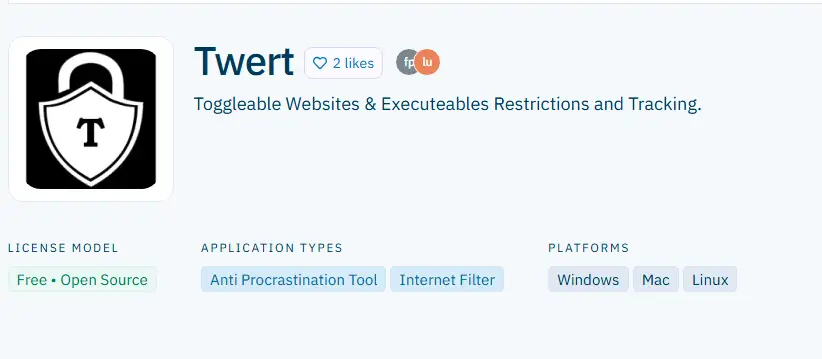
Image source: AlternativeTo.net (Twert page)
Twert (Toggleable Websites & Executables Restrictions and Tracking) is a free, open-source anti-procrastination tool that helps users block both websites and desktop applications. It allows users to toggle restrictions on and off to manage distractions more effectively.
While it aims to provide simple blocking for web and app usage, its documentation does not clearly explain the blocking method or how it enforces restrictions. Twert focuses on basic, manual control rather than automated or adaptive productivity features.
Features
- Platform Support: Windows, Mac, and Linux
- License Model: Free and open source
- No Registration Required: Use immediately without creating an account
- Anti-Procrastination Focus: Designed specifically to combat procrastination
- Application Types: Functions as both an anti-procrastination tool and internet filter
Installation
Specific Linux installation instructions are not available in the provided documentation.
Pricing
Completely free and open source.
Disadvantages
- No Information on How Blocking Works
- The tool’s blocking mechanism isn’t explained.
- It’s unclear how it enforces restrictions or prevents circumvention.
- No App Locking or Adaptive Productivity Tools
- Doesn’t mention timers, cooldowns, or lock mechanisms.
- Focuses only on basic anti-procrastination blocking.
- Confusing and Possibly Ineffective in Practice
- A user reports that the interface is confusing and not intuitive.
- The dashboard loads through a browser loopback address instead of its own window.
- App blocking may not work as expected.
-
- No Wellness or Scheduling Features
- Lacks focus modes, wellness breaks, or work-life balance tools.
- Cannot automate blocking or create daily schedules.
- No Wellness or Scheduling Features
- No App Blocking Capabilities
-
- Works only for websites
- Cannot block desktop applications like games or chat tools
Best For
Linux users looking for a simple, registration-free open-source solution for blocking both websites and executable programs.
6. Time Companion
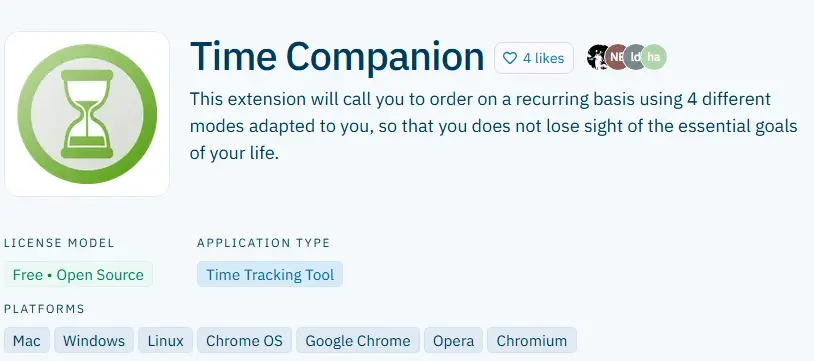
Image source: AlternativeTo.net (Time Companion page)
Time Companion is a free, open-source browser-based productivity tool that combines website blocking with recurring reminders to help users stay focused on important goals. It operates as a browser extension that integrates directly into supported browsers such as Chrome, Opera, and Chromium.
The extension offers simple distraction-blocking features designed to encourage consistent focus habits. However, its documentation provides limited information on how its blocking system works or how the four productivity modes function in detail.
Features
- Platform Support: Mac, Windows, Linux, Chrome OS
- Browser Support: Google Chrome, Opera, Chromium
- Block Distraction: Core distraction-blocking functionality
- Browser Extension: Operates as a browser add-on
- Website Blocking: Blocks access to distracting websites
- Browser Integration: Deep integration with supported browsers
- License Model: Free and open source
Installation
Specific Linux installation instructions are not available in the provided documentation. Installation likely occurs through browser extension stores.
Pricing
Free and open source.
Disadvantages
- Browser-Only Blocking
- Works solely as a browser extension, so it cannot block desktop applications.
- Users can easily bypass it by using unsupported browsers or apps.
- No Advanced or Adaptive Features
- Lacks timers, adaptive locks, cooldowns, or accountability systems.
- Doesn’t include focus modes or scheduling tools for structured sessions.
- No Developer or Support Information
-
- There’s no indication of update frequency, maintenance, or active support.
- Unknown if the project is still actively developed or community-maintained
- No Wellness or Work-Life Balance Tools
- Does not offer reminders, wellness breaks, or downtime settings.
- Focuses only on distraction blocking without lifestyle balance support.
Best For
Linux users who prefer browser-based blocking solutions and want recurring reminders to stay focused on essential goals.
7. SelfControl Linux Port – Basic Timed Blocking
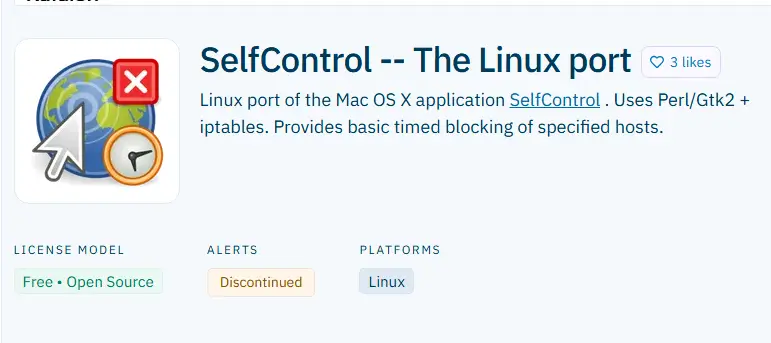
Image source: AlternativeTo.net (SelfControl Linux Port page)
SelfControl Linux Port is a free, open-source version of the macOS app SelfControl, built for Linux users who want to block distracting websites for a set time. It uses Perl, Gtk2, and Linux’s iptables firewall to block sites at the network level, affecting the whole system instead of just browsers.
Users can add websites to a blocklist, set a timer, and lock access until the session ends, even after restarting the computer. The tool is simple and effective for basic blocking but is no longer maintained and may need manual tweaks to run on newer Linux distributions.
Features
- Platform Support: Linux only
- Technology Stack: Perl/Gtk2 + iptables
- Website Blocking: Basic host-level blocking
- Timed Sessions: Set blocking periods that cannot be undone until timer expires
- License Model: Free and open source
- Status: Discontinued (no longer actively developed)
Installation
SelfControl Linux Port was developed on Ubuntu Lucid Lynx and works best on Debian-based systems. Installation requires:
Package Manager Method (Recommended):
- Download the latest package from http://github.com/zengargoyle/selfcontrol/downloads or http://svn.jklmnop.net/projects/SelfControl
- Open Terminal and run:
bash
$ sudo dpkg –install selfcontrol_VERSION_.deb
Note: This tool would require modifications to work on CentOS, RedHat, or other non-Debian distributions. The developer notes that better installation and usage instructions are still needed (marked as TODO).
Pricing
Free and open source.
Disadvantages
- Discontinued and No Longer Maintained
- The project has been inactive since 2010 and no longer receives updates or bug fixes.
- May not function reliably on modern Linux distributions.
- Limited Compatibility Across Distributions
- Developed primarily on Ubuntu Lucid Lynx and intended for Debian-based systems.
- Would require additional setup or “hacking about” to run on CentOS, RedHat, or other Linux distributions.
- No App Blocking or Advanced Features
- Only supports basic host-level website blocking using iptables.
- No adaptive locks, timers beyond session length, or wellness tools.
- Outdated Technology Stack
- Built with Perl/Gtk2 and iptables, which may pose compatibility or dependency issues.
- Lacks a modern GUI or lightweight desktop agent.
Best For
Linux users who are comfortable with older software and need simple, timer-based host blocking using iptables. Note that this tool is discontinued and may not work on modern Linux distributions.
8. LeechBlock

Image source: AlternativeTo.net (LeechBlock page)
LeechBlock is a free, open-source browser extension built to help users stop procrastinating and stay focused. It lets you choose which websites to block and when to block them, reducing time spent on distractions.
Available for Chrome and Firefox across Linux, macOS, and Windows, LeechBlock is lightweight, customizable, and ad-free. It’s mainly used as a simple productivity or parental-control tool for managing online habits.
Features
- Platform Support: Mac, Windows, Linux
- Browser Support: Google Chrome, Mozilla Firefox
- Website Blocking: Core functionality for blocking distracting sites
- Anti-Procrastination: Designed to combat procrastination
- Scheduling: Set specific times and days for blocking
- Browser Extension: Lightweight add-on approach
- Ad-free: No advertisements in the tool
- Block Facebook: Specific support for blocking social media
- Parental Control: Can be used for parental control purposes
Installation
Installation occurs through browser extension stores (Chrome Web Store for Google Chrome, Add-ons store for Mozilla Firefox). No specific Linux installation is required beyond having a supported browser.
Pricing
Completely free and open source.
Disadvantages
- Browser-Only Limitation
- Works exclusively as a browser extension, so it cannot block desktop applications or system-level distractions.
- Users can easily bypass it by switching to an unsupported browser or using non-browser apps.
- No Native Linux or App Integration
- Although it runs on Linux browsers, it doesn’t have native Linux support or a desktop agent.
- Blocks only within Chrome or Firefox, not across the OS.
- No Adaptive or Advanced Lock Features
- Lacks cooldown timers, friend unlocks, or monetary lock mechanisms.
- Doesn’t offer gradual difficulty or adaptive blocking options.
- Manual Setup and Complex Configuration
- Requires users to manually create block sets and schedules for each site or group.
- May be overwhelming for users looking for quick setup or pre-defined templates.
- No Wellness, Focus, or Moderation Tools
-
- Doesn’t include focus modes, Pomodoro timers, or wellness schedules for balanced work sessions.
- No reminders, work-life balance presets, or moderation limits.
Best For
Linux users who want a simple, scheduling-focused browser extension that works across multiple browsers and platforms. Ideal for those who need time-based blocking rules without system-level complexity.
Conclusion: Taking Control of Your Linux Productivity

From browser extensions to full desktop applications, Linux users now have a wide range of distraction-blocking tools to choose from. Some focus on simplicity and open-source flexibility, while others emphasize deep customization or unique self-control systems. Each option suits different types of users, from developers comfortable with command-line tools to those who prefer a straightforward interface.
These alternatives prove that productivity on Linux can match or even surpass other platforms. Whether you want to block specific websites, manage screen time, or schedule recurring focus sessions, there is a solution that can help you create a more focused and balanced workflow.
For users looking for an all-in-one solution with easy setup, desktop and web blocking, adaptive locks, and wellness features, DigitalZen stands out as the best choice. It offers true Linux support and a thoughtful design that makes distraction-free productivity simple and effective.
Frequently Asked Questions
Can These Tools Really Replace Cold Turkey on Linux?
Yes, several tools can serve as alternatives, but their effectiveness varies. Some, like Chomper and Pluckeye, offer focused but limited control. DigitalZen, however, provides the closest full replacement, combining website and app blocking, adaptive locks, and scheduling features built specifically for Linux users.
Do I Need Technical Skills to Use These Blockers?
DigitalZen is designed for all users and doesn’t require any technical knowledge to install or configure. Chomper, on the other hand, needs sudo privileges and basic command-line experience since it’s operated through a terminal. Pluckeye’s technical requirements aren’t clearly specified in the available documentation.
How Do These Blockers Prevent Cheating?
DigitalZen includes adaptive lock options that make it harder to stop a block or change settings too easily, offering different lock types depending on how much friction the user needs. Chomper enforces discipline by requiring sudo access for modifications, while Pluckeye’s delay system ensures that any configuration changes take effect only after a set waiting period.
Is the DigitalZen Desktop Agent Mandatory?
The desktop agent isn’t required to use DigitalZen, since you can run it directly in your browser. However, browser-only functionality is limited. Installing the desktop app unlocks full features like application blocking and advanced focus controls.
References:
- https://github.com/aniketpanjwani/chomper
- https://freedom.to/
- https://chomper.readthedocs.io/en/latest/
- https://www.pluckeye.net/what-is-pluckeye.html
- https://www.pingcap.com/article/understanding-gpl-license-simple-terms/
- https://alternativeto.net/software/cold-turkey/?platform=linux
- https://alternativeto.net/software/twert/about/
- https://alternativeto.net/software/time-companion/about/
- https://alternativeto.net/software/selfcontrol-linux/about/
- https://alternativeto.net/software/leechblock/about/