
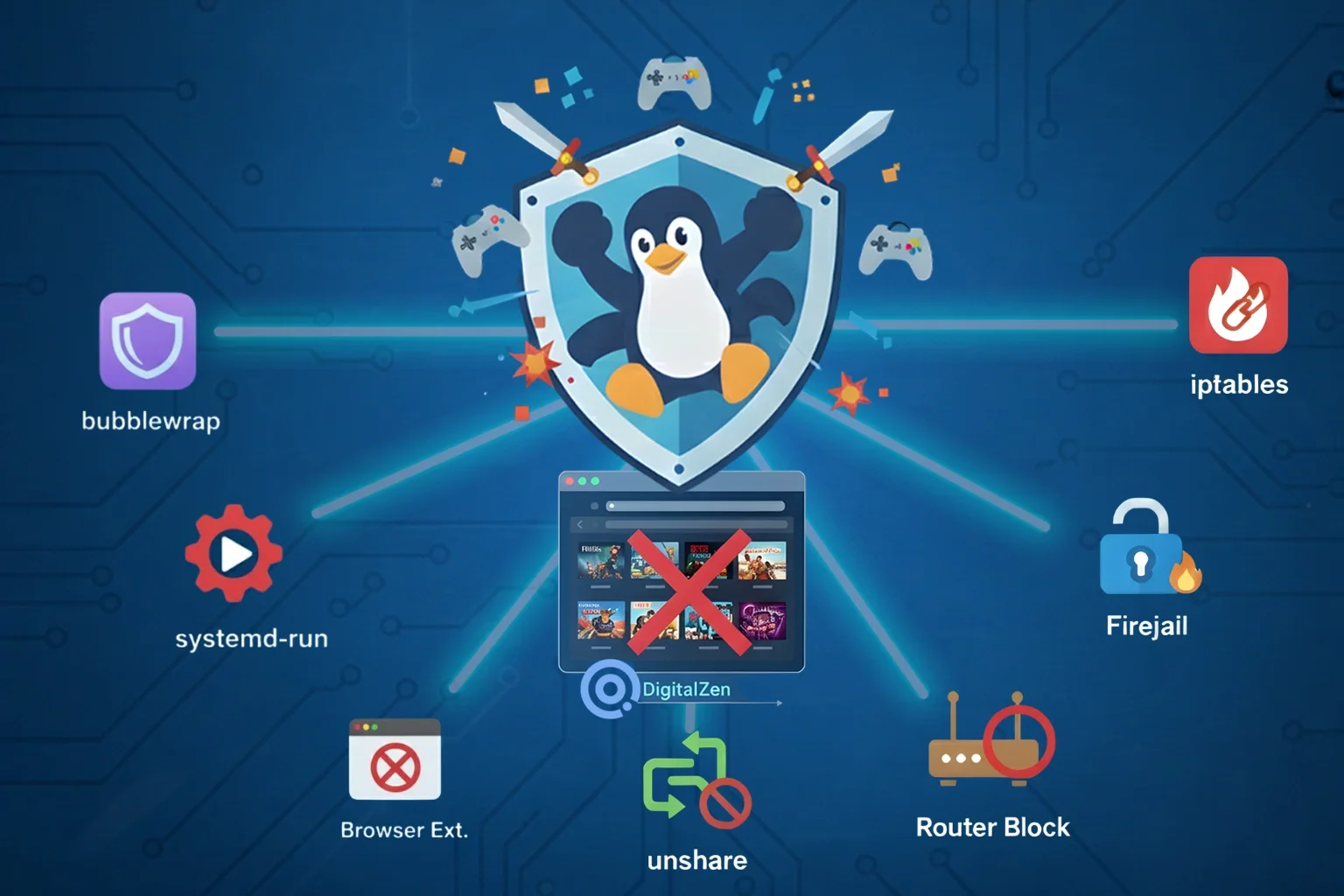
You can moderate gaming on Linux by controlling desktop games such as Steam, Proton, Wine, and native Linux titles using the DigitalZen platform, which supports schedules, time limits, and reminders. For stricter control, Linux tools like iptables, Firejail, unshare, bubblewrap, or systemd-run can block games by removing network access, including browser-based online games as a subset.
Key Takeaways
- Linux can block online games at the system level: Tools like iptables, Firejail, unshare, bubblewrap, and systemd-run cut network access so games can’t reach servers, update, or authenticate.
- Sandboxing and namespaces offer fast, temporary blocking: Firejail, unshare, and bubblewrap launch games in isolated environments with no network devices, making them ideal for quick offline sessions.
- Browser extensions stop web-based games instantly: Blocking gaming URLs or keywords prevents HTML5 and cloud gaming pages from loading, which stops the game before it starts.
- DigitalZen handles full desktop game moderation without technical steps: The desktop agent lets you block Steam, Proton, Wine, and native Linux games, apply schedules, and enforce limits with a simple interface.
How To Block Online Games On Linux Using Built-In System Controls
Linux allows you to block games by completely removing their internet access at the system level. Built-in tools can isolate processes, drop outbound traffic, or launch applications without a network stack. These methods enforce strict, all-or-nothing limits by keeping games offline, but they do not provide true moderation features such as scheduling, daily time limits, or gradual control.
This approach is best suited for users who want hard boundaries, not flexible or behavior-based moderation.
1. Block Games Using Group-Based Firewall Rules With iptables
Group-based firewall rules let you block network access for any program that runs under a specific Linux group. iptables can match traffic by process group ID. When a game runs under your restricted group, every packet it sends is dropped before it leaves your machine.
This stops online logins, matchmaking, downloads, updates, and any other server communication.
How to set up group-based blocking:
1. Create a restricted group
sudo groupadd no-internet
2. Add your user to that group
sudo usermod -a -G no-internet $USER
3. Drop all outbound traffic from that group
sudo iptables -I OUTPUT 1 -m owner –gid-owner no-internet -j DROP
4. Make the rule persistent
Use iptables-persistent or your distro’s firewall tool.
5. Run a game under the restricted group
sg no-internet -c “game-executable”
How to test it: Try accessing any website using a program launched under the restricted group. If that app fails to connect while everything else works, the rule is active.
When this method is ideal:
- You want OS-level blocking that applies even when a game updates
- You want strict enforcement for shared or multi-user systems
- You prefer a permanent rule that cannot be bypassed by switching browsers or launchers
2. Launch Games With No Network Access Using Firejail Sandbox
Firejail is a lightweight sandbox tool that lets you block games by completely disabling their network access for a session. When a game is launched with networking turned off, the sandbox exposes no network interfaces. The game runs normally but behaves as if the system is offline, while the rest of your Linux environment remains connected.
This method enforces a temporary but absolute block. It does not provide moderation features such as scheduling, daily time limits, or partial restrictions.
How to block a game with Firejail:
- Install Firejail
sudo apt install firejail
- Launch the game with no network access
firejail –net=none game-executable
The sandbox runs with zero network devices, ensuring the game stays offline for the entire session.
When Firejail is useful:
- You want to fully block internet access for a game during a session
- You need quick, temporary blocking without permanent system changes
- You want isolation that does not affect other applications
- You accept that there are no schedules, daily limits, or gradual moderation
3. Run Games in a Private Network Namespace Using unshare
Linux network namespaces allow you to block games by completely removing their internet access, rather than gradually moderating gameplay. When a game runs inside its own network namespace, it has no usable network interfaces or routing table. The game stays offline for the entire session, while the rest of your system continues working normally.
This method enforces a hard boundary. It does not support scheduling, time limits, or partial restrictions.
How to isolate a game with unshare:
- Start the game in a new network namespace
unshare -n game-executable
- If the game needs user namespace support
unshare -r -n game-executable
All online communication fails instantly because the namespace has no active network stack.
When unshare is a strong choice:
- You want fast, temporary blocking without installing extra tools
- You want a disposable offline environment
- You want to stay online while only the game stays offline
- You accept that this method offers blocking only, not true moderation
2 Simple Ways To Moderate Games Without Technical Steps
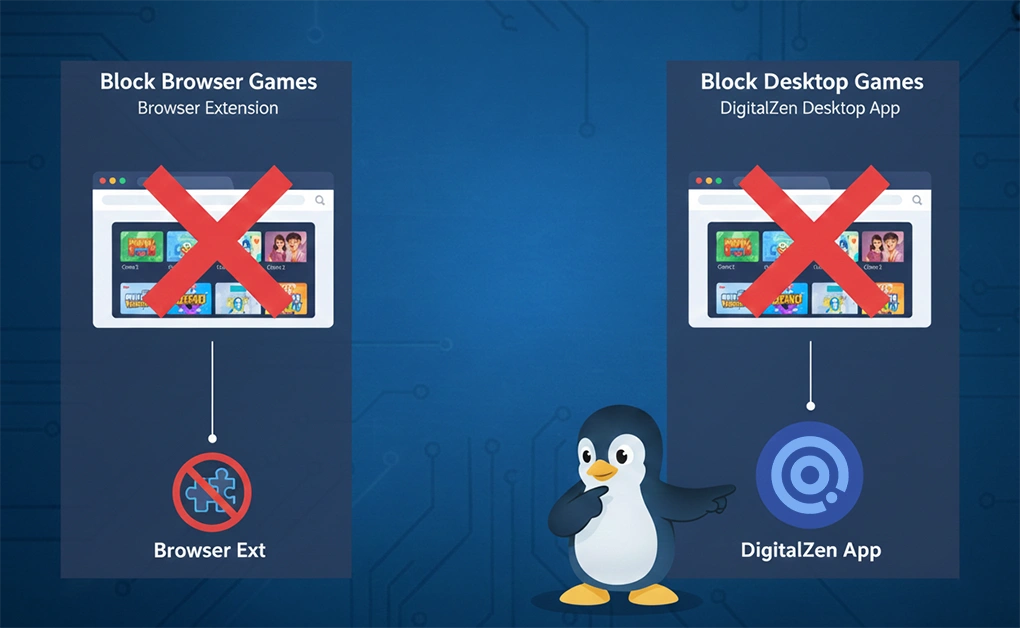
You can moderate games on Linux without touching the terminal or configuring firewall rules. These approaches are designed for students managing study time, gamers who want to limit their own play sessions, digital nomads staying productive on the road, and anyone who needs reliable focus controls without deep system customization.
Instead of forcing games off completely, these methods focus on intentional moderation, allowing gaming within defined limits. Two straightforward options cover most everyday use cases.
1. Moderate Browser Games Using the DigitalZen Browser Extension
Browser-based online games run inside your web browser. These include:
- HTML5 game portals
- Social media games
- Cloud gaming pages
- Mini-games embedded inside normal websites
The DigitalZen browser extension helps users moderate browser gaming by blocking access during chosen times or conditions, rather than relying on permanent restrictions. When a gaming URL or keyword matches your rules, the page is prevented from loading, allowing you to stay within your intended limits.
This approach supports intentional moderation by helping users:
- Avoid impulsive gaming during focus periods
- Follow predefined schedules for study, work, or rest
- Reduce distractions without uninstalling games or changing system settings
What the Browser Extension Can Restrict
- Gaming websites and portals
- Embedded game frames
- Game launcher pages
- Links that redirect to playable games
Because the extension works across Chrome, Firefox, Edge, Safari, Brave, and other modern browsers, moderation rules remain consistent even if you switch browsers or use private windows. Instead of relying on willpower alone, browser-level moderation helps gamers enjoy games on their own terms, within boundaries they define.
2. Block or Moderate Desktop Games with the DigitalZen Desktop App
Desktop games need deeper control because they run outside the browser and connect directly to online servers. This includes:
- Steam games
- Lutris titles
- Proton and Wine games
- Native Linux applications
The DigitalZen desktop app supports both blocking and moderation at the application level, including blocking apps from accessing the internet when strict limits are needed. At the same time, it enables true moderation through schedules, reminders, and time limits, allowing gamers to enjoy play sessions within boundaries they choose.
Check the list of DigitalZen supported Linux OS to confirm compatibility with your distribution.
What the Desktop App Supports
DigitalZen is designed for intentional game moderation, with blocking available as one enforcement option. It supports:
- Blocking apps from accessing the internet to force offline play
- Preventing selected games or launchers from opening
- Applying game-free schedules (nights, weekends, or work hours)
- Limiting gaming to X minutes per day
- Syncing moderation rules across Linux, Windows, and macOS
These controls apply regardless of how a game starts or which launcher is used.
How to set up DigitalZen:
- Install the browser extension: This links your browser and app behavior.
- Use One Click Setup: Click the One Click Setup button to initialize the main application.
- Enable app blocking by installing the desktop agent: From within the app, install the desktop agent to activate full desktop blocking.
Once the desktop agent is active, you can block games or moderate how they are used directly from the DigitalZen interface. This includes setting game-free hours and limiting how long a game can run each day, allowing you to enjoy gaming within clear, intentional boundaries.
How To Block Online Games Running Through Wine or Proton
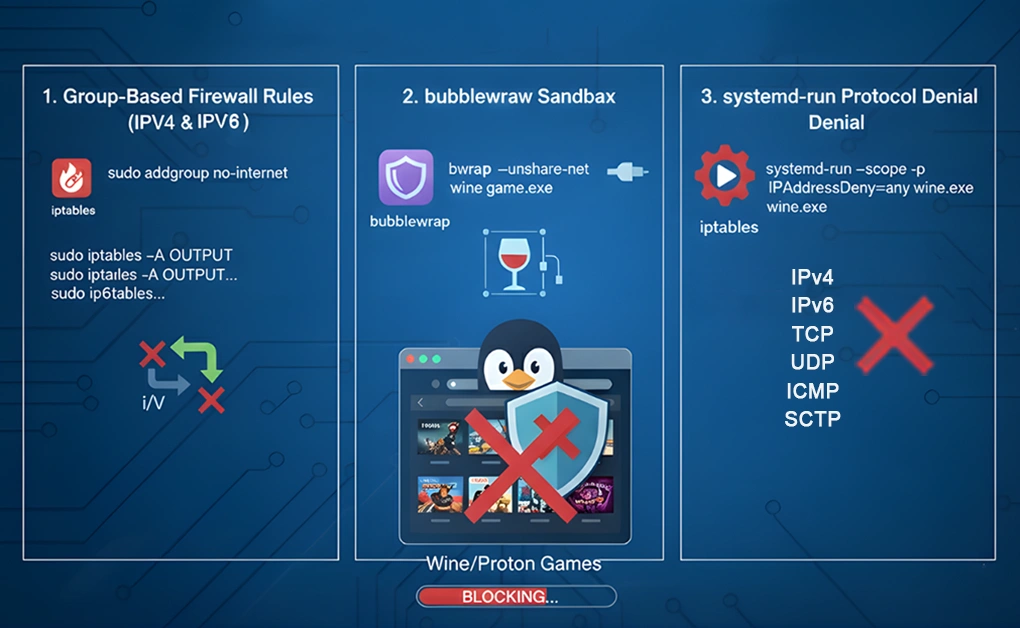
Windows games running through Wine, Proton, or launchers like Lutris often use both IPv4 and IPv6 and may rely on multiple helper processes. Because of this, they require stronger blocking than native Linux apps. Linux offers several reliable ways to block Wine and Proton games by isolating them, dropping their traffic, or denying all network protocols.
Access is either on or off, with no way to allow limited playtime or scheduled sessions.
1. Block Wine Games With Group-Based Firewall Rules (IPv4 and IPv6)
Group-based firewall rules block every network request from Wine or Proton processes by matching traffic from a specific Linux group. When a game runs under this restricted group, both IPv4 and IPv6 traffic is dropped before leaving your system.
How to set up group-based blocking for Wine games
1. Create a restricted group
sudo addgroup no-internet
2. Add your user to the restricted group
sudo adduser $USER no-internet
3. Block IPv4 traffic
sudo iptables -A OUTPUT -m owner –gid-owner no-internet -j DROP
4. Block IPv6 traffic
sudo ip6tables -A OUTPUT -m owner –gid-owner no-internet -j DROP
5. Launch the game under the restricted group
sg no-internet -c “wine game.exe”
Why this method works
- Blocks all protocols Wine or Proton uses.
- Applies even if launchers or helper processes spawn additional tasks.
- Enforces a strict OS-level block that games cannot bypass.
2. Run Wine Games With No Network Access Using bubblewrap
bubblewrap creates an isolated sandbox with its own namespaces. When you unshare the network namespace, the Wine or Proton game loads normally but has zero access to networking.
How to block Wine games with bubblewrap
bwrap –unshare-net wine game.exe
Why is this method useful
- No firewall configuration.
- Works for Wine, Proton, and Lutris-managed titles.
- Simple, clean, and ideal for temporary offline sessions.
What to expect
Launchers or games that require online authentication will fail to connect, as no network devices are present inside the sandbox.
3. Deny All Network Protocols for Wine Games Using systemd-run
systemd-run can start a Wine or Proton game with full network denial using IPAddressDeny=any. This blocks every IP-based protocol at the systemd level.
Protocols Blocked
- IPv4
- IPv6
- TCP
- UDP
- ICMP
- SCTP
How to launch a Wine game with full protocol blocking
systemd-run –scope -p IPAddressDeny=any wine game.exe
What You Should Know
- You may receive an authentication prompt depending on system settings.
- This does not give the game elevated permissions.
- With cgroups v2, systemd network restrictions are even more reliable.
Conclusion: Choosing the Right Way to Moderate Gaming on Linux
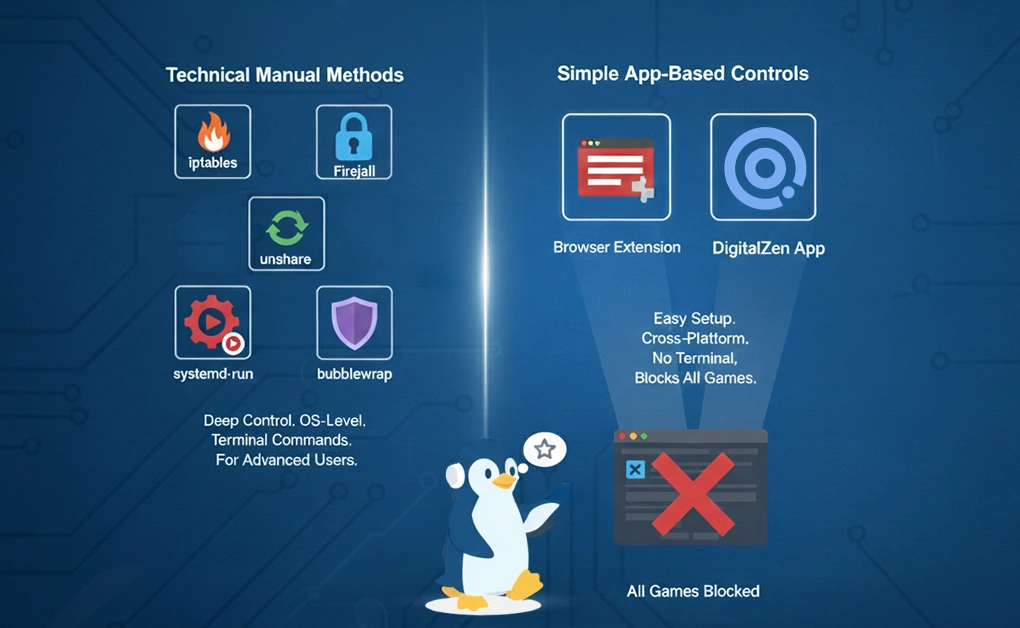
Linux offers multiple ways to control gaming, but not all approaches support the same goal. System-level tools such as firewall rules, sandboxing, and network isolation are designed for hard blocking. They completely cut games off from the internet and work well for strict enforcement, shared machines, or advanced users who want absolute control without flexibility.
For gamers who want to enjoy games while staying in control, moderation tools are often a better fit. App-based solutions focus on balance by allowing play within defined limits rather than forcing games off entirely. The DigitalZen platform supports this moderation-first approach by combining schedules, daily time limits, reminders, and optional blocking across both browser and desktop games.
Choosing the right method depends on your intent. If you need all-or-nothing enforcement, Linux’s built-in controls are effective. If your goal is sustainable gaming habits that still leave room to play, moderation tools provide a more flexible and long-term solution.
FAQs About Blocking Online Games
What Is the Easiest Way to Block Online Games on Linux?
The easiest way is to use tools that require no terminal commands, such as the DigitalZen desktop app, which blocks Steam, Proton, Wine, and native Linux games through simple toggles. Or use DigitalZen freebrowser extension to block web-based games by filtering gaming URLs.
How Do I Block Steam, Proton, or Wine Games From Using the Internet?
You can block these games by cutting off their network access using Linux tools such as:
- iptables/ip6tables to drop outbound traffic from a restricted group
- bubblewrap to run Wine games in a sandbox with no network
- systemd-run with IPAddressDeny=any to block all IP protocols
These methods stop online authentication, updates, and multiplayer features.
Can I Block Online Games Without Using Terminal Commands?
Yes. You can install a browser extension to block web games or use the DigitalZen desktop app to moderate full desktop games. DigitalZen lets you set limits, schedules, and app-level blocks without editing firewall rules or using Linux utilities.
What If I Just Want to Moderate My Gaming on Linux?
For moderation without total blocking, you can use DigitalZen. Select the game you want to moderate (native app, Steam, Proton, Wine, or an online game; just name it), and set the amount of time you want to use it per day.
How Do Network Namespaces and Sandboxing Stop Games From Connecting Online?
Network namespaces and sandboxes isolate the game so it cannot see any real network devices. When launched with unshare -n or firejail –net=none, the game runs in an environment with no interfaces or routing table. Connection attempts fail immediately while your system stays online.
Does Blocking Online Games Affect Other Apps on My Linux System?
No. Tools like iptables, Firejail, unshare, and bubblewrap isolate only the selected game. Your browser, messaging apps, downloads, and everything else continue using the internet normally.
How Do I Permanently Block Online Games on a Shared or Multi-User Linux Device?
Use system-level enforcement, such as group-based firewall rules. By creating a restricted group and blocking its outbound traffic, you prevent any user assigned to that group from accessing online games. This is a reliable option for classrooms, labs, or family computers.
References: