

You can block websites on a Mac using Screen Time, the hosts file, router-level controls, browser extensions, or a system-wide blocking app. Built-in options work for basic or shared use, but system-wide blockers apply rules across browsers and apps, making them more reliable when you switch browsers, networks, or devices.
Key Takeaways
- Website blocking on macOS depends on where enforcement happens: Tools that work inside a browser or user account are easier to bypass, while system-level enforcement applies rules more consistently.
- Screen Time is best for basic access control, not long-term focus: It works most reliably in Safari and managed accounts, but its limitations show quickly when you switch browsers or apps.
- Editing the hosts file blocks sites across all browsers but requires maintenance: This method is system-wide, but it is static, easy to undo, and not designed for schedules or habit-based control.
- Router-level blocking affects every device on the network: It works well for shared environments, but restrictions disappear when the Mac connects to a different network.
- Browser extensions are convenient but fragile: They are fast to set up and flexible, yet switching browsers or disabling the extension bypasses the block instantly.
- System-wide blocking provides the most reliable enforcement on Mac: Rules applied below the browser layer stay active across browsers and supported apps, even when focus drops.
- The right method matches real-world usage, not technical preference: Blocking works best when it aligns with how you browse, switch tools, and lose focus during the day.
5 Ways to Block Websites on Mac

macOS gives you several ways to block websites, ranging from built-in tools to system-wide enforcement. Some methods are quick and lightweight. Others are designed to hold up when you switch browsers, apps, or devices. Below are the five most common approaches, starting with Apple’s built-in option.
Method #1:Block Websites Using Screen Time (Built-In)
Screen Time is Apple’s built-in content control system for macOS. It allows you to restrict web content by category or block specific websites using allow and block lists. Screen Time works by filtering web access at the user account level, with Safari receiving the most consistent enforcement. Other apps may respect the rules, but the system does not guarantee uniform behavior across all browsers.
Screen Time is primarily designed for parental controls and managed environments, not long-term self-restriction.
Setup Overview
To block websites using Screen Time on macOS:
- Open System Settings from the Apple menu
- Select Screen Time and ensure it is enabled
- Go to Content & Privacy and turn restrictions on
- Open Web Content and choose Limit Adult Websites or Allowed Websites Only
- Add specific domains to the blocked or allowed list as needed
Once configured, Safari applies these restrictions automatically for the selected user account.
Key Limitations and Common Failure Points
Screen Time has structural limits that affect reliability:
- Blocking works best in Safari and is inconsistent in other browsers
- Rules apply only to the signed-in user account
- Some websites bypass filters due to domain structure or embedded content
- Switching browsers or apps can bypass restrictions entirely
- Screen Time prioritizes access control, not habit enforcement
If you rely on multiple browsers or want a blocking that holds up across apps and work contexts, Screen Time often falls short.
Method #2: Block Websites by Editing the Hosts File (Terminal)
The hosts file is a core macOS system file that controls how domain names resolve to IP addresses. By redirecting a website’s domain to a non-resolving IP address such as 127.0.0.1, macOS prevents the connection from reaching the real server. When this happens, the website fails to load.
Because the hosts file operates at the operating system level, this method applies across all browsers on the Mac. It does not rely on Safari, browser extensions, or user-level settings. However, it is a technical solution intended for static blocking, not behavioral control.
Setup Overview
To block websites by editing the hosts file on macOS:
1. Open Terminal
Finder → Applications → Utilities → Terminal
Open the hosts file with administrator privileges:
sudo nano /etc/hosts
2. Enter your administrator password when prompted.
Locate the line:
127.0.0.1 localhost
3. On a new line below it, add the domain you want to block:
127.0.0.1 example.com
4. Repeat this line for each website you want to block.
5. Save the file
Press Control + O, then Enter
6. Exit the editor
Press Control + X
7. Flush the DNS cache so the changes apply immediately:
sudo dscacheutil -flushcache; sudo killall -HUP mDNSResponder
Once completed, the blocked websites fail to load in all browsers on that Mac.
Key Limitations and Common Failure Points
Hosts file blocking has important structural limits:
- Requires administrator access and comfort with Terminal
- Blocks entire domains only, not specific pages or content types
- No scheduling, time limits, or user-based controls
- Easy to undo by editing the file again
- DNS caching can delay or partially bypass changes
- Some modern browsers and apps bypass hosts file rules using internal resolvers
The hosts file is effective for simple, system-wide blocking, but it is fragile and difficult to maintain for long-term focus, changing routines, or habit enforcement.
Method #3: Block Websites at the Router Level
Router-based blocking restricts access to websites by configuring rules directly on your Wi-Fi router. Instead of blocking traffic on a single Mac, the router filters requests before they ever reach connected devices. When a website is blocked at the router level, the connection is stopped at the network layer.
This method applies to every device using that network, including Macs, phones, tablets, and smart devices. It is not macOS-specific and does not depend on browsers or user accounts.
Setup Overview
To block websites using router-level controls:
1. Open System Settings on your Mac
Go to Network → Wi-Fi → Details → TCP/IP
2. Copy the router’s IP address listed in the TCP/IP section
3. Paste the IP address into a web browser and press Enter
4. Log in to the router’s admin dashboard
Use the admin username and password provided by your ISP or printed on the router
5. Locate the section labeled Website Blocking, Parental Controls, or URL Filtering
The name varies by router model
6. Add the website domains you want to block
7. Save and apply the changes
Once enabled, the router blocks those websites for all devices connected to that network.
Key Limitations and Common Failure Points
Router-based blocking has significant constraints:
- Affects every device on the network, not just one user
- No per-user or per-device customization
- Stops working when the Mac connects to a different Wi-Fi network
- Mobile hotspots and public Wi-Fi bypass the block entirely
- Router interfaces and capabilities vary widely
Router-level blocking provides broad coverage, but it lacks flexibility and does not travel with the device. It works best as a shared network control, not a personal or portable blocking solution.
Method #4: Block Websites Using Browser Extensions
Browser extensions block websites by intercepting page requests inside a specific web browser. They work by matching URLs, domains, or keywords against a block list and stopping the page from loading before the content appears. All blocking logic lives inside the browser itself.
This method does not affect the operating system, network traffic, or other applications. Each browser manages its own rules independently.
Setup Overview
To block websites using a browser extension:
1. Open your browser’s extension store (Examples include Chrome Web Store or Firefox Add-ons)
2. Install a website-blocking extension. The DigitalZen free browser extension is one option that supports URL and keyword-based blocking.
3. Open the extension’s settings
4. Add the website URLs, domains, or keywords you want to block
5. Enable the extension so the rules take effect
Each browser requires its own extension and blocklist.
When Browser Extensions Are Useful
Browser extensions work well when:
- You use a single browser consistently
- You want a fast setup without system changes
- You need page-level or keyword-based blocking
- The goal is a light, short-term restriction
For casual or temporary use, extensions provide quick control.
Key Limitations and Common Failure Points
Browser extensions have clear enforcement limits:
- Blocking applies only to the browser where the extension is installed
- Switching browsers bypasses the block instantly
- Extensions can be disabled or removed in seconds
- No control over desktop apps or system-wide traffic
- Private browsing modes may bypass restrictions
Browser extensions offer convenience, not durability. They are easy to set up, but they do not hold up when you need consistent blocking across browsers, apps, or work contexts.
Method #5: Block Websites System-Wide Using a Website Blocker App
System-wide website blocking enforces restrictions at the macOS operating system level instead of inside a single browser. When blocking rules operate below the browser layer, they apply consistently across all browsers and supported desktop apps. Switching browsers, opening private windows, or using standalone apps does not bypass the block.
This method focuses on long-term reliability rather than quick, session-based controls.
Setup Overview
To block websites system-wide on macOS using DigitalZen:
1. Install the DigitalZen free browser extension
This enables website blocking across supported browsers.
2. Use the one-click setup inside the app
This activates system-wide rules without manual configuration.
3. Install the desktop agent from within the app (optional)
This step enables blocking for desktop apps and strengthens enforcement.
Once set up, the same blocking rules apply consistently across browsers and supported apps.
This consistency is useful when your work or habits span multiple browsers, networks, or operating systems, whether that means studying on a MacBook, working remotely across locations, or keeping the same focus rules in place across macOS, Windows, and Linux.
Key Limitations and Common Failure Points
- Unlike manual methods, system-wide website blockers typically come as paid software.
Even though these tools are paid, this affects access and setup rather than enforcement strength, which may matter for students or budget-conscious users.
Built-In macOS Blocking vs System-Wide Blocking

Access Control vs Enforcement
Built-in macOS tools focus on access control. They decide whether a website should load based on user settings, browser context, or content categories. This model assumes the user stays within the same browser and does not actively work around restrictions.
System-wide blocking focuses on enforcement. Rules are applied below the browser layer, so restrictions remain active regardless of which browser or supported app is used.
This distinction explains why some blocking methods feel optional while others feel consistent.
Why Built-In macOS Blocking Feels Unreliable Over Time
Screen Time and hosts file blocking often lose effectiveness because:
- Enforcement varies across browsers and apps
- Restrictions are easy to disable or bypass
- Modern apps resolve connections in ways that ignore simple rules
- Switching browsers or environments removes restrictions
These tools work for access management, but they do not hold up when behavior changes.
How System-Wide Blocking Closes Common Gaps
System-wide blocking reduces these issues by:
- Applying one rule set across browsers and supported apps
- Removing browser switching as a bypass option
- Keeping restrictions active throughout the day
This shift from access control to enforcement is what makes system-wide blocking more reliable for long-term use.
Which Website Blocking Method Is Right for You?
Choosing a website blocking method on macOS depends on how strict you need the restriction to be and how long you expect it to hold up. Each option solves a different problem.
1. Light, Temporary Blocking
If you only need short-term or occasional blocking, built-in tools and browser-based methods are usually enough.
- Screen Time works when you mainly use Safari and want simple controls
- Browser extensions are quick to set up for a single browser
These options are easy to enable and disable, which makes them suitable for temporary focus sessions.
2. Shared or Family Devices
When multiple people use the same network or device:
- Screen Time works well for child or managed accounts
- Router-level blocking applies the same rules to every device on the network
These methods prioritize access control over personal focus and work best in fixed environments like homes or shared offices.
3. Cross-Browser Consistency Needs
If you regularly switch between browsers or use multiple apps:
- Hosts file blocking applies system-wide but requires manual maintenance
- Browser extensions fall short because they apply to one browser only
Cross-browser consistency becomes important when work and personal browsing overlap.
4. Long-Term, Habit-Supporting Enforcement
If you want blocking that holds up over time:
- System-wide blocking tools enforce rules across browsers and supported apps
- Restrictions remain active even when focus drops
- Blocking does not depend on remembering to re-enable controls
This approach works best when you prioritize blocking websites and apps to boost productivity over time, rather than quick, easy toggles.
The right choice is the one that matches how you work, browse, and lose focus. Blocking works best when it fits your real habits, not just your technical comfort level.
Conclusion: Website Blocking on Mac Works Best When It’s Consistent
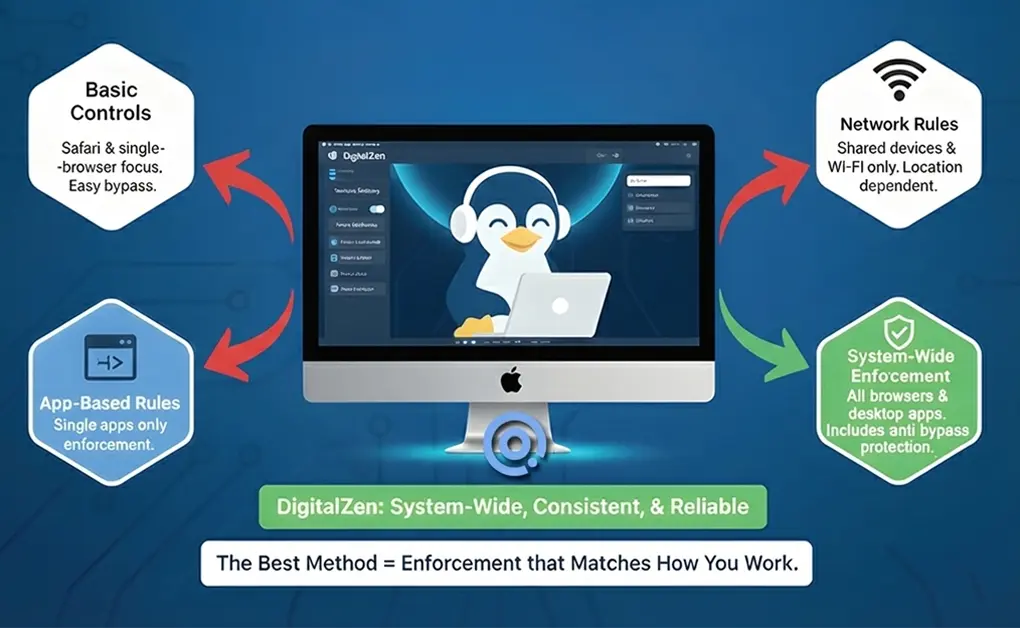
Blocking websites on macOS often feels effective at first, then slowly loses impact. The difference is not effort or discipline. It is enforcement depth. Tools that rely on browser rules or basic access controls work only as long as your behavior stays predictable.
The most reliable results come from choosing a method that matches how you actually use your Mac. Temporary focus sessions need light controls. Shared devices need broad access rules. Long-term productivity gains from system-wide consistency that persists across browsers and apps.
For users who want blocking that holds up across work sessions, browsers, and supported apps, system-wide tools like DigitalZen are designed to close the common gaps left by built-in macOS options. By applying one set of rules across the system without complex setup, DigitalZen supports focus in a way that adapts to real life rather than fighting it.
Frequently Asked Questions
Can I Permanently Block a Website on a Mac?
You can permanently block websites on a Mac, but the reliability depends on the method. macOS built-in tools like Screen Time and Terminal-based blocking can block a website, but they are easier to bypass or undo. For long-term enforcement, system-wide tools that apply real-time rules across apps and websites provide more durable blocking than access-based controls.
What Are the Limitations of Using Screen Time to Block Websites on Mac?
Screen Time works most consistently in Safari, but enforcement is unreliable in other browsers like Chrome or Firefox. Rules apply only to the signed-in user account, so switching accounts or browsers can bypass restrictions. It also lacks scheduling flexibility, usage-based limits, and anti-bypass protection.
For these reasons, Screen Time is best suited for basic parental controls, not long-term self-restriction or productivity-focused blocking.
How Do I Block Only Certain Websites on macOS?
To block certain websites on macOS, you can use Screen Time to create a list of websites or edit the hosts file to redirect the URL of the website to a non-resolving address. Screen Time supports content restrictions and blocks entire categories, while the hosts file blocks specific domains system-wide. Each method allows selective blocking but differs in flexibility and enforcement depth.
What Is the Most Reliable Way to Block Websites on a Mac?
The most reliable way to block websites on your Mac is system-wide blocking that applies in real time across browsers and supported apps. Unlike built-in parental controls or browser-only tools, system-wide solutions use advanced filtering options to enforce rules consistently, even when switching browsers or working across different apps and workflows.
References: