

You can block websites on Windows using the hosts file, DNS-based filtering, browser extensions, or system-wide blocking apps. Built-in tools and browser-based methods work for basic needs, but system-level blockers deliver the most reliable results across browsers and desktop apps by reducing common bypass methods and supporting long-term enforcement.
Key Takeaways
- Blocking effectiveness depends on where rules are enforced: Browser-level tools are easy to bypass, while system-wide enforcement applies restrictions consistently across Windows.
- The Windows hosts file is useful but limited: It blocks entire domains across browsers, but it is easy to undo and unreliable against modern apps and DNS behaviors.
- DNS-based filtering works best for broad category control: It can block large groups of related websites across all browsers, but it lacks precision and often requires manual whitelisting.
- Browser extensions prioritize convenience over consistency: They support page-level and keyword blocking but apply only to one browser and are easily bypassed by switching tools.
- System-wide blocking provides the most reliable enforcement: Desktop apps that block both websites and applications reduce common bypass methods and support schedules and time limits.
- Most blocking failures come from shallow enforcement: When disabling or bypassing a block is easy, restrictions rely on willpower instead of consistent rules.
- Reliable blockers favor consistency over complexity: Cross-browser support, app blocking, scheduling, and anti-bypass protection matter more than how easy a tool is to set up.
Method 1: Block Websites Using the Windows Hosts File (Built-In)
The Windows hosts file controls how your computer resolves domain names to IP addresses. By redirecting a website’s domain to a non-resolving IP address, Windows prevents the site from loading. Because this change happens at the operating system level, it affects all browsers on the computer.
Steps to Set Up Hosts File Blocking
Follow these steps to block a website using the hosts file:
- Open File Explorer and navigate to the Windows system directory where the hosts file is stored.
- Open the hosts file using a text editor with administrator privileges.
- Add the domains you want to block by mapping them to a non-resolving IP address.
- Save the file.
- Flush the DNS cache so Windows applies the changes immediately.
Once configured, the blocked websites fail to load in any browser on the system.
Pros and Limitations
Pros
- Free and built into Windows
- Applies across all browsers on the computer
- Does not require additional software
Limitations
- Blocks entire domains, not specific pages
- Easy to undo by editing the file again
- Unreliable against modern apps and DNS behaviors that bypass hosts file rules, such as built-in resolvers or cached connections
The hosts file works best as a basic or temporary blocking method, not as a long-term or habit-enforcement solution.
Method 2: Block Websites Using DNS-Based Filtering
DNS-based filtering blocks websites by controlling how domain names are resolved before any page loads. When your Windows device tries to access a website, the DNS service checks the domain against its rules and either allows or blocks the connection.
Instead of blocking individual URLs, DNS filtering typically uses content categories. This allows you to block large groups of related sites at once, such as social media, adult content, or gambling websites. Because DNS rules apply at the device or network level, they affect all browsers installed on Windows.
Steps to Set Up DNS-Based Filtering
To block websites using DNS filtering, follow these general steps:
- Choose a DNS filtering service that supports category-based blocking.
- Select the content categories you want to block, such as social media or adult content.
- Apply the DNS settings to your Windows device or your entire network.
- Test access to confirm the blocked sites are no longer reachable.
- Use allowlists to unblock specific websites if something important is blocked.
Once configured, DNS-based filtering restricts access across all browsers.
Pros and Limitations
Pros
- Scales well for blocking large groups of related websites
- Effective for category-based filtering
- Applies across all browsers on Windows
Limitations
- Can block legitimate websites unintentionally
- Requires manual whitelisting to fix overblocking
- Offers limited control over specific pages, keywords, or time-based schedules
DNS-based filtering works best when you need broad, category-level control, but it lacks the precision required for fine-grained or behavior-based blocking.
Method 3: Use Microsoft Family Safety (Edge-Based Filtering)
Microsoft Family Safety blocks websites by applying web and search filters through Microsoft Edge. The rules are tied to a Microsoft account, not the device itself, which makes this method suitable for managing online activity for children and family members.
Because the controls are account-based, restrictions follow the user’s Microsoft account when they sign in to Edge. The filtering does not apply outside of Microsoft Edge and does not affect other browsers or desktop apps on Windows.
Steps to Enable Microsoft Family Safety Filters
To block websites using Microsoft Family Safety, follow these steps:
- Create a Microsoft family group or use an existing one.
- Add the child or family member’s Microsoft account to the group.
- Enable web and search filtering for that account.
- Require the user to stay signed in to Microsoft Edge for the filters to remain active.
- Manage allowed and blocked websites through the Family Safety app or web dashboard.
Once enabled, Microsoft Edge blocks websites based on the rules you define.
Pros and Limitations
Pros
- Built into the Microsoft ecosystem
- Includes activity and search reporting
- Simple setup for family and child accounts
Limitations
- Works only in Microsoft Edge
- Requires Microsoft accounts for every user
- Not suitable for adult self-restriction or productivity-focused blocking
Microsoft Family Safety works well for parental controls in Edge, but it is not a system-wide or cross-browser blocking solution.
Method 4: Use Browser Extensions
Browser extensions block websites inside a single web browser. They work by stopping specific URLs, pages, or keywords before the content loads. Because the rules live entirely inside the browser, the blocking applies only to that browser and does not affect other browsers or desktop apps on Windows.
This makes browser extensions fast to set up, but limited in coverage.
Steps to Set Up a Browser Extension
To block websites using a browser extension, follow these steps:
- Install a website-blocking extension in your preferred browser. The DigitalZen free browser extension is one option that supports URL and keyword-based blocking.
- Add the URLs, pages, or keywords you want to block.
- Enable the extension so the rules take effect.
- Repeat this setup for every browser installed on the computer.
Once enabled, the extension blocks matching websites within that browser only.
Pros and Limitations
Pros
- Fast and easy to set up
- Supports page-level and keyword-based blocking
- Useful for targeted browsing habits
Limitations
- Enforcement applies to one browser only
- Easy to disable or remove
- Switching browsers bypasses the blocks
- Does not block desktop apps or system-wide traffic
Browser extensions work best for light, browser-specific blocking, but they are not suitable when you need consistent enforcement across Windows.
Method 5: Use a Third-Party App for System-Wide Blocking
System-wide blocking enforces rules at the Windows operating system level, not inside a single browser. This means the same restrictions apply across all browsers and supported desktop apps. Because the controls sit below the browser layer, switching browsers or opening standalone apps does not bypass the blocks.
This method prioritizes reliability over convenience and is designed for long-term focus and habit control.
Steps to Set Up System-Wide Blocking
To block websites and apps system-wide on Windows, follow these general steps:
- Install a desktop app that enforces blocking rules at the system level.
- Select the websites and desktop apps you want to restrict.
- Set schedules, daily limits, or focus sessions that match your routine.
- Enable protection features that prevent disabling or bypassing the rules.
Once configured, the restrictions remain consistently enforced.
Pros and Limitations
Pros
- Applies across all browsers on Windows
- Blocks both websites and desktop apps
- Supports schedules, time limits, and focus sessions
- Built for long-term reliability
Limitations
- Most system-wide blocking apps are paid tools rather than free solutions
How DigitalZen Fits This Approach
DigitalZen is a Freemium tool which enforces system-wide blocking using desktop agents on Linux, Windows, and macOS, paired with browser extensions. The same rules apply across major browsers and supported desktop apps, which prevents common bypass methods like switching tools.
This consistency is beneficial for gamers who switch between operating systems, remote professionals, and digital nomads who work on Windows laptops and MacBooks. DigitalZen supports flexible moderation and strict blocking, allowing you to adapt controls to real-world routines without relying on constant willpower.
Why Website Blocking Often Fails on Windows

Website blocking fails on Windows for predictable structural reasons. The issue is not the idea of blocking itself. It is where the restriction is enforced and how easy it is to bypass when focus drops.
Here are the most common failure points:
- Browser switching bypasses browser-only blocks:
When blocking rules exist inside one browser, opening another browser removes the restriction instantly. This happens even with well-configured extensions or Edge-only controls.
- Built-in Windows tools are not designed for habit enforcement:
Tools like the hosts file or account-based filters focus on basic access control, not behavior. They assume users will not actively work around the restriction, which rarely holds up in real use.
- Modern apps and browsers bypass simple domain blocking:
Many applications resolve connections internally, cache DNS results, or rely on multiple domains. Blocking a single domain often leaves gaps that appear only after the distraction is already open.
- Willpower-based blocking breaks down over time:
If disabling a block takes seconds, the block works only when motivation is high. When habits take over, the restriction disappears just as quickly. This is why many Windows users keep trying new tools but feel like nothing sticks. The problem is not effort. It is enforcement depth.
What to Look for in a Reliable Website Blocker on Windows
Not all website blockers solve the same problem. Some handle quick, temporary restrictions. Others are designed to hold up when focus drops or habits take over. To choose the right solution, you need to understand what actually makes blocking reliable on Windows.
Here are the key criteria to look for:
- System-wide enforcement: A reliable blocker applies rules at the Windows operating system level. This ensures the same restrictions apply no matter which browser or app you open.
- Cross-browser support: Blocking must work across all major browsers. If switching browsers removes the restriction, the block will not last.
- App blocking, not just website blocking: Many distractions live in desktop apps, not web pages. A tool that blocks only websites leaves major gaps in coverage.
- Scheduling and time limits: Reliable blockers support schedules, daily limits, and focus sessions. This lets you block distractions when they matter most without constant manual changes.
- Anti-bypass protection: Effective tools add friction to disabling, pausing, or removing blocks. That friction is what keeps restrictions in place when motivation drops.
- Easy setup without technical steps: Blocking should not require editing system files or memorizing commands. A simple setup increases the chance that the rules stay active long-term.
This checklist turns trial and error into an informed decision. Reliable blocking is less about strictness and more about consistency.
Conclusion: Blocking Websites Is About Reliability, Not Just Setup
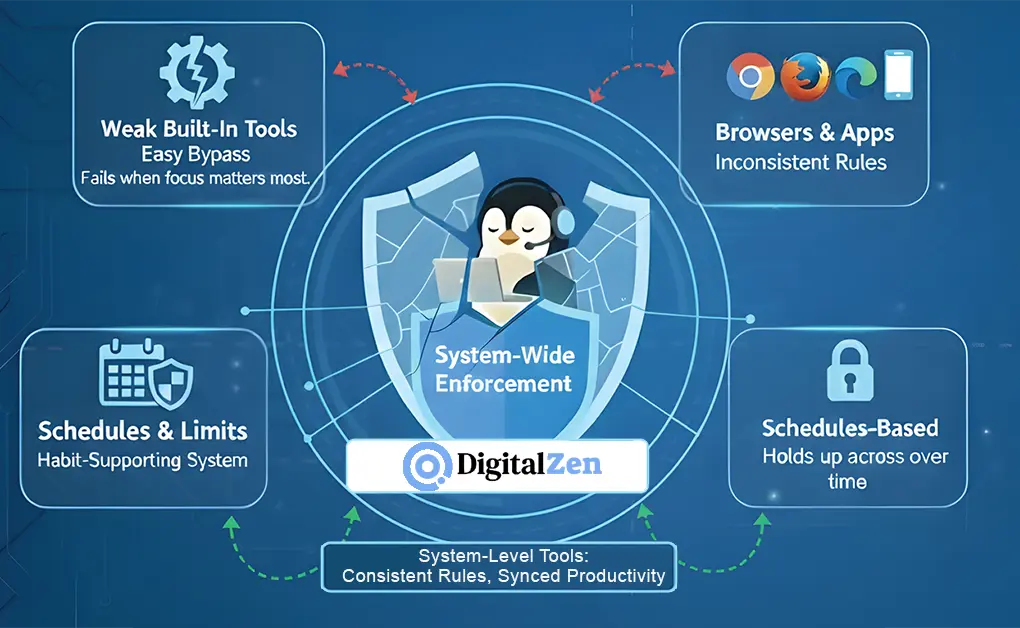
Blocking websites on Windows is easy to start and hard to sustain. Built-in tools, DNS rules, and browser extensions work to a point, but most rely on self-control at the exact moment distractions appear. When bypassing a block takes seconds, the restriction fails when focus matters most.
Reliable blocking comes from enforcement depth, not complexity. When rules apply consistently across browsers, apps, and time, you spend less mental energy resisting distractions. That consistency turns blocking from a temporary fix into a habit-supporting system.
If you need blocking that holds up across browsers and desktop apps, with schedules, limits, and protection against easy bypassing, system-level tools are the most effective option. DigitalZen is built around this idea, using desktop agents paired with browser extensions to apply the same rules everywhere, keeping productivity settings synced across devices and operating systems.
The best method is not the most technical one. It is the one that matches how you actually work, focus, and lose focus. Choose the level of control that supports your habits, not just the one that looks easiest to set up.
Frequently Asked Questions
How Do I Permanently Block a Website?
To permanently block a website on Windows, and for users looking into blocking websites on macOS, you need system-level enforcement that cannot be easily disabled or bypassed. Browser extensions and built-in tools rely on self-control and can be undone quickly. System-wide blocking tools apply consistent rules across browsers and apps, making the block durable over time.
Does Blocking Websites Using the Hosts File Affect All Browsers?
Yes, the hosts file blocking applies at the operating system level and affects all browsers on Windows, including Chrome and Firefox. However, it blocks only entire domains, not specific URLs, and can be bypassed by modern apps, DNS caching, and alternative resolution methods.
Why Do Website Blockers Stop Working Over Time?
Most website blockers stop working because they rely on shallow enforcement. When blocking unwanted websites is easy to disable or bypass, the restriction depends on willpower instead of consistent rules, which breaks down as habits and distractions take over.
Can I Block Both Websites and Apps on Windows?
Yes, system-wide blocking tools can restrict both websites and desktop applications. Solutions like DigitalZen apply the same rules across browsers and apps, closing gaps left by browser-only or DNS-based blocking methods.
How Do I Block a Specific URL in Google Chrome?
You can block a specific URL in Google Chrome using a browser extension that targets pages or keywords. This method works only inside Chrome, so switching browsers like Safari or Firefox bypasses the block unless you use a system-wide solution.
References: