
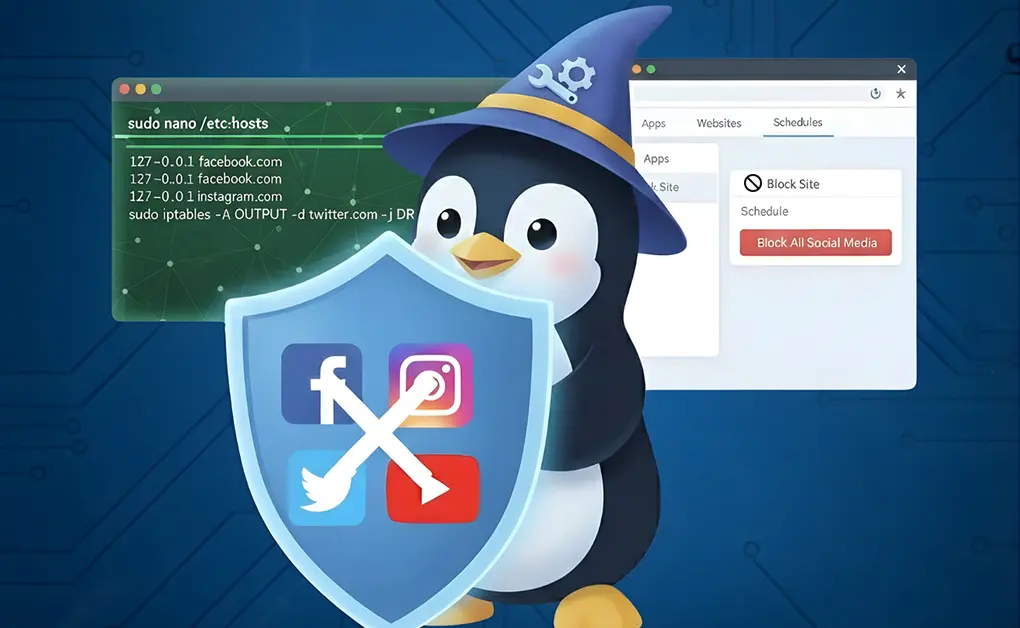
You can control social media usage on Linux using system-level blocks, firewall rules, browser extensions, or desktop tools. While basic methods fully block access, many users prefer moderation. Tools like DigitalZen support usage limits, schedules, and block-after-time rules to help manage social media more effectively.
Key Takeaways
- Linux offers both blocking and usage-control options: Simple methods like editing the /etc/hosts file or using firewall rules can fully block social media across the system, but they do not support moderation or time-based limits.
- Firewall rules enforce strict access, not moderation: Tools like iptables block traffic at the network level and are hard to bypass, but they are best suited for environments that require full restriction rather than controlled usage.
- Browser extensions support light usage control: Extensions are quick to set up and may offer basic time limits, but they only work in a single browser and are easy to disable or bypass.
- Desktop blockers enable true social media moderation: Dedicated tools like DigitalZen allow you to limit usage instead of fully blocking it, with features such as block-after-X-minutes rules, schedules, cross-browser enforcement, and app-level control.
- Usage control supports long-term focus and well-being: Moderating social media access helps reduce doomscrolling, protect focus, and build sustainable habits for professionals, students, parents, and remote workers.
Method 1: Fully Block Social Media on Linux Using the /etc/hosts File
The /etc/hosts file allows Linux to redirect selected social media domains to an invalid address, preventing them from loading across all browsers. This method is effective for blocking, but it offers no way to control usage, apply time limits, or allow limited access once the block is enabled.
How /etc/hosts Works
- Maps hostnames to IP addresses
- Overrides DNS lookups
- Applies system-wide, not just inside a browser
- Works in Firefox, Chrome, Brave, Vivaldi, and most apps that rely on DNS
Step-by-Step Instructions
- Open your terminal.
- Edit the hosts file:
sudo nano /etc/hosts
- Add entries for the domains you want to block:
127.0.0.1 facebook.com
127.0.0.1 www.facebook.com
127.0.0.1 instagram.com
127.0.0.1 www.instagram.com
127.0.0.1 tiktok.com
127.0.0.1 reddit.com
127.0.0.1 x.com
127.0.0.1 youtube.com
::1 facebook.com
::1 instagram.com
::1 tiktok.com
::1 reddit.com
::1 x.com
::1 youtube.com
- Save and exit.
- Flush your DNS cache so the new rules apply:
sudo systemctl restart network-manager
sudo /etc/init.d/nscd restart
sudo /etc/init.d/dnsmasq restart
sudo /etc/init.d/named restart
- Test with curl:
curl facebook.com
A connection error confirms the block. Avoid using ping because it does not rely on DNS.
Pros
- Lightweight
- Quick to set up
- Works system-wide
Cons
- Easy to bypass
- Requires manual updates for new domains
- Cannot block desktop apps like Discord or Telegram
- Does not support moderation, usage limits, or block-after-time rules
Method 2: Strictly Restrict Social Media Access on Linux Using iptables
iptables blocks social media traffic at the network layer, rejecting connections before they reach any browser or application. This method is built for enforcement, not moderation. Once enabled, access is either allowed or completely denied, with no support for time limits, usage tracking, or partial access.
How Firewall Blocking Works
- Filters traffic before it reaches applications
- Can match ports, IP addresses, or text inside packets
- Enforces rules across the entire system
- Useful in environments that require consistent, non-negotiable control
Step-by-Step: Domain Blocking with iptables
- Install iptables and persistence tools:
sudo apt update
sudo apt install iptables iptables-persistent
- Add rules using string matching to block social media domains:
sudo iptables -A OUTPUT -p tcp -m string –string “facebook.com” –algo kmp -j REJECT
sudo iptables -A OUTPUT -p tcp -m string –string “instagram.com” –algo kmp -j REJECT
sudo iptables -A OUTPUT -p tcp -m string –string “tiktok.com” –algo kmp -j REJECT
sudo iptables -A OUTPUT -p tcp -m string –string “reddit.com” –algo kmp -j REJECT
sudo iptables -A OUTPUT -p tcp -m string –string “x.com” –algo kmp -j REJECT
sudo iptables -A OUTPUT -p tcp -m string –string “youtube.com” –algo kmp -j REJECT
- Save your rules so they apply after reboot:
sudo bash -c “iptables-save > /etc/iptables/rules.v4”
sudo netfilter-persistent save
- Verify the rules:
sudo iptables -L OUTPUT -n -v
When configured correctly, any outgoing traffic that includes these domain names will be rejected.
Pros
- Hard to bypass
- Applies system-wide
- Effective for strict or shared environments
Cons
- Incorrect rules can disrupt networking
- Not ideal for users who want moderation, usage limits, or a low-risk setup
Method 3: Limit Social Media Usage on Linux with Free Browser Extensions Like DigitalZen
Browser extensions are the fastest way to manage social media access on Linux. Instead of full system-level blocking, they focus on browser-based control, allowing users to block specific pages, limit usage time, or restrict access after a defined period. This makes them useful for light moderation, but unreliable for long-term enforcement.
How Extensions Work
- Match and block specific URLs before the page loads
- Support path-based filters for features like Instagram Reels or YouTube Watch pages
- Apply only inside the browser where the extension is installed
- In some cases, track usage time and block sites after a defined limit is reached
Setup Steps
- Open your browser’s extension or add-ons store.
- Install a website-blocking extension. The DigitalZen free browser extension is one option that supports URL-based blocking and usage limits.
- Add URL patterns for the sites you want to block:
facebook.com/*
instagram.com/reels/*
youtube.com/watch*
tiktok.com/*
reddit.com/*
x.com/*
Pros
- Easiest method for most users
- No system changes or terminal commands
- Supports detailed URL and path-level blocking
- Some extensions support moderation, smart usage limits, or block-after-time rules
Cons
- Does not block desktop apps
- Incognito mode may bypass the block
- Only works in the browser where it’s installed
- Switching browsers bypasses the rules
- Easy to remove when distractions are tempting
Method 4: Control and Moderate Social Media Usage on Linux with a Dedicated Desktop Tool (DigitalZen)
A dedicated desktop tool provides the most effective way to control social media usage on Linux, rather than simply blocking it outright. Instead of relying on rigid, all-or-nothing restrictions, DigitalZen is built around moderation. It allows you to decide when, how long, and under what conditions social media is accessible, while enforcing those rules system-wide across browsers and apps.
Before getting started, verify your distribution is supported by viewing the list of supported Linux OS.
Why a Desktop Tool Is Needed for Usage Control
Manual methods like /etc/hosts and iptables are useful for full restriction, but they fall short when the goal is moderation. They cannot handle everyday usage-control needs such as:
- Setting schedules for work, study, or evenings
- Creating daily or session-based time limits
- Blocking desktop apps like Discord or Telegram
- Preventing easy removal or bypass
- Syncing rules across Firefox, Chrome, Brave, and Vivaldi
- Allowing limited social media access instead of permanent blocking
How to Set Up DigitalZen
You can set up DigitalZen in a few quick steps:
- Use the One-Click Setup: Click the One-Click Setup button inside the extension or on the DigitalZen website to apply recommended focus and usage-control settings instantly.
- Install the desktop agent for app control: If you want to control desktop apps like Discord or Telegram, install the desktop agent from within the app. This enables system-wide enforcement on Linux.
- Create your rules and limits: Open DigitalZen and add the websites or apps you want to control. You can apply schedules, usage limits, or block-after-time rules across all supported browsers and applications.
Pros
- System-wide enforcement
- App and website usage control
- Cross-browser support
- Schedules, timers, and moderation tools
- Anti-bypass features
Cons
- It is a freemium tool, which may not suit users looking for a 100% free-only solution
Why Controlling Social Media Usage on Linux Matters
Controlling social media usage on Linux helps you stay focused, reduce distractions, and protect your time without forcing all-or-nothing restrictions. For most people, moderation creates habits that last longer than strict blocking.
- Reduce doomscrolling without cutting access completely: Usage limits interrupt endless scrolling while still allowing intentional check-ins.
- Improve focus during deep work: Time-based controls remove quick-access distractions while preserving flexibility when breaks are needed.
- Support ADHD focus patterns: Structured limits reduce impulsive checking while maintaining a predictable routine.
- Improve work-life balance: Scheduling social media outside work hours helps separate focus time from personal time.
- Prevent late-night usage: Blocking access after a set time supports healthier sleep without permanent restrictions.
- Apply parental-style boundaries: Usage controls let parents guide access rather than relying on constant supervision.
- Build healthier digital habits long term: Moderation encourages awareness and self-regulation instead of rebound behavior.
- Help digital nomads stay productive: Controlled access keeps remote workers focused across cafés, airports, and shared spaces.
- Support gamers managing screen time: Limits between sessions reduce compulsive scrolling without interfering with gaming time.
- Help students stay on track: Time-based controls during study sessions reduce distractions while allowing breaks when appropriate.
Conclusion: Creating Sustainable Control Over Social Media on Linux
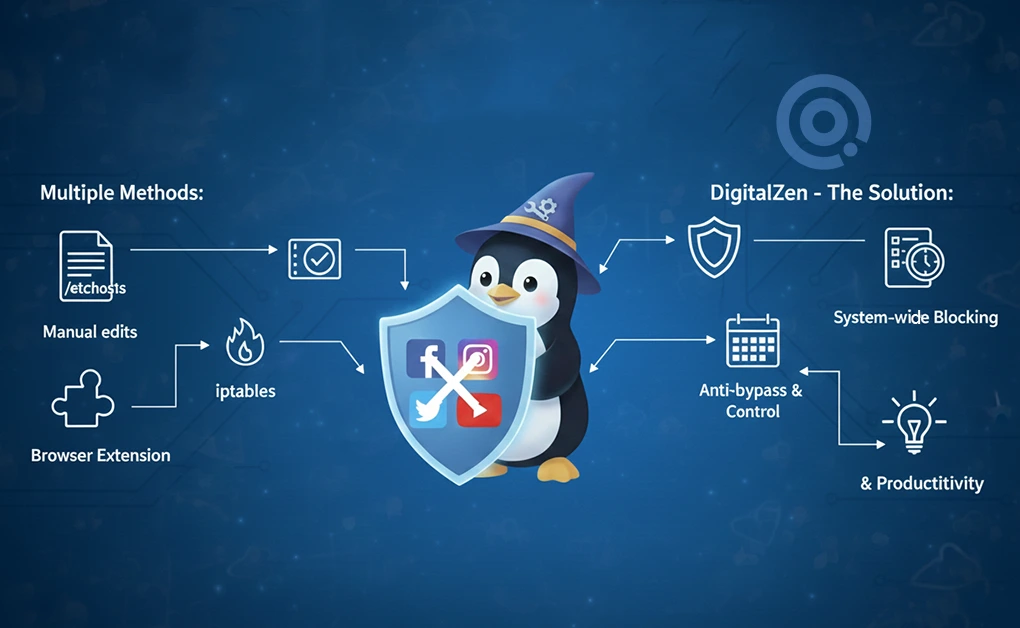
Linux offers several ways to manage social media access, from system-level restrictions to browser-based controls. While these approaches can reduce distractions, many rely on rigid rules or frequent manual changes. The right choice depends on how much consistency, flexibility, and usage control you need in daily life.
For most people, the goal is not permanent restriction, but maintaining boundaries that hold up over time. Tools like DigitalZen support system-wide website and app control, usage limits, schedules, and cross-browser enforcement, making it easier to manage social media intentionally rather than reactively.
If you want an approach that works across browsers and apps while supporting healthier digital habits on Linux, focusing on usage control and moderation offers a more sustainable path than relying on strict blocking alone.
Frequently Asked Questions
Can I Allow Limited Social Media Use Instead of Blocking It Completely?
Yes. Some tools allow you to set usage limits so social media remains accessible for a defined amount of time before being restricted. This approach is useful if you want boundaries rather than full blocks. DigitalZen supports usage-based limits across browsers and apps, which makes it easier to control social media use without cutting access entirely.
Can I Set Different Social Media Limits for Work Hours and Personal Time on Linux?
Yes. Some tools let you apply schedules and usage limits so social media is restricted during work hours but allowed in limited amounts during personal time. DigitalZen supports time-based rules across browsers and apps, making it easier to balance focus and downtime.
Can I Block Social Media on Linux Without Installing Any Apps?
Yes. You can block social media by editing /etc/hosts or creating iptables firewall rules. These methods work system-wide and require no additional software, but they do not block apps and are easy to undo.
How Do I Prevent Myself From Bypassing My Own Blocks?
Use a tool with anti-bypass protection. DigitalZen includes anti-uninstall, code locks, cooldown locks, and friend approval, which stop you from removing or disabling the block. If you’re setting up restrictions for someone else, such as a child or family member, you may need additional safeguards. For stronger family or child controls, check our article on Setting Up Safe Browsing for Kids on Linux.