
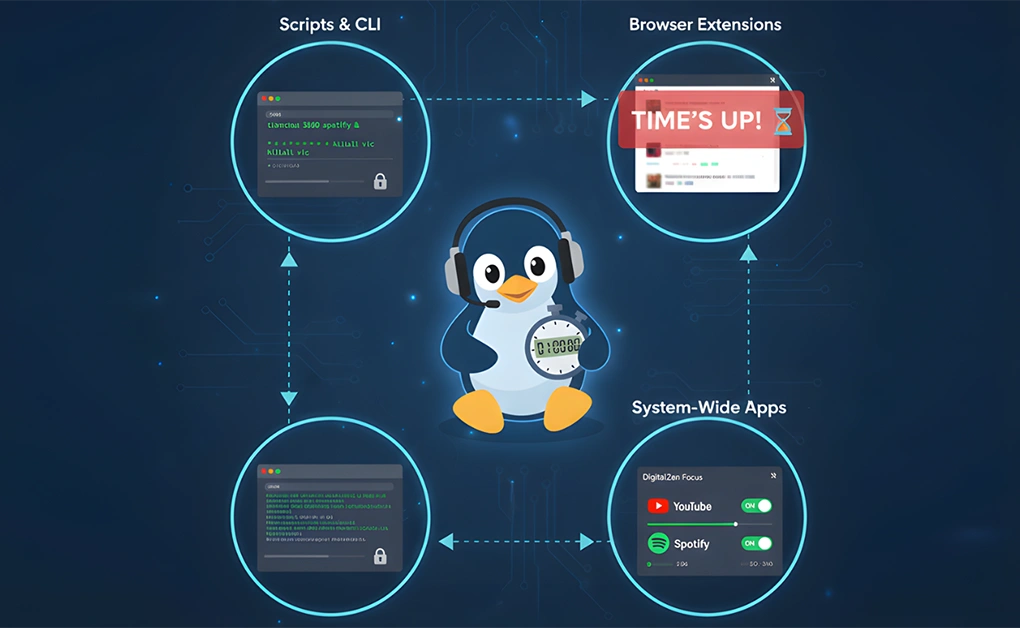
You can limit app usage time on Linux by enforcing rules at the process, browser, or operating system level. Common methods include using scripts to track app runtime, GNU timeout for per-session limits, browser extensions for web apps, and desktop apps for system-wide enforcement across browsers and native applications.
Key Takeaways
- Linux does not enforce app usage limits by default: Most native Linux tools track login activity instead of individual apps, which means distractions are measured but not actively stopped.
- Enforcement strength depends on the layer used: Scripts work at the process level, browser extensions work only on websites, and desktop apps enforce limits across the entire operating system.
- Script and command-line methods require technical upkeep: Bash scripts and GNU timeout offer control but depend on manual setup, cron jobs, and discipline, making them fragile for long-term habits.
- Browser extensions are convenient but easy to bypass: They work well for web-based distractions but fail when switching browsers, using private mode, or opening native desktop apps.
- OS-level desktop apps provide the most durable limits: System-wide enforcement holds up across browsers and native apps and remains effective when willpower drops or routines break.
Method 1: Limit Daily Usage Time for a Specific App Using a Script
The script monitors a specific application process and measures active runtime only while the process is running. When the accumulated runtime reaches the daily limit, the script terminates the process.
This approach is commonly used on Linux because there is no native app usage timer. It gives you direct control over one app by watching its process name.
How This Method Works
The script repeatedly checks for the presence of the target process using its process name. While the process exists, the runtime is counted in seconds and written to a local usage file tied to that application.
A daily reset occurs at midnight, so the app can be used the next day. Before enforcement kicks in, desktop notifications warn you that time is running out. Once the limit is exceeded, the script terminates the app process.
Step-by-Step Setup: Script-Based Daily App Usage Limit
Step 1: Create the Script File
Create a new file named timelimit:
nano timelimit
Paste the following script into the file:
#!/bin/bash
# timelimit – Set daily time limits for specific applications
if [ $# -ne 1 ]; then
echo “Usage: $(basename “$0″) APP_NAME”
exit 1
fi
export DISPLAY=:0
app_name=$@
time_to_play_daily=”2:30:00″ # Format: H[:M[:S]]
file=”$HOME/.count_time_$app_name”
if [ -f “$file” ]; then
if [ “$(head -1 “$file”)” != “$(date +%D)” ]; then
echo “$(date +%D)” > “$file”
echo “$time_to_play_daily” >> “$file”
fi
else
echo “$(date +%D)” > “$file”
echo “$time_to_play_daily” >> “$file”
fi
time_to_play_left=$(sed -n ‘2p’ “$file”)
countdown() {
sec_left=$(echo “$time_to_play_left” | awk -F: ‘{ print ($1 * 3600) + ($2 * 60) + $3 }’)
start=$(date +%s)
end=$((start + sec_left))
while [ “$(date +%s)” -lt “$end” ]; do
pid=$(pgrep -x “$app_name”)
if [ -z “$pid” ]; then
break
fi
sec_left=$((end – $(date +%s)))
time_to_play_left=”$((sec_left/3600)):$(((sec_left/60)%60)):$((sec_left%60))”
sed -i “2s/.*/$time_to_play_left/” “$file”
sleep 1
done
}
while true; do
pid=$(pgrep -x “$app_name”)
sleep 1
if [ -n “$pid” ]; then
notify-send “Time left for $app_name today: $time_to_play_left”
countdown
pid=$(pgrep -x “$app_name”)
if [ -n “$pid” ]; then
kill “$pid”
notify-send “Daily limit reached for $app_name”
fi
fi
done
Save and exit the editor.
Step 2: Make the Script Executable
chmod +x timelimit
Step 3: Test the Script Manually
Run the script from a terminal, replacing APP_NAME with the exact process name:
./timelimit steam
Leave the terminal open and launch the app. Confirm that:
- Desktop notifications appear
- The app closes automatically when the daily limit is reached
Step 4: Run the Script Automatically at Startup
Configure the script to start when you log in so enforcement works without manual steps.
You can do this by:
- Adding it to your desktop environment’s startup applications
- Or creating an autostart entry in:
~/.config/autostart/
Use the full path to the script when configuring startup.
Step 5: Reset the Timer Daily Using Cron
If your computer stays on overnight, reset the script at midnight.
Open your crontab:
crontab -e
Add this line, adjusting the path as needed:
0 0 * * * kill “$(pgrep -x timelimit)” && /full/path/to/timelimit steam
This stops the running script and restarts it with a fresh daily limit.
Where This Method Falls Short
Enforcement relies on killing processes, which can feel abrupt and disruptive. Apps that use multiple processes or helper services can bypass limits unless the script is carefully tuned.
The setup requires ongoing maintenance through cron jobs and startup hooks. Managing multiple apps quickly becomes complex, and the method is not practical for non-technical users who want a simple, reliable solution.
This approach controls individual processes but does not provide system-wide enforcement across apps, browsers, or sessions.
Method 2: Limit App Runtime Per Launch Using GNU Timeout
What This Method Is
GNU timeout is a standard Linux utility that caps how long a command is allowed to run. Once the specified runtime is reached, the process is terminated. Each launch is treated independently, with no memory of past usage.
How This Method Works
An application is started through the timeout command instead of being launched directly. Runtime is monitored from the moment the process starts.
If execution exceeds the defined duration, timeout kills the process. When the application exits before the limit, nothing happens, and the command ends normally.
Steps to Set This Method Up
1. Confirm timeout is available on your system:
timeout –help
2. Launch an application with a fixed runtime limit:
timeout 30m appname
3. Redirect input and output as needed:
timeout 10m appname >output.txt 2>error.txt
4. Wrap the command in a script or custom launcher if repeat usage is needed
Where This Method Falls Short
Limits apply per launch, not per day. Closing and reopening the application immediately resets the timer.
No usage tracking, scheduling, reminders, or enforcement protections are in place. This approach works only as a simple runtime cutoff, not as a true app usage time manager.
Method 3: Install a Desktop App for OS-Level App Usage Limits
What This Method Is
A desktop application enforces usage limits at the operating system level, not just inside a browser. Limits apply across desktop apps and browsers, giving you one place to control focus and distractions.
This approach is built for consistency and enforcement that holds up when willpower drops.
How This Method Works
The system starts with a browser extension that handles website control and onboarding. A desktop agent adds system-wide enforcement, allowing limits to apply to browsers, chat apps, and native desktop tools.
Usage rules such as daily limits, schedules, and focus sessions are enforced continuously, making this approach effective for blocking games on Linux, even when games are launched through browsers or desktop game clients.
DigitalZen uses this model on Linux to provide full OS-level blocking with optional protection layers.
Steps to Set This Method Up
- Install the DigitalZen browser extension
- Use One-Click Setup from the extension or the DigitalZen site to apply recommended focus and blocking rules
- Start using website limits immediately through the extension
- Install the desktop agent from within the app to enable app blocking
- Select desktop apps and categories to limit
- Define daily limits, schedules, or focus sessions
- Enable protection features to prevent bypassing, including:
- Preventing browser extension removal
- Blocking the app from being stopped or killed
- Enabling uninstall protection during active rules
Once installed, enforcement runs automatically in the background.
Where This Method Falls Short
Although there are free programs and offerings for Students and low-income countries/individuals, this solution is not free.
Method 4: Use Browser Extensions to Limit Web App Usage
What This Method Is
Browser extensions limit how much time you spend on specific websites or web apps. Enforcement happens only inside the browser, making this approach suitable for distractions that live entirely on the web.
These tools do not control native desktop applications or activity outside the browser.
How This Method Works
Time limits are set per website, making browser extensions a common way to block social media on Linux. When the daily limit is reached, the extension blocks access or shows a restriction page.
Some extensions add schedules or focus sessions, allowing sites to be blocked during work hours or unlocked during breaks.
Steps to Set This Method Up
- Install a time-limiting extension in your browser
- Select the websites or web apps to control
- Define daily limits, schedules, or focus rules
- Enable blocking behavior when limits are reached
- Repeat the setup for every browser you actively use
Where This Method Falls Short
Extensions can be disabled or removed with a few clicks. Opening a different browser immediately bypasses limits.
Native desktop applications are not affected, and private browsing modes often reset or ignore enforcement. Browser extensions offer convenience, not durable control.
Method 5: Use LittleBrother for User Time and Playtime Control
LittleBrother is a third-party Linux tool built for parental control and playtime management. It focuses on monitoring user activity and specific processes, most commonly games, and enforcing time limits when usage exceeds defined rules.
The tool is designed for parental supervision and user access control, not for personal productivity management or app-level focus workflows.
How This Method Works
LittleBrother runs using a client–server model. A master process stores rules, tracks usage history, and decides when limits are reached. Client processes run on Linux desktops and monitor activity locally.
As a user approaches their limit, spoken and visual warnings appear to give advance notice. Once the limit is exceeded, LittleBrother terminates the monitored process, ending the session or playtime.
Usage can be tracked across multiple sessions and, if configured, across multiple Linux machines.
Steps to Set This Method Up
- Install the LittleBrother master component on a designated system
- Install the client component on each Linux desktop to be monitored
- Define per-user rules such as:
- Maximum daily usage time
- Allowed time windows
- Session length and break requirements
- Enable notifications so users receive warnings before enforcement
- Optionally configure the web interface for remote administration and activity review
Where This Method Falls Short
Setup is complex due to the client–server architecture, which is heavy for individual users. The system is designed for parental control, not personal productivity or mindful screen time, and is easy to uninstall or overcome if you try to use it in your own account with admin permissions
Enforcement relies on terminating processes, which can feel abrupt and disruptive. App-level flexibility is limited, making it difficult to manage modern productivity scenarios that require per-app daily limits or flexible focus rules.
Why Limiting App Usage Time on Linux Is Harder Than It Should Be
Linux does not include a built-in screen time or app usage limiter like macOS or mobile operating systems. There is no native feature that tracks how long you spend inside specific apps or enforces daily usage limits automatically.
Most Linux tools focus on login sessions, not individual applications. They can tell when a user logs in or out, but they do not measure how much time is spent in Slack, a game, or a browser tab. That distinction matters because distractions happen at the app level, not at the login level.
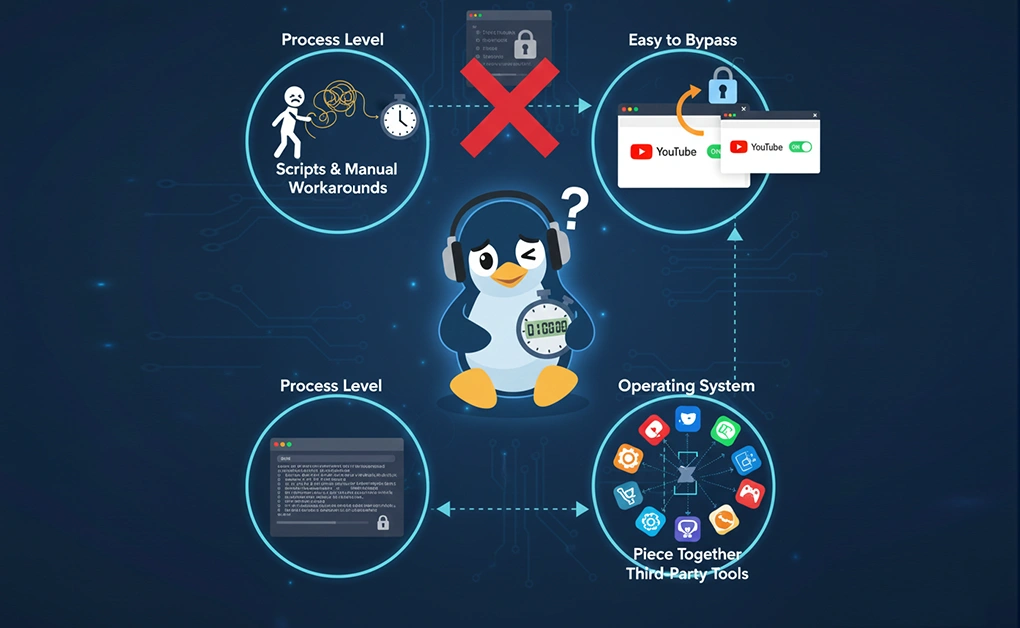
Limiting app usage time requires active enforcement, not just monitoring. Enforcement has to happen at one of three layers:
- The process level, where running apps are tracked and stopped
- The browser level, where websites and web apps are restricted
- The operating system level, where rules apply system-wide
Because Linux does not provide this enforcement natively, most solutions rely on scripts, manual workarounds, or third-party tools. That is why Linux users often piece together cron jobs, background scripts, browser extensions, or external apps just to achieve what other platforms offer by default.
How to Choose the Right Method for Your Linux Setup
The right approach depends on how much control you want, how technical you are, and how durable your setup needs to be, especially if you are applying practical Linux productivity tips to stay focused long term.
- Script-based methods suit technical users who want full manual control and are comfortable maintaining scripts and cron jobs.
- Parental-control tools fit shared or family systems where one person enforces rules for multiple users.
- GNU timeout works for short, one-off session limits, not daily habits or long-term behavior change.
- Browser extensions work only for web-based distractions and are easy to bypass by switching browsers or disabling the extension.
When OS-Level Enforcement Is the Right Choice
Desktop apps provide the most reliable way to limit app usage time on Linux because enforcement happens at the operating system level, not just inside a browser or script.
Advanced systems strengthen enforcement by adding intentional friction and behavioral safeguards, including:
- Time-based limits that restrict desktop apps and websites to a fixed number of minutes per day
- Moderation controls that limit social media or gaming to a defined daily duration
- Schedules that block apps during work hours, evenings, or overnight
- Focus sessions that block selected distractions or everything with one click
- Cooldown timers that force you to wait before unlocking blocked apps
- Delayed unlock codes create time to reconsider impulsive actions
- Friend-based unlocks that require approval from another person
- Protection against browser extension removal, so website limits stay enforced
- Prevention of stopping or killing the app while active rules are in place
- Uninstall protection to stop limits from being bypassed during moments of temptation
For full system-wide enforcement, both the browser extension and the desktop app must be installed. The extension handles onboarding and website control, while the desktop app enables app blocking, enforcement, and protection against bypassing.
This is where DigitalZen fits best. When installed with both components, it enforces app usage limits consistently across browsers and desktop apps, making limits stick even when focus slips.
Conclusion: Limiting App Usage Time on Linux
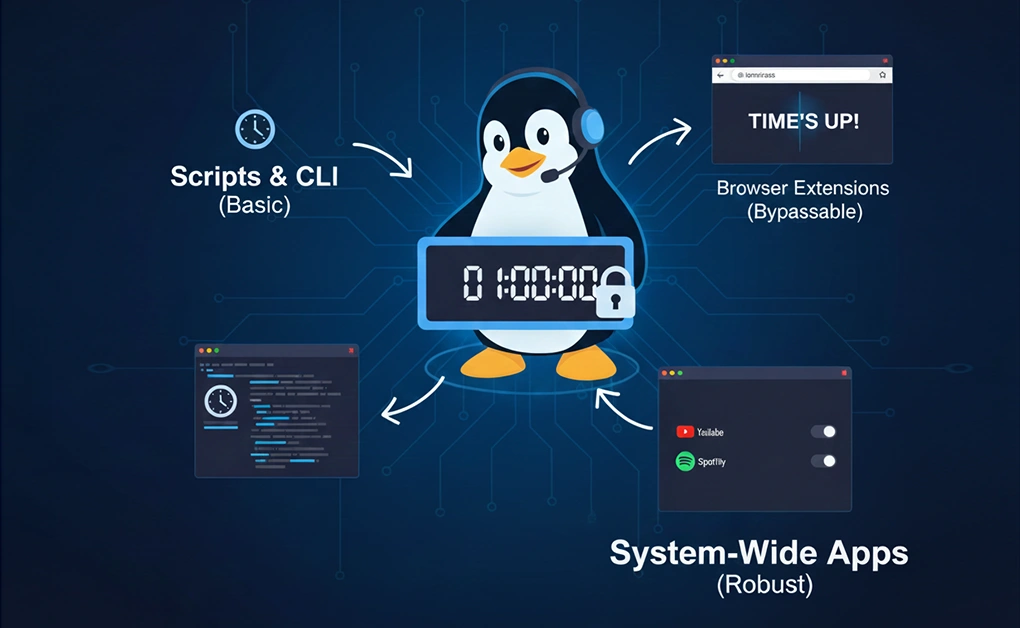
There are several ways to limit app usage time on Linux, from scripts and command-line tools to browser extensions and full desktop apps. Each method enforces limits at a different layer, with clear trade-offs between flexibility, reliability, and how easy it is to bypass.
Linux prioritizes flexibility over guardrails. That freedom is powerful, but it also means the system does not step in when focus slips or habits drift. Most native tools track activity without enforcing behavior. They can show what happened, but they do not stop distractions in the moment they matter.
This gap affects people who rely on Linux for serious work. Students are trying to study without drifting into social media. Freelancers and remote professionals manage flexible schedules where work tools and distractions coexist all day. Developers are balancing deep work with always-on communication tools. When boundaries are weak, focus erodes quickly.
If you only need a lightweight workaround, scripts and browser extensions can help. If you want limits that actually hold across browsers and desktop apps, tools like DigitalZen are built for that purpose. When installed with both the browser extension and desktop app, DigitalZen provides consistent, system-wide enforcement that makes app usage limits practical on Linux, not just theoretical.
Frequently Asked Questions
What Is The Best Way To Limit App Usage Time On Linux?
The best method depends on how durable you want the limits to be. Scripts and command-line tools work for technical users who want manual control. Browser extensions help with web-based distractions. Desktop apps that enforce rules at the operating system level provide the most reliable limits because they apply across browsers and native apps and are harder to bypass.
Can I Limit App Usage Time Per Day On Linux?
Yes, but not natively. Daily app usage limits on Linux require external solutions. Common approaches include background scripts that track runtime per app, third-party tools designed for user time control, browser extensions for websites, or desktop apps that enforce daily limits system-wide. The closer the enforcement is to the operating system, the more reliable daily limits become.
How Do I Block Specific Apps On Linux Without Writing Scripts?
You can block specific apps on Linux by using a desktop app that enforces rules at the operating system level. These tools let you select apps or categories to block, set daily limits or schedules, and apply restrictions automatically without scripts or cron jobs. Solutions like DigitalZen combine a browser extension with a desktop agent to provide consistent, system-wide app blocking that is easier to maintain long term.
Is It Possible To Limit App Usage Time Across Multiple Browsers And Desktop Apps?
Yes, but only with OS-level enforcement. Scripts and browser extensions work in isolation and cannot share limits across browsers or control native desktop apps. To apply one consistent limit across Chrome, Firefox, and desktop applications, you need a desktop app that monitors running processes system-wide.
Tools like DigitalZen do this by combining a browser extension for web control with a desktop agent that enforces the same rules across all browsers and installed apps.
References:
- https://askubuntu.com/questions/226539/set-time-limits-for-specific-applications-such-as-games
- https://snapcraft.io/little-brother-slave
- https://unix.stackexchange.com/questions/109148/how-to-control-the-time-that-users-spend-on#:~:text=You%20can%20use%20the%20pam_time%20PAM%20module,break%20after%20a%20certain%20maximum%20session%20time
- https://stackoverflow.com/questions/687948/how-to-run-a-command-with-a-timeout-so-that-it-is-killed-if-it-exceeds-the-timeo