
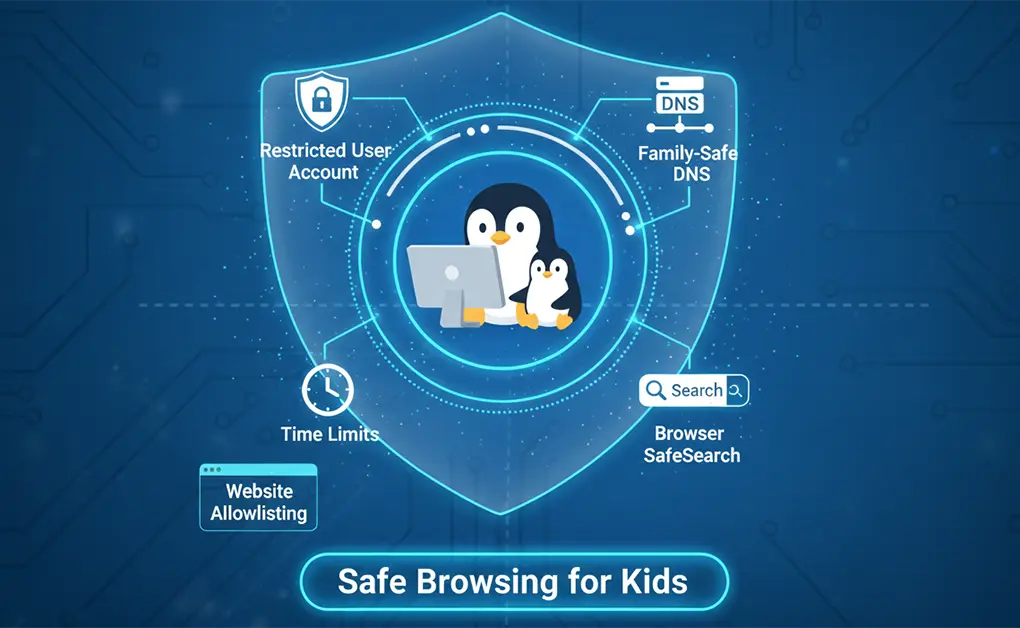
To set up safe browsing for kids on Linux, create a restricted (non-admin) user account, apply family-safe DNS filtering, enable browser SafeSearch, and set time limits. For younger children, use website allowlisting. Combining these layers prevents easy bypasses and reduces exposure to unsafe content across browsers and apps.
Key Takeaways
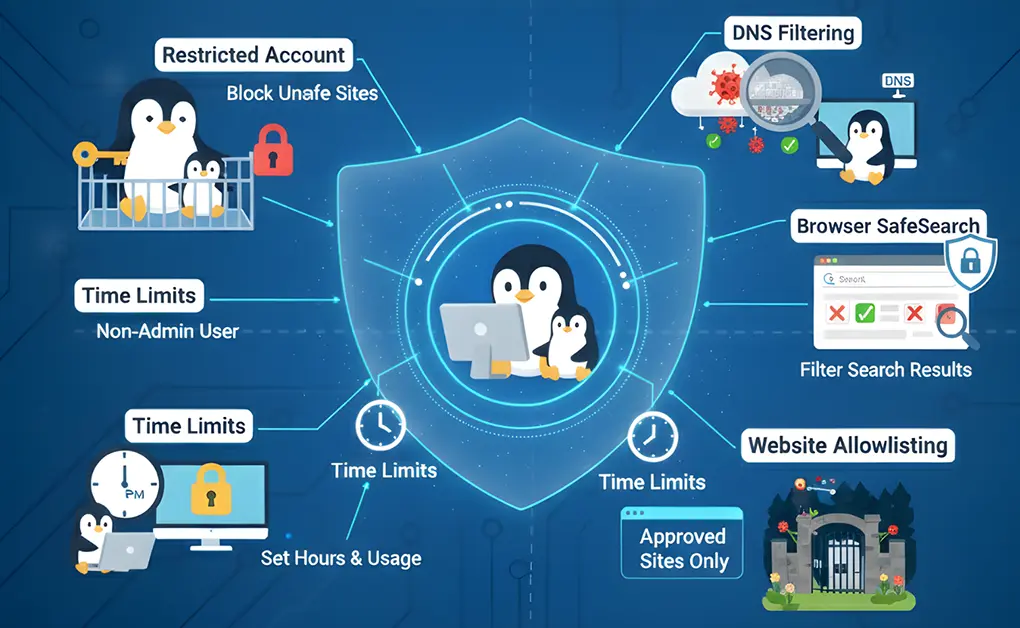
- Safe browsing on Linux requires multiple layers: No single setting protects children online. Combining user accounts, DNS filtering, SafeSearch, time limits, and allowlisting closes different safety gaps.
- Restricted user accounts prevent easy bypasses: Using a non-admin account stops children from changing system settings, installing new browsers, or disabling protections.
- DNS filtering blocks unsafe sites before they load: Family-safe DNS services stop adult and malicious domains across browsers and apps, even when links are clicked accidentally.
- Browser SafeSearch reduces exposure from images and video: Enforcing SafeSearch and Restricted Mode limits risky thumbnails, recommendations, and autoplay content during searches.
- Time limits control access, not content: Scheduling tools manage when devices are used, but they must be combined with content filtering to be effective.
- Allowlisting is safest for younger children: Limiting access to approved educational websites removes accidental exposure but becomes too restrictive for older kids.
- Consistent enforcement matters on shared or portable devices: Tools like DigitalZen help keep rules active across browsers and desktop apps without monitoring activity.
5 Methods to Set Up Safe Browsing for Kids on Linux
Method 1: Create a Restricted (Non-Admin) User Account
A restricted user account is a standard Linux login that does not have administrator privileges. This matters because most “bypasses” on Linux require admin access. If a child is using an admin account, they can install new browsers, disable protections, change DNS settings, or undo restrictions in a few clicks.
A standard (non-admin) account reduces that risk by design. It limits access to system settings, software installation, and security-related configuration changes. That gives you a stable foundation for safe browsing controls.
How to Set It Up
- Create a standard user account for your child
- Open Settings (or System Settings)
- Go to Users (sometimes labeled Users and Groups)
- Click Add User
- Create the account as a Standard user (not Administrator)
- Set separate passwords
- Set a password for the parent/admin account that your child does not know
- Set a separate password for the child account (or keep it simple if you log them in)
- Disable guest sessions
- Open Login Window or Users settings
- Turn off Guest session or Allow guest logins
- Restart if your system prompts you to apply changes
Limitations
- A restricted user account does not filter websites or search results. It prevents changes to system and browser settings, but it must be combined with DNS filtering or browser SafeSearch to block adult and unsafe content.
Method 2: Use Network-Level DNS Filtering
Network-level DNS filtering blocks unsafe websites before they load. DNS is the system that translates website names into IP addresses. When you use a family-safe DNS service, requests to known adult, malicious, or unsafe domains are stopped at the lookup stage. The page never loads because the address is never resolved.
This method works across browsers and apps. It does not matter whether your child uses Firefox, Chromium, a desktop app, or a built-in updater. Any internet request that relies on DNS goes through the filter.
How to Set It Up
1. Choose a family-safe DNS provider
- Common options include CleanBrowsing Family Filter and OpenDNS Family Shield. These services maintain category-based blocklists for adult content, malware, and explicit domains.
2. Apply DNS filtering at one or more levels
- Router level: Configure the DNS servers on your home router to protect all devices connected to your Wi-Fi, including phones, tablets, and laptops.
- System-level (Linux device): Modify the DNS settings in your Linux network configuration to apply filtering to all browsers and applications on that device.
- Browser level (DNS-over-HTTPS): Configure DNS-over-HTTPS inside the browser to keep filtering active even if system DNS settings are changed.
You can use one level or combine them. Router-level DNS offers the broadest coverage. System- or browser-level DNS is useful when a laptop leaves the home network.
Limitations
- DNS filtering does not control how long a device is used. It blocks categories of sites, not usage time.
- DNS filtering does not block every distraction. Many safe but time-consuming platforms still load unless you add browser or app-level controls.
Method 3: Enable Browser-Level SafeSearch and Parental Controls
Browser-level SafeSearch controls filter search results and media recommendations before they appear on screen. When SafeSearch is enforced, search engines hide explicit images, videos, and text. Video platforms also limit recommendations that contain adult or mature content.
This method matters because search is a common exposure path. Kids often search for harmless topics and still encounter inappropriate images or videos through thumbnails, suggestions, or autoplay.
How to Set It Up
Enable SafeSearch in search engines
- Turn on SafeSearch in your Google account or browser settings
- Lock SafeSearch when the option is available, so it cannot be turned off
Enable Restricted Mode in YouTube
- Turn on Restricted Mode in YouTube settings
- Sign in to enforce it consistently across sessions
Use Firefox parental controls
- Enable Firefox parental controls to force SafeSearch and Restricted Mode
- Prevent children from disabling these settings inside the browser
Add enforcement with a browser extension
- Install a browser extension that enforces website rules and schedules
- Tools like the DigitalZen browser extension apply consistent blocking inside the browser, even when SafeSearch is enabled
Optionally set a kid-friendly search engine
- Choose a child-focused search engine as the default to reduce image and video exposure
Limitations
- Browser-level controls apply only inside the browser where they are configured. Switching browsers or using desktop apps bypasses these protections unless system or network controls are also in place.
Method 4: Set Time Limits for Computer and Internet Use
Time limits control when a child can use a Linux device. Instead of filtering websites, this method restricts access to specific hours or caps total daily usage. It helps prevent late-night browsing, reduces unsupervised screen time, and supports routines around homework and sleep, including blocking social media on Linux during specific hours.
Time-based controls work as a supporting layer. They manage access windows, not the content shown during those windows.
How to Set It Up
Install a time-based control tool
- Use a Linux-compatible option such as Timekpr-nExT
- Install it through your software manager or package repository
Assign limits per child account
- Select the child’s user account inside the tool
- Set daily usage limits and allowed login hours
- Lock access outside the approved schedule
Once configured, the system enforces these limits automatically without ongoing supervision.
Limitations
- Time limits do not filter content. Unsafe websites can still load during allowed hours unless other protections are active.
- Time limits treat all websites the same. Educational and inappropriate content are not distinguished unless DNS filtering or browser SafeSearch is also in place.
Method 5: Allowlist Approved Websites for Younger Children
Allowlisting allows only a short list of approved websites to load and blocks everything else by default. Instead of filtering unsafe content, it limits access to specific educational or homework-related sites.
This method removes accidental exposure completely. If a website is not on the approved list, it does not load. For young children who only need access to a few learning platforms, this is one of the safest setups available.
How to Set It Up
Configure allowlisting at the router or firewall level
- Open your router or firewall settings
- Enable domain allowlisting or a strict filtering mode
Add approved websites
- List only the homework, school, or learning websites your child needs
- Keep the list short to reduce mistakes and coverage gaps
Once configured, allowlisting works automatically. Children cannot access unapproved sites, even if they type the address manually or click links.
Limitations
- Allowlisting works only on the home network. It does not protect devices when they connect to other Wi-Fi networks.
- Allowlisting is too restrictive for older children and preteens who need broader access for research, communication, and schoolwork.
When Built-In Linux Controls Aren’t Enough: Adding Consistent Enforcement
What the Enforcement Layer Does Not Replace
This enforcement layer does not replace DNS filtering, Linux user accounts, or browser SafeSearch. It does not monitor browsing history or record activity. It works alongside existing controls to enforce the boundaries you already set, without adding surveillance.
The Gaps Left by Native Linux Methods
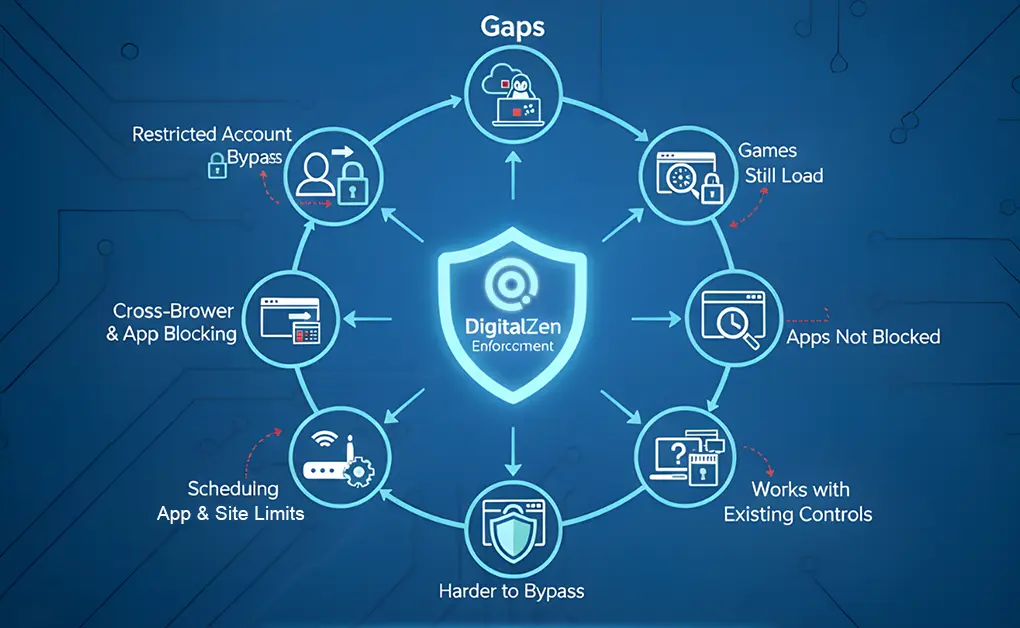
Linux safety tools solve individual problems but do not work together. DNS filtering blocks unsafe domains but still allows access to many distracting sites. Browser controls apply only within a single browser. Time limits manage access hours, not content. Router rules protect devices at home, but do not work on other networks. This creates gaps where restrictions fail during everyday use.
How DigitalZen Complements the 5 Methods
DigitalZen adds an enforcement layer that Linux does not provide by default. This layer keeps blocking and scheduling rules consistent across browsers and desktop apps. It works alongside user accounts, DNS filtering, browser SafeSearch, and time limits, which is especially useful on shared or portable Linux devices.
1. Consistent Enforcement Across Browsers and Apps
DNS filtering and browser SafeSearch work at specific layers. DigitalZen applies the same blocking rules across supported browsers and desktop applications on compatible Linux distributions. Unsupported browsers can be blocked entirely, which removes gaps where restrictions apply in one browser but not another.
2. Easy Setup Without Technical Configuration
Many Linux safety tools rely on terminal commands or manual configuration. DigitalZen uses a simple interface where parents select websites and apps from lists instead of managing system rules. This reduces setup time and removes the need for Linux-specific expertise.
3. Harder to Bypass Without Monitoring
Optional protections in the desktop app prevent browser extensions from being removed, stop the app from being disabled, and block uninstallation when enabled. These controls keep boundaries in place without tracking browsing history or monitoring activity.
4. Scheduling and Moderation That Support Healthy Use
Scheduling and usage limits work at the app and website level. Parents can block distractions during homework hours, limit gaming or social media time, including blocking online games on Linux, and restrict late-night use. This supports healthier habits by managing behavior, not just filtering content.
Conclusion: Safe Browsing on Linux Is About Layers, Not a Single Tool
Linux gives parents control, but it does not provide a built-in, all-in-one solution for safe browsing. Creating a child-friendly setup means combining the right layers instead of relying on a single setting or app.
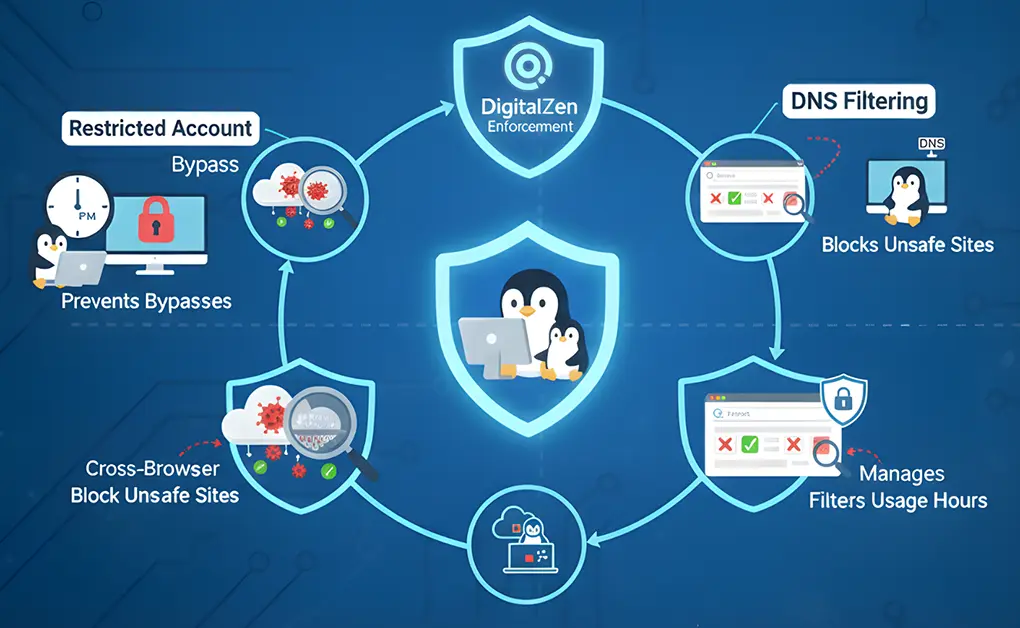
Restricted user accounts reduce easy bypasses. DNS filtering blocks unsafe domains early. Browser SafeSearch limits risky images and videos. Time limits control when devices are used. Allowlisting offers maximum protection for younger children. Each layer covers a different gap.
For families who want those rules to stay consistent across browsers and desktop apps, tools like DigitalZen, a Linux website and app blocker, can help reinforce the setup without monitoring activity or invading privacy. The goal is not a strict lockdown, but protection, balance, and healthy digital habits that can adapt as children grow.
Frequently Asked Questions
Are There Parental Controls on Linux?
Linux does not include a single, built-in parental control system like some other operating systems. Instead, parental controls on Linux are created by combining multiple tools, such as restricted user accounts, DNS filtering, browser SafeSearch settings, and time-based limits. This layered approach gives flexibility, but it requires manual setup rather than a one-click solution.
How Do I Stop My Child From Accessing Inappropriate Sites on Linux?
Use DNS-based filtering with a family-safe provider to block adult and malicious sites before they load. Combine this with browser SafeSearch and a restricted (non-admin) user account to prevent easy changes.
How Can I Prevent Kids From Bypassing Browser Restrictions on Linux?
Start by making sure your child uses a standard (non-admin) user account. This prevents changing system and browser settings. For additional enforcement, use tools that apply rules consistently across browsers and apps, such as a Linux website and app blocker, so restrictions do not disappear when a different browser is used.
What Is the Safest Setup for Younger Children Using Linux?
For younger children, allowlisting is the safest option. This setup blocks the entire internet except for approved educational or homework websites. It removes accidental exposure completely, but it works best on home networks and becomes too restrictive as children grow older.
References:
- https://www.reddit.com/r/Ubuntu/comments/1dc0fhz/safe_browsing_for_kids_on_firefox_ubuntu/
- https://forums.linuxmint.com/viewtopic.php?t=431897
- https://cyberhacktics.com/set-up-safe-browsing-for-kids/
- https://www.linux.org/threads/parental-controls-on-linux.45913/
- https://www.geeksforgeeks.org/linux-unix/set-internet-parental-controls-linux-mint/