
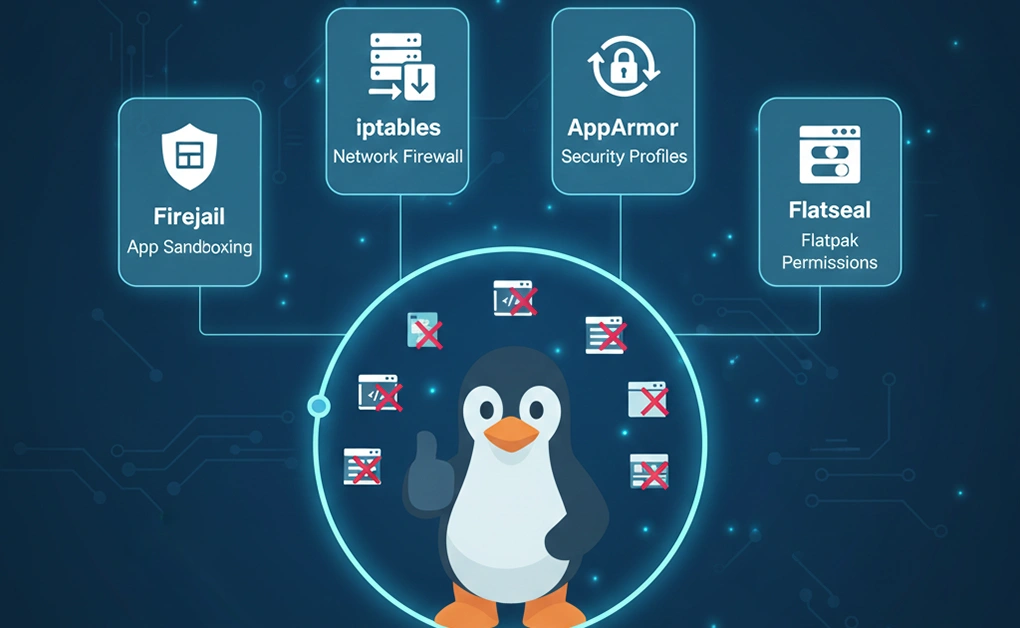
You can block internet access for applications on Linux by using tools like Firejail, iptables, AppArmor, or Flatseal. Each method isolates or filters network connections so specific apps cannot go online, while others continue to work normally. These techniques give you precise control over which programs can access the internet.
Key Takeaways
- Use Firejail for quick isolation: Sandbox any app instantly with the –net=none option to cut network access.
- Apply iptables for network-level rules: Create firewall filters to block specific users or app groups from connecting.
- Enforce control with AppArmor: Define mandatory access profiles to restrict internet usage for chosen applications.
- Manage Flatpak apps visually: Use Flatseal to toggle network permissions through a simple graphical interface.
- Prefer simpler solutions: Choose third-party focus and blocking tools if you want easy, no-command setup across Linux, macOS, or Windows.
Method 1: Using Firejail
Option A: Run an App With No Internet (One-Time)
Step 1: Install Firejail
On Linux Mint / Ubuntu / Debian:
sudo apt update
sudo apt install firejail
You can check if it is installed correctly with:
firejail –version
Step 2: Test Firejail Normally (Optional but nice to do)
Run a simple app in a sandbox to confirm Firejail works:
firejail xed
If xed opens normally, Firejail is working.
Step 3: Run the App With No Network
Now run the app you want to block without internet:
firejail –net=none appname
Examples:
firejail –net=none xed
firejail –net=none code
firejail –net=none firefox
What this does:
- Creates a private “network namespace” for that process.
- The app can try to connect, but there’s no real network interface, so nothing goes out.
Step 4: Verify It’s Sandboxed (Optional)
You can see all apps currently running under Firejail:
firejail –list
Try browsing or updating inside that app; it shouldn’t be able to reach the internet.
Option B: Make “No Internet” the Default for an App
If you always want a specific app to run with no network when launched via Firejail:
Step 1: Find the App Name
Firejail looks for a profile that matches the command name.
For example:
- xed → /etc/firejail/xed.profile
- firefox → /etc/firejail/firefox.profile
- code → /etc/firejail/code.profile
Step 2: Create or Edit the Firejail Profile
Create (or edit) a profile for your app:
sudo nano /etc/firejail/appname.profile
Example for xed:
sudo nano /etc/firejail/xed.profile
Add this minimal content:
# Firejail profile for xed with no network
include /etc/firejail/generic.profile
net none
Explanation:
- include /etc/firejail/generic.profile → gives it a sane default sandbox.
- net none → tells Firejail to block all network access for this app.
Save and exit (Ctrl+O, Enter, Ctrl+X in nano).
Step 3: Run the App With Firejail
Now just run:
firejail xed
Because xed.profile exists and contains net none, Firejail will automatically:
- Sandbox xed
- Start it offline every time
If you want, you can also edit your desktop launcher to use firejail xed so clicking the icon always launches the sandboxed/offline version.
Method 2: Using Iptables
You can use iptables, the built-in Linux firewall, to block internet access for specific users or applications. By creating a special group and adding filtering rules, you can prevent any process in that group from connecting to the internet.
Step-by-Step Breakdown
Step 1: Create a restricted group
sudo groupadd no-internet
This group will represent processes that should not have Internet access.
Step 2: Assign a user or app to that group
You can add an existing user:
sudo usermod -a -G no-internet username
Or verify group creation:
grep no-internet /etc/group
sudo groups username
If you only want to sandbox specific apps (not the entire user), you’ll run them as that group later (see step 5).
Step 3: Create a helper script to simplify running apps in the “no-internet” group
Example:
mkdir -p ~/.local/bin
nano ~/.local/bin/no-internet
Paste:
#!/bin/bash
exec sg no-internet “$@”
Make it executable:
chmod 755 ~/.local/bin/no-internet
This lets you launch an app with:
no-internet firefox
which automatically runs it under the restricted group context.
Step 4: Add iptables rules to block network traffic for that group
Recommended rule:
sudo iptables -I OUTPUT 1 -m owner –gid-owner no-internet -j DROP
Explanation:
- -I OUTPUT 1 → inserts the rule at the top of the OUTPUT chain, ensuring it executes before other rules.
- -m owner –gid-owner no-internet → matches packets from any process in that group.
- -j DROP → silently drops all such packets (you can use REJECT if you prefer visible errors).
To block IPv6 as well:
sudo ip6tables -I OUTPUT 1 -m owner –gid-owner no-internet -j DROP
Step 5: Test the setup
Run:
no-internet firefox
or
sudo -g no-internet firefox
Try visiting any site, it will fail to connect, confirming the rule works.
Step 6: (Optional) Allow local network or loopback exceptions
To permit local services like printing or localhost sockets:
sudo iptables -A OUTPUT -m owner –gid-owner no-internet -d 192.168.1.0/24 -j ACCEPT
sudo iptables -A OUTPUT -m owner –gid-owner no-internet -d 127.0.0.0/8 -j ACCEPT
sudo iptables -A OUTPUT -m owner –gid-owner no-internet -j DROP
Order matters: ACCEPT rules must appear before the final DROP.
Step 7: Make the rules persistent
Install the helper package:
sudo apt install iptables-persistent
sudo netfilter-persistent save
On Fedora or Arch, save manually with:
sudo iptables-save > /etc/iptables/rules.v4
sudo ip6tables-save > /etc/iptables/rules.v6
Method 3: Using AppArmor
AppArmor is a Linux security framework that applies Mandatory Access Control (MAC) to individual applications. Instead of managing permissions by user accounts, AppArmor binds security profiles directly to programs, defining exactly which files, system resources, and network connections they can access.
By creating or editing a profile for a specific application, you can completely block its internet access while allowing it to function normally in other respects.
Steps to Block Internet Access Using AppArmor
Step 1: Install AppArmor utilities
AppArmor is built into most Ubuntu-based systems by default. To make sure you have the tools needed:
sudo apt install apparmor apparmor-utils
Step 2: Generate a profile for the target application
Use the aa-genprof tool to create a base profile while running the app:
sudo aa-genprof /usr/bin/appname
This command starts a learning session. Open and use the application normally so AppArmor can record what it does. When finished, press S to save the profile.
Step 3: Edit the profile to deny network access
Open the newly created profile in a text editor:
sudo nano /etc/apparmor.d/usr.bin.appname
Add the following rules inside the braces { }:
deny network,
deny network inet stream,
deny network inet6 stream,
deny capability net_raw,
These rules prevent the app from opening TCP, UDP, or raw socket connections for both IPv4 and IPv6.
Step 4: Reload the updated profile
Apply your changes by reloading the profile:
sudo apparmor_parser -r /etc/apparmor.d/usr.bin.appname
Step 5: Enable enforce mode
Switch the profile from complain (learning) mode to enforce (active blocking):
sudo aa-enforce /etc/apparmor.d/usr.bin.appname
AppArmor will now block all network-related system calls for that application.
Step 6: Verify the restriction
Run the application and try to access the internet. It should behave normally otherwise but fail to connect to any online resource. You can confirm that the rules are loaded with:
sudo aa-status
To check detailed logs of blocked actions, view the system journal:
sudo journalctl -fx
Tip: If the app starts malfunctioning, you can temporarily disable or switch the profile back to complain mode using sudo aa-complain /etc/apparmor.d/usr.bin.appname.
Method 4: Using Flatpak and Flatseal
Flatpak is a universal framework for distributing and running Linux desktop applications inside secure, isolated sandboxes. Each Flatpak app runs separately from the main system, with restricted access to files, devices, and the network. This allows blocking internet access for specific applications without affecting the rest of the system.
Flatseal is a graphical permission manager for Flatpak. It provides an easy way to view and control what each Flatpak app can access, including its ability to connect to the internet.
Steps to Block Internet Access with Flatpak and Flatseal
Step 1: Install Flatpak (if not already installed)
Flatpak is included in most modern Linux distributions, but if needed, install it using:
sudo apt install flatpak
or on Fedora:
sudo dnf install flatpak
Step 2: Add the Flathub repository
Flathub is the main source of Flatpak apps:
flatpak remote-add –if-not-exists flathub
https://flathub.org/repo/flathub.flatpakrepo
Step 3: Install Flatseal
Install the Flatseal permission manager from Flathub:
flatpak install flathub com.github.tchx84.Flatseal
Step 4: Open Flatseal
Launch Flatseal from your applications menu, or run:
flatpak run com.github.tchx84.Flatseal
Step 5: Select the application
In the left panel, click the app you want to restrict.
You’ll see its permissions and sandbox configuration on the right.
Step 6: Disable network access
Scroll to the Network section and toggle the switch off.
This removes the app’s ability to access the internet or communicate with other network services.
Step 7: Restart the application
Close and reopen the target app. It should now be fully blocked from connecting to the internet, while other Flatpak apps remain unaffected.
Don’t Want to Mess With Firewalls or Profiles

If all the command-line methods above feel too technical or you just want something simpler and more flexible, you are not alone.
Many Linux users prefer a clean, distraction-free solution that works out of the box and helps them stay focused without touching iptables or AppArmor.
You might want a tool that lets you:
- Block both apps and websites in one place
- Set daily limits or focus sessions
- Take short breaks or pauses when needed
- Use it across Linux, macOS, and Windows
- Balance productivity and digital wellbeing, not just enforce network restrictions
Use a Third-Party App for Effortless Website and App Blocking
If you prefer not to manage system-level settings manually, you can use a third-party focus and productivity app that combines website and application blocking in one place.
These tools provide an intuitive interface for controlling which websites and desktop applications can access the internet. Instead of editing configuration files or creating firewall rules, you can:
- Choose which apps or sites to block
- Set focus sessions or daily time limits
- Schedule blocking periods or allow breaks
Modern focus tools are available for Linux, macOS, and Windows and are designed for users who want a balance between productivity and flexibility. They help you stay focused and moderate screen time without complex configuration or command-line setup.
For example, DigitalZen provides a native Linux website and app blocker with cross-platform support and smart moderation options.
One of its most helpful features is Easy Setup with Predefined Templates, which lets users instantly block common distractions like social media, adult content, and gaming sites. Instead of finding app paths or creating complex firewall rules, you can simply select what to block from a ready-made list and start focusing immediately.
Conclusion: Smarter Linux Options to Block Application Access to the Internet

Blocking an application’s internet access on Linux gives you full control over your system’s security, privacy, and productivity. Whether you use Firejail, iptables, AppArmor, or Flatseal, each method provides a reliable way to restrict specific apps from going online while keeping the rest of your system connected.
However, not everyone wants to manage profiles or firewall rules manually. If your goal is to improve focus and balance your screen time, modern tools make it much easier. DigitalZen, for example, lets you block both websites and desktop apps, schedule focus sessions, and set time limits through a clean, user-friendly interface.
In the end, the best method depends on your needs. Linux gives you the freedom to choose between detailed system control and simpler tools that help you stay focused, balanced, and productive.
Frequently Asked Questions
How to Block an App From Accessing the Internet in Linux?
You can block an app’s internet access in Linux using tools like Firejail, iptables, AppArmor, or Flatseal. Each method isolates or restricts network connections at different levels. Firejail and Flatseal are simpler options for application-specific control, while iptables and AppArmor offer deeper system-level restrictions for advanced users.
How to Block Websites in Linux?
To block websites in Linux, you can edit the /etc/hosts file or use a dedicated firewall or security tool. Adding domains to the hosts file redirects them to your local system, preventing browsers from reaching them. For an easier, cross-platform solution, third-party apps let you block websites and desktop apps together with scheduling and focus-mode features.
What’s the Easiest Way to Block Apps Without Using the Terminal?
The simplest option is to use a desktop tool that can automatically close or minimize apps you want to avoid. This lets you stop using distracting applications without configuring firewall rules or managing system settings manually.
Can I Schedule App Blocking for Certain Times in Linux?
Yes. Some productivity tools let you schedule when specific apps should be blocked. During those hours, the tool can close or minimize the app automatically, helping you stay focused without needing to turn restrictions on and off manually.
References:
Using Firejail
- https://forums.linuxmint.com/viewtopic.php?t=414830
Using Iptables
- https://askubuntu.com/questions/45072/how-to-control-internet-access-for-each-program
- https://serverfault.com/questions/550276/how-to-block-internet-access-to-certain-programs-on-linux
Using AppArmor
- https://apparmor.net/
- https://askubuntu.com/questions/236381/what-is-apparmor#:~:text=AppArmor’s%20security%20model%20binds%20access%20control%20attributes,to%20entry%20than%20other%20popular%20MAC%20systems
Using Flatpak and Flatseal
- https://docs.flatpak.org/en/latest/introduction.html
- https://flathub.org/en/apps/com.github.tchx84.Flatseal
- https://docs.flatpak.org/en/latest/introduction.html
- https://www.omglinux.com/manage-flatpak-permissions-using-flatseal-app/#:~:text=Flatseal%20is%20a%20GTK%2Dbased%20tool%20for%20Linux,System%20bus%20*%20Session%20bus%20*%20Portals
- https://linuxiac.com/flatseal-manage-flatpak-permissions/