
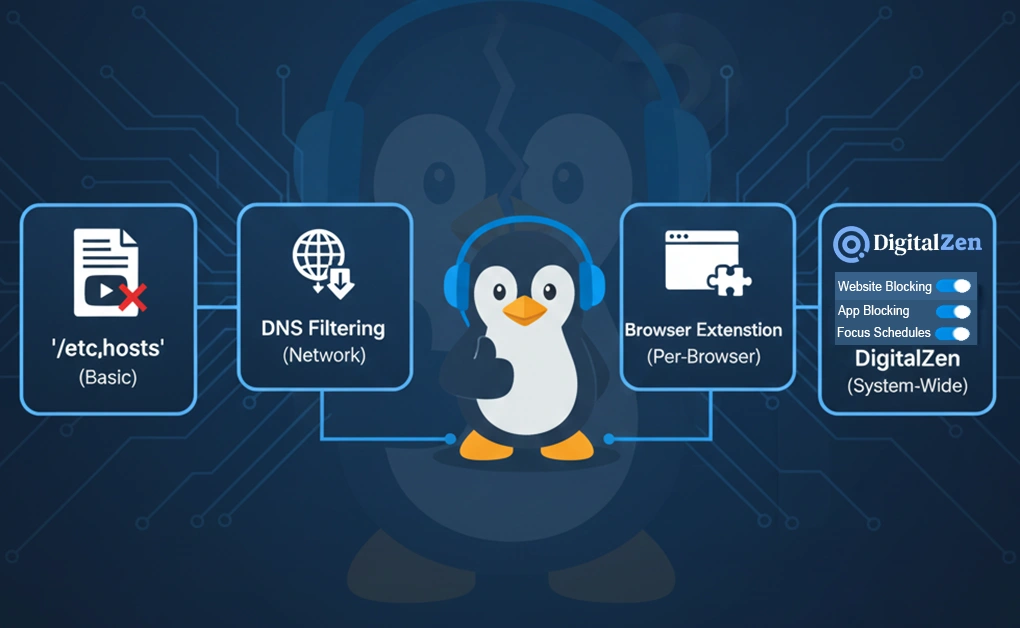
You can block YouTube on Linux using four reliable methods: editing the /etc/hosts file, using DNS-level filtering, installing a browser extension, or using a dedicated blocker like DigitalZen. The best method depends on whether you want a quick browser-only block or a system-wide solution that’s harder to bypass.
Key Takeaways
- Hosts-File Blocking Is Simple but Easy to Bypass: Editing the /etc/hosts file lets you block youtube.com quickly, but it’s not reliable for long-term use because browsers cache results and users can undo the changes easily.
- DNS Filtering Provides Stronger System-Wide Control: Blocking YouTube at the DNS level prevents the site from resolving, but it requires technical setup and can be bypassed with public DNS servers, VPNs, or DNS-over-HTTPS.
- Browser Extensions Are Easy but Limited: Extensions are the simplest way to block a website, but they only affect one browser and can be paused, removed, or bypassed by switching to another browser.
- DigitalZen is the Most Reliable Long-Term Solution: DigitalZen blocks YouTube across all browsers and apps, prevents removal, and includes scheduling, moderation, and focus tools for a dependable blocking setup on Linux.
Method 1: Block YouTube on Linux Using the /etc/hosts File
Adjusting /etc/hosts lets you redirect YouTube-related domains to your local machine. It’s a simple approach that applies to all browsers without extra tools.
Steps to Apply the Host-Based Block
- Open the host configuration:
sudo nano /etc/hosts - Insert entries pointing YouTube’s domains to your loopback address:
127.0.0.1 youtube.com
127.0.0.1 www.youtube.com
127.0.0.1 m.youtube.com
127.0.0.1 youtu.be - Save and close the editor.
- Restart your browser so the new rules take effect.
Limitations
- YouTube relies on many subdomains that may require frequent updates
- Browser caching can delay the block
- Anyone with system privileges can undo the change
- Not dependable for long-term restrictions
Method 2: Block YouTube on Linux Using DNS-Level Filtering
DNS filtering stops YouTube before a connection is made. Instead of returning the real address, your DNS resolver responds with a local or nonexistent record, preventing the service from loading.
Steps to Implement DNS Filtering
- Choose a DNS resolver (Unbound, dnsmasq, or systemd-resolved).
- Add rules forcing YouTube lookups to resolve locally or fail:
local-zone: “youtube.com” redirect local-data: “youtube.com A 127.0.0.1” - Include all major domains:
- youtube.com
- www.youtube.com
- m.youtube.com
- youtu.be
- Restart your resolver:
sudo systemctl restart unbound - Clear DNS cache or restart your browser.
Limitations
- Users can switch to third-party DNS providers
- DNS-over-HTTPS bypasses local DNS rules
- VPNs use their own DNS paths
- May require firewall rules to enforce resolver usage
- More complex to maintain compared to simple host edits
Method 3: Block YouTube on Linux Using a Browser Extension
A browser add-on offers the quickest interface-based solution. It requires no system changes and is ideal for users who want something simple.
Steps to Apply the Browser-Based Block
- Open your browser’s extension marketplace.
- Search for a tool that supports custom blocking rules.
- Install it and access its settings panel.
- Add commonly used YouTube domains to the blocklist:
- youtube.com
- www.youtube.com
- youtu.be
- m.youtube.com
- Save your changes and refresh the browser.
Limitations
- Restriction applies only to one browser
- Easy to disable or remove
- Switching to another browser bypasses it
- Cannot restrict apps or system-wide access
Method 4: Block YouTube on Linux Using a Desktop App
DigitalZen offers the most convenient and reliable way to restrict YouTube access across your entire system. It pairs a browser extension with a desktop agent, giving you complete control over browsers and apps.
Steps to Use DigitalZen for Full Blocking
- Install the browser extension.
- Click One-Click Setup to load recommended settings.
- (Optional) Install the desktop agent for system-wide coverage.
- Open DigitalZen and add YouTube-related domains to the blocklist.
- Turn on optional safeguards, such as:
- Blocking extension removal
- Preventing the agent from being stopped
- Uninstall protection
- Activate a focus session or schedule block periods.
Limitations
- Requires installation of the extension or agent
- System-wide protections rely on the desktop agent
- App-level blocking also requires the agent
DigitalZen also includes predefined blocking templates for categories such as adult, gambling, and social media. If you also need to restrict betting platforms, you can check out our guide on How to Block Gambling Sites on Linux for additional setup tips.
Why Blocking YouTube on Linux Can Be Tricky
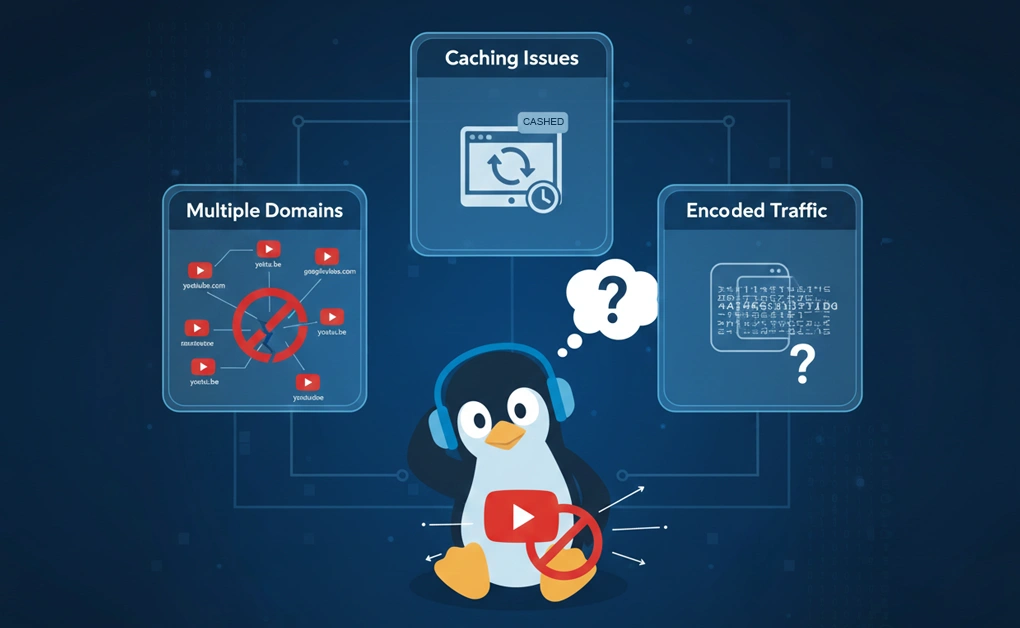
Blocking YouTube can be harder than it looks because the platform doesn’t rely on a single domain. Even if youtube.com is blocked, the service can still load through www.youtube.com, m.youtube.com, youtu.be, or googlevideo.com, which means all of them need to be included for the block to work consistently.
Caching adds another layer of difficulty. Browsers often store DNS information in memory, so even after new block rules are added, YouTube may continue to load until the browser is fully restarted and the cached entries are cleared.
Packet-based blocking is unreliable because YouTube’s domains don’t show up in plain text inside packets. They’re hex-encoded (like youtube|03|com), so basic string-matching rules may work in incognito mode but fail in regular browsing. The same issue appears when filtering adult content, which is why many users rely on a dedicated Linux porn blocker for more consistent results.
These factors, multiple domains, redirects, caching behavior, and encoded traffic, cause manual blocking methods to behave differently across browsers and sessions. Even well-written rules may appear inconsistent depending on how the browser resolves addresses or handles cached values.
Conclusion: Choosing the Best Way to Block YouTube on Linux
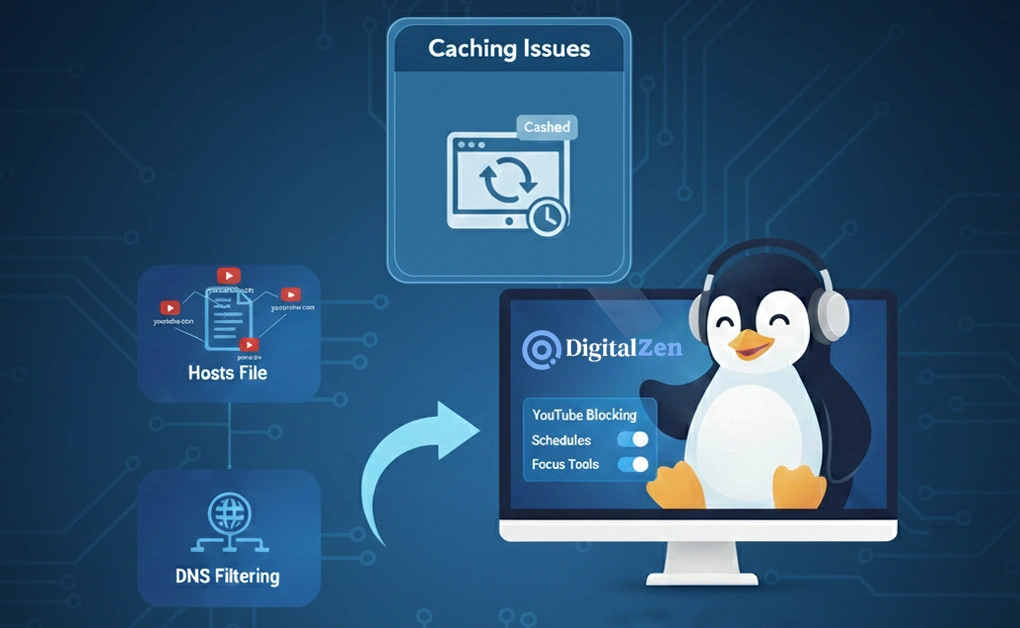
Linux offers multiple approaches depending on how strict you need the restriction to be. Modifying the host mappings or adjusting DNS settings is fine for quick, manual fixes, but both can create system-wide issues like losing connectivity, are reversible, and require maintenance.
When convenience and reliability matter most, DigitalZen provides system-wide control without modifying configuration files. It stays active across all browsers, supports scheduling, and includes built-in focus tools, making it far more dependable than manual methods.
If you’re creating a distraction-free workflow, pairing these methods with additional Linux productivity tips can help you stay focused throughout the day.
FAQs About Blocking YouTube on Linux
Can I Block YouTube on Linux Without Installing Anything?
Yes. You can block YouTube by editing the /etc/hosts file or by setting up DNS-level filtering. Both options let you block the site without installing additional tools.
How Do I Block YouTube Across All Browsers on Linux?
To block YouTube system-wide, use DNS filtering or a dedicated tool like DigitalZen. These methods apply the block to every browser, not just the one you use.
Why is YouTube Still Accessible After Blocking youtube.com?
Blocking only youtube.com isn’t enough. YouTube uses multiple domains such as www.youtube.com, m.youtube.com, youtu.be, and googlevideo.com. If these aren’t added, parts of the website may still work.
How Do I Block YouTube Only During Certain Hours?
You can use DNS rules combined with cron jobs to enable or disable the block at specific times. DigitalZen also supports schedules and Focus Mode, making time-based blocking easier without editing system files.
References:
- https://unix.stackexchange.com/questions/616478/how-can-i-block-all-webpages-of-a-given-website-on-ubuntu
- https://superuser.com/questions/1767562/block-youtube-via-hosts-file
- https://security.stackexchange.com/questions/240670/how-can-i-block-hits-to-youtube-using-iptables#:~:text=You%20can%20also%20block%20requests%20with%20SNI,school%20hours%20but%20permitting%20access%20after%20school
- https://askubuntu.com/questions/1432668/how-can-i-get-iptables-to-block-youtube-packets#:~:text=You%20can%20also%20try%20these%20commands:%20*,you%20open%20a%20browser%20in%20incognito%20mode
- https://security.stackexchange.com/questions/240670/how-can-i-block-hits-to-youtube-using-iptables#:~:text=You%20can%20also%20block%20requests%20with%20SNI,school%20hours%20but%20permitting%20access%20after%20school