
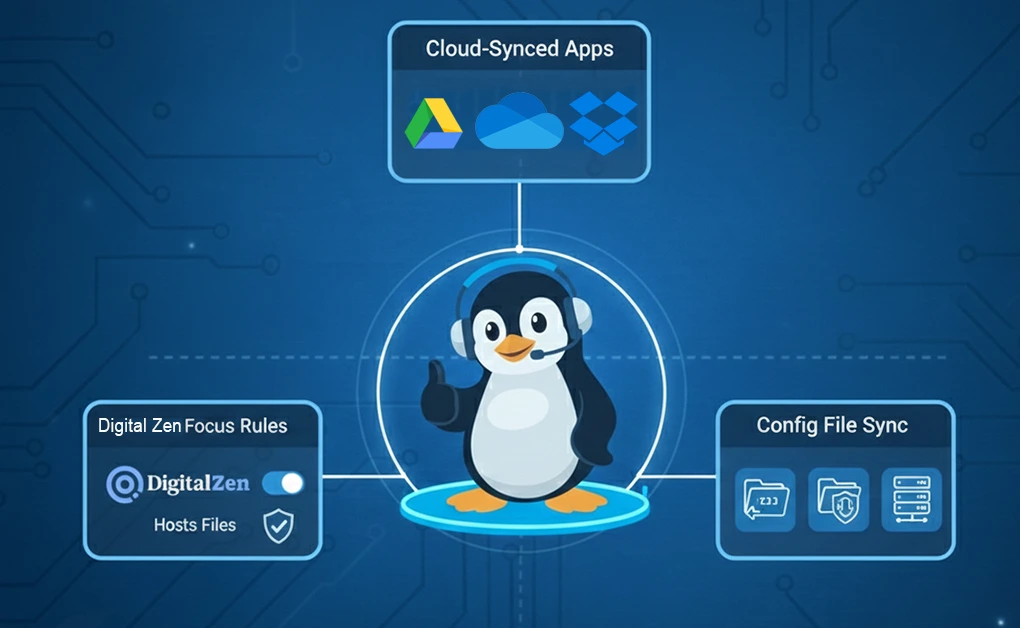
The fastest way to maintain a consistent workflow is to sync your favorite apps settings across your devices. Whether you’re recovering from a crash, using multiple machines, or switching between Linux, Windows, and macOS, syncing app configurations keeps your tools ready. Use cross-platform apps, centralize config files, and rely on tools like DigitalZen for consistent focus settings.
Key Takeaways
- Use cross-platform apps whenever possible: Apps that sync through the cloud, such as browsers and editors, keep your app settings consistent without extra setup, whether across platforms or between devices on the same OS.
- Centralize and sync your configuration files: Storing app configuration files in one folder and syncing them through Git, Syncthing, or a cloud service makes recovery easy and keeps your tools aligned across devices.
- Standardize your shortcuts and workflows: Aligning keybindings, layouts, and app preferences removes friction when switching devices, even on the same operating system.
- Rely on DigitalZen for unified focus settings: DigitalZen keeps your blocklists, schedules, limits, and Focus Modes synced across all platforms and devices, giving you a consistent focus environment no matter where you work.
The Fastest Way to Maintain Productivity by Syncing App Settings Across Devices
The fastest way to stay productive across Linux, Windows, and macOS is to sync the apps and workflows you rely on, not the operating systems themselves. By using tools that behave the same everywhere, syncing app configuration files, and standardizing how you work, you can move between devices, recover from data loss, or switch operating systems without rebuilding your setup from scratch.
This approach works whether you use multiple computers running the same OS, work across different operating systems, or need to restore your environment after reinstalling or replacing a device.
1. Boost Productivity with Cross-Platform Apps That Sync Automatically
Cloud-synced apps automatically unify their own settings and preferences across devices, so you never have to recreate your setup when you sign in on a new machine.
Why cloud sync works well across devices and OSes:
- Stores app settings in your account instead of tying them to a single computer
- Loads your preferences instantly after reinstalling an app or switching devices
- Ensures bookmarks, extensions, themes, and layouts match inside the same app
- Eliminates manual copying of configuration files during setup or recovery
Examples of tools that sync app settings reliably:
- Browsers: Chrome, Firefox, Edge
- Editors: VS Code Settings Sync, JetBrains Cloud Sync
- Note-taking: Obsidian Sync, Notion, Google Keep
- Productivity control: DigitalZen’s synced focus rules and blocklists
Cloud-first apps form the foundation of a consistent workflow because your tools behave the same way, whether you’re switching operating systems, moving to a second device, or recovering your setup after data loss.
2. Centralize Your Productivity and Focus Rules Across All Devices
You need a single system that manages your focus and distraction rules at the app level, regardless of which device or operating system you’re using. DigitalZen fills this role by syncing focus controls through your account, so the same rules apply wherever you work.
What stays synced across OSes:
- Focus Modes
- Blocklists and allowed-site rules
- Daily limits and schedules
- Break reminders and behavior nudges
Why this matters:
- You get the same distraction-free environment on every device
- You avoid recreating blocklists or focus routines after switching computers or reinstalling
- Your attention habits stay consistent across operating systems and during recovery
DigitalZen works through both a desktop agent and browser extensions, ensuring your focus rules follow your apps and browser activity, not the operating system itself. If you want to learn more about DigitalZen, you can check its supported Linux OS list to see how it fits into your setup.
3. Sync Core App Files and Configs Through a Single Sync System
Some apps store their preferences in configuration files rather than in the cloud. Keeping these app config files consistent requires one centralized syncing method.
Cloud-based sync tools:
- Google Drive
- OneDrive
- Dropbox
Local or privacy-first sync tools:
- Syncthing
- FreeFileSync
- Nextcloud or WebDAV
What to sync:
- App settings
- Code snippets
- Templates
- Shortcut definitions
- Terminal profiles
- Automation scripts
Using one syncing method prevents scattered setups and makes it easy to restore your app settings when you move to a new device, add a second computer, or recover after a reinstall.
4. Standardize Your Favorite Apps Shortcuts, Layouts, and Workflows
Even when your app settings are synced, your workflow can feel inconsistent if your apps are configured differently on each device. Standardizing your app preferences helps reduce friction when switching devices or restoring after a reinstall.
What to align across devices:
- Frequently used keyboard shortcuts within each app
- Terminal and code editor layouts
- Autosave, indentation, and formatting settings
- Notification preferences
- Themes and font choices
When your app configurations match, moving between devices or recovering your setup feels seamless.
How to Set Up an App Settings Sync System Across Devices (Step-by-Step)
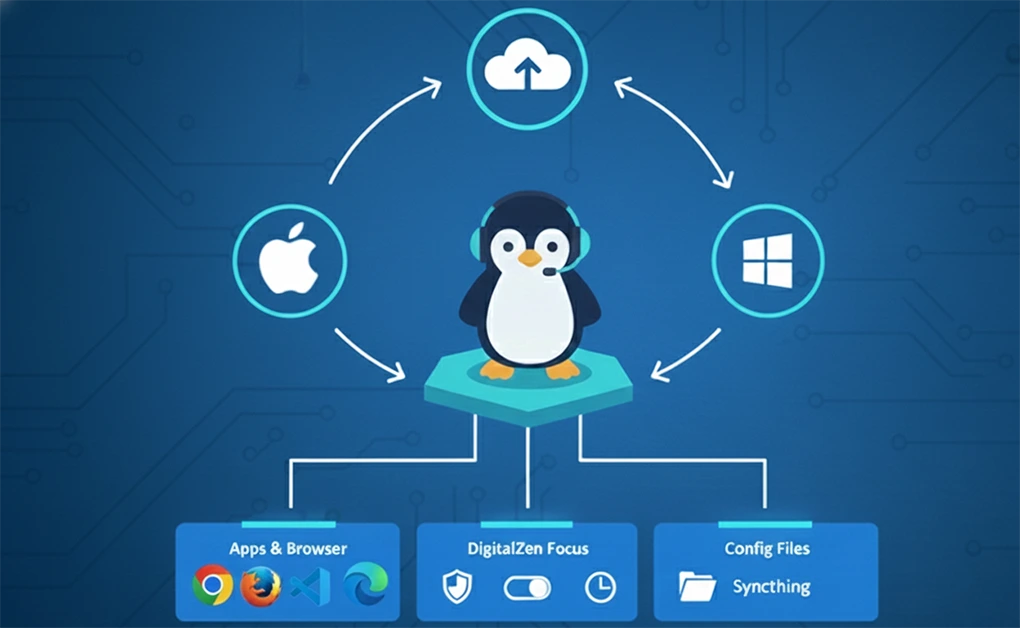
You can build a consistent workflow across Linux, Windows, and macOS by syncing only the apps and app-level settings that matter, storing everything in one place, and using tools that work reliably on every device.
This approach works whether you use multiple computers on the same OS, switch between operating systems, or need to recover your setup after reinstalling or replacing a machine.
Step 1: Choose the Settings You Actually Need to Sync
Focus on syncing the parts of your workflow that improve your productivity by keeping your apps consistent.
Sync these:
- Browser data like bookmarks, extensions, and profiles
- App settings for editors and terminals
- Keyboard shortcuts within apps
- App-level layouts and panel arrangements
Do not sync these:
- OS-specific system files
- Hardware-dependent shortcuts
- UI themes that behave differently on each OS
This step prevents conflicts and keeps your setup clean.
Step 2: Put All Your Important App Settings in One Folder
A single folder makes your configuration easy to manage.
Do this:
- Create a folder such as ~/AppSettings/
- Place your app configuration files in that folder
- Sync it with Git, Syncthing, or a cloud service
When to use dotfile repositories:
- Your settings are mostly text files
- You want version control
- You prefer a clean, organized structure
Centralizing your configurations keeps everything consistent and makes recovery much easier.
Step 3: Sync Your Browser Settings
Your browser is one of your most important productivity tools, so it needs to match across devices.
Use built-in syncing:
- Chrome, Firefox, Edge, and Safari sync bookmarks, history, extensions, and settings
If you use different browsers:
- xBrowzerSync syncs bookmarks across browsers
- Floccus syncs through WebDAV or Nextcloud
Consistent browser setups save time and reduce context switching.
Step 4: Sync Your App Settings
Most editors and tools store settings in files that can be synced easily.
Common files to sync:
- VS Code settings and extensions
- Terminal profiles
- Notes, templates, snippets, and automation scripts
How to sync them:
- Use Git for version-controlled setups
- Use Syncthing for real-time syncing
- Use cloud storage if you want a simple solution
This ensures your apps behave the same way, even after switching devices or reinstalling your system.
Step 5: Keep Your Focus and Productivity Settings Aligned with DigitalZen
DigitalZen provides a consistent app-level focus layer across Linux, Windows, and macOS.
DigitalZen syncs:
- Blocklists
- Focus Modes
- Schedules and limits
- Break reminders
Why it matters:
- You get the same distraction-free environment everywhere
- Your routines stay intact
- You do not have to recreate rules on each device
This helps keep your attention habits aligned across platforms, including same-OS setups and full recovery scenarios, especially when you need consistent rules for blocking websites on Linux, Windows, and macOS.
Step 6: Test Everything on All Your Devices
A quick check ensures your system works as expected.
Test these:
- Config files update correctly
- Shortcuts work inside each app
- DigitalZen rules apply consistently
- App settings match your primary device
Testing gives you confidence that your app-based productivity system will hold up long-term.
Best Tools for Syncing App Settings Across Devices and Platforms
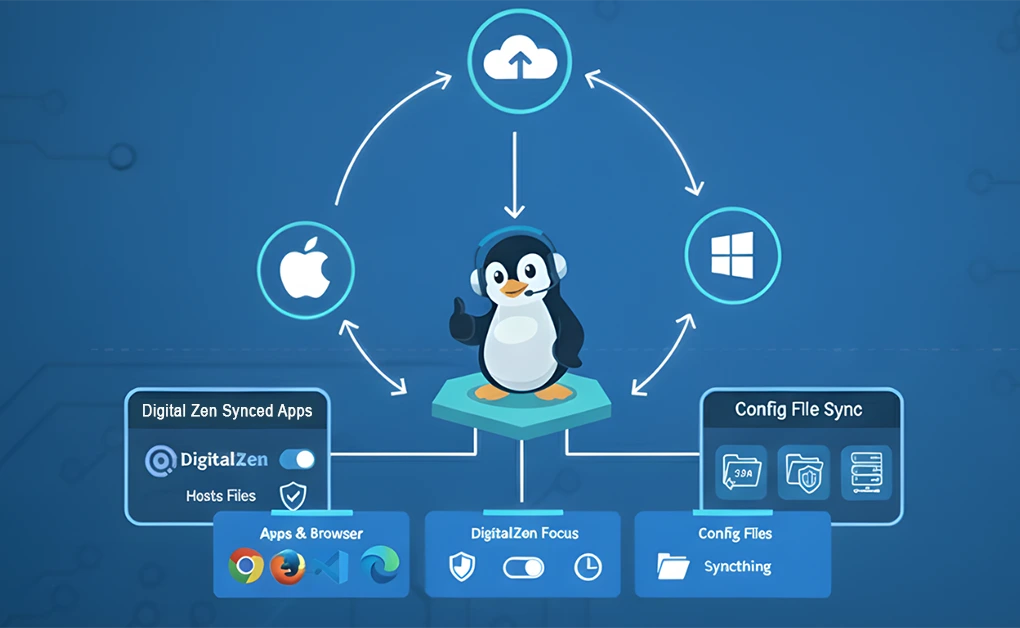
Several types of tools can help you sync app settings across devices, whether you prefer cloud storage, local syncing, app-specific features, or simply choosing cross-platform apps from the start. Here are the best options.
1. Cross-Platform Cloud Tools (Easiest for Most Users)
Cloud storage services automatically sync files and configuration folders across all your devices. They require almost no setup, which makes them the best option for users who want a simple approach.
Popular cloud tools:
- OneDrive: works well on Windows and integrates with macOS and Linux through third-party clients
- Google Drive: easy to use and accessible from every OS
- Dropbox: stable syncing, reliable version history, predictable performance
Pros:
- Minimal setup
- Automatic background syncing
- Easy access from any device
- Built-in version history on some platforms
Cons:
- Limited free storage
- Requires trust in third-party cloud providers
- May not sync hidden app config files unless configured correctly
Cloud sync is ideal for users who want quick results without managing complex configurations.
2. Local Network or Self-Hosted Sync Tools (Privacy-Focused)
Local syncing tools give you full control over your data by syncing app files and configuration folders directly between devices, without relying on third-party cloud storage.
Popular privacy-first sync tools:
- Syncthing: peer-to-peer syncing with real-time updates and no central server
- FreeFileSync: manual or automated folder comparison and syncing
- Nextcloud or WebDAV: a personal cloud that you host on your own server or NAS
When to choose local sync instead of cloud:
- You want complete control over your data
- You avoid storing sensitive files on cloud servers
- You need to sync large files without cloud storage limits
- You prefer automation that stays entirely within your local network
These tools require more setup, but they offer maximum privacy and flexibility.
3. App-Specific Sync Options
Some apps provide their own built-in syncing features. These are often the fastest and most reliable ways to keep app behavior and preferences identical across devices and operating systems.
Common app-level sync systems:
- VS Code Settings Sync: syncs settings, keybindings, extensions, themes, and snippets
- JetBrains Toolbox Sync: syncs settings for IDEs like PyCharm, IntelliJ, and WebStorm
- Obsidian Sync: encrypted syncing for notes, vaults, attachments, and themes
- Browser account sync: Chrome, Firefox, Edge, and Safari sync bookmarks, extensions, history, and profiles
App-specific syncing is ideal when you want consistent behavior without managing configuration files yourself.
4. OS-Agnostic Apps That Simplify Syncing
Choosing apps that work the same across Linux, Windows, and macOS reduces the amount of syncing you need to manage. This approach is especially beneficial for students who move between shared lab computers and personal devices, gamers who switch between a desktop gaming rig and a laptop, and digital nomads who work across multiple locations and hardware setups.
A consistent toolkit saves time and reduces workflow friction, no matter where you are.
Cross-platform tools that help unify your environment:
- DigitalZen: syncs focus rules, blocklists, schedules, and screen-time limits
- LibreOffice: provides a consistent office suite experience across Linux, Windows, and macOS
- Affinity Suite: Publisher, Photo, and Designer offer file compatibility across macOS and Windows
- Cross-platform note apps: Joplin, Notion, and Obsidian provide consistent note-taking setups
Using OS-agnostic apps minimizes friction because your tools behave consistently, regardless of which device or operating system you are using
What Settings Should Not Be Synced Across OSes
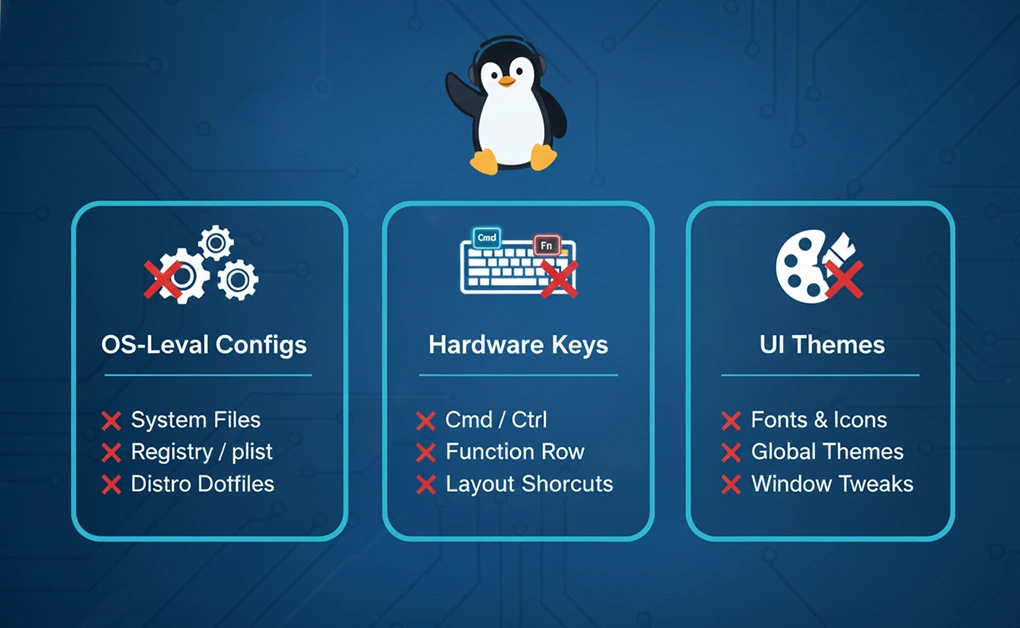
Not every setting should be synced between Linux, Windows, and macOS. Some system-level and OS-dependent configurations behave differently on each operating system, which can lead to broken workflows, corrupted preferences, or devices that act unpredictably. Knowing what to avoid keeps your setup clean and prevents time-consuming troubleshooting.
OS-Level Configurations
Each operating system stores critical settings in formats that are not compatible with one another. Syncing these files usually causes conflicts or unexpected behavior.
Do not sync these items:
- macOS plist files: these control system and app behavior specific to macOS
- Linux dotfiles that are distro-specific: some distros use different shell defaults, directory structures, or config paths
- Windows registry-based settings: the registry cannot be synced across systems and is tightly tied to Windows internals
System-level settings should stay isolated on each machine since they are built for different architectures and security models.
Hardware-Dependent Keyboard Mappings
Keyboard behavior varies between operating systems, and syncing these preferences across devices can cause shortcuts to behave incorrectly.
Settings you should keep local:
- The Cmd and Ctrl keys function differently across macOS, Windows, and Linux.
- Function row mappings that depend on hardware or firmware
- Layout-specific shortcuts tied to one device or keyboard type
Keeping keyboard mappings OS-specific prevents broken shortcuts and keeps your muscle memory intact.
System Fonts, Themes, and UI Tweaks
Visual preferences may seem harmless to sync, but they often rely on OS-specific files or UI engines that do not translate across platforms.
Why avoid syncing them:
- Fonts installed on one OS may not exist on another
- Global themes can break UI rendering or cause apps to load incorrectly
- Window spacing, transparency, animations, and scaling differ by operating system
It is safer to configure your UI preferences individually on each device rather than force them to match.
App-Level Settings With OS-Specific Dependencies
Some apps integrate deeply with their operating system. Syncing these OS-dependent app settings can cause missing features, broken layouts, or startup errors.
Settings to avoid syncing:
- Window managers: Linux tiling managers and macOS Stage Manager follow completely different rules
- Automation tools: scripts or workflows built for one OS often rely on system paths or APIs that do not exist on others
- App-specific files that reference OS-dependent paths like /Users/ or C:\Users\
Keeping these items local prevents apps from crashing or behaving inconsistently.
Conclusion: Build a Synced Productivity System That Works Across All Your Devices
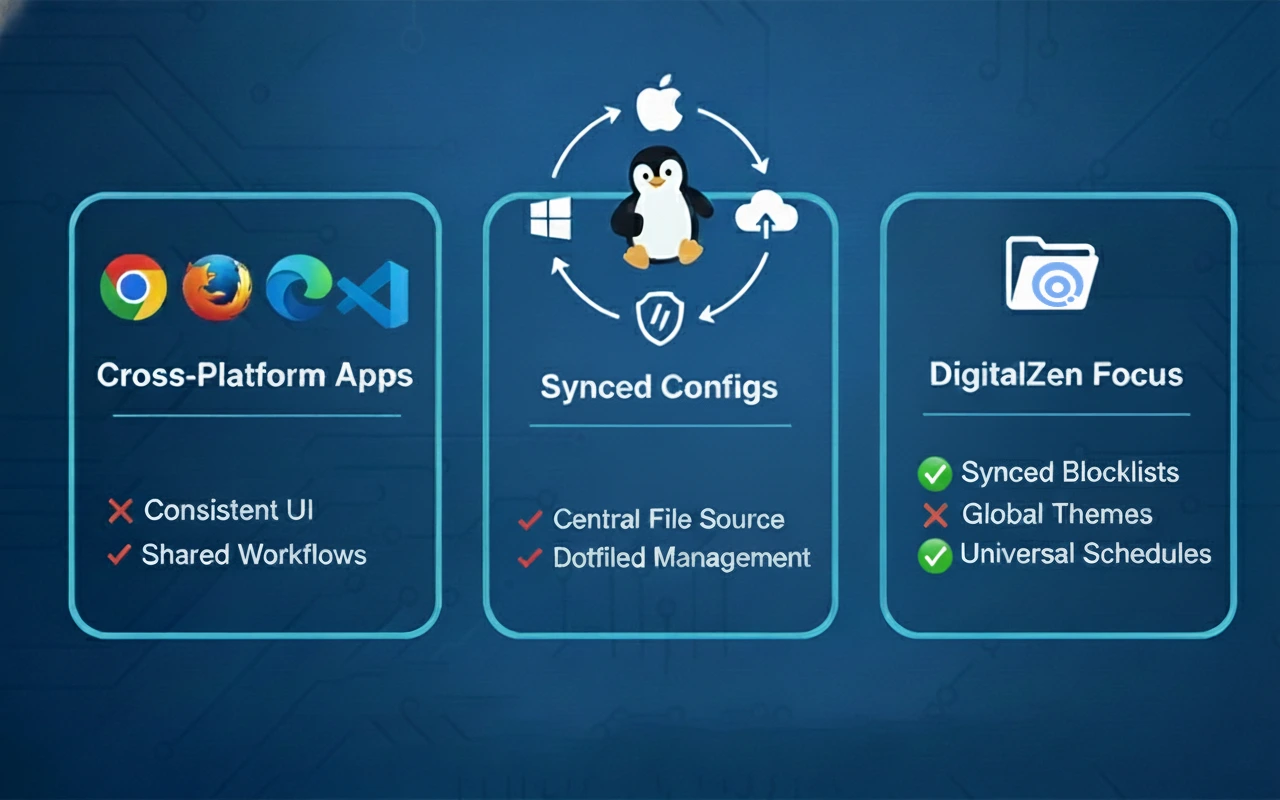
A unified setup starts with cross-platform apps and a single location for your app configuration files. When your browser, editors, and core tools behave the same across devices, each system feels familiar as soon as you start working. Sync only the app-level settings that matter and keep OS-level files separate to maintain stability.
Consistency reduces friction and removes the mental load of switching between devices or operating systems. When your app shortcuts, layouts, and behaviors stay aligned, you avoid constant readjustment and stay in flow longer.
A predictable environment improves focus and saves time, whether you are working across Linux, Windows, and macOS, using multiple devices on the same OS, or rebuilding your setup after a reinstall.
DigitalZen ties this system together by syncing your focus behavior at the app and browser levels across all your devices. Your blocklists, schedules, limits, and Focus Modes stay aligned wherever you work, giving you a single distraction-free environment that supports your habits across devices and recovery scenarios.
Frequently Asked Questions
Which App Settings Should I Sync To Maintain a Consistent Workflow Across Devices and Operating Systems?
You should sync only the app-level settings that directly shape your daily workflow. These include browser data such as bookmarks, extensions, and profiles; app preferences for editors and terminals; keyboard shortcuts; templates; snippets; and workspace layouts. These settings translate well across platforms and help create a familiar, predictable environment on any device.
What Tools Are Best for Syncing Files and App Configurations Across Multiple OSes?
The best tools depend on how much control you want. Cloud services like Google Drive, OneDrive, and Dropbox make syncing automatic and straightforward, especially when setting up a second device or restoring files after a reinstall. Privacy-focused options such as Syncthing, FreeFileSync, or a self-hosted Nextcloud give you local and encrypted control.
Many apps also include their own syncing systems, such as VS Code Settings Sync, JetBrains Cloud Sync, Obsidian Sync, and browser account syncing. Using a mix of these tools creates a stable setup that works across operating systems, multiple devices on the same OS, and recovery scenarios.
Which App or System Settings Should Not Be Synced Between Linux, Windows, and macOS?
Avoid syncing any OS-level or OS-dependent system files, hardware-dependent configurations, or user-interface customizations. This includes macOS property list (plist) files, distro-specific Linux dotfiles, Windows registry settings, hardware-specific keyboard mappings, system fonts, global themes, and UI tweaks.
These elements behave differently across OSes and can cause broken shortcuts, misaligned layouts, or unstable apps when copied across devices.
How Can DigitalZen Help Keep My Focus Rules Synced Across Devices?
DigitalZen provides a unified app-level focus layer across Linux, Windows, and macOS. It syncs your Focus Modes, blocklists, schedules, limits, and break reminders through your account, ensuring your distraction-free environment looks and behaves the same everywhere.
This removes the need to recreate routines or rebuild settings whenever you switch devices, helping you maintain consistent attention habits across platforms and during recovery or device replacement.
What Problems Can Happen If I Sync OS-Level or Hardware-Specific Settings Across Different Systems?
Syncing OS-level or hardware-specific settings can lead to missing features, broken workflows, corrupted preferences, or apps that fail to load correctly. System files often rely on unique paths, UI engines, or configuration formats that do not exist on other platforms.
Keyboard mappings may also behave unpredictably, especially when Cmd and Ctrl functions differ. Keeping these settings local prevents instability and ensures each device works as intended.
References: