
The best Freedom App alternatives for Linux are DigitalZen, Chomper, PluckEye, StayFocusd, Time Companion, SelfControl Linux Port, and LeechBlock. These tools range from full desktop-level blockers to lightweight browser extensions, helping Linux users reduce distractions, manage screen time, and maintain a consistent focus routine.
Key Takeaways
- More Options: Linux users now have multiple alternatives that go beyond Freedom’s browser-only blocking
- Tool Variety: Options range from open-source browser extensions to full desktop-level focus solutions
- Productivity Boost: These tools help reduce distractions, limit screen time, and maintain consistent focus
- Browser Limitation: Most browser-based blockers cannot restrict desktop applications or offline programs
- DigitalZen: The only Linux blocker that supports both website and desktop app blocking with adaptive locks and wellness tools
What Is Freedom App?
Freedom is a cross-platform focus app that blocks distracting websites and apps on macOS, Windows, iOS, Android, Chrome OS, and Linux through a browser extension only.
On Linux, it runs only inside Google Chrome, so it can block websites but not desktop programs or offline distractions. It still syncs sessions across devices and includes Pomodoro timers and focus sounds, but Linux users miss out on the deeper controls found in the full desktop versions.
Top 7 Freedom App Alternatives
See if these tools qualify as the best Linux website blocker options, offering full desktop integration and app-level focus protection to help you fight procrastination and stay focused longer.
1. DigitalZen
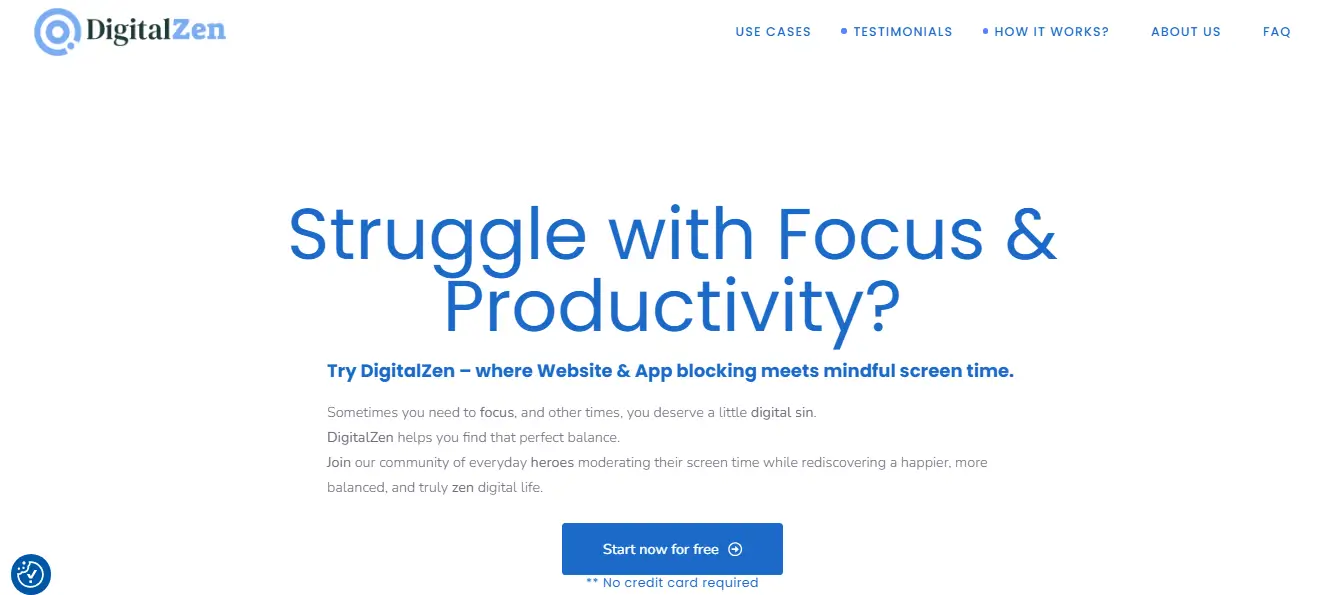
Image source: DigitalZen official website
DigitalZen is the best Freedom App alternative for Linux because it provides true desktop-level blocking along with a full set of focus, wellness, and anti-procrastination tools.
Features
- Runs natively on Linux, Windows, and macOS
- Blocks both websites and desktop apps
- Focus Mode for timed work sessions
- Adaptive Locks such as Code, Cooldown, Schedule, Friend, and Money to reduce impulsive unlocking
- Wellness Presets that schedule downtime for evenings and weekends
- Curated Blocklists for social media, adult, and gambling sites
- Uninstall Protection and anti-tamper controls
- Pre-built Templates and moderation timers for quick setup
Cons
- Needs a browser extension for advanced website filtering
- Some features, like Friend Unlock, require an internet connection
- Mobile apps are still in development for Android and iOS
How to Install
- Add the DigitalZen browser extension to Chrome.
- Download and install the desktop agent to enable app blocking.
- The agent launches automatically at system startup.
Pricing
- Free Plan: Basic blocking and timers
- Premium: $3 per month (billed annually)
- Lifetime: $119 one-time payment (normally $199)
2. Chomper
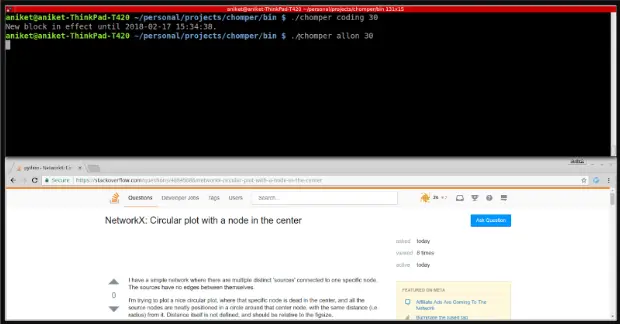
Image Source: GitHub (Chomper repository)
Chomper is a lightweight, open-source internet blocker built specifically for Linux users who prefer command-line control. It filters outgoing web requests, letting you block or allow exact URLs instead of whole domains.
Features
- Works on most Linux distributions
- Uses a transparent proxy to inspect and block specific URLs
- Supports blacklist and whitelist configurations
- Allows precise control, such as blocking only certain paths on a site
- Detailed installation and usage guide on ReadTheDocs
- Licensed under GPL (open source)
Cons
- Operated entirely from the command line (no GUI)
- Automated setup exists only for Debian-based systems
- Cannot block desktop applications or schedule focus sessions
How to Install
- On Debian-based systems, run the provided installation script.
- On other distributions, follow the manual setup steps in the documentation.
Pricing
- Free and open source
3. PluckEye

Image source: Pluckeye official website
PluckEye is designed for people who want long-term discipline online. It adds a waiting period before rule changes take effect, giving you time to reconsider disabling your filter.
Features
- Runs on Linux, Windows, and macOS
- Delay System enforces a waiting period for any change
- Self-Control Mode prevents quick circumvention
- Blocks images and videos by default
- Allows filtering by media type or URL
Cons
- No graphical interface; all configuration happens in the terminal
- Setup requires manual command-line work
- Cannot block desktop apps or schedule timed focus sessions
How to Install
- Download the installer from PluckEye.net.
- Open a terminal and run the installer script (e.g., sudo ./plucky-install).
- If installation fails, install dependencies such as libcurl4 and re-run the script.
Pricing
- Sliding-scale donation model (users can pay what they wish)
4. StayFocusd
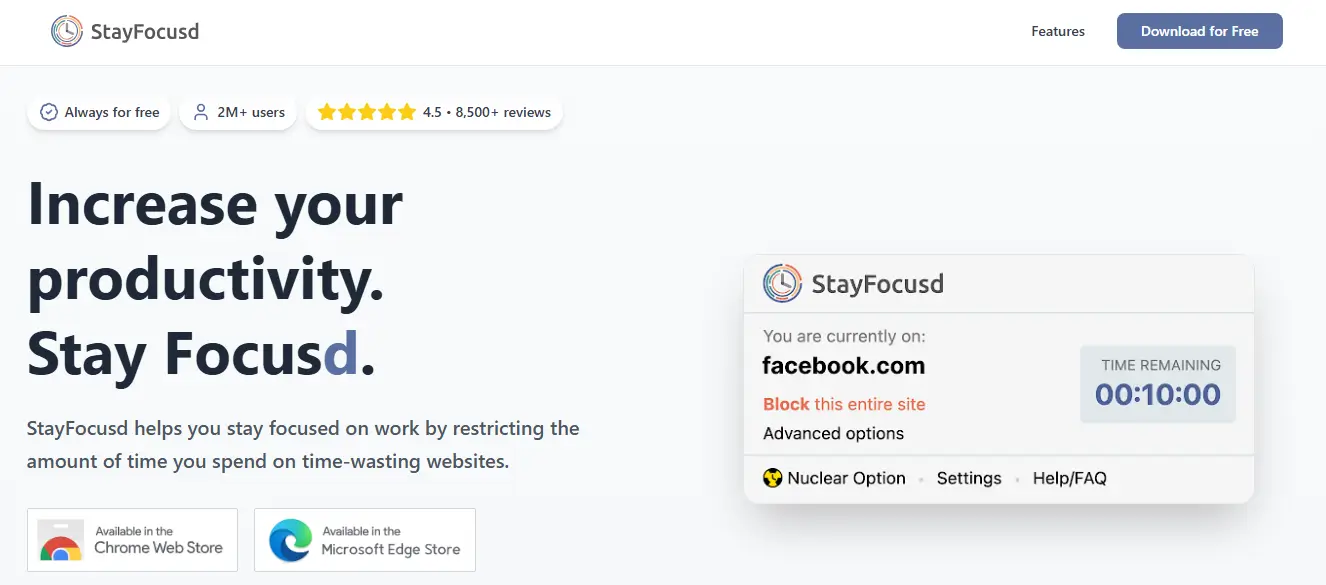
Image source: StayFocused official website
StayFocusd is a simple and free Chrome or Edge extension that helps you stay productive by restricting how much time you can spend on unproductive websites each day.
Features
- Blocks chosen websites after you reach a daily limit
- “Nuclear Mode” cannot be canceled once activated
- Lets you set specific working days and hours
- Compatible with Google Chrome and Microsoft Edge
- Lightweight, fast, and easy to configure
Cons
- Works only inside the browser; no desktop blocking
- No focus timers or adaptive wellness features
- Does not function offline or outside Chrome/Edge
How to Install
- Visit the Chrome Web Store or Edge Add-ons page.
- Click Add to Chrome or Add to Edge.
- Choose your blocked sites and set time limits.
Pricing
- Completely free
5. LeechBlock
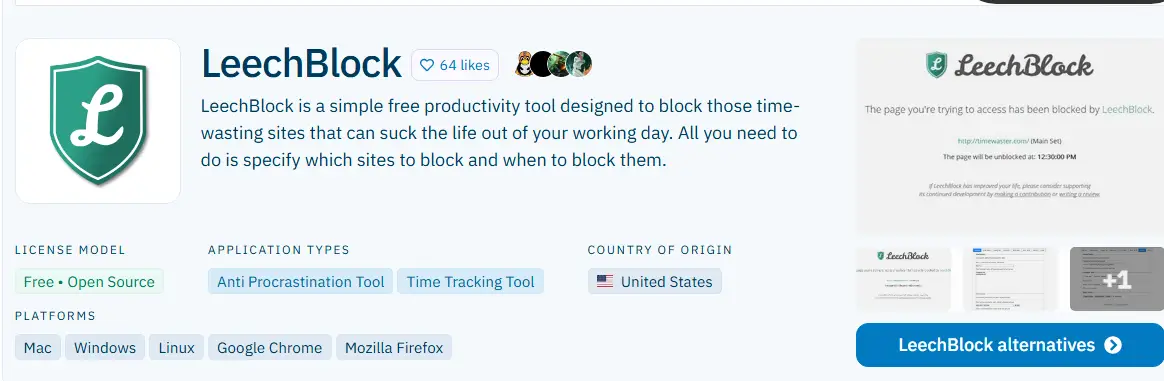
Image source: AlternativeTo.net (LeechBlock page)
LeechBlock is a free, open-source browser extension for Chrome and Firefox that helps users control online distractions through customizable blocking schedules. It’s lightweight, highly configurable, and works across platforms without ads.
Features
- Works on Linux, macOS, and Windows
- Available for Chrome and Firefox browsers
- Allows scheduled blocking and daily limits
- Supports multiple block lists for different sites
- 100% free and ad-free
Cons
- Works only as a browser extension and cannot block desktop applications
- No native Linux agent or system-level integration
- Lacks adaptive locks, cooldowns, or focus presets
- Requires manual setup for block lists and schedules
- Does not include Pomodoro timers or wellness features
How to Install
- Go to the Chrome Web Store or Firefox Add-ons page.
- Search for LeechBlock and click Add to Chrome or Add to Firefox.
- Set up your block lists, schedules, and rules within the extension settings.
Pricing
- Completely free and open source
6. SelfControl Linux Port
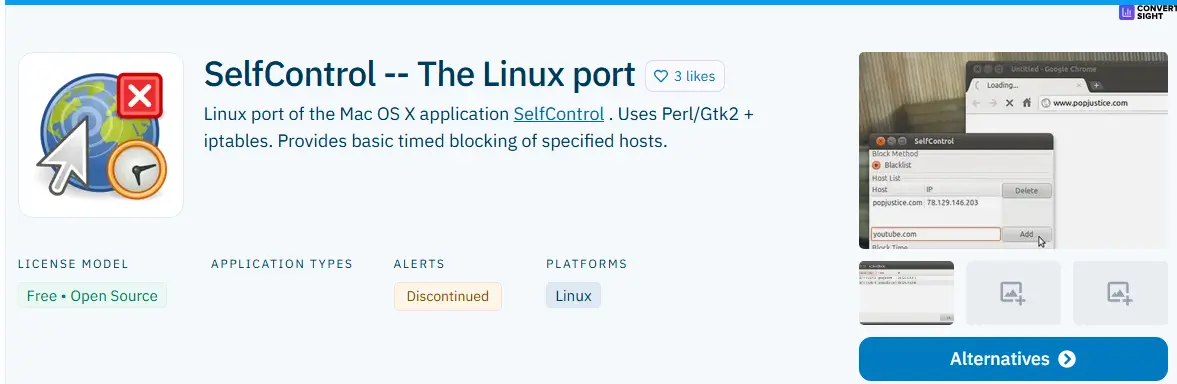
Image source: AlternativeTo.net (SelfControl Linux Port page)
SelfControl Linux Port is an open-source adaptation of the popular macOS SelfControl app, built for Linux users who want basic timed website blocking. It relies on iptables to block sites at the network level, making it a straightforward but outdated solution for simple focus sessions.
Features
- Linux-only tool built with Perl, Gtk2, and iptables
- Blocks websites at the host level
- Timer-based sessions that remain active until expiration
- Free and open source (GPL license)
Cons
- No longer maintained and may not work on modern Linux distributions
- Developed mainly for older Debian-based systems and may require manual setup
- Cannot block desktop applications or system processes
- Built with outdated libraries and lacks a graphical interface
How to Install
- Download the latest .deb package from GitHub or the legacy SVN page.
- Open a terminal and run sudo dpkg –install selfcontrol_VERSION_.deb.
- Follow on-screen instructions to complete setup (may vary by distribution).
- Add blocked websites to the list and set a timer for your focus session.
Pricing
- Free and open source
7. Time Companion
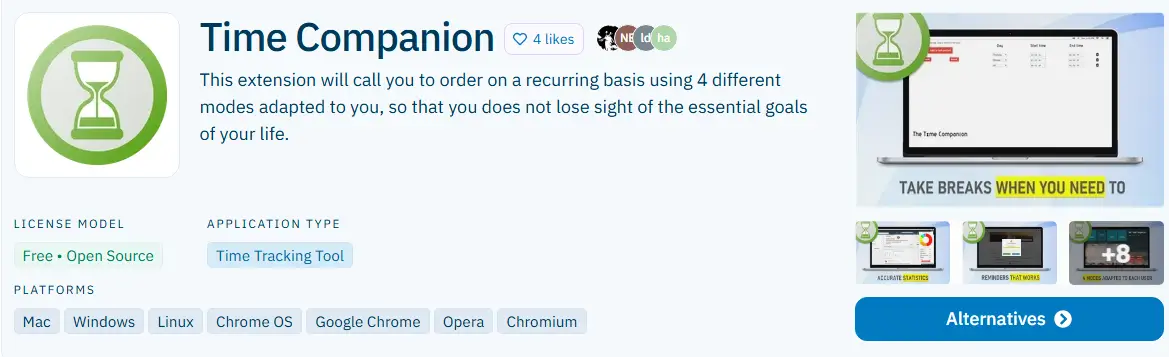
Image source: AlternativeTo.net (Time Companion page)
Time Companion is a free, open-source browser-based productivity tool that helps users stay focused through recurring reminders and distraction blocking. It works as a browser extension for Chrome, Opera, and Chromium, offering a lightweight way to limit online distractions without extra setup.
Features
- Works on Mac, Windows, Linux, and Chrome OS
- Available for Chrome, Opera, and Chromium browsers
- Blocks access to chosen websites
- Provides recurring reminders to maintain focus
- Free and open source
Cons
- Works only inside supported browsers and cannot block desktop applications or system-level distractions
- Does not include timers, adaptive locks, or scheduling tools
- Lacks regular updates or visible developer maintenance
- No wellness or downtime features to balance productivity
How to Install
- Open the Chrome Web Store or Opera Add-ons page.
- Search for Time Companion and click Add to Chrome or Add to Opera.
- Follow the on-screen steps to enable the extension.
Pricing
- Completely free and open source
Final Thoughts: Which Freedom App Alternative Works Best on Linux
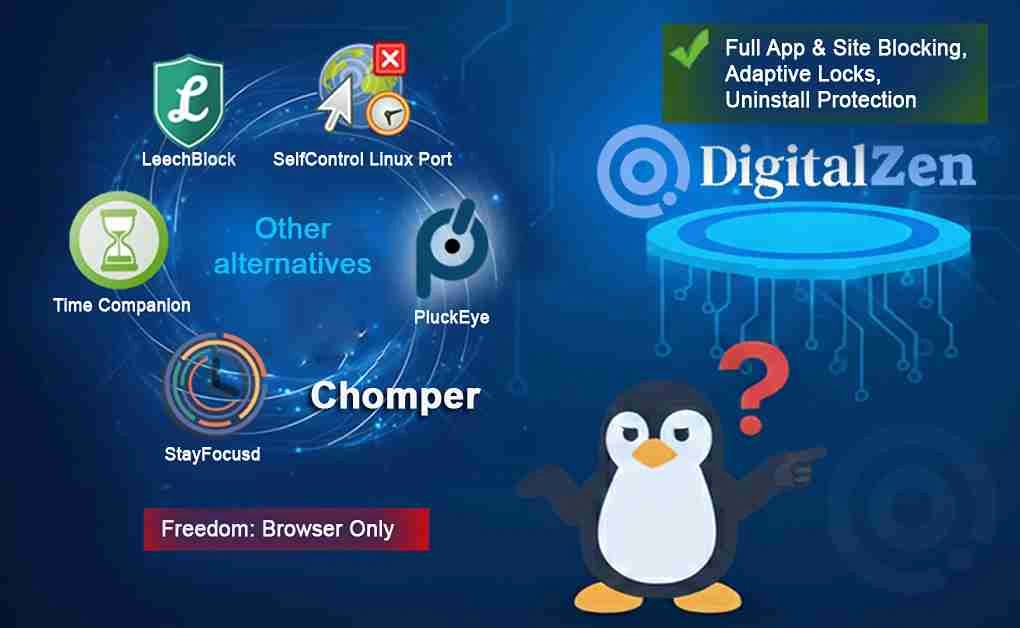
Freedom is great for basic browser blocking, but Linux users need more than a Chrome extension. We explored several of the best Freedom App alternatives that offer stronger focus tools, from desktop-level solutions like DigitalZen to open-source options such as Chomper and PluckEye, and lightweight browser-based tools including StayFocusd, LeechBlock, Time Companion, and SelfControl Linux Port.
Among them, DigitalZen stands out as the most complete solution. It provides native Linux desktop and website blocking, along with adaptive locks, wellness scheduling, and uninstall protection. These features make DigitalZen the top choice for anyone who wants a simple setup, real app blocking, and long-term focus on Linux to boost productivity and maintain a healthier digital routine.
Frequently Asked Questions
Does Freedom Work on Linux?
Yes, but with limitations. Freedom works on Linux only through a Chrome browser extension, which means it can block websites but not desktop apps or system-level distractions. Users who want full app blocking and offline control should consider alternatives like DigitalZen, one of the most reliable Linux productivity apps with native desktop support.
Is There a Free Version of the Freedom App?
Yes. Freedom offers a free plan with limited website blocking and focus sessions. To access advanced features such as scheduling, unlimited devices, and synced sessions across platforms, users must upgrade to the Premium plan ($39.99/year) or purchase the Lifetime license ($99.50).
What Is the Best Freedom App Alternative for Linux?
The best Freedom App alternative for Linux is DigitalZen. It provides both website and desktop app blocking, along with wellness tools, adaptive locks, and uninstall protection. Unlike Freedom’s browser-only setup, DigitalZen offers true Linux desktop integration for complete distraction control.
Are There Open-Source Freedom App Alternatives for Linux?
Yes. Chomper and PluckEye are open-source tools that let you filter websites and manage online habits through command-line control. These options are ideal for technical users who prefer customizable, community-driven tools instead of commercial software.
Can I Block Apps on Linux Like I Do on Windows or Mac?
Yes, but not with Freedom. Freedom for Linux only blocks websites, not distracting apps. To block desktop programs like games, gambling or chat tools, use a Linux-compatible blocker such as DigitalZen, or check our alternatives list to see its features.
References:
- https://freedom.to/
- https://github.com/aniketpanjwani/chomper
- https://www.pluckeye.net/what-is-pluckeye.html
- https://www.stayfocusd.com/
- https://alternativeto.net/software/leechblock/about/
- https://alternativeto.net/software/selfcontrol-linux/about/
- https://alternativeto.net/software/time-companion/about/