
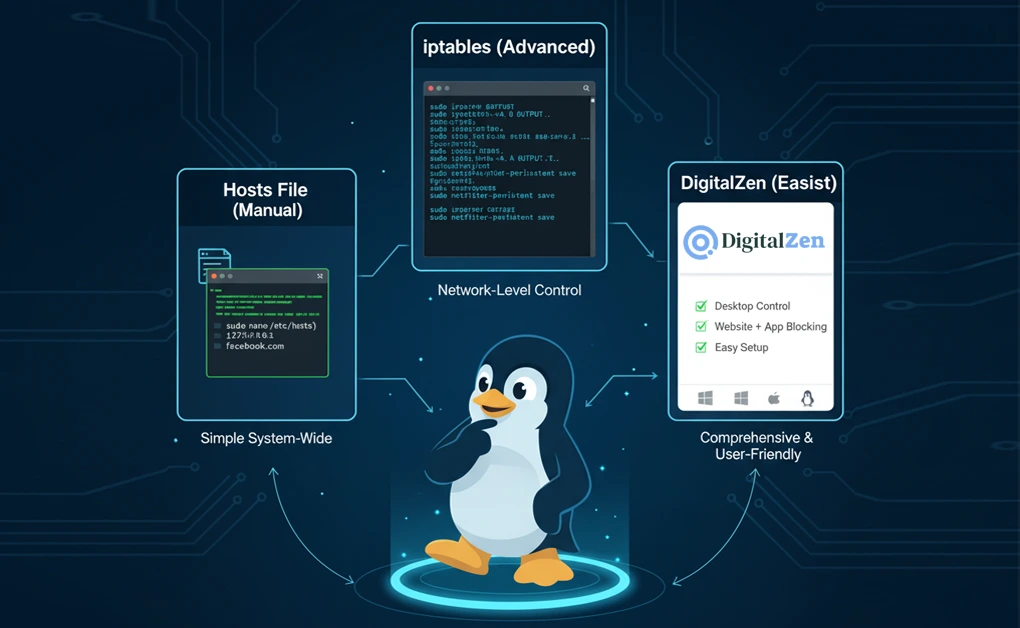
You can block websites on Linux by editing the hosts file, using the iptables command, installing an easy-to-disable browser extension, or using a dedicated tool like DigitalZen. Each option offers a different level of control and complexity, allowing users to choose the method that best fits their setup and focus goals.
Key Takeaways
- Block Sites Manually Using the Hosts File: The hosts file lets you manually add domain entries to prevent access to distracting sites like Facebook.com. It’s simple, system-wide, and requires no extra tools.
- Use iptables for Advanced, System-Wide Control: The iptables command gives you full network-level blocking power but requires sudo privileges and careful handling to avoid affecting other connections.
- Simplify Blocking with an Extension: A website extension provides the easiest way to manage what you want to block without editing system files or using terminal commands. For extensions, you need to configure them separately for each browser you use.
- Block with a Dedicated App: With a dedicated tool like DigitalZen, you have one easy place for controlling all the blocking across all browsers, preventing easy disabling or uninstalling of the extension, and blocking the use of unsupported browsers.
- Choose the Method That Fits Your Workflow: Each method helps block distractions and improve productivity. Select the one that best matches your comfort level, goals, and network control needs.
4 Methods to Block Websites on Linux
There are several reliable ways to block websites on Linux, each offering a different level of control and difficulty. Whether you prefer a simple manual edit, a system-level command, or an easy-to-use app, you can choose the method that best fits your technical comfort and productivity goals.
Method 1: Edit the Hosts File (Manual Method)
If you prefer a straightforward, no-installation approach, this method is for you. The hosts file on Linux allows you to manually redirect specific websites so your computer cannot access them. It’s simple, effective, and doesn’t require additional tools.
Steps:
1. Open the terminal.
2. Run:
sudo nano /etc/hosts
3. Find a suitable spot (usually before the IPv6 section) and add entries for the sites you want to block:
127.0.0.1 facebook.com
127.0.0.1 www.facebook.com
::1 facebook.com
::1 www.facebook.com
Avoid adding “http://” or “https://.”
4. Save and close (Ctrl + O, then Ctrl + X).
5. Flush your DNS cache or restart your system to apply changes:
sudo systemctl restart network-manager
6. Test by visiting the blocked websites in your browser; they should fail to load.
Best for: Tech-savvy users who are willing to take risks and want to block entire domains at the system level.
Method 2: Use iptables (For Advanced Users)
If you’re comfortable using the terminal and have administrative access, you can block websites at the network level using iptables, Linux’s built-in firewall. This gives you full control over outgoing traffic.
Steps:
1. Open the terminal.
2. Install or verify iptables and persistence tools:
sudo apt update
sudo apt install iptables iptables-persistent
3. Block a specific website or domain:
# Basic IP-based rule
sudo iptables -A OUTPUT -p tcp -d www.example.com –dport 443 -j DROP
Note: this uses the site’s IP resolved at the time of rule creation.
For more reliable domain-level blocking, you can use string matching:
sudo iptables -A OUTPUT -p tcp -m string –string “example.com” –algo kmp -j REJECT
4. Save and make rules persistent:
sudo bash -c “iptables-save > /etc/iptables/rules.v4”
sudo netfilter-persistent save
5. Verify your rules:
sudo iptables -L OUTPUT -n -v
Best for: Advanced users or system administrators who need precise, system-wide control over outbound connections.
Method 3: Use a Browser Extension
If you prefer not to use the terminal, browser extensions offer the easiest way to block websites on Linux. They let you manage distractions with just a few clicks and give you fine-grained control, since extensions can block by URL, not only by domain.
For instance, you can block broad patterns like *.facebook.com or be very specific by targeting paths such as facebook.com/groups/*. Different extensions offer features like custom rules, temporary lockouts, scheduling, redirect pages, or manual allowlists.
How to Set Up a Website-Blocking Extension
- Open your browser’s add-on or extension store. Look for a blocker that supports custom entries or pattern-based filtering.
- Install the extension for your preferred browser. Most Linux users rely on browsers such as Firefox, Chrome, Chromium, Brave, or Vivaldi.
- Open the extension’s settings panel. Enter the URLs, patterns, or keywords you want to restrict. Most changes take effect immediately.
- Repeat the setup in each browser you use. Extensions don’t share settings across browsers, so each browser needs to be configured separately.
Best for: Users who want a simple, browser-based solution with fine-grained URL blocking and do not mind configuring each browser separately.
Method 4: Use a Desktop App (Full System-Wide Protection)
A dedicated desktop app provides a more reliable and comprehensive solution. Instead of configuring every browser individually, you keep your blocking settings unified and easy to adjust. It also prevents easy disabling or uninstalling the extension, and can block apps outside your browser.
A great option for Linux users is DigitalZen, which offers full website and app blocking with additional focus tools.
- Use the One-Click Setup. Click the “One Click Setup” button inside the extension or on the DigitalZen site. This instantly applies the recommended focus and blocking settings.
- App blocking. (Optional) For app blocking, install the desktop agent from within the app. This enables full system-wide blocking for Linux, covering browsers, chat apps, and other desktop tools.
- Set up your blocklists. Create and manage website or app blocklists inside DigitalZen. All changes instantly apply across every browser and supported application.
4 Configure focus tools. Enable Focus Mode, create schedules, use Pomodoro timers, or activate Adaptive Blocking to automatically match your workflow.
Best for: Users who want a powerful, system-wide solution that centralizes all blocking and works consistently across every browser and app.
Why Block Websites on Linux?
Blocking distracting sites on Linux helps improve productivity and security. Limiting access to social media, streaming platforms, and unsafe domains keeps your system focused and protected. For a simpler approach, you can use the best Linux website blocker tools to manage browsing habits and maintain a distraction-free workspace.
People often use these methods to:
- Boost productivity and minimize multitasking.
- Enforce parental or team restrictions.
- Secure a work network against untrusted domains.
- Maintain healthier digital habits.
Unlike other operating systems, Linux gives you full control over system files and rules, making it easier to edit, add, or change how your system connects to the web. For Ubuntu users, we’ve covered the exact process in our guide on how to block any website in Ubuntu.
System-Wide vs Browser-Only Blocking
Blocking on Linux can work in two main ways:
- System-wide blocking: Changes made in the hosts file or through the iptables command affect the entire system. Every browser, app, or process will follow the same rules. This approach is ideal if you want to prevent distractions across your whole computer.
- Browser-only blocking: Installing a Chrome or Google extension focuses only on the browser itself. It’s easy to use and doesn’t require admin privileges, but it won’t block desktop apps or other traffic on your network.
- Mixed approach (recommended): Using a desktop app like DigitalZen gives you the best of both worlds by offering the fine-grained control of a browser extension and the convenience of system-wide blocking. It combines detailed URL control with full device-wide blocking in a single, easy workflow.
Whether you choose a local file edit or a browser add-on, it’s essential to save your settings and confirm they work as intended. Each approach ensures the control you need to allow productivity and block distractions when necessary.
Additional Tips to Manage Distractions on Linux
Blocking websites is only part of building better focus habits. Pairing your setup with healthy screen-time routines can make the results last longer.
- Combine website blocking with Focus Mode or Pomodoro sessions. These short, timed focus bursts keep you productive while ensuring you take regular breaks. DigitalZen includes both Focus Mode and a built-in Pomodoro timer.
- Schedule your blocking sessions. Set specific hours when distractions are off-limits, like during work or study time. Adaptive blocking, available in tools like DigitalZen, automatically adjusts your schedule when your focus pattern changes.
- Practice mindful browsing. The goal isn’t to block every site forever, but to help you use the internet with intention. When you do allow certain sites, keep your sessions purposeful.
Tools like DigitalZen make all this simple by combining scheduling, adaptive blocking, and reminders in one app, helping Linux users stay focused without complicated configurations. If you’re using Fedora, explore our guide on blocking websites for Fedora-specific setup advice.
Conclusion: Simplifying Website Blocking on Linux

There are four main ways to block websites on Linux: editing the hosts file, using iptables rules, installing a browser extension, or using a dedicated website blocker app. Each method offers a different level of control, so it’s best to choose the one that matches your comfort level, technical experience, and work environment.
For those who prefer a faster, user-friendly solution, website blocker apps such as DigitalZen offer automation, scheduling, and cross-browser management without complex commands. Whichever method you choose, staying consistent with your setup will help you maintain focus, reduce distractions, and create a balanced digital workspace.
FAQs: Blocking Websites on Linux
Can I Block Websites on Linux Without Using the Terminal?
Yes. You can use apps like DigitalZen or browser extensions such as BlockSite. These tools help prevent access to distracting sites without editing system files or running a script. It’s a simple technique for maintaining focus and improving productivity on your Linux device.
Why Isn’t My Hosts File Blocking the Websites I Added?
This usually happens because of DNS caching or a formatting error. Clear your browser cache or restart your operating system, and make sure each entry follows the correct format, for example:
127.0.0.1 facebook.com and 127.0.0.1 www.facebook.com.
What’s the Difference Between System-Wide and Browser-Only Blocking?
System-wide blocking (using /etc/hosts or iptables) affects all browsers and apps.
Browser-only blocking (via extensions) affects only your web browser. Choose based on whether you need full computer control or just in-browser focus.
Can I Block Desktop Apps Like YouTube or Discord on Linux?
Yes. Tools like DigitalZen make it possible to block both websites and desktop applications. This keeps your habits consistent and your time-wasting apps off during focused work periods.
Is It Possible to Unblock Websites After Setting These Rules?
Absolutely. You can edit or comment out the related entries in the /etc/hosts file, delete the related iptables rule, or toggle the block off in DigitalZen’s dashboard. Restart your network to apply the changes.
If you’re using DigitalZen, enable its Anti-Uninstall feature to prevent accidental app removal and ensure your blocking setup remains active throughout each session.
References:
- https://techblogs.42gears.com/what-is-the-best-way-to-block-and-restrict-linux-user-traffic-to-particular-sites-just-leverage-the-iptables-functionality-built-into-the-os/
- https://medium.com/@kaleb.baer/how-to-block-websites-on-linux-8307e4b3e24d
- https://unix.stackexchange.com/questions/127766/blocking-websites-with-etc-hosts
- https://www.baeldung.com/linux/etc-hosts-block-specific-websites