
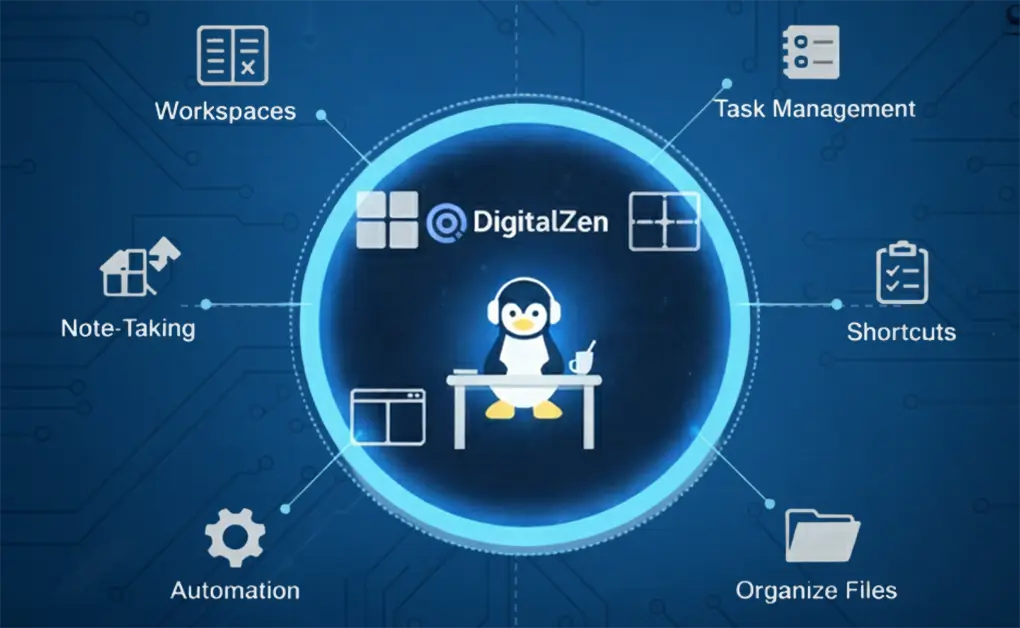
The best Linux productivity tips focus on reducing friction, keeping your workflow organized, and removing digital distractions. Start by using workspaces, smart window organization, custom keyboard shortcuts, and terminal tools. Add automation, clean file structures, and distraction blockers to stay focused and work faster across your Linux desktops.
Key Takeaways
- Workspaces reduce cognitive load: They organize your apps into clean, predictable areas so you can switch tasks without dragging windows or dealing with visual clutter.
- Keyboard shortcuts and terminal tools speed up daily actions: Custom shortcuts, aliases, and modern command line utilities help you complete routine tasks faster and keep your hands on the keyboard.
- Automation removes repetitive tasks from your day: Cron jobs, systemd timers, and simple scripts keep cleanups, backups, and sync operations running in the background so you can stay focused.
- Distraction blockers strengthen every productivity habit: Tools like DigitalZen prevent interruptions from apps and websites, helping you maintain deep focus and get more done on your Linux desktops.
11 Linux Productivity Tips You Can Try
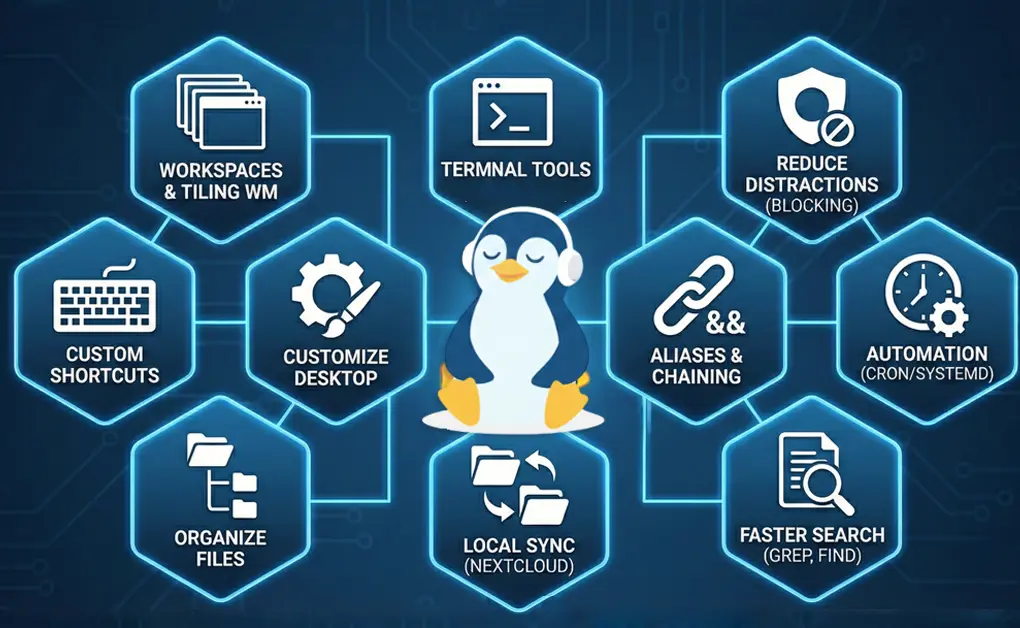
1. Use Workspaces to Separate Tasks and Reduce Cognitive Load
A workspace is a virtual desktop that lets you group related windows into their own areas. This helps any Linux user stay organized because each workspace holds only the tools needed for a single task. If you’re a beginner, workspaces make it easier to manage multiple apps without feeling overwhelmed.
How to Use Workspaces Effectively
- GNOME creates dynamic workspaces that appear as you open new windows.
- KDE Plasma and Xfce allow you to create and name a fixed set of workspaces.
- Place your editor and terminal in one workspace, keep research tabs in another, and move communication tools to a separate space.
- This setup creates a smoother workflow because you switch tasks without moving unrelated windows around.
Why Workspaces Improve Productivity
- Each workspace has a clear purpose, which reduces cognitive load and improves productivity.
- Separating tasks limits distractions and keeps your attention on one activity at a time.
- This follows a well-known productivity principle: isolate contexts to reduce mistakes and maintain focus during deep work.
2. Reduce Digital Distractions and Support Deep Work on Linux
Distractions break focus fast, even when you have a strong workflow on Linux. Website and desktop app blockers help you stay focused by removing digital noise that distracts you from your task. These tools provide a controlled environment for deep work, whether you’re studying for exams, grinding through a gaming session rank climb, or finishing client deliverables from a coffee shop abroad.
Practical Ways Blocking Tools Help
- Block social media, news sites, and entertainment pages during work or study sessions
- Limit messaging apps or streaming tools that interrupt focus
- Use Focus Mode to stay committed to one task for a set period
- Set automated break reminders to prevent fatigue and keep your energy steady
Why Distraction Control Improves Productivity
- Fewer interruptions create a smoother task flow
- Blocking tools help maintain clean desktop spaces without focus-breaking apps
- You avoid opening a browser, which reduces off-task clicks
- Consistent blocking rules across Linux, Windows, and macOS help maintain good habits on all your devices
Browser extensions aren’t enough for deep work. DigitalZen blocks desktop apps, schedules focus sessions, and offers flexible moderation, so you stay fully in control of your focus.
3. Master Custom Keyboard Shortcuts to Speed Up Routine Actions
Custom keyboard shortcuts let you perform everyday tasks instantly, which increases your productivity. A shortcut replaces a series of clicks with a single key combination, so your hands stay on the keyboard, and your workflow stays smooth.
Useful Shortcuts to Create
- Launch your terminal
- Move windows between workspaces
- Lock your screen
- Open a specific directory or folder
- Switch between apps
- Open your file manager at a preset filename path
These shortcuts work across most desktop environments, and each one removes a slight delay from your day.
Why Shortcuts Matter
- Shortcuts remove repetitive navigation.
- Muscle memory speeds up how you move through tasks.
- Using the same shortcuts on all your machines helps you master your environment more quickly.
4. Customize Your Linux Desktop for a Faster Workflow
A customized Linux desktop helps you work faster by removing minor points of friction that slow down daily tasks. Simple changes to your setup can improve your workflow, reduce repetitive tasks, and make your system feel more tailored to how you think.
Ways to Customize Your Setup
- Add panels, docks, and app launchers for quicker access to tools
- Use keyboard launchers like Albert or Ulauncher to open apps instantly
- Edit file manager right-click menus to automate common actions
- Create quick-access shortcuts to your most-used directories
Why Customization Helps
- A tailored setup reduces unnecessary navigation
- Your workflow becomes more intuitive and predictable
- Organized tools help you save time and avoid repetitive clicks
- Lightweight environments like XFCE make customization fast and flexible
5. Supercharge Your Terminal with Modern Productivity Tools
Your terminal can be much more than a place to run basic commands. With a few modern tools, it becomes a fast and flexible control center that improves your process. These tools help you search quickly, move between directories, and manage your system with less effort.
Tools Worth Adding to Your Setup
- fzf provides fuzzy finding so you can jump to files, folders, or history entries instantly.
- ripgrep searches through codebases or logs at high speed.
- zoxide replaces the traditional cd command with smart navigation that remembers your habits.
- Starship creates a clean, informative prompt that shows helpful details without slowing you down.
These tools help you streamline your work by letting you run complex actions with a single command instead of clicking through menus.
Advanced Terminal Enhancements
- Switching from bash to zsh or fish gives you better autocompletion and a stronger plugin ecosystem.
- Shell plugins add syntax highlighting, autosuggestions, quick history search, and other upgrades that improve daily tasks.
- Store your dotfiles in version control so you can rebuild your environment quickly across distros. This keeps your commands or scripts consistent on every machine.
Mastering these productivity tools is one of the most effective Linux tips for speeding up your daily work and reducing repetitive actions.
6. Speed Up Everyday Commands with Aliases and Command Chaining
If you repeat the same command line actions every day, you lose time you could easily save. An alias replaces a long command with a short trigger, and command chaining lets you run multiple actions in sequence. These simple tools make your Linux workflow faster and more efficient.
How to Use Aliases and Chaining
- Create an alias like ll=”ls -lah” to speed up file listings.
- Use && to chain commands so each one runs only if the previous one succeeds.
- Use ; when you want commands to run independently.
Pro-Level Alias Management
- Store aliases in ~/.bashrc or ~/.zshrc so they load each session automatically.
- Group aliases for deployments, note-taking, or other repetitive tasks.
- Pair alias functions with small commands or scripts to automate multi-step operations.
These optimizations help you move through tasks faster. When you apply them consistently, they become one of the most effective Linux tips for improving daily productivity.
7. Automate Tasks with Cron or Systemd Timers
Automation allows your system to handle routine work for you. Tools like cron and systemd timers run tasks on a schedule, reducing repetitive work and keeping essential jobs consistent across your Linux desktops. Once set up, these automated tasks run without manual input, freeing your day from unnecessary steps.
What You Can Automate
- Create a daily backup of important folders
- Clean temporary files or prune old logs
- Sync files between machines
- Trigger any script that supports your workflow
Cron vs. Systemd Timers
- Use cron for simple, time-based schedules such as morning cleanups or daily syncs.
- Use systemd timers for jobs that need reliability, detailed logging, or dependency handling.
Advanced Automation Techniques
- Systemd records detailed log entries so you can confirm each task ran correctly.
- Combine systemd services with timers for reliable automation across reboots.
- Use && chains inside a cron script to enforce precise execution order.
Automating routine work is one of the most effective ways to improve productivity. It reduces manual effort, keeps your workflow predictable, and frees your attention for more important tasks.
8. Organize Your Files with a Clear, Searchable Directory Structure
A clean file system makes your work easier to manage. When your files follow a clear structure, you can find the correct file name quickly without digging through cluttered folders. This helps any Linux user maintain a smoother workflow with less wasted time.
How to Build a Useful Structure
- Use semantic naming, such as client-project-2025-report.md, to identify files instantly.
- Organize documents using year and month folders so older work is easy to locate.
- Follow the XDG directory standards so downloads, screenshots, and documents stay in predictable locations.
Why This Improves Productivity
- A consistent structure lowers mental load and keeps your workspace clear.
- Tools like grep and ripgrep work better when files follow predictable patterns.
- Searches run faster, especially when paired with strong command-line tools.
- A tidy system reduces the chance of accidental delete actions because you always know where files belong.
9. Use Local Sync Solutions Like Nextcloud or Syncthing for Smoother Workflows
Local sync tools help you move files between machines without relying on the internet. They give open-source users more privacy, faster transfers, and full control over their data. These tools improve your Linux workflow by keeping files consistent across all your desktops.
They’re especially valuable for digital nomads who need reliable access to their files across multiple devices, even when working from locations with unreliable internet connections.
What Makes Local Sync Useful
- LAN sync is faster than uploading to cloud services.
- You control your data without depending on third parties.
- Sync happens automatically, so you do not need to manually automate file transfers.
Easy Ways to Set It Up
- Install Nextcloud or Syncthing on a server or home machine.
- Use a lightweight container to quickly deploy the service.
- Configure your sync folders and let the system automatically update each directory.
10. Search Faster Using Tools Like grep -A/-B, find, and locate
Strong search skills make the command line much more efficient. When you know how to use the right tools, you can fix errors, scan project trees, and locate the correct file name in seconds. These tools help any Linux user navigate large codebases and complex directories quickly.
Useful Search Tools
- grep with -A and -B shows lines before and after a match, so you can see useful context.
- find locates files by name, size, or type in any directory.
- locate returns file paths instantly by using a prebuilt index of your file system.
When These Tools Matter Most
- Searching logs with grep gives you fast insight during debugging.
- find helps you track down old files you want to archive or delete.
- Using these tools together lets you scan your system quickly without opening a browser
11. Improve Multitasking with Tiling Extensions
A tiling window manager arranges your app windows automatically so they never overlap. Instead of dragging and resizing windows on your desktops, each one snaps into a defined position. This makes multitasking faster because your layout stays clean and predictable.
Tools You Can Use
- Pop Shell on GNOME or KWin tiling scripts on KDE.
Why Tiling Improves Productivity
- Predictable window placement helps you save time and reduces visual clutter.
- You can keep your hands on the keyboard instead of moving between keys and a mouse.
- Each app has its own space, which supports a smoother workflow when switching between tasks.
These tips help you simplify daily tasks, especially when combined with automation, aliases, and well-organized directories.
Use Website and Desktop App Blocking Tools to Eliminate Distractions and Support All Other Productivity Habits
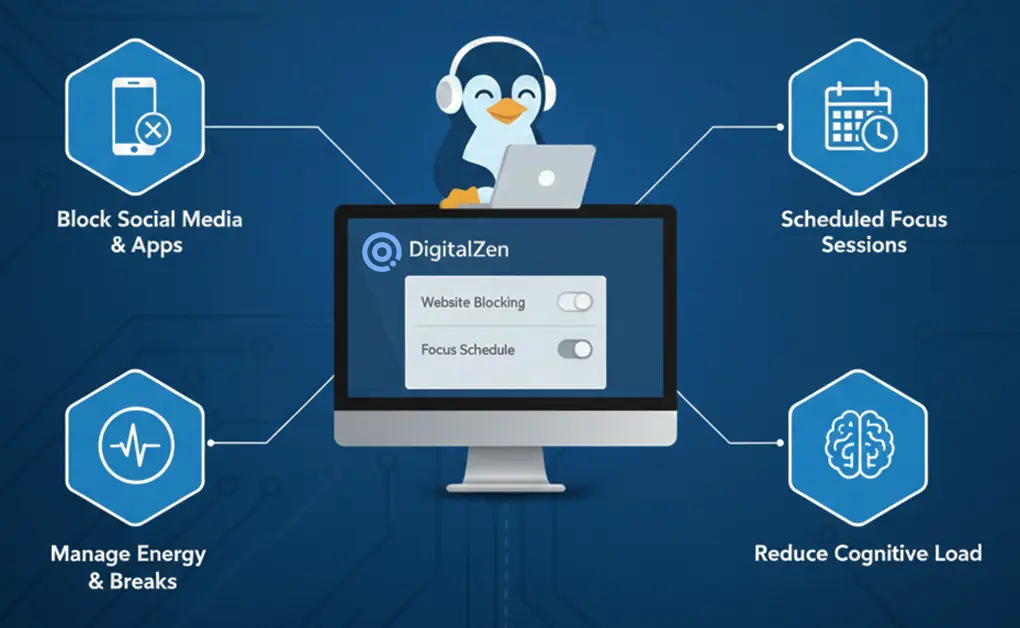
Distractions are one of the biggest barriers to staying productive on Linux. Website and desktop app blockers help you stay focused by limiting access to apps and sites that interrupt your workflow. These tools create a controlled workspace where your attention stays on the task.
How Blocking Tools Help You Stay Focused
- Block social media, news sites, and entertainment pages during work
- Limit desktop apps that pull you out of deep focus
- Use scheduled sessions, so your system enforces your priorities
- Add break reminders to manage energy and prevent fatigue
Tools like DigitalZen make this simple. They block websites, restrict desktop apps, and offer Focus Mode timers on Linux desktops. You stay in control of your work periods and break times.
Blocking tools also support your other productivity habits. Workspaces stay organized because distracting apps are not allowed in them. Tiling layouts remain clean. Terminal sessions feel smoother because you are not switching out of them. Automation, aliases, and search tools all become more effective when your attention stays steady.
This is especially helpful for students who need uninterrupted study time and digital nomads who often balance client deadlines with travel schedules. Strong blocking helps them stay productive in shorter work windows and avoid losing time when they need to finish tasks quickly.
Conclusion: Build a Linux Productivity System That Supports Focus, Flow, and Flexibility
You do not need to change everything at once. Start with a few tips and build from there. Workspaces reduce clutter, tiling keeps windows organized, shortcuts speed up actions, automation removes repetitive tasks, and good search and file organization keep your system efficient. These habits reduce friction and help you avoid common productivity mistakes for Linux users.
DigitalZen fits into this system by helping you stay focused. When distractions stay out of your way, you can enter a deeper flow and maintain your attention for more extended periods of time.
Your goal is simple. Create a Linux setup that supports focus, reduces noise, and helps you do your best work consistently. This approach gives you a balanced Linux experience that is productive, calm, and easy to maintain.
Frequently Asked Questions
What Are the Best Linux Productivity Tips for Beginners?
Beginner-friendly productivity tips include learning essential Linux command-line actions, setting up workspaces, using tiling tools, and creating shortcuts for frequently used commands. These practical habits help you enhance your productivity, even if you’re just starting to explore different Linux distributions and desktop setups.
How Do Workspaces Save Time?
Workspaces help you stay organized by reducing window clutter and keeping your workflow structured. These features in Linux desktop environments let you switch between tasks faster and use fewer keystrokes, which makes your overall workflow smoother.
How Do Aliases and Automation Improve Daily Tasks on Linux?
Aliases shorten commands like file listings or navigation paths, while automation tools such as crontab reduce repetitive work. If you work with scripts regularly, these small optimizations save you a lot of time across your Linux systems and environments.
When Should I Use Cron vs. Systemd Timers?
Use cron for simple schedules and lightweight automation, and use systemd timers when you need reliability, dependencies, or detailed logging. Both tools help you run tasks consistently across remote systems or local machines.
References:
- https://www.linuxjournal.com/content/essential-keyboard-shortcuts-and-time-saving-tips-linux-productivity
- https://blog.devops.dev/7-linux-command-tricks-to-supercharge-your-productivity-c4ee8d2703b2
- https://www.findarticles.com/the-best-productivity-tips-and-tricks-for-linux-beginners-and-pros/
- https://www.zdnet.com/article/10-linux-tips-i-give-to-both-beginners-and-professionals-for-improved-productivity/
- https://dzone.com/articles/7-linux-commands-and-tips-to-improve-productivity#:~:text=Here%20are%20some%20productivity%20hacks%20for%20Linux,Efficient%20file%20management%20*%20Automation%20through%20scripts