
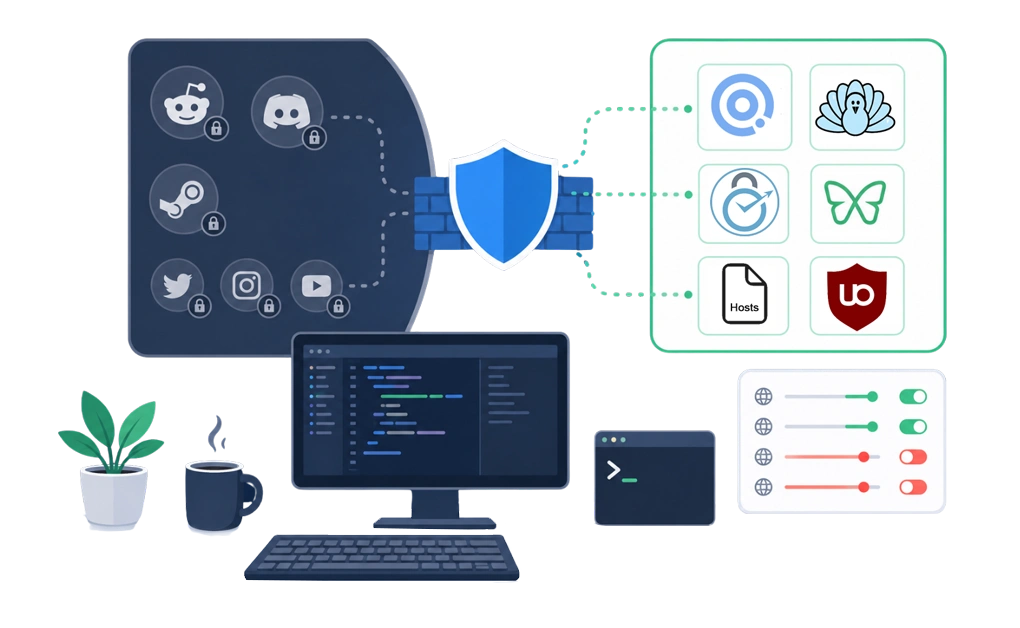
The best distraction blockers for developers handle three things at once: granular URL control, app blocking, and Linux support. A good setup can block Reddit while allowing Stack Overflow. It can block Discord or Steam without touching an IDE. DigitalZen, Cold Turkey, FocusMe, and Freedom all handle the desktop side. DIY methods like hosts files and uBlock Origin work for narrower cases.
Key Takeaways
- Developers need granular control, not all-or-nothing blocking: A working setup allows documentation, GitHub, and IDE tools while blocking high-pull distractions.
- App blocking matters more for developers than for most users: Distractions often live outside the browser, in apps like Discord, Steam, and group chats.
- Linux support is non-trivial: Many tools either skip Linux or offer browser-extension-only support.
- DIY methods have honest trade-offs: Hosts file edits, uBlock Origin filters, and separate browser profiles can handle narrow cases. None gives a complete setup.
- The terminal does not need to be blocked: A working setup leaves actual developer tools alone and targets the distractions around them.
Disclaimer: This article was published in September 2026. It reflects the app details available at the time of posting. Notice an error? Let us know and we’ll fix it!
What Makes Distraction Blocking Different for Developers
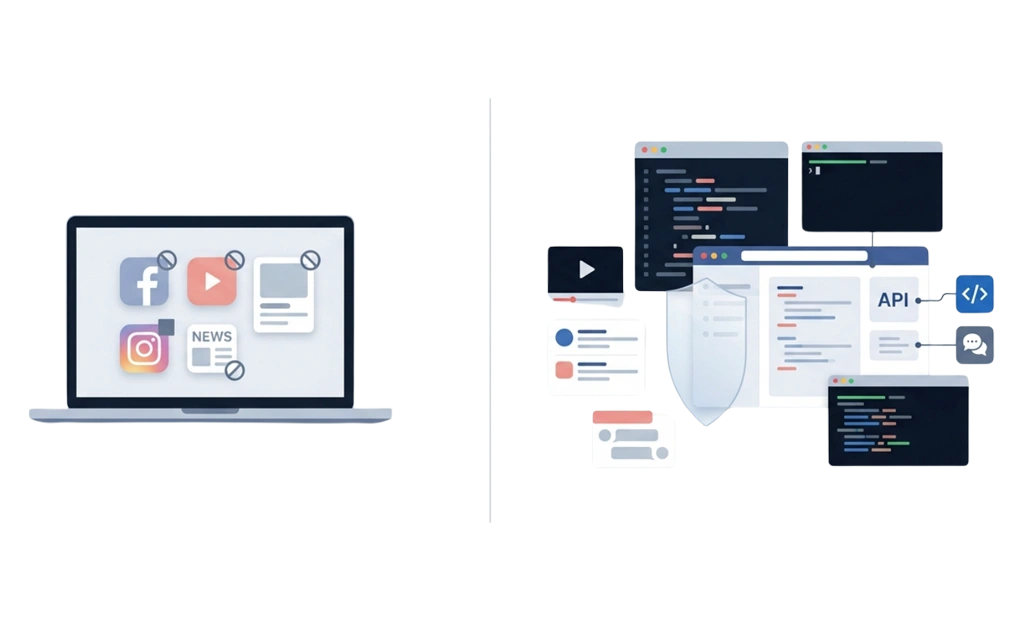
Many distraction blockers are built for a general audience that wants to block social media, news, or entertainment sites. Developer use is different. The browser is part of the toolchain, chat apps may be required for work, and a wildcard rule that catches localhost:3000 can break the setup instead of helping it.
Developers often work close to their distractions. The same browser that opens API docs can also open Reddit, YouTube, or Hacker News in a few seconds.
Five specific challenges shape the criteria for a developer-friendly blocker:
- Documentation lives on the web: Stack Overflow, MDN, GitHub, language docs, and vendor APIs all run in the browser. A category-level block, such as blocking all “social” or “tech news” sites, can be too broad because some sites in those categories may be useful for work. The right tool should support site-level allow rules and wildcard patterns that can target subdomains and paths more precisely.
- Work and distraction can live in the same browser: X can be a distraction, but a specific account may post useful API updates. Reddit can be a distraction, but a programming subreddit may be useful during research. A developer-friendly blocker needs enough control to handle these differences without breaking the rest of the browser.
- Some desktop apps are sometimes work and sometimes a distraction: Slack may be essential during a sprint and distracting during deep work. Discord might host both a team server and personal servers. A blocker that treats every app as either always allowed or always blocked may not fit the real workflow.
- Local development URLs should usually stay open: localhost:3000, 127.0.0.1:8080, and similar dev-server URLs often need to remain accessible. A good setup either ignores local IPs by default or supports clean allow rules, so the blocker does not interrupt testing or development work.
- Linux support matters for many developers. A tool that does not run on Linux may be a deal-breaker for developers who use it as their primary OS. A browser-extension-only setup can still help with websites, but it leaves desktop apps outside the blocker.
For developers, a good blocker should do more than block obvious distractions. It should protect access to essential work resources, handle websites and apps separately, avoid breaking local development tools, and support the operating system the developer actually uses.
Five Website Blockers Compared for Programmers
The tools mentioned were chosen because they represent different blocking setups developers often consider: full desktop blockers, cross-device blockers, Linux-friendly options, and free browser-extension tools. Each one is reviewed through the developer-specific challenges above, rather than generic productivity features.
1. DigitalZen
DigitalZen combines Linux desktop support, website blocking, app blocking, and a graphical interface. This helps developers who want stronger blocking without building their own scripts.
For developers running Linux as a primary OS, that combination is useful because it avoids browser-only blocking and does not require a command-line setup. DigitalZen’s Linux app supports major Linux distributions, including Debian-based, Red Hat-based, and Arch-based systems.
Strengths for developer use:
- Website blocking with advanced URL patterns, so developers can create more specific rules than simple domain-only blocks.
- App blocking lets developers keep essential work tools available during focus sessions. It can also block distracting apps like Discord, Steam, or Slack when they are not part of the current task.
- A full GUI makes setup easier for users who want Linux blocking without editing hosts files, running CLI commands, or building their own scripts.
- Adaptive locks can add friction before a block is paused, edited, or removed.
- Focus Mode can work as an allowlist, so only selected work apps and websites remain available during a session.
- Team Focus lets developers work together and add social accountability during focus sessions.
Limitations:
- Mobile support is planned for 2026 and still in progress, so the experience is currently focused on desktop platforms.
- More advanced features are included in premium plans.
Best fit: developers who want a GUI-based blocker for Linux, macOS, or Windows, especially when they need both website blocking and desktop app blocking.
2. Cold Turkey
Cold Turkey is a strict website and app blocker for Windows and macOS. Its developer-relevant strengths are precise blocking rules, lock options, and command-line controls for users who want to connect blocks with third-party tools or scripted workflows.
Strengths for developer use:
- Blocks domains, specific URLs, wildcard keyword patterns, the entire internet with exceptions, apps, games, files, folders, Windows 10 apps, and window titles.
- Command-line controls let users start, stop, toggle, and lock blocks through third-party apps or scripted workflows.
- Lock options such as Timer, Random Text, Time Range, Restart, and Password can make active blocks harder to change or remove.
- Allowances and Pomodoro timers give developers more flexible ways to manage breaks without fully removing the block.
- Uses a one-time purchase model for Pro, which may appeal to developers who prefer not to manage another subscription.
Limitations:
- No Linux support. For Linux-primary developers, this is a hard stop.
- No Android or iOS app, so it is not a mobile blocker.
- Developers who rely on multiple browsers may need extra setup. Some users report manually blocking additional browser executables or using Windows Firewall rules to reduce bypass opportunities when unsupported browsers are installed.
Best fit: developers on Windows or macOS who want strict website and app blocking, precise URL rules, command-line controls, and a one-time purchase model.
3. FocusMe
FocusMe is a feature-rich distraction blocker that supports Windows, macOS, Linux, and Android. For developers, its main strengths are system-level website blocking, app blocking, detailed rule options, and strong anti-bypass settings.
Strengths for developer use:
- Supports Windows, macOS, Linux (partial), and Android.
- Blocks websites by URL, partial URL, page title, or RegEx, with system-level blocking across browsers.
- Blocks desktop apps, games, and Windows Store apps by process name, file path, or window title.
- Enforced Mode can prevent active plans from being stopped, which may suit developers who want a stricter wall during deep work.
- Random Character Challenge can require up to 2,000 characters before changes are allowed.
- Time limits, launch limits, screen breaks, and whitelist-only mode give developers several ways to shape different work sessions.
Limitations:
- FocusMe is a paid product, although its pricing page lists multiple payment options, including monthly, yearly, 2-year, and lifetime plans.
- No iOS app is listed on the current platform list.
- The large number of settings can make the initial setup more involved than simpler blockers. Developers who only need straightforward schedules and blocklists may spend more time configuring rules than expected.
- Linux support is currently limited to Debian-based systems, with limited Wayland support. App blocking requires external dependencies.
Best fit: developers who want a feature-rich blocker with Linux support, strong anti-bypass settings, app blocking, and detailed rules across websites and applications.
4. Freedom
Freedom is a cross-device distraction blocker for macOS, Windows, iOS, Android, and Chromebook. Its main strength for developers is coverage across multiple devices, especially when phone or tablet distractions pull attention away from desktop work.
Strengths for developer use:
- Syncs schedules and blocklists across Mac, Windows, iPhone, iPad, Android, and Chromebook.
- Advance Scheduling and Recurring Schedules let users plan focus sessions ahead of time.
- Locked Mode can prevent a session from being ended early.
- Focus Sounds include music, cafés, libraries, and natural ambient sounds for concentration.
- On Mac and Windows, Freedom can block desktop applications as well as websites.
Limitations:
- Linux support is browser-extension only. It can block websites in supported browsers, but it does not provide full Linux desktop app blocking.
- Website Exceptions are listed for desktop, so allow-only sessions may be more limited on mobile or Chromebook.
- Mobile enforcement may be easier to override than desktop blocking. Some iOS users report bypassing sessions by changing Screen Time permissions or disabling related protections.
- Freedom prioritizes cross-device coverage over maximum desktop lock strength. Developers who mainly need strict enforcement on one computer may find its approach lighter than expected.
Best fit: developers who need phone, tablet, and desktop coverage in one blocker, especially on macOS or Windows.
5. LeechBlock NG
LeechBlock NG is a free browser extension for blocking distracting websites.
Strengths for developer use:
- Free and lightweight, with a Chrome extension and versions available for other major browsers.
- Supports up to 30 separate block sets, each with different times and days.
- Blocks sites during fixed time periods, after a time limit, or through a combination of both.
- Supports wildcards, exceptions, and keyword-based rules for more flexible website control.
- Includes access controls, such as a password or random access code for the options page.
Limitations:
- As a browser extension, it does not block desktop apps like Discord, Steam, or messaging clients.
- Switching to a browser where it is not installed can bypass the setup. This matters if switching browsers is already one of your common detours.
- It is less complete than a desktop blocker for developers whose distractions include apps, games, or multiple browsers.
Best fit: developers whose distractions live mostly inside the browser, or those who want a free starting point before moving to a desktop-level blocker.
DIY Methods That Developers Often Try
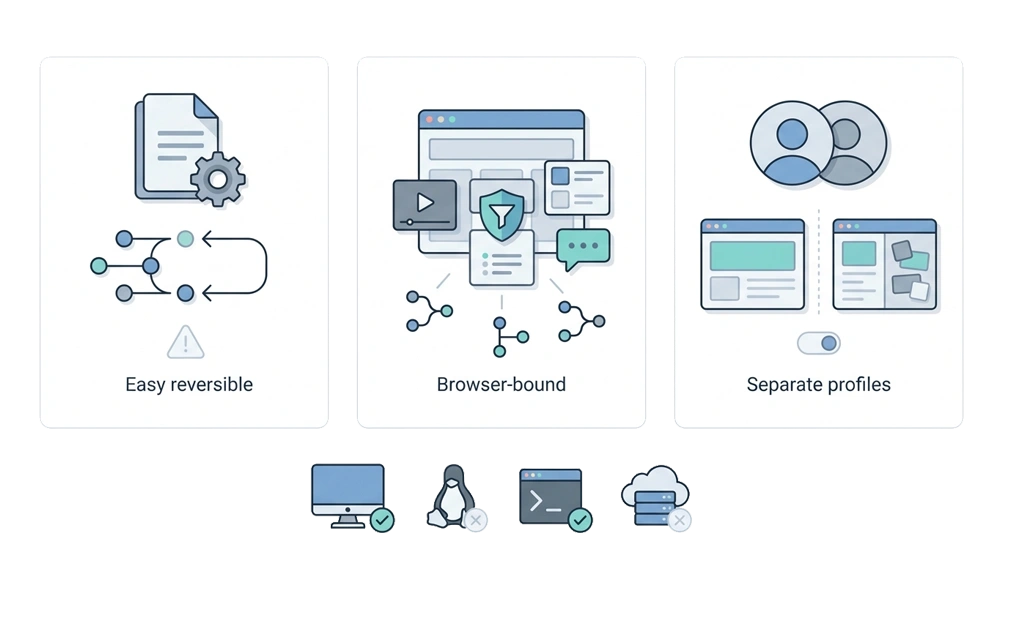
Many developers try technical DIY methods before choosing a dedicated blocker. Three common methods are worth comparing. Each can solve a narrow blocking problem, but none replaces a full desktop blocker with scheduling, app blocking, allowances, and lock controls.
1. Editing the Hosts File
The hosts file is a local system file that maps domain names to IP addresses. Microsoft Learn explains that the hosts file maps domain names to matching IP addresses and that the computer checks this file first when resolving a website.
Adding a line like 127.0.0.1 reddit.com maps that hostname back to the local machine, which can stop the site from loading. This can work across browsers on the same computer, but each hostname may need its own entry. For example, blocking reddit.com may not automatically cover every related subdomain.
What it does well:
- Free and built into the operating system.
- Can apply across browsers on the same machine.
- Cross-platform: /etc/hosts on Linux and macOS, and C:\Windows\System32\drivers\etc\hosts on Windows.
Trade-offs:
- Easy to revert for anyone with admin or root access on the machine.
- No scheduling, no time-of-day rules, and no daily allowances.
- Cannot block desktop apps.
- Requires admin or root privileges to edit, which can complicate corporate or managed-device setups.
For developers who have tried hosts-file edits and found them too easy to undo, a dedicated blocker can provide stronger scheduling, app blocking, and lock controls.
2. uBlock Origin Custom Rules
uBlock Origin is best known as an ad and content blocker, but some developers also use its custom filter rules to reduce distracting sites during deep work. Its static filter syntax supports hostname blocking, wildcard filters, domain options, and pattern-based URL rules, making it flexible enough for a wide range of website-blocking setups.
What it does well:
- Free browser extension for major browsers.
- Precise website control through static filter rules.
- Useful for developers who already understand filter syntax or already use uBlock Origin in their daily browser.
Trade-offs:
- Browser-only, so it cannot block desktop apps.
- Built mainly for content blocking, not habit enforcement or scheduled focus sessions.
- Switching to a browser where uBlock Origin is not installed can bypass the setup.
- Filter syntax has a learning curve for non-trivial rules.
This can be a useful layer for developers who want quieter browsing during deep work. It is weaker as a standalone option for anyone who needs scheduling, app blocking, or stronger override friction.
3. Separate Browser Profiles
Some developers create separate browser profiles to keep work browsing separate from personal browsing. Mozilla Support notes that Firefox supports separate profiles, with each profile storing its own bookmarks, passwords, settings, and browsing data. Chrome also supports profiles for keeping bookmarks, history, passwords, and other settings separate.
What it does well:
- Creates clean separation between work and personal browsing at the browser level.
- Reduces distractions inside the work profile, especially if personal bookmarks, accounts, and extensions are kept out of it.
- Free and built into Firefox and Chrome.
Trade-offs:
- Still relies on the developer choosing to open the right profile.
- No built-in enforcement against switching profiles mid-task.
- No app blocking, no scheduling, and no override friction.
This can work when you already have strong habits. It works less well when opening the personal profile is the easiest way to drift. It is less useful for developers who need stronger blocking, app controls, or anti-bypass protection.
How Each Blocker Handles Linux Support
Linux support is where many distraction blockers fall short. For developers, this is not a small gap. Linux may be the main work environment, not a secondary device.
A quick summary of the tools covered above:
- DigitalZen: Linux desktop app with a full GUI, website blocking, app blocking, and no need for CLI commands or DIY scripts.
- FocusMe: Linux desktop support with a broad feature set for website blocking, app blocking, scheduling, and anti-bypass protection.
- Cold Turkey: not supported on Linux.
- Freedom: supports Linux through a Chrome browser extension for website blocking, but not as a full Linux desktop app.
- LeechBlock NG: can run on Linux through supported browsers, but stays browser-only by design.
For Linux developers, the practical options narrow to DigitalZen and FocusMe for desktop-level enforcement, with Freedom and LeechBlock NG as browser-based options. For a deeper comparison, how the leading Linux blockers compare goes through the options in more detail.
Choosing the Right Setup for Your Workflow
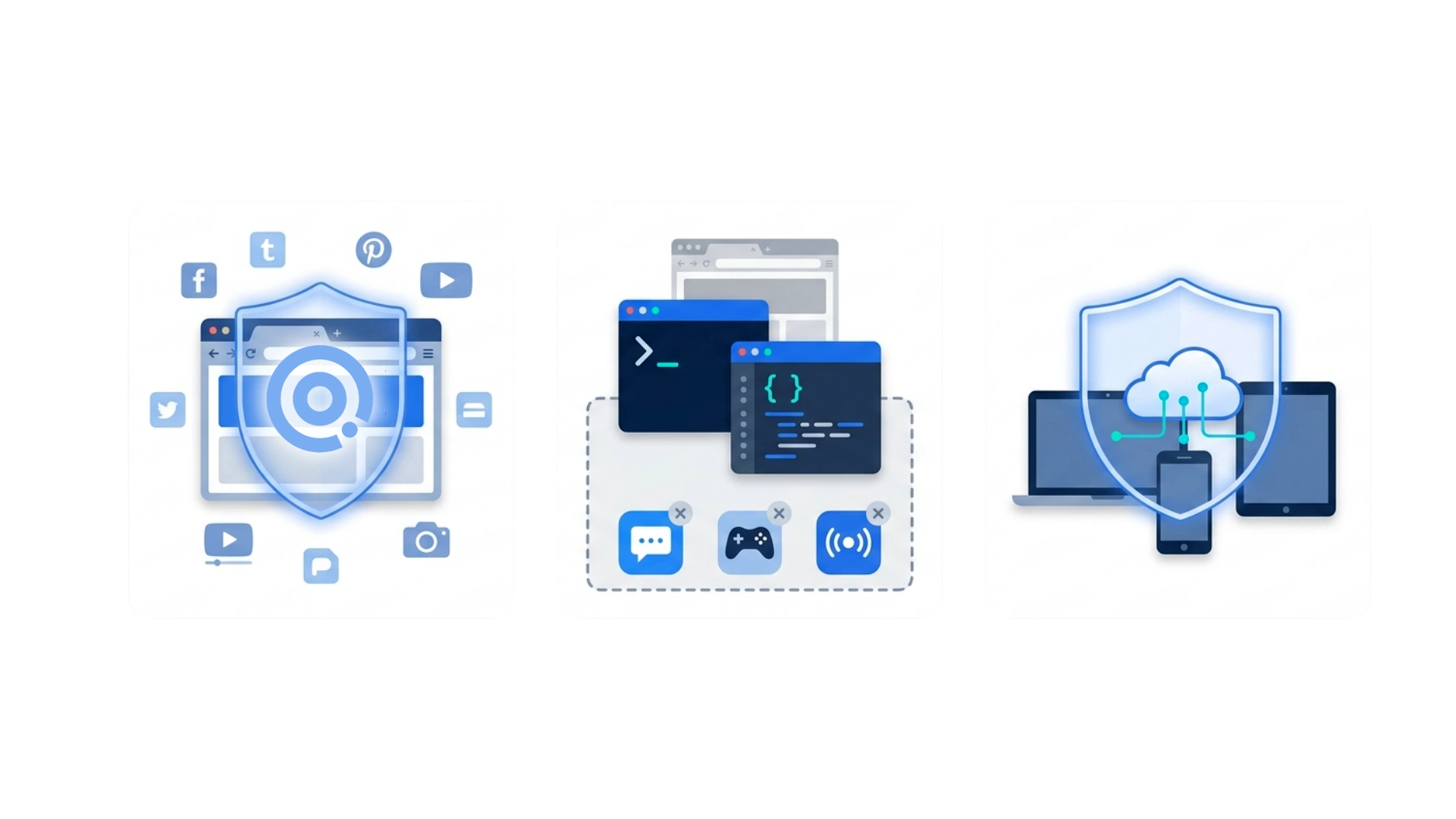
The right blocker depends less on which tool is “best” and more on the shape of your actual work. Three common developer patterns each point toward a different setup.
Browser-heavy work (frontend, web, or full-stack work with most of the day in the browser): the highest-value layer is precise website control. uBlock Origin custom rules can help with browser-level blocking for free. A desktop blocker like DigitalZen can then add app blocking and stronger override friction.
Backend or systems work (heavy terminal, heavy IDE, less browser): the browser may be a smaller part of the workflow, so the priority shifts to desktop app blocking and Linux support. DigitalZen fits this case well because developers can keep essential work tools available while blocking distracting apps like Discord, Steam, or Slack.
Cross-platform consulting work (Windows or macOS, multiple devices, and mobile sometimes part of the problem): the priority is cross-device coverage. Freedom is a strong fit for users who need blocking across desktop, phone, and tablet. Developers who also need stricter desktop enforcement may still pair it with a stronger desktop blocker on their primary machine.
For developers who want the full Linux environment, not just one blocker, how to build a distraction-free setup on Linux goes deeper into the broader workflow.
A Working Setup You Can Try This Week
Once you understand the trade-offs, the next step is to test one setup in your real workflow. Pick the tool that fits your main platform. Then match it to your biggest distraction and the level of friction you actually need. Then configure one small block, run it for a week, and adjust from there.
The best blocker is not always the one with the longest feature list. It is the one that protects your work tools, blocks the distractions that actually pull you away, and feels realistic enough to keep using. For Linux developers, that often means choosing between full desktop enforcement and browser-only blocking. For cross-device users, phone and tablet coverage may matter more.
Blockers also tend to work better as part of a broader workflow. If you want to pair blocking with focus timers, window managers, and related tools, other Linux productivity apps worth pairing with a blocker can help you build a more complete setup.
With DigitalZen, you can start for free. Configure one block during your next break. Then see how a layered website and app blocking setup fits your developer workflow.
Frequently Asked Questions
What Distraction Blocker Works Best on Linux for Developers?
DigitalZen and FocusMe are the strongest options in this comparison for Linux developers who want desktop-level blocking. DigitalZen offers a Linux desktop app with a full GUI, website blocking, and app blocking.
FocusMe also supports Linux, but currently only on Debian-based distributions. Wayland support is limited, and window detection may depend on the compositor. Freedom supports Linux through a Chrome browser extension for website blocking, while Cold Turkey does not support Linux.
Can I Block Reddit But Allow Stack Overflow?
Yes, depending on the blocker you choose. Many desktop blockers support specific website rules, so you can block reddit.com while leaving stackoverflow.com available. Some tools also support URL patterns, wildcards, or exceptions, which can help developers block distracting sites without blocking documentation, GitHub, or other work resources.
Will a Distraction Blocker Slow Down My Development Machine?
For most developers, performance is usually not the deciding factor. The bigger questions are whether the blocker supports your operating system, whether it can block apps as well as websites, and whether it gives you enough control without disrupting your tools. Browser extensions are usually lighter, while desktop blockers add broader coverage.
Should I Use a Hosts File or a Dedicated Blocker?
A hosts file can be useful if you only need to block a small set of websites and trust yourself to leave the file alone. It is limited because it has no built-in scheduling, app blocking, daily allowances, or lock controls. For anything beyond a quick test, a desktop blocker gives you more structure and stronger guardrails.
Can Distraction Blockers Block Apps Like Discord and Slack?
Yes, some desktop blockers can block specific apps, not just websites. DigitalZen, Cold Turkey, and FocusMe all support desktop app blocking. Freedom also supports app blocking on several platforms, but its Linux support is browser-extension-based. Browser-only tools like LeechBlock NG and uBlock Origin cannot block desktop apps.
References
- https://learn.microsoft.com/en-us/windows/powertoys/hosts-file-editor
- https://github.com/gorhill/uBlock/wiki/Static-filter-syntax
- https://support.mozilla.org/en-US/kb/profile-management
- https://getcoldturkey.com/
- https://freedom.to/
- https://focusme.com/
- https://chromewebstore.google.com/detail/leechblock-ng/blaaajhemilngeeffpbfkdjjoefldkok