
You have blocked the site before. You have probably unblocked it faster than you blocked it. That is not a discipline problem, it is a design problem. Most blocking methods can be undone in seconds by whoever set them up, and when you are blocking yourself, that person is also the one negotiating against the rule later.
Learning how to block websites permanently means adding two layers that filters do not have. Tamper protection makes the software harder to close, remove, or work around. A lock makes the settings harder to change the moment you want the site back. Tools like DigitalZen combine both, so the decision you make while thinking clearly is harder to renegotiate later.
Key Takeaways
- Reversible blocking fails everyone, including disciplined people: The person with undo rights is the same person facing the urge to undo the block.
- Permanence comes from more than a filter: Filters decide what gets blocked. Tamper protection and locks decide how easy it is to remove or change that block later.
- A permanent block needs two layers: The software has to resist removal, and the settings have to resist quick renegotiation.
- Different locks solve different failure patterns: Impulse clicking, private rule-changing, and evening renegotiation do not need the same kind of friction.
- No block is impossible to undo on your own machine: The goal is not to defeat a determined administrator forever. The goal is to survive the moment when you would normally turn the block off.
Disclaimer: This article was published in October 2026. It reflects the app details available at the time of posting. Notice an error? Let us know and we’ll fix it!
Why Blocked Sites Keep Coming Back
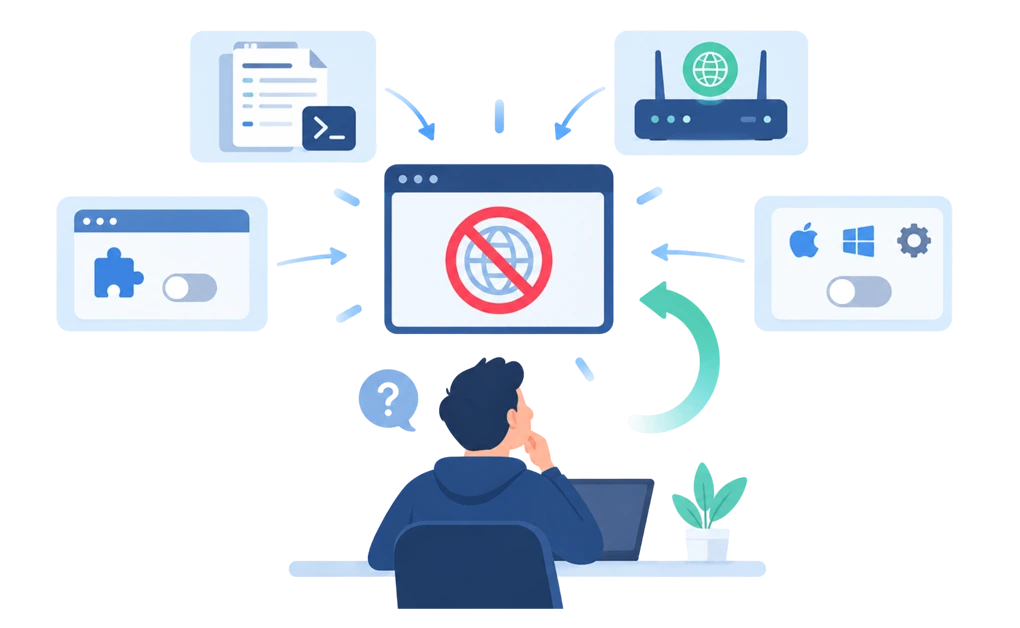
Before the fix, the audit. You have probably tried at least two of these. It is worth being precise about how each one failed, because the pattern repeats.
Every method below is reversible by whoever configured it. Not through a clever exploit. Through the normal, documented way of turning it off. Unfortunately, the off switch is usually very well labeled.
1. The Hosts File
The hosts file blocks specific domains at the system level by pointing them nowhere. No software, no cost, and it can work across browsers that rely on your system’s normal name resolution.
Undo time: usually under a minute for someone comfortable editing system files. The file is plain text, it opens with the same tools you used to edit it, and it does not fight you. There is nothing built into the hosts file that stops you from changing it back later.
The hosts file is not stubborn. It will obey tonight-you just as quickly as it obeyed morning-you.
Speed of reversal is not even its biggest weakness. The maintenance alone defeats most people, and there are structural reasons a hosts file edit stops working over time that have nothing to do with how fast you can undo it.
2. DNS Filtering
DNS filtering blocks domains at the network level before they load. It can cover every browser and some apps, and at router-level it can cover every device using that network.
Undo time: usually minutes on the device, and longer on the router. The setting sits where you put it, and a DNS-only setup can also be routed around without touching that setting at all.
Router-level DNS is meaningfully slower to undo than device-level DNS, but it is still reversible if you control the router or can bypass the network. DNS filtering adds distance from the off switch, but it does not remove the off switch.
3. Browser Extensions
Browser extensions block sites inside one browser. They are easy to install, often free, and genuinely useful if the browser is the whole problem.
Undo time: seconds. Open the extensions page and disable or remove the extension. If that feels like too much effort, opening a different browser may be easier.
A browser extension is a good fence, but it is still inside the yard you control. On its own, it is a light-blocking layer, not a permanent one.
4. Built-In Settings
Screen Time on macOS, Focus modes, router controls, and similar tools built into the operating system or network can help create structure.
Undo time: seconds to minutes. These tools are designed to be adjusted by the account holder, which is you. Some offer a passcode, which helps only if you do not know the passcode, and you set it.
Built-in controls are polite. That is helpful for normal settings and less helpful when you are trying to block yourself.
How to Permanently Block a Website on Chrome
You cannot permanently block a website using Chrome alone. A Chrome extension lives inside the browser you are trying to restrict, and you control both the extension and the browser, so removing it takes seconds and opening a different browser takes less.
Permanent blocking on Chrome means blocking at a level Chrome does not control: a system-level tool with broad browser coverage, including browsers you have not configured, with a lock on the settings. The extension then becomes one layer of the setup rather than the whole of it.
The Pattern
Every one of these blocks content. None of them blocks you. The filter does its job perfectly until you decide it should not. Then it stops, because you are the administrator and it was built to obey you.
That is the gap permanence has to close. To permanently block websites, something has to sit between you and the off switch.
What Makes a Block Actually Permanent
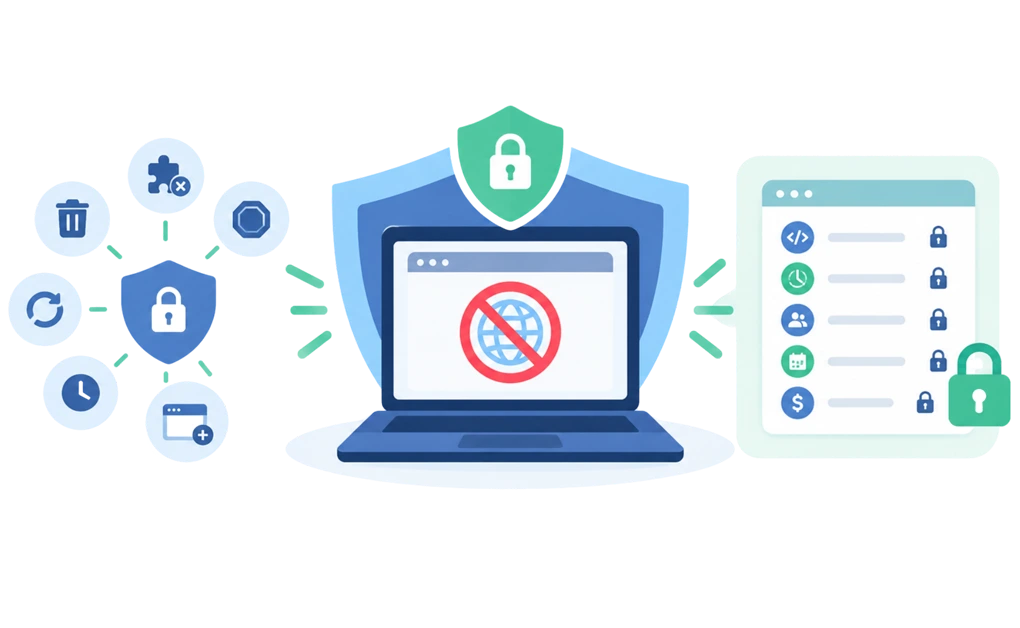
Three requirements. All three have to be there or the block is decorative.
The Software Has to Resist Removal
If the block can be lifted by uninstalling the app or pulling the browser extension, then the app is not the block. The uninstaller is.
Tamper protection means an active block is designed to resist the common escape routes:
- Stopping the app
- Removing the browser extension
- Uninstalling the app
- Stopping background services
- Restarting to escape a plan
- Changing the system time
- Opening a browser the setup has not seen before
A protection claim is worth very little unless someone has actually tried each route, which is why we documented what happens when you attempt each of those bypasses.
The Settings Have to Resist You
This is the part every reversible method skips. A lock sits between you and your own configuration, so changing the rule costs something: time, a person, or money.
Filters say no to the website. Locks make sure 11pm-you cannot immediately say yes again.
The point of a lock is not punishment and it is not a test of character. The version of you choosing the block and the version wanting it gone are not the same person. Only one of them should get a vote. You decide once, while thinking clearly. The tempted version arrives later and finds the decision already made.
DigitalZen offers five locks, each adding friction to a different escape route. Which one to choose is covered further down, and picking the right one matters more than picking the strictest.
The locks are the part you interact with. The protection layer underneath is what makes them worth anything, because a lock on software you can simply uninstall is a lock on an open door. If your problem is broader than a single site, the job changes: locking one URL is a different build from making an entire setup harder to get around.
The Block Has to Run Where You Actually Reach
The first two requirements only matter on the device where the reaching happens. Block a site on your laptop and leave it open on your phone and you have not made it permanent. You have moved it.
The phone is usually the harder half, because it is closer, more private, and reached for in exactly the moments a desktop block was meant to cover. Whatever you build on the desktop, decide what happens on the phone before you call the block finished. A setup with one uncovered device has a door in it, and you will find that door on the night you are looking for one.
How to Permanently Block a Website: Step by Step
Fifteen minutes, most of it spent on step two.
1. Install a blocker that works outside the browser. Not an extension on its own. The tool needs to sit outside the browser, because a second browser should not become the escape hatch.
Install the DigitalZen desktop app for Windows, macOS, or Linux. That is what gives you coverage outside the browser, including apps and browsers you did not think to configure. Then add the browser extension separately, as a second step, for in-page coverage inside the browsers you use most. There is also an Android app, so the phone is covered by the same setup.
2. Turn on the protection layer before you add the site. Do this first. If you add the block and then get distracted, an unprotected block is only as durable as the extensions you already removed. The protection layer helps resist common escape routes like stopping the app, removing the extension, uninstalling the app, stopping background services, restarting to escape a plan, or changing the system time.
3. Add the specific site. You can block a whole domain, use a URL pattern if the site has mirrors, or block a keyword so the rule catches the content wherever it appears rather than only on one address.
For sites that are half useful and half the problem, the exception list works the other way: block the domain and allow the specific pages you actually need, or allow the domain and block the parts that pull you in. Resist the urge to block twelve things at once.
4. Choose the lock that matches how you usually undo the block. This is the step that decides whether the setup holds when you want it gone.
- Code lock. A long generated code has to be typed before anything changes. Good if the problem is speed: the unthinking click at 11pm.
- Cooldown. A timer starts when you ask to unlock, and the block stays on until it runs out. Good if the urge usually fades once you have to wait.
- Friend approval. The unlock code goes to someone you chose, so you cannot quietly release yourself. Good if the block would hold better with another person in the loop.
- Schedule. The block runs on set hours or until a set date. Good if you plan well in the morning and renegotiate in the evening.
- Money fine. Unlocking early costs an amount you set for yourself. Good if a real cost would make you pause before undoing your own rule.
5. Verify it before you trust it. Try to open the site. Try it in a second browser. Try to turn the block off and watch what the lock does. Five minutes of testing now beats discovering the gap at the exact moment you were looking for one.
What “Permanent” Means for Each Lock
Worth being precise, because the locks are not equally permanent.
| Lock | How long it actually holds |
| Code | Until you sit down and type the full code. Permanent against impulse, not against effort. |
| Cooldown | Until the timer expires. This is a delay, not a wall, and the delay is the point. |
| Friend approval | Until the person you chose releases it. Because another person has to approve the unlock, it puts the decision outside your immediate control. |
| Schedule | For the window you set. A recurring schedule re-arms every day, so the block keeps coming back without needing a new decision. |
| Money fine | Until you decide the site is worth the self-chosen cost. It works best when the amount is high enough to make you pause. |
If you want the block to feel harder to renegotiate, friend approval and a long schedule are the two to consider together. The other locks are friction by design. That friction is useful when the real problem is the fast, automatic undo.
Permanently Blocking on Windows, Mac, and Linux
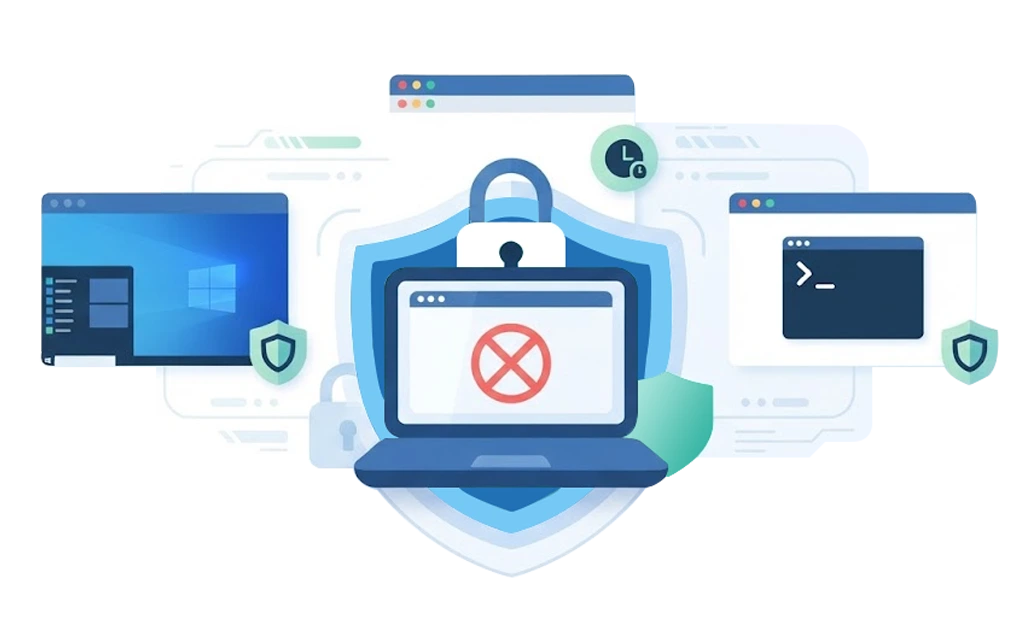
The principle is the same on all three. What changes is what the operating system gives you for free, how easy it is to undo, and how much friction you need to add.
Windows
Windows has limited built-in website-blocking options for a self-managed adult account. Microsoft Family Safety can filter websites in supported browsers for family setups, but that is a different use case from blocking yourself on your own administrator account.
The hosts file and DNS are the free routes, and both can usually be reversed in minutes by someone with admin access. A system-level blocker with tamper protection is usually the more realistic option when the same administrator who sets the block may later try to undo it.
On your own PC, that administrator is you, which is convenient every day except the one that matters.
Mac
Screen Time includes content restrictions and a passcode, which can help. For self-blocking, though, it is still limited if you also control the passcode.
Free tools exist that hold a block for a fixed period, which is enough for short sessions. Screen Time, those timers, and the hosts file each stop at a different point, and we map where each one gives out in our guide to what actually holds on a Mac.
Linux
Linux gives you the most control and the fewest guardrails. Hosts file edits, firewall rules, and DNS changes are all available, but they are also reversible if you are comfortable with the terminal.
That makes a lock more important here, not less, because the setup has to account for your own technical confidence. The practical routes, from hosts entries to iptables rules to a system-level app, are laid out in our walkthrough on setting up a site block on Linux.
How to Block YouTube Forever
YouTube defeats casual blocking because it is not one thing. It is a site, an app or shortcut, an embed on other pages, and a recommendation engine that keeps creating new entry points.
To make the block hold, cover the routes you actually use:
- Block the main YouTube site and related browser routes.
- Block the app, PWA, shortcut, or third-party YouTube client if you use one.
- Account for embedded videos and related domains where possible.
- Use a schedule lock so the rule reactivates without depending on tomorrow-you to behave perfectly.
A recurring evening block is often easier to keep than a total ban because it protects the hours when YouTube usually becomes a problem without breaking every legitimate use. YouTube is less one door and more a hallway of side doors, so treat it as a category, not just one URL.
On Windows, the piece people miss is the desktop app, which keeps running after the site is blocked. The walkthrough on covering both the site and the app on Windows handles them together.
Linux needs a different approach, because the browser and any Flatpak or Snap builds have to be handled separately. That is covered in shutting down every route to YouTube on a Linux desktop.
Frequently Asked Questions
Can I Unblock a Site Later?
Yes. How easily depends on the lock you choose.
- Cooldown: Unlocks after the timer expires.
- Code lock: Unlocks once you enter the code.
- Schedule: Unlocks when the scheduled block ends.
- Friend approval: Unlocks only when the person you chose approves it.
- Money fine: Unlocks after you accept the self-chosen cost.
Choose the lock that matches the way you usually undo your own rules.
Does a Permanent Block Work on My Phone?
Yes, though coverage differs by platform. DigitalZen covers Windows, macOS, and Linux desktops with a browser extension, and there is an Android app. Lock behavior is not identical everywhere, so if your phone is the main route to the site, check what holds on mobile before you rely on it.
Is Any Block Truly Impossible to Undo?
No. Be cautious of any tool that claims otherwise.
If you administer your own computer, you can always remove enough barriers with sufficient time and effort. The goal is not to make a block impossible to remove. It is to make impulsive decisions much harder.
Most people will not reinstall an operating system just to visit one website. They are far more likely to click an unlock button if it is immediately available.
What About SelfControl on Windows?
SelfControl is macOS only. If you are looking for a Windows equivalent, look for a system-level blocker with tamper protection and a lock, because that is what creates the similar outcome: a block that is harder to undo once active.