
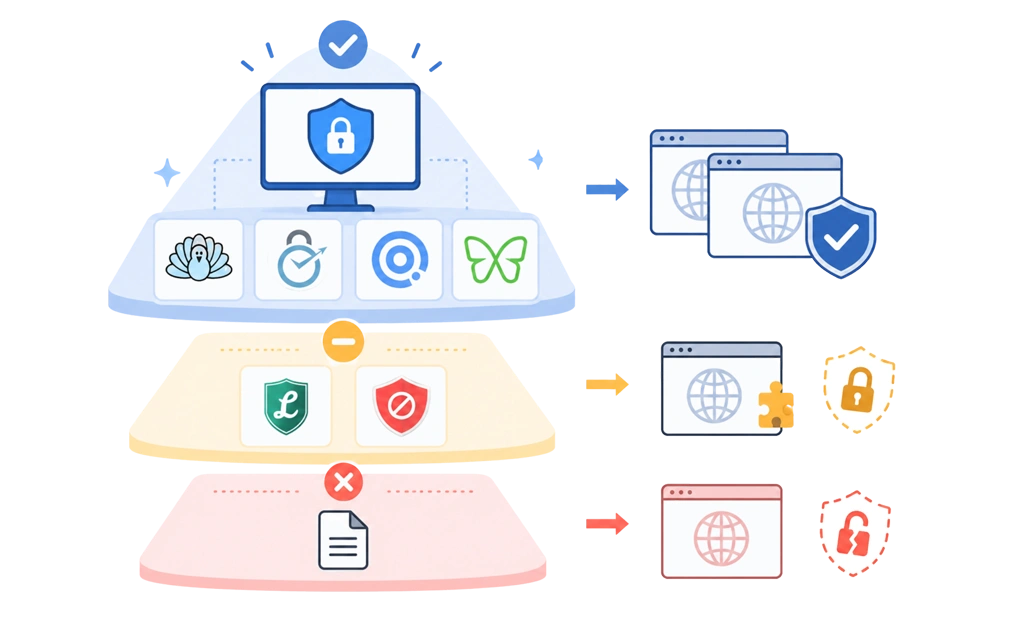
The hardest website blockers to bypass work at the system level. They cover all browsers and make the blocker harder to turn off or remove. This matters when the urge to bypass shows up before you have time to think.
DigitalZen, Cold Turkey, FocusMe, and Freedom all fit this group, each with different strengths. Browser extensions like LeechBlock and BlockSite are easier to get around, since they only cover one browser. Hosts file methods are the weakest of all.
Key Takeaways
- Bypass resistance depends on where the tool works: System-level blockers cover more browsers and apps. Browser extensions usually cover one browser. Hosts files only cover websites. The wider the coverage, the fewer easy workarounds remain.
- The strongest tools combine multiple protections: Cross-browser coverage, uninstall protection, and extension removal protection raise the effort of a bypass. This helps when one quick workaround would otherwise undo the block.
- No tool is truly bypass-proof: A determined user can switch devices, boot another operating system, or reset the system. Honest tools acknowledge this.
- DigitalZen, Cold Turkey, and FocusMe lead on desktop enforcement: Each is hard to bypass while active, with different strengths around locks, system-level protections, and platform support.
- Free tools are easier to bypass: Browser extensions are quick to disable. Hosts file methods can be edited back in seconds. They work as starting points, not serious enforcement.
Disclaimer: This article was published in August 2026. It reflects the app details available at the time of posting. Notice an error? Let us know and we’ll fix it!
What Hard to Bypass Actually Means for a Website Blocker
A hard-to-bypass blocker is not one that makes a block truly impossible to escape. No software can fully stop a determined user from switching devices, using another operating system, or resetting the system. A better goal is to make impulsive overrides harder, slower, and less automatic.
Five practical questions help show how bypass-resistant a tool really is:
- Where does the block actually live? Is it working at the system level, inside one browser, or through a single network setting? The wider the coverage, the fewer easy workarounds remain.
- Does it cover every browser? A block that only works in one browser can often be bypassed by opening another browser.
- Can it be uninstalled while active? If a tool can be removed during a blocked session, its other features may not matter as much.
- Can the browser extension be removed? Browser-based blocks often depend on an extension. Without extension removal protection, that layer may be easy to disable or remove.
- What kinds of locks slow you down? Cooldown timers, code locks, forced modes, and delay systems all create a pause between the urge to override a block and the action itself.
Desktop Apps With Multi-Layer Protection
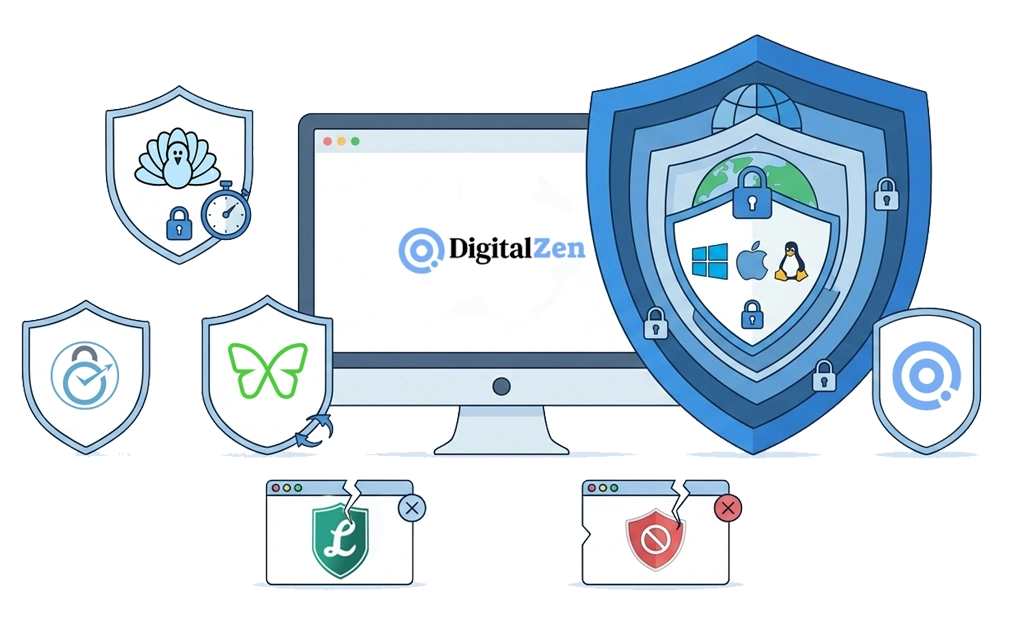
Desktop apps usually offer stronger bypass resistance than browser extensions because they can work beyond a single browser. Some also include protections that make active blocks harder to pause, edit, or remove. Four tools sit in this stronger enforcement group.
1. DigitalZen
DigitalZen blocks websites and desktop apps on Windows, macOS, and Linux. For a deeper look at its protections, see how hard it is to bypass DigitalZen. The desktop app covers browsers from one setup. It can also block unknown or unsupported browsers. This helps when opening a different browser has become the easiest way around the block.
- Covers against:
- Browser extension removal, with extension removal protection that keeps the extension in place.
- Switching to a different browser, through heuristic detection of any browser usage (not just a list of known browsers).
- Opening a guest profile or multi-profile in a browser to bypass the block.
- Bypass attempts via file:// URLs.
- Computer time tampering, which prevents changing the system clock to defeat a scheduled block.
- Uninstall attempts, with one of the strongest uninstall protections in the category.
- Private or incognito browsing.
Adaptive locks add self-imposed friction before you can unlock. There are five lock types: Code, Cooldown, Friend, Schedule, and Money.
- Where it falls short: Premium features sit behind a paid plan, though the free tier covers website blocking, focus mode, schedulers, and team focus.
- Who it suits: people who want layered protection, adaptive friction, and a lower-cost blocker. It can also fit Linux users who need a full desktop app.
2. Cold Turkey
Cold Turkey is a desktop blocker for Windows and macOS, built around strict enforcement. It can block websites, desktop apps, games, specific URLs, keyword patterns, and even the entire internet with exceptions.
- Covers against: common workarounds such as disabling extensions, uninstalling during a locked block, changing system time, and using Task Manager to interfere with a block. Its lock options include Timer, Random Text, Restart, Time Range, and Password. Random Text can be set from 1 to 999 characters, and Frozen Turkey can lock, log off, or shut down the computer for a set period.
- Where it falls short:
- No support for Linux, ChromeOS, Android, or iOS, and the developer has confirmed mobile is not on the roadmap.
- Independent 2026 reviews report that the Mac version is less reliable than the Windows version, with delayed blocking and terminal-based workarounds that technically savvy users have found.
- Who it suits: Windows users who want strict, one-time-purchase enforcement and do not need mobile coverage.
3. FocusMe
FocusMe is a feature-deep blocker for Windows, macOS, Linux, and Android. Its Forced Focus Mode is designed to make active plans very difficult to pause, stop, edit, or bypass until the schedule ends. It also includes several protection options for users who want stricter control.
- Covers against: session edits and pauses through Forced Focus Mode. It also blocks uninstall attempts using reboot and uninstall protection. Impulsive overrides are slowed by a random password generator of up to 2,000 characters.
- Where it falls short:
- FocusMe supports Android but not iOS.
- Reviews report that the Mac version’s website blocking depends on a browser extension, which can be disabled in extension settings or bypassed by switching browsers, so the system-level strength on Windows does not carry over.
- Users also report intermittent bugs on Mac and Android.
- FocusMe offers a 14-day free trial but no permanent free tier, so testing the tool long-term requires a paid commitment.
- Who it suits: Windows users who want a feature-deep toolkit with strict enforcement, time limits, launch limits, activity tracking, and a rigid Forced Mode.
4. Freedom
Freedom is a cross-device blocker that runs on macOS, Windows, iOS, Android, Chromebook, and Linux. Its main strength is multi-device coverage. A single session can sync across a user’s phone, tablet, laptop, or desktop, depending on the devices included in that session.
- Covers against: ending sessions early with Locked Mode on paid plans.
- Where it falls short:
- Freedom’s Linux support is limited to a browser extension, with no Linux desktop app or app blocking. If that rules it out, compare these Freedom alternatives for Linux.
- On iOS, users report that blocking is inconsistent and works only in Safari.
- Reviews report that native social media apps like Facebook, Instagram, and Twitter continue refreshing content during a block, since Freedom cannot fully control mobile app activity at the OS level.
- The blocking depends on the app running in the background, so closing it or disabling Wi-Fi can defeat the protection.
- Who it suits: Mac and Windows users who want a single session to follow them across phone, tablet, and laptop, and who mainly browse in Safari on iOS.
Browser Extensions and Why They Are Easier to Bypass
Most browser extensions only protect the browser where they are installed and enabled. If the block is active in one browser but not another, the same site may still open somewhere else. This matters when switching browsers takes less effort than staying with the task.
That limitation is why browser extensions tend to fall short for serious bypass resistance.
1. LeechBlock NG
LeechBlock NG is a free browser extension available for browsers such as Chrome, Firefox, Edge, Brave, Opera, and Vivaldi. It offers flexible blocking rules, including separate block sets, schedules, time limits per hour or day, password or random access code protection, and delay countdowns before a page loads.
- What it does well: flexible scheduling, time-based limits, and useful friction features for a free browser extension.
- What it cannot do: block desktop apps, protect other browsers where it is not installed, or provide system-level uninstall protection. For users who often switch browsers or remove extensions, it is easier to bypass than a desktop blocker.
2. BlockSite
BlockSite offers browser extensions, mobile apps, and broader blocking features. It can block by URL, category, or keyword, and it includes Focus Mode, scheduling, cross-device sync, and mobile apps for iOS and Android.
- What it does well: simple setup, mobile coverage, category-based blocking, and timed focus sessions.
- What it may not do as well: its browser extension setup may still be easier to bypass than a dedicated desktop blocker with deeper system-level protection. BlockSite offers password protection, and it lists uninstall prevention as a feature, but protection details can vary by platform and plan.
Manual Methods, Like Editing the Hosts File
The hosts file is a system file used by operating systems like Windows, macOS, and Linux to map domain names to IP addresses. Some people use it to block websites by redirecting a domain to a destination that does not exist. This can stop the site from loading across browsers on that device.
- What it does well: it is free, works across browsers on the same machine, requires no extra blocker app, and can be useful as a quick test or starting point.
- What it cannot do: it cannot protect itself from being edited back, schedule blocks, block desktop apps, or stop an admin user from reversing the change. If the user has admin access and knows where the file is, the block can usually be undone quickly.
In bypass-resistance terms, the hosts file is one of the weakest methods covered here. It can help someone test whether website blocking is useful, but it is not strong enough as a standalone enforcement layer for users who regularly override their own blocks.
It can also fail without any bypass at all, since many browsers and apps resolve domains on their own. Here is why hosts file blocking fails even when it is set up correctly.
A Side-by-Side Look at Bypass Resistance
The table below compares each tool on three things: what it covers, what protects against bypass attempts, and what locks add friction before you can unlock.
| Tool | Coverage | Protection Layer | Lock Layer |
| DigitalZen | System-level blocking on Windows, macOS, and Linux. Heuristic detection blocks any browser, including unknown ones, guest profiles, and multi-profile setups. Also covers file:// URL bypass attempts. Block websites, desktop apps, games, or full websites/apps blockage. | One of the strongest uninstall protections in the category. Includes extension removal protection, deep app stop and killing protection, and computer time tampering protection. | Adaptive locks (Code, Cooldown, Friend, Schedule, Money) add self-imposed friction before you can unlock. |
| Cold Turkey | System-level blocking on Windows. Mac version is less reliable, with delayed blocking and terminal-based workarounds documented in reviews. Blocks websites, desktop apps, games, and the full internet with exceptions. | Locked blocks can prevent extension disabling and software uninstallation. Can also block Task Manager and system time changes. | Lock options include Timer, Random Text, Restart, Time Range, and Password. Random Text can be set up to 999 characters. Frozen Turkey can lock, log off, or shut down the computer. |
| FocusMe | System-level blocking on Windows. Mac blocking depends on a browser extension that can be disabled or bypassed by switching browsers. Supports Linux and Android too. | Reboot and uninstall protection. Forced Focus Mode is designed to keep active plans from being paused, edited, or stopped. | Random password up to 2,000 characters, custom password, stop delays, and Forced Mode. |
| Freedom | Cross-device blocking on Mac, Windows, iOS, Android, and Chromebook, with session sync. Linux support is limited to a browser extension. iOS blocking is inconsistent and Safari-only. Native social media apps continue refreshing during blocks. | Session locking through Locked Mode on paid plans. Blocking depends on the app running in the background, so closing it can defeat the protection. | Locked Mode on paid plans helps prevent ending a session early. |
| LeechBlock NG | Browser extension blocking for supported browsers. Protection applies where the extension is installed and enabled. | No system-level uninstall protection. | Password or random access code protection, time limits, and delay countdowns. |
| BlockSite | Browser extension, mobile apps, and broader blocking features. Can block by URL, category, or keyword. | Password protection and listed uninstall prevention. Details vary by platform and plan. | Focus Mode, scheduling, password protection, and other friction features depending on plan. |
| Hosts file | Website blocking across browsers on the same machine. Does not block desktop apps. | No built-in protection. Any user with admin rights, which means any user on a personal computer, can usually reverse the change. | No built-in friction, scheduling, or lock system. |
The pattern is clear: tools with stronger coverage, persistence, and friction tend to be harder to bypass in everyday use. Tools that are missing one or two of these layers may still help, but they leave more obvious gaps.
What a Determined User Could Still Do
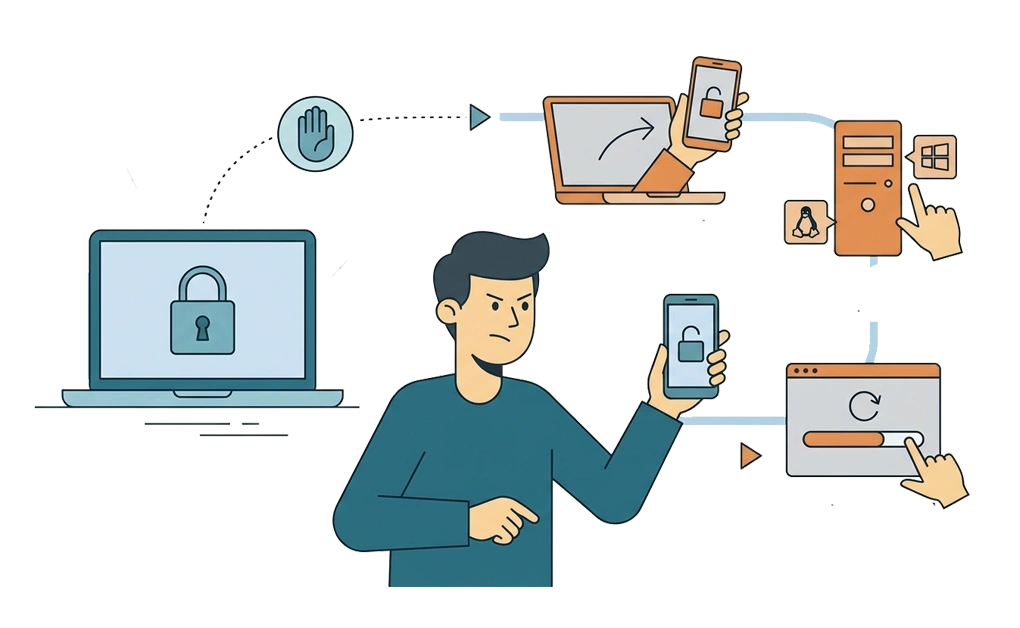
Honesty matters here. No blocker can fully prevent every possible bypass attempt. These protections are built for everyday slip-ups and impulse moments. They help slow down quick decisions, not stop every deliberate attempt to bypass restrictions.
A determined user might still:
- Use a different device: a block on your laptop does not automatically cover your phone, tablet, or another computer. This can happen when the laptop is blocked but your phone is still nearby.
- Use another operating system: starting the machine from a different operating system can bypass an app installed on the main one.
- Reset or reinstall the system: a full reset can remove the blocker along with everything else, though that comes with real cost, effort, and inconvenience.
This is why the goal is not perfection. The goal is to raise the effort of a bypass enough that the impulse has time to pass. A tool that can be undone almost instantly may not provide enough friction during a difficult moment. A tool that adds delay, effort, or another person’s approval can make an impulsive override less automatic.
How to Pick a Blocker Based on the Bypass Risk You Care About
The right choice depends on the kind of workaround you are most likely to use. Different blockers protect against different weak spots.
- If you tend to switch browsers when blocked, look at tools that work beyond a single browser, such as DigitalZen, Cold Turkey, FocusMe, or Freedom. These are better suited for users who need broader coverage than a browser extension can provide.
- If you tend to uninstall tools during impulse moments, look for stronger persistence features. DigitalZen includes uninstall protection, FocusMe includes reboot and uninstall protection, and Cold Turkey can prevent uninstalling during a locked block.
- If you tend to change settings when a block feels inconvenient, look for strong friction layers. DigitalZen’s adaptive locks may suit people who want graduated pauses. FocusMe’s Forced Mode and Cold Turkey’s Random Text locks may suit people who want a stricter barrier.
- If your phone is part of the problem, Freedom may be the best fit among the tools listed here because it supports iOS, Android, desktop platforms, and synced sessions across devices.
- If Linux is your main system, DigitalZen offers a full desktop app on Linux, and FocusMe lists Linux as supported. Cold Turkey does not support Linux.
If you want a deeper one-on-one comparison, we cover a side-by-side with a stricter blocker in our look at Cold Turkey against DigitalZen.
Putting Bypass Resistance to Work
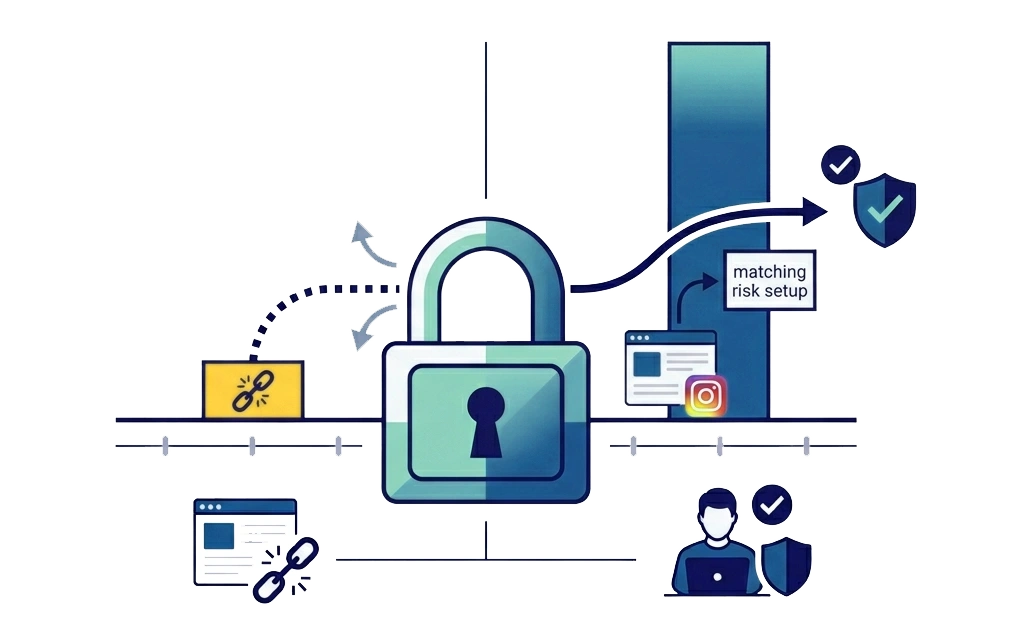
Strong bypass resistance matters, but it is not the whole story. The best blocker is the one that protects you from your most common workarounds while still fitting your daily routine. A very strict tool may look strong on paper, but it will not help much if it feels too frustrating to keep using.
If you are still comparing options, best website blocker for productivity gives a broader look at blockers for different focus needs.
The practical next step is to start with one tool and one block. Choose the site, app, or browser workaround that usually pulls you off track, then set up a blocker that matches that risk.
If you want to start without committing to a paid plan, DigitalZen has a free tier you can use to test the basic setup. Then you can decide whether stronger protection layers are worth upgrading for.
Frequently Asked Questions
What Makes a Website Blocker Hard to Bypass?
A hard-to-bypass blocker usually has three things: broad coverage, removal protection, and friction. It should work beyond one browser, be harder to uninstall during an active block, and add steps like cooldowns, codes, passwords, or locked modes before changes can be made.
Can a Browser Extension Be Strong Enough to Stop Bypassing?
Usually not on its own. Browser extensions only work where they are installed and enabled. They can help with simple blocking, but system-level desktop blockers are usually stronger because they can cover more browsers and apps.
Is DigitalZen Harder to Bypass Than Cold Turkey?
Yes, although we are biased, we believe DigitalZen has the edge here. It currently provides stronger uninstall and service-stop protection, plus automatic updates that help respond to new bypass methods over time. It also aims to do this while keeping the app lightweight, with very low CPU consumption.
What Should I Check Before Choosing a Hard-to-Bypass Blocker?
Look at your usual workaround. If you switch browsers, choose a system-level blocker. If you uninstall tools, look for uninstall protection. If you change settings impulsively, look for locks, delays, passwords, or friend approval. If your phone is the issue, choose a blocker with mobile support.
Are There Free Website Blockers That Are Hard to Bypass?
Some free options can help, but most have limits. LeechBlock NG is free but browser-based. The hosts file method is free but easy to undo with admin access. DigitalZen has a free tier for testing a stronger blocking setup, which may be a better starting point than browser-only tools.
References:
- https://digitalzen.app/
- https://digitalzen.app/pricing/
- https://digitalzen.app/platforms/
- https://getcoldturkey.com/
- https://freedom.to/
- https://focusme.com/
- https://chromewebstore.google.com/detail/leechblock-ng/blaaajhemilngeeffpbfkdjjoefldkok
- https://blocksite.co/