
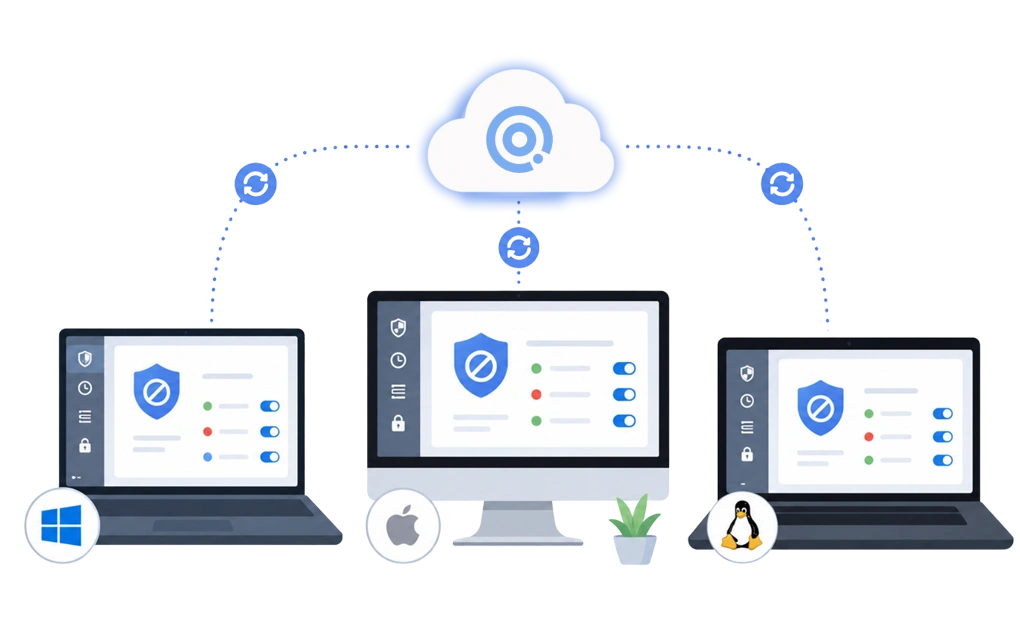
Blocking the same websites across Windows, macOS, and Linux is easier with a cross-platform website blocker. DigitalZen provides native desktop apps for all three systems and syncs blocklists, schedules, Focus Modes, and limits across devices. You still install it on each machine, but you do not need to rebuild the same rules every time.
Key Takeaways
- One synced ruleset is easier to maintain: Separate blocklists can drift when every change must be repeated on each computer.
- Native desktop support provides broader coverage: Browser extensions can block websites, but they usually cannot control installed apps or browsers where they are not installed.
- DigitalZen supports Windows, macOS, and Linux: DigitalZen’s desktop apps use consistent controls across platforms, including blocking, scheduling, Focus Modes, and protection settings.
- Settings sync reduces repeated setup: Blocklists, schedules, limits, and other supported settings can sync across computers when each device is signed in to the same account.
- Offline blocking can continue after rules have synced: Existing schedules and blocks run locally, while new changes reach offline computers after they reconnect.
Setting Up DigitalZen on Windows, macOS, and Linux
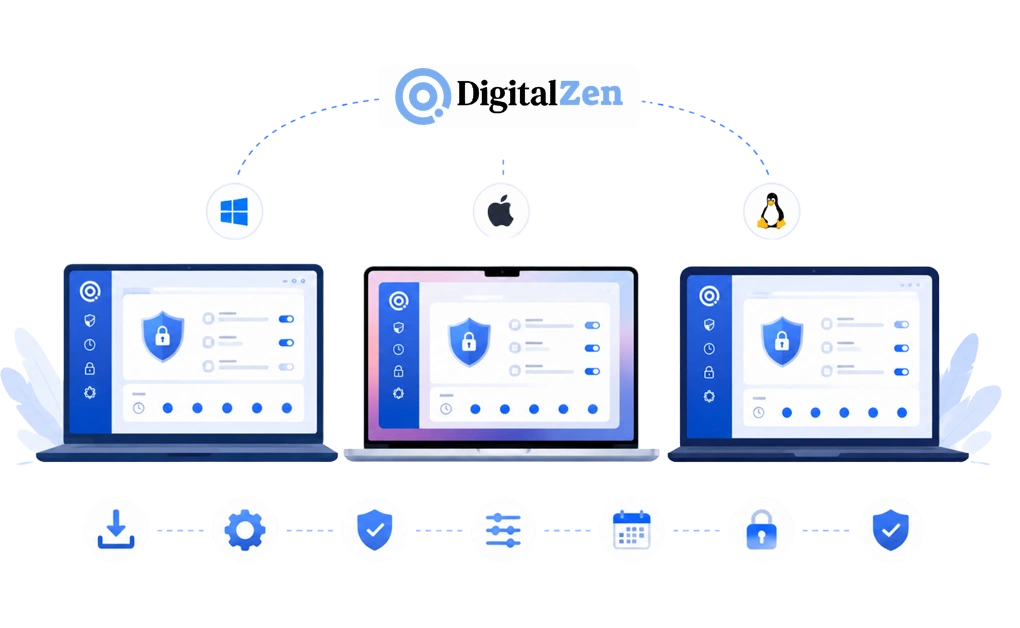
DigitalZen is available for Windows, macOS, and Linux. Each operating system has its own installation process, but the overall setup follows the same workflow.
- Download DigitalZen for your operating system from digitalzen.app.
- Install using the platform-specific process outlined below.
- Grant the required permissions when prompted.
- Configure your blocking rules and Focus Mode.
- Set a recurring schedule, or leave it for manual sessions.
- Enable protection features, such as uninstall protection and extension removal protection, if needed.
Once installed, the interface remains consistent across all three desktop platforms. Blocking rules, schedules, and protection settings are managed in the same way regardless of which operating system you use.
This helps when you move between a work laptop, personal computer, and Linux machine but want the same focus rules to follow your workflow.
Windows Setup
Download the Windows installer from DigitalZen and run it. Once installed, DigitalZen can launch automatically when Windows starts.
DigitalZen supports Windows 10 and Windows 11.
Windows users looking for platform-specific instructions can follow the platform-specific walkthrough for Windows, which explains installation, permissions, and Windows-specific setup.
macOS Setup
Download the macOS installer from digitalzen.app. Then drag DigitalZen into your Applications folder.
On first launch, macOS asks for Accessibility and Full Disk Access permissions in System Settings. Grant both permissions so DigitalZen can apply its blocking rules correctly. The app can then launch automatically after you sign in.
For more detailed guidance, the setup guide for Mac explains the permissions, System Settings, and macOS-specific behavior.
Linux Setup
Install DigitalZen using the installation script from digitalzen.app. The script downloads the required components and installs DigitalZen on supported Linux distributions.
No root access is required for normal use. DigitalZen supports X11 desktop environments and GNOME on Wayland. It also maintains a lightweight system footprint during long focus sessions.
Linux users can follow the full install walkthrough for Linux. It explains the installation script, dependency handling, and desktop environment compatibility.
Why Multi-OS Focus Rules Usually Break Down
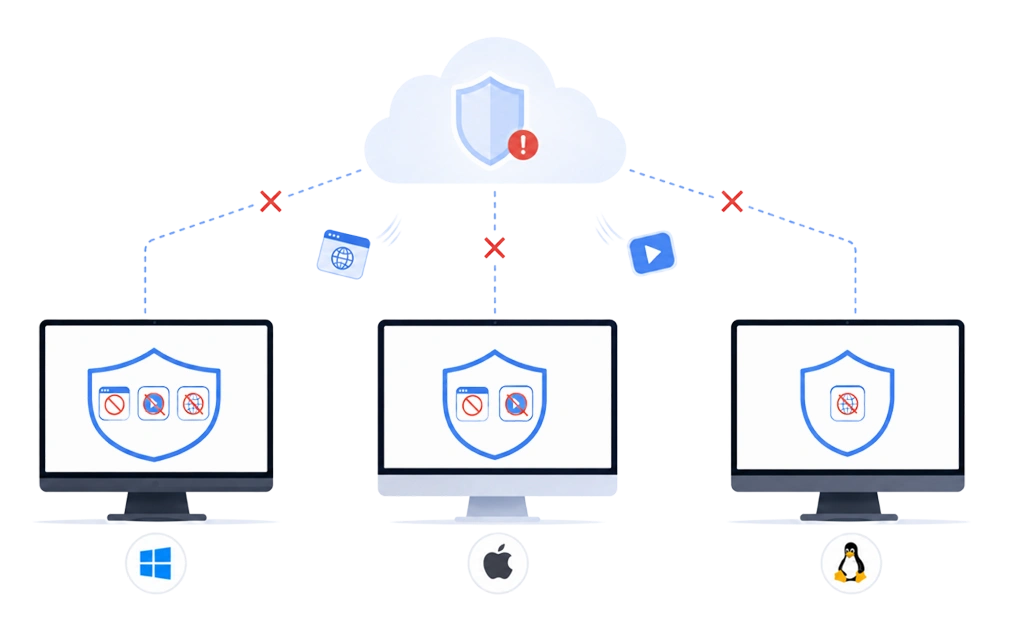
Focus rules on one machine stop helping when you switch to another. You may block distractions on a Windows work laptop, then open a personal Mac or Linux computer where none of those rules exist.
The first setup still works. The problem is that the rest of your devices never received the memo.
Three common approaches can create gaps.
1. Hosts-file edits. Each operating system stores its hosts file in a different location. Editing it also usually requires administrator access. There is no built-in way to keep entries synchronized across Windows, macOS, and Linux.
The limits of hosts-file blocking become clearer once several machines are involved. Every change must be repeated on each one, which makes gaps easy to create.
2. Separate tools for each operating system. You might use another tool on Windows and macOS, then a browser extension or script on Linux. Each tool may work well on its own, but the rules are managed separately.
Adding a new site means updating several blocklists. Miss one machine, and that machine becomes the easy way around the setup.
3. Browser extensions. Extensions can sometimes sync installations or settings through a browser account. However, this depends on the browser, the extension, and the user’s sync settings. It is not the same as having one system-wide ruleset across every machine.
Extensions also remain limited to the browsers where they are installed. They cannot block desktop apps, and another browser without the extension stays outside their reach. These are some of the main reasons browser extensions alone are not enough for distraction blocking.
The pattern is the same in each case. A setup can work on several operating systems without being managed as one consistent cross-platform system.
What “Same Ruleset Everywhere” Actually Requires
A cross-platform website blocker should do more than offer downloads for several operating systems. It should provide consistent controls and keep your rules aligned wherever you work.
Three qualities matter most.
- A consistent rule model across operating systems: Windows, macOS, and Linux use different permissions and blocking mechanisms. A well-designed cross-platform tool hides most of these differences. It gives you one familiar way to create website, app, schedule, and exception rules.
The controls should feel consistent across platforms. Each operating system may still handle enforcement differently behind the scenes.
- Native desktop support on each platform: A browser extension may block websites, but it cannot usually control installed apps or activity in another browser. For broader coverage, the tool needs a desktop component on every operating system you use. Otherwise, one machine may block apps while another protects only a browser.
- Settings sync across machines: A change made on one device should carry to the others. Without sync, you must maintain each installation separately. This makes gaps and outdated rules more likely.
DigitalZen syncs Focus Modes, blocklists, allowed-site rules, schedules, daily limits, and break reminders through the user’s account. It also provides native desktop applications for Windows, macOS, and Linux.
These three qualities form a useful checklist for any cross-platform website blocker: consistent controls, native desktop coverage, and settings that stay aligned across devices.
Why Per-OS Tools and Hosts Edits Wear Down Over Time
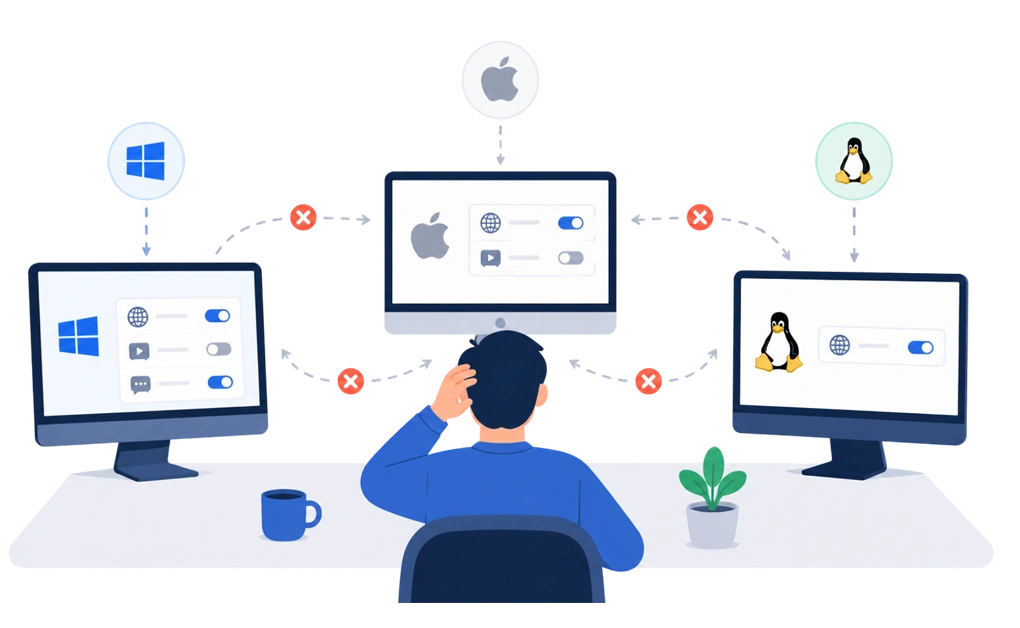
A common approach is to use different tools on different operating systems. It works at first, but keeping everything aligned becomes harder as your setup grows.
1. Silent drift between machines
Every rule change has to be repeated on each computer. Miss one update, and the machines gradually stop matching. You may not notice until one device still allows a website another one blocks.
2. No shared enforcement
A lock or schedule on one machine has no effect on another unless the tools share the same settings and enforcement state. Switching devices can become an easy way around your own focus rules.
3. Different tools mean different weaknesses
Every blocker has its own strengths and limitations. When each machine relies on a different tool, the overall setup is only as strong as its weakest part. You do not rise to the level of your strongest machine. You fall to the level of your weakest one.
4. Maintenance grows over time
Every additional computer creates another place to update rules, schedules, and settings. As your setup changes, keeping everything synchronized takes more effort. It also increases the risk of configuration drift.
Per-OS tools and manual configuration can work well on one computer. However, they become harder to maintain when you regularly switch between Windows, macOS, and Linux. A cross-platform website blocker is usually a better fit for that workflow.
Setting Up Cross-Desktop Blocking Once
The goal is not simply to install the same blocker on three computers. It is to keep the same focus rules active wherever you work.
Start with your primary machine. Configure your blocklists, Focus Modes, schedules, limits, and protection settings.
Then install DigitalZen on your other supported computers. Sign in with the same account on each one.
DigitalZen syncs focus rules and settings across devices. You do not have to rebuild the full setup on every machine. This is one reason keeping settings consistent across devices makes a multi-OS workflow easier to maintain.
DigitalZen’s free plan lets you test cross-desktop blocking on Windows, macOS, and Linux. You can then decide whether you need the advanced paid features.
Frequently Asked Questions
Can I Use the Same Blocklist on Windows, Mac, and Linux?
Yes, if the tool supports both cross-platform desktop apps and settings sync.
DigitalZen lets users sync blocklists, Focus Modes, schedules, limits, and other settings through the same account. Install the app on each supported computer, sign in, and the synced rules remain aligned across Windows, macOS, and Linux.
The underlying operating systems may enforce those rules differently, but the controls and setup remain consistent.
Do I Need to Configure Blocking Separately for Each Operating System?
You still need to install DigitalZen on each computer and grant the permissions required by that operating system.
However, you do not need to rebuild every blocklist and schedule from scratch. Once you sign in with the same account, supported settings can sync across your computers.
Platform-specific installation remains separate. The focus rules do not have to be.
What Happens If I Change My Blocklist on One Machine?
Changes to synced settings can carry to your other DigitalZen installations.
For example, a site added to your blocklist on a Windows laptop can appear in the synced setup on your Mac and Linux computers after they reconnect. This reduces the risk of one machine keeping an outdated version of your rules.
Does Cross-Platform Blocking Work Offline?
DigitalZen’s blocking runs locally after the rules have synced. Existing blocks, schedules, and supported protection settings can continue working when a computer is offline.
An internet connection is still needed for account syncing and for recent changes to reach your other machines. If you update a rule while one computer is offline, that device will not receive the change until it reconnects.
Which Tools Support Native Blocking on Linux?
DigitalZen offers a full Linux desktop app for users who want website blocking, app blocking, offline blocking, Focus Mode, schedules, desktop app controls, and stronger protection features on Linux. Its Linux setup is designed for more than basic blocking, with protection layers that help reduce common bypass routes.
FocusMe also has Linux support, but its Linux protection is basic by comparison. It supports Debian-based distributions but it needs root permission or does not provide key Linux protections such as kill protection, uninstall protection, or clock-tampering protection.
Freedom supports Linux through a Chrome extension, so its Linux coverage is limited to browser activity. LeechBlock NG and StayFocusd are also browser-extension options rather than native desktop blockers.
For serious cross-platform blocking on Linux, look beyond whether a tool simply “supports Linux.” The real question is whether it offers native app control, offline blocking, and Linux-specific protection features.
References
- https://digitalzen.app/windows-website-blocker-app-blocker/
- https://digitalzen.app/linux-website-blocker-app-blocker/
- https://digitalzen.app/macos-website-blocker-app-blocker/
- https://support.microsoft.com/en-US/Windows/Experience/how-to-reset-the-hosts-file-back-to-the-default
- https://developer.chrome.com/docs/extensions/reference/api/storage