
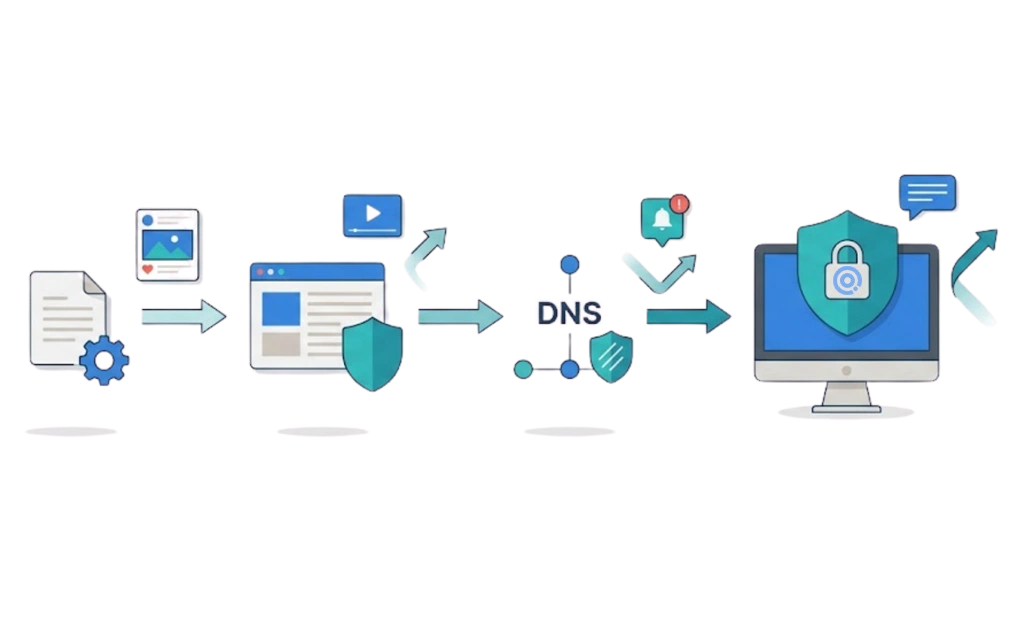
The hosts file is often recommended for blocking distracting websites. But it falls short for real distraction control. Better alternatives exist at three levels: browser extensions, DNS filtering, and system-level tools like DigitalZen. The right choice depends on where your current block breaks down and how strongly you need it to hold.
Key Takeaways
- The hosts file works for simple cases but breaks for serious blocking: It is free and built into every operating system, but it can be easily reversed in seconds.
- Browser extensions are a step up but still browser-only: They add scheduling and friction, but they cannot block desktop apps or stop browser switching.
- DNS filtering covers the network but skips desktop apps: Services like NextDNS and CleanBrowsing block at the lookup level, with their own trade-offs.
- System-level tools handle the whole machine: They can block apps and websites, add schedules, set daily allowances, and use adaptive locks to slow impulse overrides.
- The right level depends on what keeps breaking: Each level exists to fix the gap that an easier method leaves open.
Browser and Network-Level Alternatives to Hosts Files
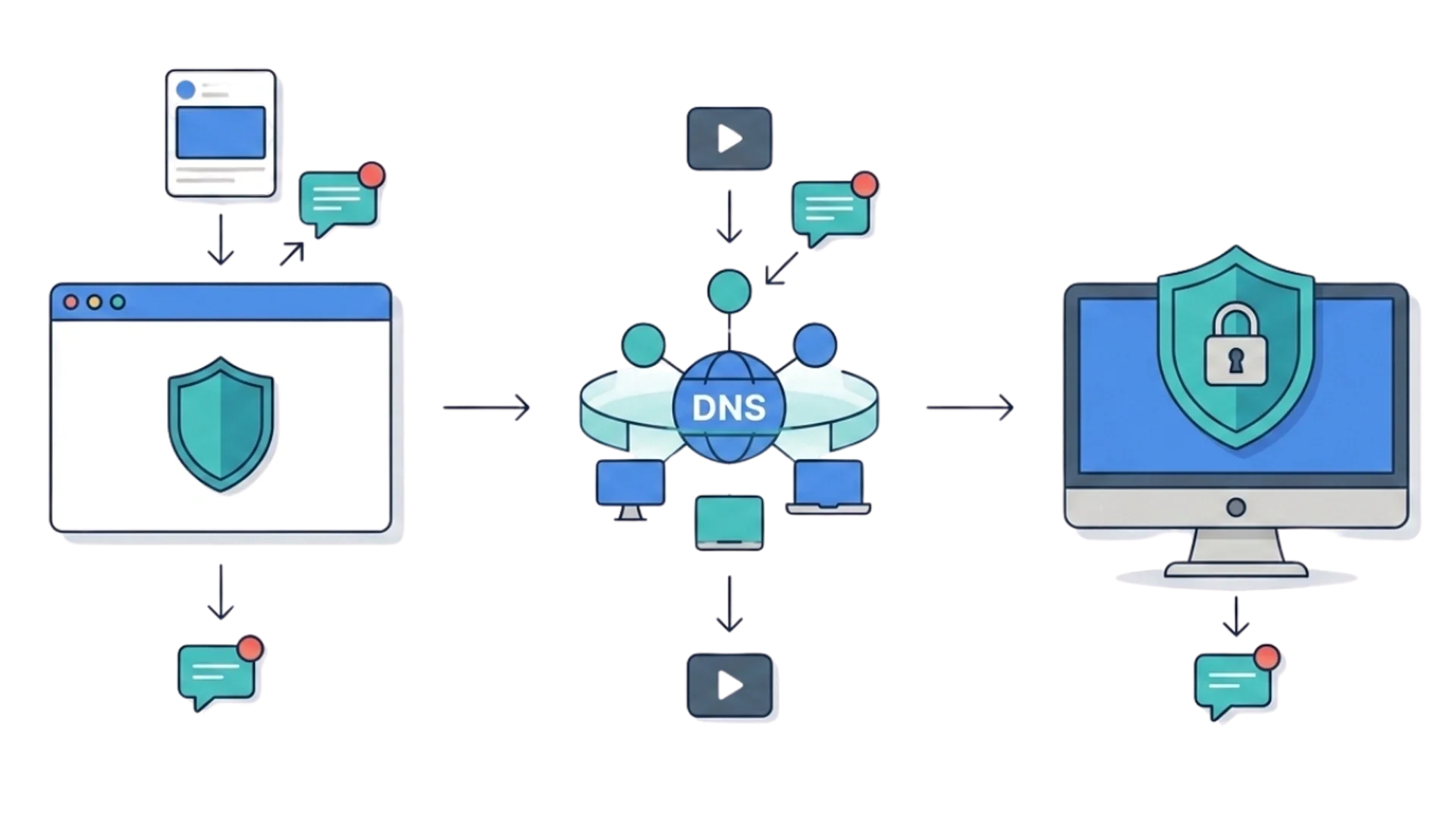
Two alternatives sit between a hosts-file edit and a dedicated desktop blocker. Browser extensions add controls inside the browser, while DNS filtering applies rules at the network or device DNS level. Each option fixes some of the hosts file’s gaps, but each has its own limits.
Browser Extensions
The first step up from a hosts file is often a dedicated browser extension. Tools like LeechBlock NG and BlockSite can add features the hosts file does not have, including:
- Scheduling and time-based blocking
- Password protection or access controls
- Delay countdowns before accessing blocked sites
- Easier management through a graphical interface
uBlock Origin can also be used with custom filter rules, although it is primarily a content blocker rather than a dedicated focus tool.
For someone who works in one browser and wants more control than the hosts file offers, an extension can be a clean upgrade:
- Setup often takes only a few minutes
- Configuration is easier to manage
- Blocklists can be adjusted as your needs change
The limits are important:
- Protection applies only to the browser where the extension is installed and enabled
- Switching to another browser can bypass the block
- Desktop apps remain unaffected
- Even with passwords, delays, or access controls, extensions can still be easier to disable than dedicated desktop blockers.
For the deeper argument, browser extensions alone are not enough for distraction blocking when the distraction lives outside the browser, too. They are the right level for some readers, and the wrong level for others.
DNS Filtering
DNS filtering moves the block to the DNS layer. Services like NextDNS and CleanBrowsing can run on a router or device and filter domain lookups before a browser loads the page. If DNS filtering is configured at the router level, the same rules can apply across devices on that network. If it is configured on one device, the coverage applies to that device.
What DNS filtering can add:
- Scheduling or time-based rules, depending on the service and plan.
- Coverage across browsers that use the configured DNS resolver.
- Centrally managed blocklists without editing each browser extension separately.
- Optional category-based filtering, such as blocking adult content, gambling, or other categories, instead of adding one site at a time.
What it still misses:
- No desktop app blocking: DNS filtering blocks domains, not standalone desktop apps. Games, chat clients, and local apps can still run unless they depend on a blocked domain.
- Bypassable by changing DNS settings: A user who can change DNS settings may be able to point the device to another resolver, which can make the filter stop applying.
- Browser-level DNS can sidestep the filter: Mozilla notes that DNS over HTTPS sends DNS queries through an encrypted connection to a configured resolver, which can bypass local DNS filtering when a browser uses its own DoH resolver.
DNS filtering is useful for broad website coverage. It works especially well for households, shared networks, and devices that should follow the same browsing rules. For one-person distraction control on a single machine, the gaps matter more if the problem also includes desktop apps, browser-level DNS settings, or easy resolver changes.
System-Level Tools Like DigitalZen for the Strongest Layer

System-level tools are the strongest layer when browser-only or DNS-level blocking is not enough. They run as desktop apps, can work across browsers, can block selected desktop apps, and can add friction before a block is changed or removed. DigitalZen, Cold Turkey, FocusMe, and Freedom all approach this layer differently, with different strengths by platform.
DigitalZen is a strong fit for readers who want one desktop blocker for websites and apps across Windows, macOS, and Linux. It is especially useful for people who want a graphical setup instead of hosts-file edits, scripts, or command-line rules.
DigitalZen combines several useful layers:
- Desktop-level coverage: Block distracting websites and selected desktop apps from one setup, instead of relying only on browser extensions or hosts-file edits.
- Scheduling and daily allowances: Set recurring blocks for specific hours, or give a tempting site a limited daily allowance before the block starts.
- Adaptive locks: Code, Cooldown, Friend, Schedule, and Money locks can add friction before a block is paused, edited, or removed. This helps when the block is working, but you still feel tempted to loosen the rule.
- Uninstall and extension removal protection: Stronger settings can make it harder to escape a block by uninstalling the app or removing the browser extension.
- Free starting point: DigitalZen offers a free starting point. Paid features are available for users who need stronger controls, such as app blocking and added protection.
Other tools have their own strengths. Cold Turkey is stricter on Windows and macOS, with features like Frozen Turkey for locking, logging off, or shutting down the computer. FocusMe offers a feature-deep toolkit with Enforced Mode and detailed rule options. Freedom is strongest for cross-device blocking across desktop and mobile, especially for users on macOS, Windows, iOS, Android, or Chromebook.
System-level tools still cannot stop every possible bypass. A determined user can switch devices, boot another operating system, or reset a machine. No blocker can eliminate every escape route. The goal is to raise the cost of an everyday override, not to make bypass impossible.
Why Hosts-File Hacks Keep Getting Recommended
If you have searched for how to block distracting websites, one common answer is the hosts file. There is a reason it shows up so often. The hosts file is free, built into major desktop operating systems, requires no extra software, and works for simple cases. For someone who only wants to block one site and trusts themselves not to revert the change, it can be a reasonable starting point.
The problem is that the same recommendation also shows up for people who need stronger blocking. Someone working from home with several tempting apps open, or someone who keeps undoing their own blocks at night, may find the hosts file too easy to reverse.
There is a longer breakdown of why hosts file blocking tends to fall short for serious distraction control, but the short version is that the method has real limits once you need the block to hold.
For people who tried the hosts file approach and found it too easy to bypass, better options exist at three levels: browser extensions, DNS filtering, and system-level tools. The right choice depends on where the current setup is breaking down.
What the Hosts File Actually Does, and Where It Falls Short
The hosts file is a plain text file that maps domain names to IP addresses. According to Microsoft Learn, the computer checks the hosts file first when resolving a website. That means adding a line like 127.0.0.1 reddit.com maps that hostname back to the local machine, which can stop the site from loading in browsers that use the system’s normal name resolution.
Where it falls short:
- Easy to revert in seconds: One text edit, one comment-out, or one delete can restore access. There is no built-in friction between the impulse to unblock a site and the act of undoing the rule.
- Website and domain blocking only: A hosts file edit does not block desktop apps like Discord, Steam, or a streaming client. Games and chat clients can still run unless they depend on a domain you have blocked.
- No scheduling: A block is either on or off. There is no built-in way to say “block this site from 10 p.m. to 7 a.m.” or “give me 30 minutes a day before the block starts.”
- No lock protection: Anyone with admin or root access on the machine can edit the file back. There is no password, friend approval, cooldown, or delay built into the hosts file itself.
- Some apps can bypass normal DNS resolution: Some browsers and applications may use their own DNS resolution or DNS-over-HTTPS settings. In certain configurations, this can sidestep hosts-file blocking.
These limits do not make the hosts file useless. They make it a tool for narrow website-blocking cases, not a dedicated distraction blocker.
What to Expect When You Switch From Hosts Files to a Dedicated Blocker
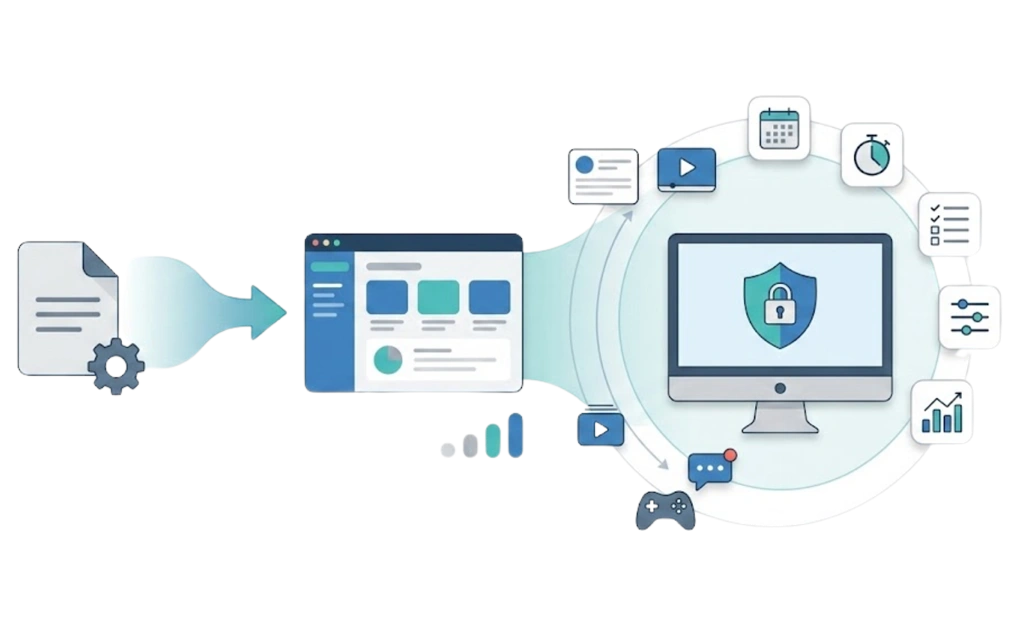
The transition from a hosts file to a dedicated blocker is usually simpler than expected. The main difference is that you move from manual text-file edits to a tool built for scheduling, visibility, and stronger controls.
1. Your existing hosts file entries can stay or go: Most blockers can run alongside hosts-file rules without a problem. You can leave the old entries in place as a backup layer, or remove them if you want one clean source of truth. The better choice depends on how simple you want the setup to be.
2. The blocking experience becomes easier to understand: A hosts-file rule may simply stop a site from loading, which can be confusing if you forget the rule is there. A dedicated blocker usually shows a clear block screen, often with a message, schedule, or override option if you have allowed one. That visible stop point helps you see when the block is working.
3. Scheduling and limits become easier to manage: Instead of editing a file by hand, you can set rules inside the blocker. For example, you can block a site during evening hours, set a daily allowance, or create different rules for workdays and weekends. This is where a dedicated blocker starts to feel different from a hosts-file setup.
4. Maintenance becomes more practical: A hosts file can require manual updates when you need to add subdomains, alternate domains, or related sites. A dedicated blocker can make those rules easier to manage with blocklists, wildcards, categories, or app-level controls, depending on the tool.
5. The first week may reveal what you actually need to block: Once the blocker is running, you may notice patterns you missed before. You might find that one browser is not the only issue, or that a desktop app is the real distraction. Use the first week as a testing period, then adjust the blocklist, schedule, or lock settings based on what actually happens.
The switch itself is rarely the hard part. The important step is using the setup for a week and adjusting it based on real behavior. The specific setup steps depend on your operating system. Linux users can follow our guide on how to block websites on Linux.
Windows users can follow our guide on how to block websites on Windows. On macOS, the setup is similar to Windows. On mobile, the platform itself sets more limits because iOS and Android allow different levels of control from third-party tools.
Moving Up When the Block Stops Holding
The upgrade path is not a one-time decision. Each level works best until its weak point becomes the problem. That does not mean blocking has failed. It means your setup may need a stronger layer. A setup is not weak because it started simple. It only needs to change when the simple version no longer holds.
A hosts file can work until you edit it back. A browser extension can work until you disable it or switch browsers. DNS filtering can work until you change the resolver or use a browser-level DNS setting. A system-level tool can add stronger friction, especially with uninstall protection and adaptive locks, but even that cannot stop every possible bypass.
Distraction blocking is a moving target. Each level fits a different point in the path. For those who are ready to go further, the deeper question is how to make a website blocker harder to bypass once you have chosen one.
The bottom line is simple: choose the lowest level that actually holds for your situation. If the hosts file is too easy to undo, move to an extension, DNS filtering, or a system-level blocker. If apps and uninstall attempts are part of the problem, a system-level tool is usually the better fit.
Frequently Asked Questions
Is It OK to Just Use the Hosts File for Blocking Websites?
For simple cases, yes. The hosts file can work if you only want to block a small set of websites and trust yourself not to revert the change. It costs nothing, requires no extra software, and can be applied across browsers that use the system’s normal name resolution. For stronger distraction control, especially if you keep undoing the block, it is usually not enough on its own.
What Is the Best Alternative to Editing the Hosts File?
The right alternative depends on what you need the block to cover. System-level tools like DigitalZen can block websites and desktop apps while adding schedules, allowances, and stronger override friction. Browser extensions like LeechBlock NG can add scheduling and access controls inside one browser. DNS filtering tools like NextDNS can apply rules at the DNS level for devices using that resolver.
Does DNS Filtering Replace a Hosts File or Work Alongside It?
It can do either. DNS filtering and the hosts file both affect domain lookups, but at different layers. The hosts file works on one machine. DNS filtering works through the configured DNS resolver and can cover multiple devices if those devices use that resolver. They can coexist, but most people only need one primary blocking layer.
Can I Use a Browser Extension Without Installing Anything Else?
Yes. Browser extensions like LeechBlock NG and uBlock Origin’s custom rules can run on their own. They work well if your distractions live inside one browser and you do not need to block desktop apps. The limit is the browser itself. Switching to a browser where the extension is not installed can bypass the setup.
If browser switching is one of your common escape routes, a desktop blocker may fit better.
How Do I Know If My Current Blocking Method Is Working?
Try a quick self-test. Open a blocked site in another browser. Try to launch a distracting app if app blocking matters. Then try to disable or undo the block. If the block holds in the situations that usually break your focus, your setup is working. If it is easy to bypass, you may need a stronger layer.
References
- https://learn.microsoft.com/en-us/windows/powertoys/hosts-file-editor
- https://support.mozilla.org/en-US/kb/dns-over-https