
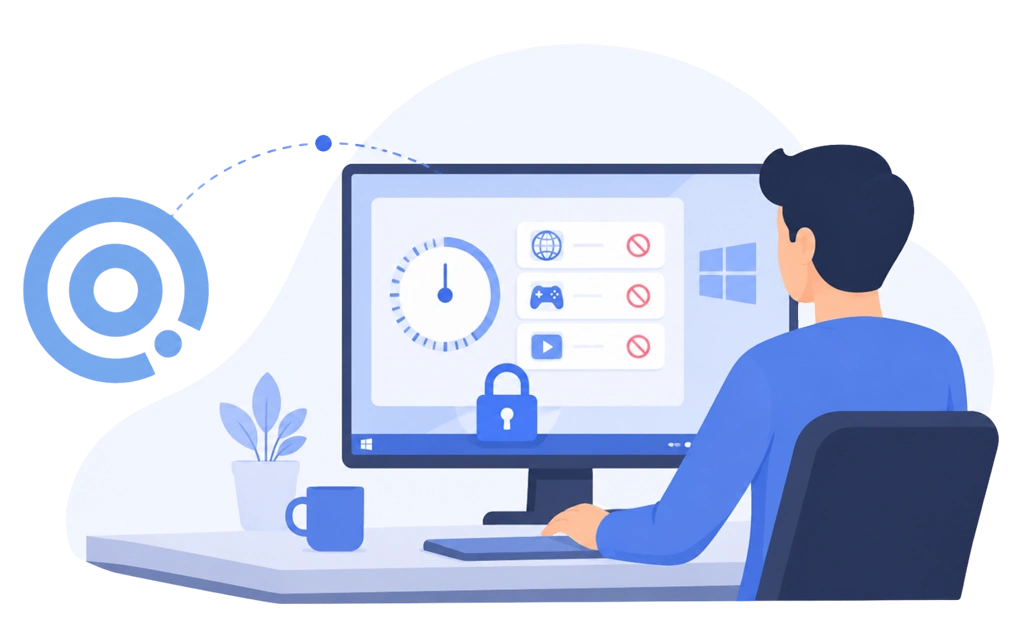
Windows has no built-in screen time limits for adults managing their own accounts. Microsoft Family Safety is designed for child accounts and only filters web activity in Microsoft Edge. Adults who want self-imposed limits need third-party tools like DigitalZen for allowances, schedules, and lock mechanisms.
Key Takeaways
- Windows has no native screen time limits for adults: Microsoft Family Safety only works for child accounts added to a Family Safety group.
- Family Safety only restricts browsing in Microsoft Edge: Other browsers like Chrome and Firefox are not covered by its controls.
- Third-party tools like DigitalZen provide adult screen time management: Set daily allowances, schedule offline periods, and lock yourself out when willpower is low.
- Daily allowances let you moderate instead of block completely: Allow 30 minutes of gaming or social media per day, then access stops automatically.
- Lock mechanisms prevent impulsive changes: Cooldown timers, friend verification, and scheduled locks add friction when you try to disable restrictions.
How to Limit Screen Time on Any PC or Laptop
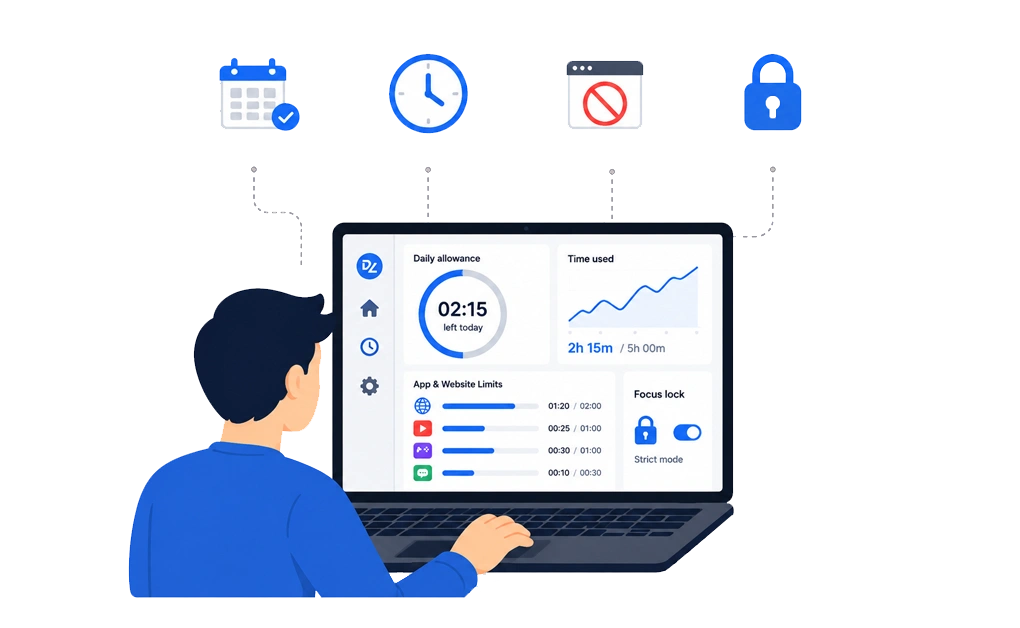
Any Windows computer can use the same screen-time controls. The setup works the same because the software runs on Windows itself, not on the type of machine.
That means the same method can work across desktop PCs, laptops, and other Windows devices.
Screen Time Limiter for PC
A screen time limiter for PC is a tool that caps how much time you spend on specific apps or websites.
This is useful for Windows desktop or tower computers. Windows has some built-in tools, but they are limited for adult accounts. Many people use third-party tools like DigitalZen when they want more control over their own screen time.
Setup is usually simple:
- Install the app.
- Choose the sites and apps you want to limit.
- Set your daily allowances.
- Add scheduled blocks if you want certain apps blocked at specific times.
The whole setup can take about ten minutes. Less time than a “quick” YouTube break, somehow.
How to Set a Screen Time Limit on a Laptop
Setting a screen time limit on a laptop works the same way as setting one on a desktop PC.
Both run Windows, so the steps are the same. You install the tool, choose the apps or websites to limit, set your daily allowances, and choose the lock settings that fit your needs.
If you use your laptop while traveling, settings sync can be helpful. It keeps your limits consistent across devices, so your laptop does not suddenly become the loophole with a keyboard.
How to Limit Screen Time on Computer
Any Windows computer, laptop or desktop, needs a third-party tool for real screen time limits on an adult account. The built-in Windows options (Family Safety and Focus Assist) either only work for child accounts or only manage notifications.
To limit screen time on a computer that you use yourself, install DigitalZen as a Windows website and app blocker, set daily allowances for the apps that are a problem for you, and add lock mechanisms if you know you’ll try to bypass the limits during a weak moment.
Built-In and Third-Party Screen Time Solutions
Windows offers limited native options for screen time management. Most built-in tools target parents managing children, not adults managing themselves. The methods below range from restricted native options to full third-party control.
Method 1. Use Windows Family Safety (Child Accounts Only)
Parents setting up safe browsing for kids on Windows can use Family Safety to filter content and restrict apps, along with screen time limits. It works across Windows, Xbox, and Android devices connected to a Microsoft Family group.
How to set it up:
- Go to family.microsoft.com or open the Microsoft Family Safety app.
- Sign in with a Microsoft account that has a Family Safety organizer role.
- Add a family member as a child account.
- Select the child’s tile and go to Screen Time.
- Choose the platform (Windows, Xbox, or Mobile).
- Set daily time limits or allowed hours for each day.
Family Safety also lets children request extra time. Parents can approve or deny requests from the Family Safety app.
Limitations:
- Only works for child accounts added to a Family Safety group. Adults cannot use it to limit their own accounts.
- Browsing restrictions only apply to Microsoft Edge. Chrome, Firefox, and other browsers are not monitored.
- Screen time still works while the device is locked, which can drain the daily allowance even when the child is not actively using it.
Setting up safe browsing for kids on Windows covers Family Safety in more detail, including content filtering and app restrictions.
Method 2. Use Focus Assist for Notification Management
Windows includes Focus Assist (called Focus in Windows 11), which silences notifications during set periods. This is not a screen time limiter, but it reduces interruptions.
How to enable Focus Assist:
- Press Windows + I to open Settings.
- Go to System and then Focus Assist (Windows 10) or Focus (Windows 11).
- Choose Priority only or Alarms only to limit which notifications appear.
- Set automatic rules to enable Focus Assist during specific hours or activities.
Limitations:
- Does not block apps, limit usage time, or prevent you from opening distractions.
- Only hides notifications. You can still open social media, games, or any other app at any time.
- Useful for reducing interruptions but ineffective for actual screen time control.
Method 3. Use DigitalZen for Adult Screen Time Management
DigitalZen is a system-level tool that provides what Windows does not offer natively. It works for adults who want to limit their own screen time without relying on child account workarounds.
Why DigitalZen fills the gap:
1. Easy setup: Select apps and websites from a list instead of finding file paths or writing complex patterns. Pre-defined templates help you start quickly. No technical skills required.
2. Daily allowances: Allow 30 minutes of Instagram or 1 hour of gaming per day. DigitalZen tracks usage and blocks access when time runs out. The timer resets at midnight.
3. Scheduled blocking: Block distractions during work hours or after bedtime. Set different schedules for weekdays and weekends. The Wellness template blocks screens during evenings and weekends. The Work-life balance template schedules breaks and stops work tools at night.
4. 1-click focus sessions: Start a saved focus session with one click on the app icon. Everything except your allowed apps is blocked for the duration you set.
5. Lock screen reminders: When a site or app is blocked, DigitalZen can show a custom reminder instead of just a block message. Use it to prompt yourself to stretch, drink water, or step away from the screen.
5. Multiple lock types: These prevent you from disabling restrictions when willpower is low:
- Code. A long generated code appears on the screen. Typing it takes time, giving you a chance to reconsider.
- Cooldown. A timer starts when you try to unlock. You must wait before the unlock completes.
- Friend. A code is sent to a friend’s email. You cannot unlock without their help, adding social accountability.
- Schedule. Lock until a future date. No unlocking before that date arrives.
- Money. Set a small fine you pay to unlock. This appeals to the part of you that hates wasting money.
6. Protections: The desktop app can make itself harder to stop or uninstall. It can also protect against browser extension removal. These protections make it harder to bypass restrictions in a moment of weakness.
If you use multiple computers, you can sync your settings across devices so your allowances and schedules apply everywhere.
Setting Daily Limits for Specific Apps
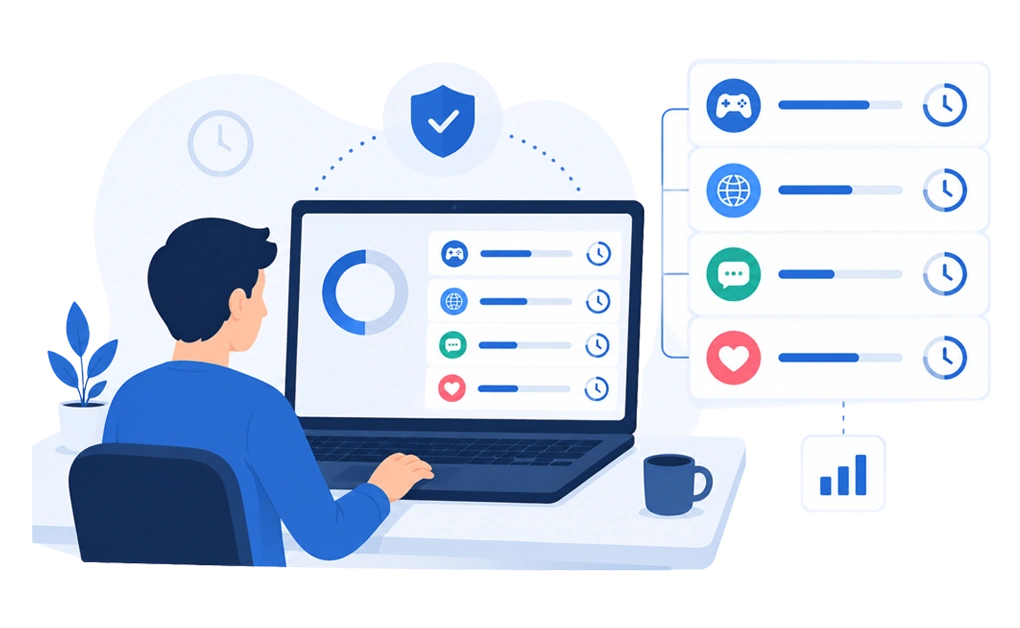
Daily allowances work best when tailored to specific apps or categories. A blanket limit on all screen time is often too restrictive. Per-app limits let you control problem areas while keeping access to tools you need.
- Gaming. Limit Steam, Epic Games, or specific game executables to 1-2 hours per day. Gaming is easy to lose track of, and a hard cutoff helps.
- Browsers. Limit Chrome or Firefox to a set amount of daily browsing time. This works well if you find yourself falling into endless tab spirals.
- Messaging. Limit Discord, Slack, or WhatsApp desktop apps during focus hours. Constant messages break concentration even when the conversations are work-related.
- Social media. Social media is often the biggest screen time offender. Limit time on Instagram, TikTok, or X to a set daily allowance. Blocking social media on Windows covers platform-specific methods if you want to block sites entirely rather than limit time.
Scheduling Offline Periods and Focus Sessions
Time-based restrictions help when the problem is not a specific app but when you use it. Scheduled blocking lets you define when distractions are allowed and when they are not.
- Work hours. Block entertainment apps from 9 am to 5 pm on weekdays. Games, social media, and streaming sites stay blocked during productive hours.
- Evenings. Block work tools like Slack and email after 7 pm. This enforces work-life separation and prevents the habit of checking messages before bed.
- Bedtime. Block all screens from 10 pm to 7 am. Many people find that phone and computer use before bed makes sleep harder to start. A hard cutoff removes the temptation.
- Weekends. Adjust restrictions for weekends. Allow more entertainment time, or block work tools entirely to protect personal time.
- Focus sessions. The Pomodoro technique alternates focused work with short breaks. A common pattern is 25 minutes of work followed by a 5-minute break. Longer sessions use 50 minutes of work and 10-minute breaks.
DigitalZen’s 1-click focus session blocks everything except your allowed tools for the duration you set. Lock screen reminders can prompt you to take breaks when the session ends.
DigitalZen’s pre-defined templates provide starting points for these scenarios. The Wellness template blocks screens during evenings and weekends. The Work-life balance template schedules breaks during the day and stops work tools at night. The Moderation template limits gaming or social media to a set number of minutes per day.
Choosing the Right Level of Restriction
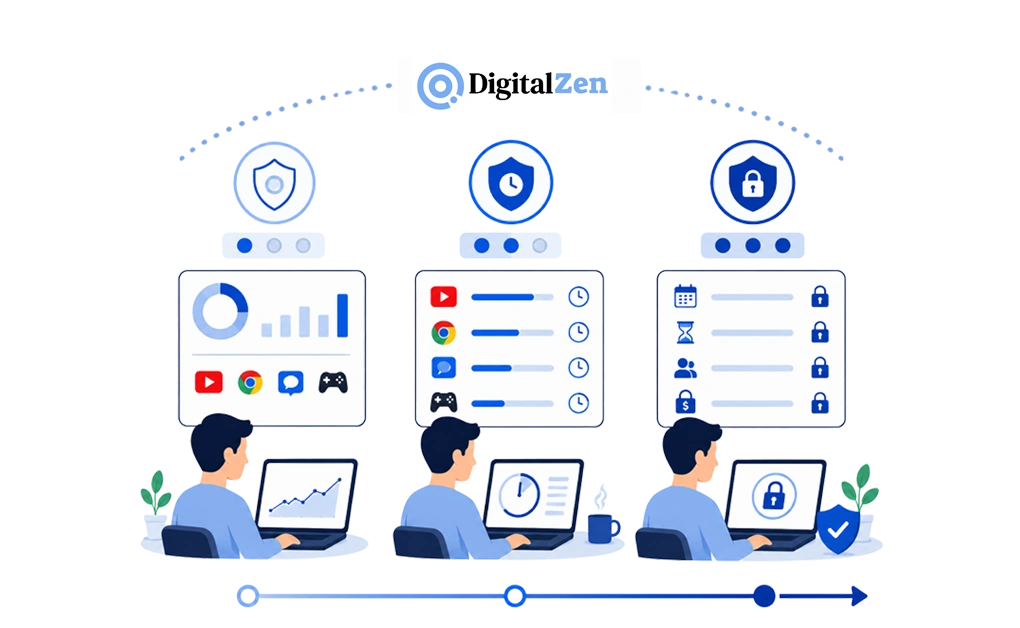
Not everyone needs the same level of control. Some people benefit from gentle nudges. Others need hard limits with no way to override them. The right approach depends on your habits and goals.
Light approach. Start with awareness. Track your usage without setting hard limits. Seeing how much time you spend on certain apps can change behavior on its own. If awareness is not enough, add soft limits.
Moderate approach. Set daily allowances for problem apps. Access stops when time runs out, but you can adjust settings if needed. This works for people who need structure but can generally trust themselves.
Strict approach. Enable scheduled blocking and lock mechanisms. Cooldown timers, friend verification, or future-date locks add friction when you try to disable restrictions. This works for people who know they will bypass limits if given the chance.
Start with lighter restrictions and increase strictness if you find yourself bypassing them. The goal is building sustainable habits, not winning a daily battle against yourself. DigitalZenworks as a website and app blocker that adapts to different levels of willpower. Choose the lock mechanisms that match your needs and adjust as your habits improve.
Frequently Asked Questions
Can I Limit My Own Screen Time on Windows Without a Child Account?
Yes, but not with built-in Windows tools. Microsoft Family Safety only works for child accounts added to a Family Safety group. Adults who want to limit their own screen time need third-party tools like DigitalZen.
How Do I Limit Screen Time on My Computer?
Install a screen-time app like DigitalZen. Windows doesn’t offer built-in limits for adult accounts. Set daily limits for apps like social media, games, or streaming. Schedule blocks for work time, bedtime, or other key hours. Turn on locks if you might try to bypass the limits. This works on any Windows computer.
Does Windows Family Safety Work on Chrome or Firefox?
Family Safety’s browsing restrictions only apply to Microsoft Edge. Chrome, Firefox, and other browsers are not monitored or restricted. This is a significant limitation for families where children use browsers other than Edge.
Can I Set Different Time Limits for Different Apps?
Yes, with third-party tools. DigitalZen lets you set separate daily allowances for gaming, browsers, social media, and other app categories. Each category has its own timer that resets at midnight.
How Do I Set a Screen Time Limit on a Laptop?
Setting a screen time limit on a laptop uses the same steps as a desktop PC because both run Windows. Install a screen time limiter (DigitalZen or a similar tool), pick the apps you want to cap, set your daily allowances, and add lock mechanisms if needed.
If you use the laptop across multiple locations, look for a tool with settings sync so the limits apply on other Windows machines you sign into as well.
What Happens When My Screen Time Runs Out?
With DigitalZen, the app or website is blocked until the timer resets at midnight. If you enabled lock mechanisms, you cannot override the limit without going through the friction you set up. This prevents impulsive decisions to extend your time.
Can I Limit Screen Time on Linux?
Yes, but Linux requires different tools. Command-line scripts, cron jobs, and third-party apps handle screen time on Linux. Limiting app usage time on Linux covers those methods.
References:
- https://support.microsoft.com/en-US/family-safety/set-screen-time-limits-across-devices
- https://www.reddit.com/r/LinusTechTips/comments/1e69xxm/how_can_i_limit_usage_time_on_windows_computer/