
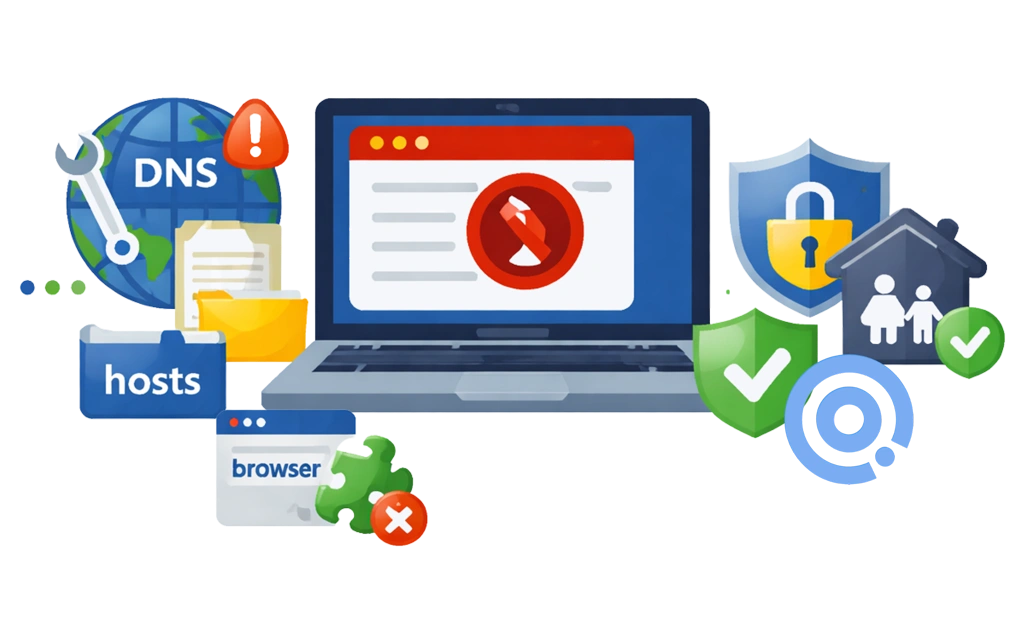
Blocking adult content on Windows works best with layers. No single tool is enough. DNS filtering, the hosts file, Microsoft Family Safety, browser extensions, and system-level blockers like DigitalZen all help in different ways. The best setup depends on whether you are protecting a child, blocking content for yourself, or trying to cover all browsers.
Key Takeaways
- DNS filtering is the best free starting point for blocking adult content on Windows: It works across all browsers and many apps, but it can still be bypassed with DNS changes, VPNs, or mobile data.
- The hosts file can block specific domains system-wide, but it is hard to maintain: It requires manual updates and is easy to bypass for anyone with admin access.
- Microsoft Family Safety is mainly for parents and only filters web content in Edge: It can help on child accounts, but it is not a complete cross-browser solution.
- Browser extensions are only a light extra layer: They protect one browser at a time and are easy to disable, remove, or bypass.
- System-level tools like DigitalZen offer stronger cross-browser protection: They add adult-content filters, lock mechanisms, and tamper protection, which makes them more useful for adults self-blocking and for stricter setups.
- The strongest setup combines multiple layers based on the user’s situation: Parents and adults blocking content for themselves need different mixes of DNS filtering, account restrictions, system-level tools, browser extensions, and accountability.
Disclaimer: This article was published in April 2026. It reflects the app details available at the time of posting. Notice an error? Let us know and we’ll fix it!
Why No Single Method Is Enough
Adult content exists on millions of domains. New sites appear every day. Blocking one site does nothing about the thousands of others.
Each blocking method has specific weaknesses. DNS filtering can be bypassed by changing DNS settings or using a VPN. The hosts file requires constant manual updates. Browser extensions only work in one browser. Microsoft Family Safety only filters content in Edge.
This is why layering matters. Combining multiple methods closes the gaps that each individual method leaves open.
Two groups of people typically need adult content blocking. Parents want to protect their children from harmful material. Adults want to block content for themselves for personal, professional, or recovery reasons. Both groups benefit from a layered approach.
1. Using DNS Filtering for Network-Wide Protection
DNS filtering blocks adult content before it reaches your device. It works at the network level. When you try to visit a blocked domain, the DNS server refuses to load it.
This method works across all browsers. Chrome, Firefox, Edge, and others all use the same DNS settings. Many apps also use DNS, so filtering extends beyond just web browsing.
DNS filtering is free. It requires no software installation. You simply change your DNS settings to use a filtering provider.
CleanBrowsing Family Filter
CleanBrowsing offers a free Family Filter. It blocks adult content and mixed-content sites like Reddit. It also enforces SafeSearch on Google, Bing, and YouTube.
DNS addresses:
- Primary: 185.228.168.168
- Secondary: 185.228.169.168
OpenDNS FamilyShield
OpenDNS FamilyShield is free and preconfigured. It blocks adult content without requiring an account or custom setup.
DNS addresses:
- Primary: 208.67.222.123
- Secondary: 208.67.220.123
Cloudflare for Families
Cloudflare offers two free filtering options through 1.1.1.1 for Families. Use 1.1.1.2 to block malware only. Use 1.1.1.3 to block malware and adult content.
DNS addresses (malware + adult content):
- Primary: 1.1.1.3
- Secondary: 1.0.0.3
How to Configure DNS on Windows
- Press Windows + I to open Settings.
- Go to Network & Internet.
- Select your active Wi-Fi or Ethernet connection.
- Find the DNS server assignment and click Edit.
- Switch from Automatic to Manual.
- Enable IPv4 and enter your chosen DNS addresses.
- Click Save.
Router-Level Setup
Configuring DNS on your router protects all devices on your network. This includes phones, tablets, gaming consoles, and smart TVs.
- Log in to your router’s admin panel. This is usually 192.168.1.1 or 192.168.0.1.
- Find the DNS settings under WAN or Internet configuration.
- Replace your ISP’s DNS addresses with the filtering DNS addresses.
- Save and reboot the router.
Limitations
DNS filtering is not foolproof. Users can bypass it by changing DNS settings on their device. VPNs also bypass DNS filtering by routing traffic through different servers. Mobile data bypasses your home network entirely.
DNS filtering also does not block apps. Desktop clients for social media, games, or other services connect directly without using web browsers.
2. Editing the Windows Hosts File
The hosts file is a system file that maps domain names to IP addresses. You can use it to block specific domains by redirecting them to nowhere.
The hosts file is located at C:\Windows\System32\drivers\etc\hosts.
How to Edit the Hosts File
- Open Notepad as administrator. Right-click Notepad and select Run as administrator.
- Click File, then Open.
- Navigate to C:\Windows\System32\drivers\etc.
- Change the file type filter from Text Documents to All Files.
- Select the hosts file and open it.
- Add blocking entries at the bottom. Use this format: 0.0.0.0 example.com
- Save the file.
Each line blocks one domain. You would need thousands of lines to block adult content comprehensively.
Limitations
The hosts file requires manual updates. New adult sites appear daily. Maintaining a comprehensive block list is nearly impossible.
Anyone with admin access can edit the hosts file. This makes it easy to bypass for determined users.
The hosts file seems like a simple solution, but it has significant drawbacks. Our blog on why hosts file blocking often fails explains the limitations in detail.
3. Using Microsoft Family Safety
Microsoft Family Safety is built into Windows. It is free to use. It can filter adult content in Microsoft Edge.
How to Set It Up
- Go to family.microsoft.com or open the Family Safety app.
- Sign in with your Microsoft account.
- Add a family member with a child account.
- Select the child’s profile.
- Go to Content Filters and enable web filtering.
You can block mature content by category. You can also add specific URLs to block or allow lists.
Limitations
Web filtering only works in Microsoft Edge. Chrome, Firefox, and other browsers bypass Family Safety’s content filters entirely.
You can block other browsers through app restrictions. But this forces all browsing through Edge.
Family Safety requires a child account. It is designed for parental controls. It is not designed for adults to block content for themselves.
Screen time continues counting even when the device is idle. This can drain daily allowances unexpectedly.
Family Safety works best for parents with younger children who primarily use Edge.
4. Adding Browser Extensions
Browser extensions can filter adult content directly in the browser. They are easy to install and do not require system-level changes.
Some can block adult content by category. Others can block specific sites that you add manually.
Limitations
Browser extensions only work in the browser where they are installed. They do not automatically protect other browsers.
Users can often disable or remove them quickly.
They may also stop working in incognito or private browsing mode unless they are manually enabled there.
Browser extensions are best used as a light extra layer, not as the main solution.
5. Using DigitalZen for Stronger System-Level Protection
System-level tools work across multiple browsers. They can also block apps, not just websites. They include features to prevent tampering and bypassing.
There are two main approaches. Blocking-focused tools prevent access to adult content entirely. Accountability-focused tools monitor activity and report it to a partner.
DigitalZen is a blocking-focused tool with built-in adult content filters. It works at the system level on Windows, giving you broader protection than browser extensions or DNS filtering alone.
- Pre-defined content filters. DigitalZen comes with ready-to-use block lists for adult content, gambling, and social media. You do not need to build your own lists or hunt for domains. Enable the adult content filter and it starts working immediately.
- Cross-browser website blocking. DigitalZen blocks websites across Chrome, Firefox, Edge, Brave, and other supported browsers. Unlike Microsoft Family Safety, it does not limit you to Edge.
- Lock mechanisms. DigitalZen includes multiple ways to lock your settings. Code entry requires a long random code to make changes. Cooldown timers force you to wait before disabling protections. Friend-lock sends the unlock code to a trusted person. These features prevent impulsive changes during moments of weakness.
- Tamper protection. DigitalZen includes three layers of protection against bypassing:
- Browser extension removal protection. Users cannot simply remove the browser extension to regain access.
- App termination protection. Users cannot stop or kill the app through Task Manager or other methods.
- Uninstall protection. Users cannot uninstall DigitalZen without going through the lock mechanism first. This feature is rare among blocking tools.
DigitalZen works for both parental controls and adult self-blocking. The lock mechanisms and tamper protection make it especially useful for adults who want to prevent themselves from disabling protections.
Accountability-Based Tools
Some users prefer accountability over blocking. Accountability tools monitor browsing activity. They send reports to a trusted partner such as a spouse, friend, or counselor.
Covenant Eyes is the most well-known accountability tool at $18 per month, though some users find the cost or approach limiting. Other Covenant Eyes alternatives take different approaches to the same problem.
Accountability tools work best for adults in recovery programs or faith-based accountability relationships. They rely on transparency rather than restriction.
Combining Methods for Effective Protection
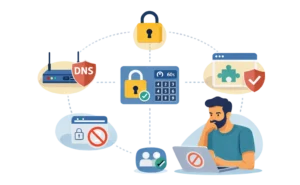
No single tool blocks everything. Layering methods closes the gaps that each individual method leaves open.
For Adults Blocking Content for Themselves
Adults managing their own screen habits need methods that prevent self-bypassing. Willpower alone often fails in moments of weakness.
- DNS filtering on the device or router. This is the foundation. It blocks adult content across all browsers without installing software.
- System-level tool with lock mechanisms. DigitalZen’s code entry, cooldown timers, or friend-lock features prevent you from disabling protections impulsively.
- Browser extensions as an additional layer. These add one more obstacle. Every extra step helps.
- Accountability partner if desired. Some people benefit from knowing someone else can see their activity. This adds external motivation.
These same layering techniques apply to other types of harmful content. Blocking gambling sites on Windows follows a similar approach for users managing gambling-related concerns.
For Parents Protecting Children
Parents need methods that children cannot easily bypass.
- DNS filtering at the router level. This protects all devices on the home network.
- Microsoft Family Safety. This adds screen time limits and app restrictions for child accounts.
- Standard user account without admin rights. This prevents children from changing system settings or installing software.
- System-level tool for app blocking and uninstall protection. This closes gaps that Family Safety leaves open.
Adult content filtering works best alongside other parental controls. Setting up safe browsing for kids on Windows walks through screen time limits, app blocking, and browser restrictions.
Blocking Adult Content on Windows Takes Layers
No single method blocks all adult content on Windows. DNS filtering is a strong starting point because it works across all browsers and requires no software. The hosts file offers system-level blocking but demands constant manual updates. Microsoft Family Safety filters content in Edge but leaves other browsers unprotected. Browser extensions are easy to install, but only cover one browser at a time.
The most effective approach combines multiple layers. Start with DNS filtering at the router or device level. Add a system-level tool for app blocking and tamper protection. Use lock mechanisms to prevent yourself from disabling protections in weak moments.
For system-wide protection that covers websites and apps together, DigitalZen offers a Windows website and app blocker with built-in adult content categories. Its lock mechanisms and uninstall protection make it harder to bypass, whether you are a parent protecting children or an adult managing your own screen habits.
Frequently Asked Questions
Does DNS Filtering Block All Adult Content?
DNS filtering blocks known adult domains, but new sites appear constantly. It also does not block content on mixed-use sites like social media or Reddit. Use DNS filtering as one layer, not your only protection.
Can I Block Adult Content Without Installing Software?
Yes. DNS filtering requires no software installation. You change your DNS settings to use a filtering provider like CleanBrowsing, OpenDNS, or Cloudflare. The hosts file also requires no software, but it needs manual maintenance.
What Is the Best Free Method to Block Adult Content on Windows?
DNS filtering is the best free method. It works across all browsers and many apps. CleanBrowsing, OpenDNS FamilyShield, and Cloudflare for Families are all free. They can be set up by changing DNS settings and do not require software installation.
How Do I Block Adult Content on Linux?
Linux can use DNS filtering, browser-based tools, and other system-level methods, but the setup is usually more technical than on Windows. For step-by-step options, see our guide to blocking adult content on Linux.
How Do I Block Adult Content on All Browsers?
DNS filtering works across all browsers automatically. System-level tools like DigitalZen also block content across multiple browsers through supported extensions. Microsoft Family Safety only filters content in Edge, so it does not cover other browsers.
What Is the Difference Between Blocking and Accountability Tools?
Blocking tools prevent access to adult content entirely. They stop the content from loading. Accountability tools allow access but monitor activity. They send reports to a trusted partner. Blocking is about restriction. Accountability is about transparency.
References:
- https://www.covenanteyes.com/
- https://cleanbrowsing.org/filters/
- https://support.microsoft.com/en-us/family-safety/filter-websites-and-searches-using-microsoft-family-safety
- https://support.microsoft.com/en-us/family-safety/family-safety-settings-enforced-on-adults
- https://windowsforum.com/threads/how-to-set-up-opendns-familyshield-on-windows-10-11-for-safe-browsing.343493/