
You can block social media on Windows using browser extensions, the hosts file, DNS filtering, Windows Firewall, or system-level tools. Browser extensions are quick but easy to bypass. The hosts file can block sites across browsers for the domains you add. System-level tools like DigitalZen offer stronger enforcement with partial blocking for nuanced control.
Key Takeaways
- Browser extensions block social media in one browser only: Users can bypass them by switching browsers, using incognito mode, or disabling the extension.
- The hosts file can block social media across browsers for the domains you add: Complete coverage is difficult because platforms use many subdomains, CDN hosts, and changing infrastructure.
- DNS filtering blocks social media at the network level: Services like CleanBrowsing can block entire categories, but users can override DNS settings on their devices.
- Windows Firewall can block some social media desktop apps and PWAs: Setup can be complicated, and it does not affect browser access.
- System-level tools like DigitalZen offer partial blocking: Allow LinkedIn while blocking Facebook. Set a 30-minute daily allowance for Instagram instead of blocking it completely.
Why Social Media Is Hard to Block on Windows
Blocking social media is harder than blocking a single website. Social media platforms use multiple domains, subdomains, and content delivery networks. A simple block on facebook.com does not stop images loading from fbcdn.net or videos from fbsbx.com.
Here is why basic methods often fail:
- Subdomains. Platforms use mobile versions and regional subdomains. Facebook uses m.facebook.com and web.facebook.com. Twitter uses mobile.twitter.com. Blocking the main domain leaves these paths open.
- CDN URLs. Images, videos, and media load from separate content delivery networks. Instagram uses cdninstagram.com. Facebook uses fbcdn.net and fbsbx.com. TikTok uses its own in-house CDN with hundreds of regional domains.
- Embedded content. Social media posts embedded on news sites and blogs can still load even when the main platform is blocked. These embeds often use different API domains.
- Desktop apps. Many platforms offer PWAs (Progressive Web Apps) installed via Chrome or Edge, Microsoft Store apps, or standalone Electron apps. Browser-level blocks do not affect these.
- Web app variations. Some platforms detect blocking and redirect to alternative URLs. Others cache content locally and continue showing posts after a block starts.
5 Ways to Block Social Media on Windows
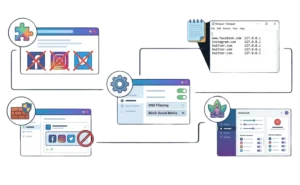
Method 1. Block Social Media With a Browser Extension
Browser extensions are the fastest way to block social media. Install one from your browser’s extension store and add the platforms you want to block.
How to set it up:
- Open your browser’s extension store (Chrome Web Store, Firefox Add-ons, or Edge Add-ons).
- Search for a site-blocking extension and install it.
- Open the extension settings.
- Add social media domains to your block list (e.g., facebook.com, instagram.com, twitter.com).
- Set a password to prevent easy changes.
Some extensions offer scheduling. You can block social media during work hours and allow it in the evening. Others support URL-specific blocking for partial restrictions.
Limitations:
Browser extensions only protect the browser where they are installed. Users can switch to another browser. They can open an incognito window. They can disable the extension from the browser settings. Extensions also cannot block desktop apps.
Method 2. Block Social Media by Editing the Hosts File
The hosts file maps domain names to IP addresses. By pointing social media domains to 127.0.0.1 (localhost), you can block access across browsers for the specific domains you add.
How to edit the hosts file:
- Press Windows + S and search for Notepad.
- Right-click Notepad and select Run as administrator.
- Click File and then Open.
- Navigate to C:\Windows\System32\drivers\etc.
- Change the file type filter from Text Documents to All Files.
- Select the hosts file and click Open.
- Add the domains for each platform you want to block (see the domain lists below).
- Save the file (Ctrl + S).
- Open Command Prompt as administrator and run: ipconfig /flushdns
Limitations:
Anyone with administrator access can undo the changes. The hosts file does not block desktop apps or PWAs. Social media platforms use hundreds of CDN subdomains that change frequently. Manual hosts file blocking cannot keep up with these changes.
For complete coverage, consider a DNS filtering service or system-level tool.
Method 3. Block Social Media With DNS Filtering
DNS filtering blocks websites at the network level. Instead of editing files on your computer, you configure your network to use a DNS service that filters social media.
CleanBrowsing offers a paid plan that lets you toggle entire categories like Social Media. When enabled, it blocks Facebook, Instagram, TikTok, and other platforms automatically across all devices on your network.
How to configure DNS filtering on Windows:
- Press Windows + I to open Settings.
- Go to Network & Internet and select your connection type (Wi-Fi or Ethernet).
- Click your network and find DNS server assignment. Click Edit.
- Switch to Manual and enable IPv4.
- Enter your DNS filtering service’s IP addresses.
- Save and restart your browser.
For network-wide blocking, configure DNS on your router instead. This applies the filter to every device on your home or office network.
Limitations:
Users can override DNS settings on their device. VPNs bypass DNS filtering entirely. Free DNS services like CleanBrowsing’s Family Filter do not block social media by default. You need a paid plan with category controls for social media blocking. Devices using encrypted DNS (DoH or DoT) can bypass router-level DNS filtering.
Method 4. Block Social Media Desktop Apps With Windows Firewall
Windows Firewall can block specific applications from accessing the Internet. This method works for standalone desktop apps with their own executables. PWAs installed via Chrome or Edge are trickier because they often launch through the browser itself rather than a separate executable.
How to create an outbound rule:
- Press Windows + S and search for Windows Defender Firewall with Advanced Security.
- Click Outbound Rules in the left panel.
- Click New Rule in the right panel.
- Select Program and click Next.
- Browse to the app’s executable file. For standalone desktop apps, check Program Files or the app’s installation folder.
- Select Block the connection and click Next.
- Apply the rule to Domain, Private, and Public networks.
- Name the rule (e.g., “Block Instagram PWA”) and click Finish.
Limitations:
This method works reliably for standalone desktop apps but is less predictable for PWAs. Blocking a PWA may require blocking the browser that hosts it, which affects all browsing in that browser.
Users with administrator access can disable the rule. For PWAs specifically, system-level blocking tools provide more targeted control.
Method 5. Block Social Media With DigitalZen
DigitalZen is a system-level blocker that works across supported browsers and desktop apps. It blocks social media platforms from a single configuration and includes features for partial blocking and bypass prevention.
Why DigitalZen works well for social media:
- Cross-browser blocking. Block Facebook, Instagram, and TikTok in Chrome, Firefox, Edge, Brave, and other supported browsers without installing separate extensions.
- Desktop app blocking. Block social media PWAs and third-party apps installed on your system.
- Wildcard URL blocking. Block specific parts of a platform while allowing others. Block reddit.com/r/all while allowing specific subreddits.
- Daily allowances. Allow 30 minutes of Instagram per day instead of blocking completely. DigitalZen tracks usage and blocks access after your allowance runs out.
- Lock mechanisms. Cooldown timers, friend verification, and future-date locks prevent impulsive changes.
If you want to limit screen time on Windows rather than block entirely, DigitalZen’s allowance feature provides that flexibility.
Domains to Block for Each Platform
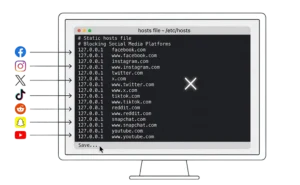
If you use the hosts file method, you need to add multiple domains per platform. The lists below are starter domains for each platform.
They cover the primary entry points but not the full range of CDN and regional subdomains these platforms use. For more complete coverage, consider a DNS filtering service or system-level tool.
Facebook and Messenger
Facebook owns multiple domains for its main site, mobile versions, CDN, and Messenger.
127.0.0.1 facebook.com
127.0.0.1 www.facebook.com
127.0.0.1 m.facebook.com
127.0.0.1 web.facebook.com
127.0.0.1 fb.com
127.0.0.1 fb.me
127.0.0.1 fbcdn.net
127.0.0.1 fbsbx.com
127.0.0.1 facebook.net
127.0.0.1 messenger.com
127.0.0.1 www.messenger.com
Note: Facebook’s CDN uses hundreds of regional subdomains like static.xx.fbcdn.net. The hosts file cannot block all of them with wildcards. For complete coverage, use a DNS filtering service or system-level tool.
Instagram
Instagram is owned by Meta and uses its own CDN domains.
127.0.0.1 instagram.com
127.0.0.1 www.instagram.com
127.0.0.1 m.instagram.com
127.0.0.1 l.instagram.com
127.0.0.1 cdninstagram.com
X (Formerly Twitter)
X uses fewer subdomains than Facebook but still requires multiple entries.
127.0.0.1 twitter.com
127.0.0.1 www.twitter.com
127.0.0.1 mobile.twitter.com
127.0.0.1 x.com
127.0.0.1 www.x.com
TikTok
TikTok uses an in-house CDN with many regional domains. The core domains are:
127.0.0.1 tiktok.com
127.0.0.1 www.tiktok.com
127.0.0.1 m.tiktok.com
127.0.0.1 vm.tiktok.com
127.0.0.1 musical.ly
TikTok uses an in-house CDN with many regional and shifting domains. The list covers core entry points, but TikTok’s infrastructure extends to other parent domains. Community-maintained blocklists on GitHub provide broader coverage, though even these require ongoing maintenance.
Reddit
Reddit uses fewer domains but includes old.reddit.com for users who prefer the classic interface.
127.0.0.1 reddit.com
127.0.0.1 www.reddit.com
127.0.0.1 old.reddit.com
127.0.0.1 new.reddit.com
127.0.0.1 i.reddit.com
127.0.0.1 redd.it
Snapchat
Snapchat’s web presence is smaller, but the app uses Google-hosted domains.
127.0.0.1 snapchat.com
127.0.0.1 www.snapchat.com
127.0.0.1 app.snapchat.com
127.0.0.1 feelinsonice.appspot.com
127.0.0.1 feelinsonice-hrd.appspot.com
Note: Snapchat relies heavily on Google Cloud services. The domains above come from community sources and may be incomplete. Blocking Snapchat’s Google-hosted domains could affect other Google services. Test carefully before applying broadly.
YouTube
YouTube blocking requires its own set of domains and techniques. Blocking YouTube on Windows involves different domains and partial blocking options like restricting Shorts while allowing playlists.
How to Block Some Social Media While Allowing Others
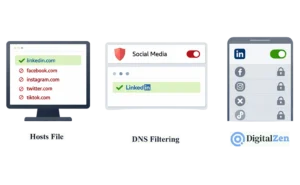
Most methods block platforms entirely. But many users need partial control. You might need LinkedIn for work while blocking Facebook. You might want to limit Instagram to 30 minutes per day instead of blocking it completely.
Allow LinkedIn While Blocking Other Social Media
With the hosts file method, simply do not add LinkedIn domains to your block list. Block Facebook, Instagram, X, and TikTok while leaving linkedin.com accessible.
With DNS filtering services like CleanBrowsing, you can use the Custom Domains feature to allow specific sites while blocking the Social Media category.
With DigitalZen, add LinkedIn to your allow list while blocking other social media platforms. The block applies everywhere except the allowed domains.
Allow Specific Subreddits While Blocking Reddit
Reddit’s URL structure makes partial blocking possible. Subreddit URLs follow the pattern reddit.com/r/subredditname.
With DigitalZen’s wildcard blocking:
- Block reddit.com entirely.
- Add an exception for reddit.com/r/productivity or other subreddits you need.
- The homepage and other subreddits remain blocked.
This approach works for work-related subreddits, educational communities, or hobby groups that provide value.
Set Time Limits Instead of Full Blocks
Sometimes blocking completely is too strict. A daily allowance provides moderation instead of elimination.
With DigitalZen, you can set a 30-minute daily limit on Instagram. Use the platform freely until your allowance runs out. The timer resets at midnight. This approach helps build sustainable habits without going cold turkey.
For anyone who scrolls more than they’d like, a social media blocker app that supports daily limits makes moderation far easier than relying on willpower alone.
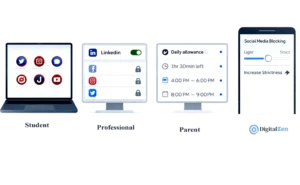
The right approach depends on your goals. A student preparing for exams needs stricter controls than a professional who occasionally checks LinkedIn. A parent managing a child’s computer has different needs than someone managing their own focus.
Consider whether you need full blocking or moderation. Blocking everything can lead to binge sessions when the block ends. Daily allowances and scheduled access windows create sustainable habits. Blocking websites and apps boosts productivity when the approach matches your actual behavior patterns.
DigitalZen handles both strict blocking and flexible moderation. It works as a Windows website and app blocker that can adapt to different levels of willpower. Start with light controls and increase strictness if needed. The goal is building habits, not winning a fight against yourself every day.
Frequently Asked Questions
How Do I Block Social Media on Windows 10 vs Windows 11?
The methods are identical. The hosts file is in the same location on both versions. Windows Firewall uses the same interface. DNS filtering and system-level tools work the same way. No changes needed between Windows 10 and Windows 11.
Can I Block Social Media Apps Without Blocking Websites?
Yes. Use Windows Firewall to block specific desktop apps while leaving browser access open. Create outbound rules for each app’s executable file. This blocks the app while allowing you to access the web version if needed.
Will a VPN Bypass Social Media Blocks?
VPNs can bypass DNS-based blocking by routing traffic through external servers. They can also bypass some network-level controls.
Desktop-based blockers with stricter lock mechanisms can make this harder by adding friction around changing settings or installing new software. The effectiveness depends on the specific tool and how it enforces restrictions.
Can I Allow LinkedIn While Blocking Other Social Media?
Yes. With the hosts file, simply do not add LinkedIn domains. With DNS filtering, use custom allow lists. With DigitalZen, add LinkedIn to your exceptions while blocking other platforms.
How Do I Block Social Media on Linux?
Linux uses different tools and file locations. The hosts file is at /etc/hosts instead of the Windows path. Firewall commands use iptables or UFW. For a complete guide, see our article on controlling social media on Linux.
References:
- https://cleanbrowsing.org/learn/how-to-block-facebook
- https://cleanbrowsing.org/learn/how-to-block-instagram
- https://www.netify.ai/resources/applications/tiktok