
Covenant Eyes uses screenshot-based monitoring at $18 per month. Many users find that approach too invasive, too expensive, or ineffective in moments of temptation. Alternatives take different paths. Some, like DigitalZen, focus on blocking explicit content before it loads, while others offer lower-cost or less image-based monitoring.
Key Takeaways
- Covenant Eyes uses screenshot-based surveillance at $18 per month: It monitors activity and sends reports to an accountability partner.
- Blocking-first tools prevent access rather than report it afterward: This approach appeals to users who find surveillance uncomfortable.
- Some privacy-focused alternatives avoid screenshots and reduce invasive monitoring: This appeals to users who want accountability with less surveillance.
- Several alternatives cost less than Covenant Eyes: Options range from free to around $15 per month, with lifetime plans available.
- The right tool depends on your needs and comfort level: Some people prefer monitoring visibility. Others prefer prevention-based blocking.
Disclaimer: This article was published in April 2026. It reflects the app details available at the time of posting. Notice an error? Let us know and we’ll fix it!
5 Covenant Eyes Alternatives
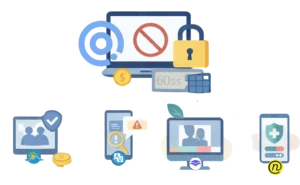
Several tools offer different approaches to accountability. Some use monitoring like Covenant Eyes. Others focus on blocking pornography before it loads. Here are the top options.
1. DigitalZen
DigitalZen takes a blocking-first approach. Instead of monitoring and reporting, it prevents access to websites and apps entirely.
The app includes pre-defined content filtering lists for adult content, gambling, and social media. You do not need to build your own blocklists. Just select a category, and it starts working.
Lock mechanisms:
- Code lock: Requires typing a long, random code to unlock
- Cooldown timer: Forces a waiting period before changes take effect
- Friend-lock: Sends the unlock code to a trusted partner
- Schedule lock: Prevents unlocking until a set date
- Money lock: Charges a small fine to unlock
Tamper protection:
- Built-in uninstall protection
- Browser extension removal protection
- App termination protection
DigitalZen works on Windows, Mac, and Linux. It is one of the few desktop blocker app options available for Linux users. For users relying on browser extensions alone, why browser extensions are not enough for distraction blocking explains the limitations.
Pricing: Free basic version. Premium costs $3 per month. Lifetime access costs $119.
Best for: Users who prefer prevention over surveillance and want privacy-focused accountability.
If you choose DigitalZen, setting up an accountability blocker on your computer can help you get started with lock mechanisms and content filters.
2. Ever Accountable
Ever Accountable is a monitoring-based tool similar to Covenant Eyes. It provides weekly reports to an accountability partner showing every screen, app, and website viewed.
The app is ISO 27701 (Privacy) and ISO 27001 (Information Security) certified, with annual third-party security audits and 256-bit AES encryption.
Key features:
- Weekly activity reports sent to the partner
- Optional filtering on Android and iOS at no extra charge
- Works on iOS, Android, Windows, macOS, ChromeOS, and Kindle
- Unlimited devices covered per subscription
- 14-day free trial
Pricing: $14.99 per month or $129 per year ($10.75/month)
Best for: Users who want the accountability partner model with strong privacy certifications.
3. Accountable2You
Accountable2You is a monitoring-based tool that logs activity in text rather than screenshots. This approach uses less battery and protects accountability partners from exposure to potentially tempting content.
The app sends instant alert notifications when objectionable content or custom trigger words are detected. It also tracks incognito and private browsing, detects circumvention attempts, and monitors screen time.
Unlike some tools, Accountable2You does not block websites. It focuses on transparency and integrity rather than restriction.
Key features:
- Text-based activity logs instead of screenshots
- Instant alerts for questionable content and custom trigger words
- Tracks incognito/private browsing
- Detects uninstall and tampering attempts
- Works on Android, iOS, Windows, Mac, Linux, and Chromebook
- 10-day free trial
Pricing: $11 per month (Personal, up to 6 devices) or $16 per month (Family, up to 20 devices)
Best for: Users who want monitoring without images and prefer text-based reports with strong circumvention detection.
4. Canopy
Canopy uses patented AI to filter explicit content in real-time. Unlike URL-based blockers, it scans the actual content on each webpage.
If a safe website displays an inappropriate image, Canopy blocks that specific image while leaving the rest of the page accessible. This includes suggestive content like lingerie and swimwear that other blockers might miss. The AI also works on platforms like Instagram and TikTok.
Key features:
- Real-time image and video filtering powered by AI
- Blocks explicit images on any webpage without blocking entire sites
- Sexting detection alerts parents before images are shared
- App blocking and screen time limits
- Internet downtime scheduling
- Removal prevention
- Accountability partner feature
- Works on iOS, Android, Windows, and Mac
- Free trial with 30-day guarantee
Pricing: $7.99/month (1 device) or $9.99/month (up to 5 devices) billed annually
Best for: Families and adults who want real-time image filtering rather than URL blocking.
5. Net Nanny
Net Nanny is primarily a parental control tool, but adults can use it for accountability as well. It has been trusted by millions of parents since 1996.
The app uses AI to block dangerous content in real-time, the instant before it is viewed. It filters content by category, blocks websites and apps, and provides activity reports through a Family Feed feature.
Key features:
- Real-time content filtering powered by AI
- Website and app blocking
- Screen time management
- Real-time alerts on porn, suicide, weapons, and drug-related content
- Instant reporting of online searches
- Visibility to apps used
- Works on Windows, macOS, and iOS
Pricing: $39.99/year (1 device), $54.99/year (5 devices), or $89.99/year (20 devices)
Best for: Budget-conscious users and parents who want parental control features with real-time AI filtering.
Why People Look for Covenant Eyes Alternatives
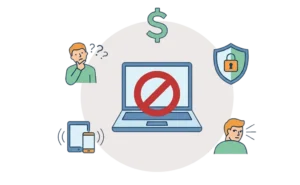
Covenant Eyes is one of the most recognized names in accountability software. It has helped over 1.7 million users since 2000. But it is not the right fit for everyone.
Common reasons users seek alternatives:
- Price. Covenant Eyes costs $18 per month, $198 per year, or $850 for lifetime access. This is more expensive than most competitors.
- Privacy concerns. The app captures screenshots from your devices and sends them to an accountability partner. Some users feel uncomfortable with this level of monitoring. A 2021 WIRED article raised concerns about the app’s use of Android accessibility permissions to monitor activity beyond just pornography.
- Surveillance discomfort. For some users, knowing someone will see a report is not enough to stop an impulse. Others find the “watched” feeling stressful rather than helpful.
- Performance issues. Some users report VPN disconnects, device slowdown, and battery drain. The screenshots are intentionally blurred and pixelated for privacy, which can make them difficult to interpret.
- Setup complexity. Covenant Eyes uses two apps: the Victory app and Victory Shield. This can confuse new users.
- Platform limitations. Screenshot monitoring works only in Safari on iOS. It is not available on Chromebooks, Kindle Fire, or Smart TVs.
Why Some Users Prefer Blocking Over Monitoring
There are two main philosophies behind accountability software: surveillance and prevention.
Surveillance tools like Covenant Eyes monitor your activity and report it to a partner. The idea is that knowing someone will see what you access creates enough friction to stop you.
Blocking tools prevent access entirely. You cannot view explicit content because the blocker stops it from loading in the first place.
For some users, surveillance is not enough. User reports suggest that in moments of strong temptation, the knowledge that someone will see a report does not always stop the behavior. Some users describe ignoring the consequence in the moment and dealing with the shame later.
Blocking can interrupt the impulse before anything loads. There is nothing to report because there is nothing to access. This appeals to users who want prevention rather than after-the-fact accountability.
Why some users prefer blocking:
- No screenshots or activity logs
- No server-side data storage
- Accountability partner is only involved when you try to unlock
- Feels less invasive while still providing friction
Neither approach is universally better. It depends on the person. Some users need the visibility of monitoring. Others respond better to the friction of blocking. Some tools combine both approaches.
There are several ways to block adult content on Windows beyond accountability software. DNS filtering, browser extensions, and system-level tools can add extra layers of protection.
Which Alternative Fits Your Needs
The best alternative depends on your situation and goals.
Budget-conscious users:
- Free: DigitalZen free tier, DNS filtering (CleanBrowsing, OpenDNS)
- Low-cost: DigitalZen ($3/month), Net Nanny ($39.99-$54.99/year)
- Lifetime: DigitalZen ($119 one-time)
Adults in recovery (self-blocking):
- Blocking-first tools with strong lock mechanisms
- Friend-lock or schedule-lock for serious friction
- Options include: DigitalZen
Couples seeking mutual accountability:
- Either blocking or monitoring, depending on comfort level
- Friend-lock provides accountability without surveillance
- Shared reports provide visibility
- Options include: DigitalZen, Ever Accountable
Parents protecting children:
- Real-time filtering and app blocking
- Screen time limits
- DNS filtering for network-wide protection
- Options include: Canopy or Net Nanny
Faith-based accountability:
- Tools that support accountability partner relationships
- Either monitoring or blocking, depending on preference
- Options include: Covenant Eyes, Ever Accountable, or DigitalZen with friend-lock
Making the Switch From Covenant Eyes
If you decide to switch, there are a few things to keep in mind.
Before you switch:
- Uninstalling Covenant Eyes requires an uninstall code from your account dashboard
- Your accountability partner will be notified when you generate the code
- It helps to talk to your partner about why you are changing tools
- Explaining how the new system will work can ease the transition
Testing the new tool:
- Some alternatives offer a free trial
- Testing the new tool before fully committing is a good approach
- Confirming it works on your devices and fits your needs helps avoid issues
Maintaining accountability:
- Consider keeping the same partner
- The relationship matters more than the software
- A trusted partner can hold you accountable with any tool
Choosing the Right Covenant Eyes Alternative
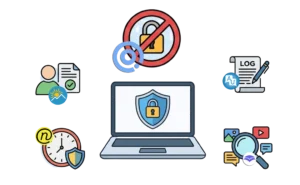
Covenant Eyes remains a trusted option for users who want screenshot-based monitoring and an accountability-partner model. It has helped millions of users over 25 years. But it is not the only approach.
Alternatives like Ever Accountable and Accountable2You offer similar monitoring at lower prices. Canopy uses AI to filter explicit images in real-time. Net Nanny provides parental controls with screen time limits. For users who prefer prevention over surveillance, blocking-first tools like DigitalZen take a different approach with no screenshots, no activity logs, and no server-side data.
DigitalZen’s Windows web and app blocker includes pre-defined content filters for adult content, gambling, and social media. It also blocks desktop apps, not just websites. Multiple lock types, like friend-lock, cooldown timer, and schedule lock, add friction to prevent impulsive bypasses.
For users who want privacy-focused accountability without surveillance, DigitalZen offers a free basic version, a premium plan at USD 3 per month, or lifetime access for USD 119.
Frequently Asked Questions
What Is the Cheapest Covenant Eyes Alternative?
Net Nanny costs $39.99 per year for one device or $54.99 per year for five devices, making it one of the most affordable paid options. DigitalZen offers a free tier and a premium plan at $3 per month or $119 for lifetime access.
Is There a Free Alternative to Covenant Eyes?
Yes. DigitalZen offers a free basic version with limited features. DNS filtering services like CleanBrowsing and OpenDNS FamilyShield are also free and block explicit content at the network level.
What Is the Difference Between Blocking and Monitoring Tools?
Blocking tools prevent access to explicit content entirely. Monitoring tools allow access but track activity and send reports to an accountability partner. Blocking focuses on prevention. Monitoring focuses on visibility.
Do Any Alternatives Work on All Devices?
Most alternatives support iOS, Android, Windows, and Mac. DigitalZen also supports Linux, which is rare. Canopy supports iOS, Android, Windows, and Mac. Net Nanny supports Windows, macOS, and iOS but does not currently support Android. Check each tool’s compatibility before committing.
References:
- https://everaccountable.com/
- https://accountable2you.com/
- https://canopy.us/
- https://www.netnanny.com/