
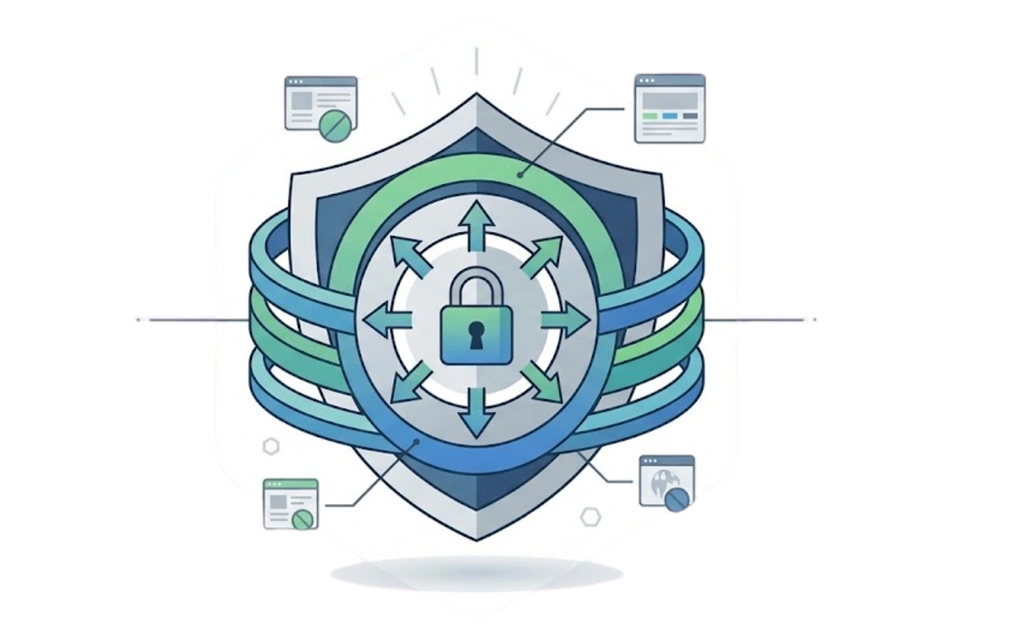
A website blocker becomes harder to bypass when you stack layers instead of relying on one feature. Use a desktop app instead of a browser extension. Turn on uninstall protection. Add a lock that creates real friction. Schedule blocks while you are still calm.
Optional layers like DNS filtering and whitelist-only focus modes add backup protection. Each layer raises the effort needed to override the block during a low-control moment.
Key Takeaways
- A stronger blocker is built in layers, not single features: Coverage, persistence, and friction work together to make a setup harder to bypass.
- Desktop apps are the foundation: Browser extensions can be easy to disable or avoid. A desktop app is the better starting point when switching browsers is the fastest way past the block.
- Locks should slow you down at your hardest moment: Cooldown timers, friend approval, schedule locks, and money locks add friction before you can unlock. This helps when you know the block is working but still want to turn it off.
- Set the rules while you are calm: Pre-committing a schedule sets the plan before the urge appears. This makes it harder for later-you to change the rules on impulse.
- Strong protection adds real friction: A layered setup makes everyday overrides harder and slower. It can require more steps, more effort, and more determination before the protection can be removed or changed.
Why Most Blocking Setups Are Easy to Bypass
Many blocking setups are easy to bypass because they rely on one layer. A browser extension may only work in the browser where it is installed. A hosts file edit can often be reversed by someone with admin access. A site blocked in one browser may still be reachable in another if the blocker does not cover the whole system.
A blocker is only as strong as its easiest workaround. There are clear reasons hosts file methods tend to fall short for serious enforcement, and the same one-layer weakness can show up in browser extensions, hosts files, and basic password locks. The fix is not always one stronger feature. It is a layered setup, where each layer helps cover the gaps the others leave.
Four Techniques That Strengthen Any Blocking Setup
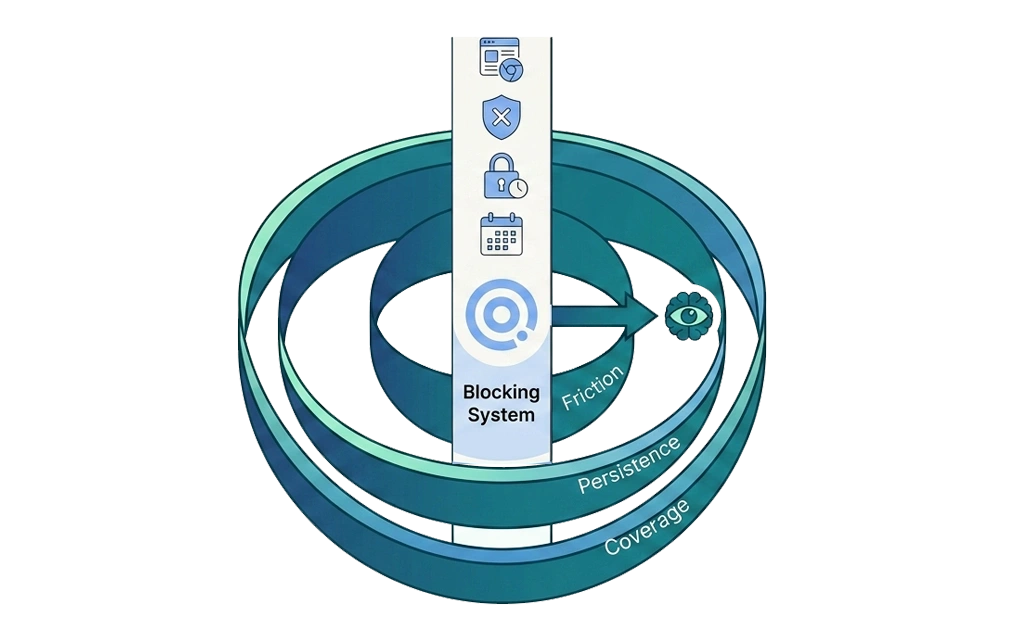
Four techniques do most of the heavy lifting. They cover three key layers: coverage, persistence, and friction.
Coverage means where the block works. Persistence means how hard the tool is to remove. Friction means what slows you down before an override. Together, these layers make a blocking setup harder to bypass.
1. Start With a Blocker That Covers More Than One Browser
The first step is to move beyond a browser extension or hosts file edit. A stronger blocking setup should cover more than one browser. It should also protect against common workarounds, such as switching browsers or opening a private window.
There are practical reasons browser extensions alone are not enough for distraction blocking. A desktop app can help cover more of the system. Depending on how the tool is built, it may also block desktop apps like games, chat apps, or social apps.
DigitalZen is one example of this approach. It runs as a desktop app on Windows, macOS, and Linux. It is designed to cover unknown or newly installed browsers automatically.
The main point is simple: stronger blocking starts when the tool covers more than one browser.
2. Choose a Blocker With Removal Protection
The next layer is persistence. A blocker is most useful when you feel tempted to turn it off. That is why a stronger setup should make the tool harder to remove or change during an active block.
Look for protection features that add friction before you can uninstall the app or remove the browser extension. This matters because removing an extension or deleting an app can otherwise take only a few clicks.
DigitalZen offers two protections for this. Uninstall protection makes the app harder to remove on impulse. Extension removal protection helps keep the browser extension in place.
Pairing both protections closes one of the most common gaps in weaker blocking setups.
3. Pick Locks That Add Real Friction, Not Just a Password
A basic password is often weak because you may already know it. Stronger friction adds a pause, delay, person, or cost before you can unlock. That pause gives you more time to rethink the choice.
DigitalZen offers adaptive locks for different situations:
- Code lock. A generated code appears on screen. Typing it creates a pause before the block can be turned off.
- Cooldown lock. A timer starts when you try to unlock. You have to wait before the block lifts.
- Friend lock. The unlock code goes to a friend’s email, so you cannot unlock alone. If social commitment helps you stay on track, you can set up an accountability blocker with a friend.
- Schedule lock. You set a future date, and the block stays active until then. This helps when you want to commit ahead of time.
- Money lock. You set a small fine that you pay to unlock. This adds a financial consequence to turning the block off.
Pick the lock that matches the gap you usually fall into. If you click too quickly, try the cooldown lock. If you often change your own rules privately, try the friend lock. If you plan well but struggle later, try the schedule lock.
4. Pre-Commit Your Schedule While You Are Calm
Timing matters. A block set during a stressful moment may be easier to undo. A block set earlier, when you are thinking clearly, is often easier to follow.
Pre-committing means setting your schedule ahead of time and letting it run on its own. DigitalZen’s scheduled blocking turns on automatically at the time you choose. You do not need to remember to start it later. The schedule does the work before the urge appears.
You can also pair scheduled blocking with daily allowances. This lets you use a limited amount of time first. After the allowance runs out, the block takes over.
Key insight: A layered setup is not about testing discipline. It is about reducing the number of moments where discipline has to carry the whole system.
Add Optional Layers Like DNS Filtering and Focus Mode
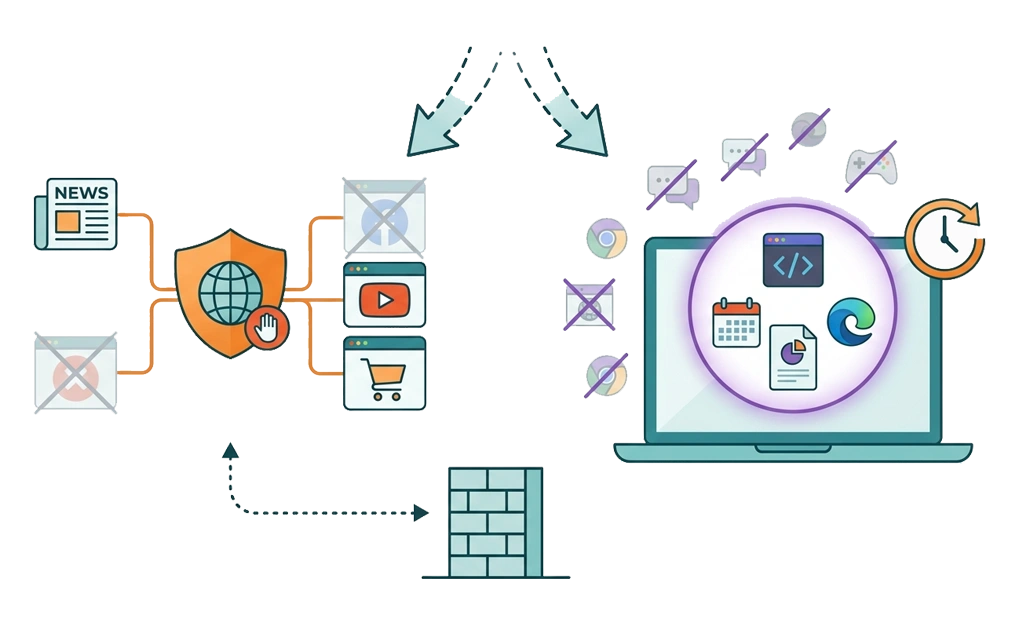
The four techniques are the core of a stronger setup. The two layers below are optional. They can add backup coverage.
Two layers are worth considering:
- DNS filtering. DNS filtering works at the network level. It can block distracting websites before they load in your browser. This can add a second layer behind your desktop blocker.
NextDNS and CleanBrowsing are two well-known DNS filtering services. CleanBrowsing also offers scheduling features for time-based filtering rules. If you want to use schedules with another DNS service, check its current settings first.
It can help if websites are the main issue. It is less useful if the distraction is a desktop app, game, or second device. It also lives in network settings, so it can usually be changed by someone with the right access. For most people, DNS filtering works best as a backup layer, not the main block.
- Focus Mode whitelisting. Focus Mode flips the default. Instead of choosing what to block, you choose what to allow. Everything else stays blocked. This helps during deep work when even “safe” browsing can turn into a detour.
DigitalZen’s Focus Mode does this on desktop. It is useful for deep work sessions where you only need a few tools open and want everything else out of reach.
Three Layered Setups to Match How You Work
Most people do not need every layer at once. The best setup depends on your weak spots and how much friction you can live with during a normal week.
- A starter setup is best if you are testing the idea. Install a desktop app like DigitalZen. Set up one scheduled block. Choose one adaptive lock, such as the cooldown lock. This setup is simple and easy to keep using.
- A standard setup is better if you want a daily focus routine. Start with the starter setup. Then add uninstall protection. Set two or three scheduled blocks, such as work hours and night-time. Choose a stronger lock, such as the friend lock or schedule lock. Add a DNS filter if you want a network-level backup.
- A high-intensity setup is for people who keep finding gaps in softer systems. Turn on uninstall protection and extension removal protection. Use Focus Mode whitelisting during deep work. Pair the friend lock with the schedule lock for longer commitments. Add a DNS filter as an extra layer if needed.
The pattern is the same across all three setups. Start with what you can maintain. Add another layer only when the current setup is not enough.
How to Decide Which Layer to Add First
If your setup feels weak right now, do not add every layer at once. Start with the biggest gap first. Each layer builds on the one before it, so the order matters.
If you currently use a browser extension or a hosts file edit, move to a desktop app first. This improves coverage because the block can apply beyond one browser. A friend lock or password is less useful if the tool itself is easy to remove or avoid.
If you already have a desktop app but no removal protection, turn on uninstall protection next. This helps keep the tool in place during an active block. Without persistence, other layers may be easier to ignore.
If you have removal protection but only a basic password, add an adaptive lock. The cooldown lock is a simple starting point. Move to the friend lock or schedule lock if you still find yourself overriding the cooldown.
If you already have multiple layers and still find gaps, add DNS filtering or use Focus Mode whitelisting. These layers are usually better as backup layers, not the first layer. They help catch distractions that slip past your main setup.
The honest rule is one layer at a time, one week at a time. A setup you can keep using is better than a perfect setup that feels too strict to maintain.
Build a Blocker Setup You Can Actually Keep Using
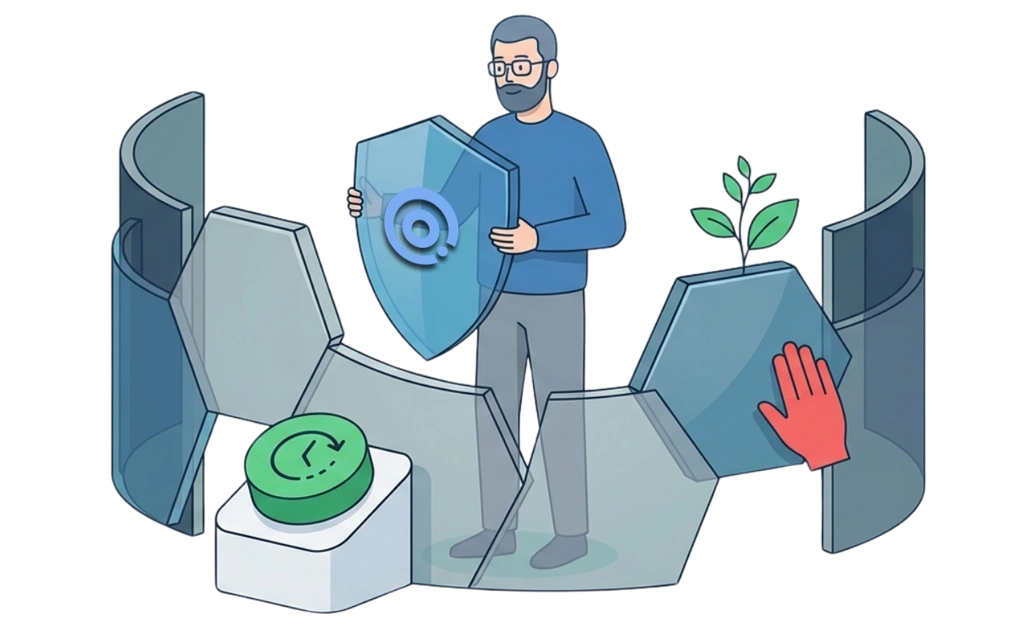
No setup can stop every possible bypass. A determined user can still switch devices, use another operating system, or reset the system. The goal of a layered setup is not to promise a perfect block. The goal is to make everyday slip-ups harder and slower. A slower bypass gives the urge more time to fade. DigitalZen’s protections are designed to be hard to undo on impulse, not impossible to break.
A good next step is to add one layer that fits your current setup. For most people, that means starting with a system-level desktop app and one adaptive lock. With DigitalZen, you can start for free. Set up one scheduled block. Then see how the layered approach works in your real week.
For readers choosing between blockers, the strongest tools combine layered protections rather than relying on one big feature.
Frequently Asked Questions
What Is the Easiest Way to Make a Website Blocker Harder to Bypass?
Use a layered setup. Start with a desktop app, then add a browser extension for extra browser coverage. This gives you stronger protection than relying on an extension alone.
Then turn on uninstall protection and extension removal protection to make the setup harder to remove on impulse.
Can I Layer Multiple Blockers Together?
Yes, but keep it simple. A desktop blocker plus a DNS filter can work well because they protect different layers. Using two desktop blockers at the same time may cause conflicts, so it is usually better to start with one strong desktop app.
Does Uninstall Protection Stop Every Bypass?
No. Uninstall protection makes the tool harder to remove during impulse moments. It does not stop every possible bypass. A determined user can still switch devices, use another operating system, or reset the system.
Should I Use DNS Filtering Instead of a Desktop App?
DNS filtering works better as a backup layer, not the main tool. It can block websites, but it does not block desktop apps. It can also be changed by someone with access to the network settings. Modern browsers may also bypass DNS filtering entirely by using their own secure DNS resolution, which ignores system or network-level settings.
A desktop app paired with a browser extension avoids this gap because the block happens inside the browser and at the system level. A desktop app is usually the stronger starting point.
How Do I Know if My Setup Is Strong Enough?
A stronger setup usually has three parts: broad coverage, removal protection, and friction. Use a desktop app. Turn on uninstall or extension removal protection. Add a lock such as a cooldown, friend approval, schedule lock, or code lock. If you can still bypass the setup easily, it is not strong enough yet.
References
- https://www.cloudflare.com/learning/access-management/what-is-dns-filtering/
- https://cleanbrowsing.org/