
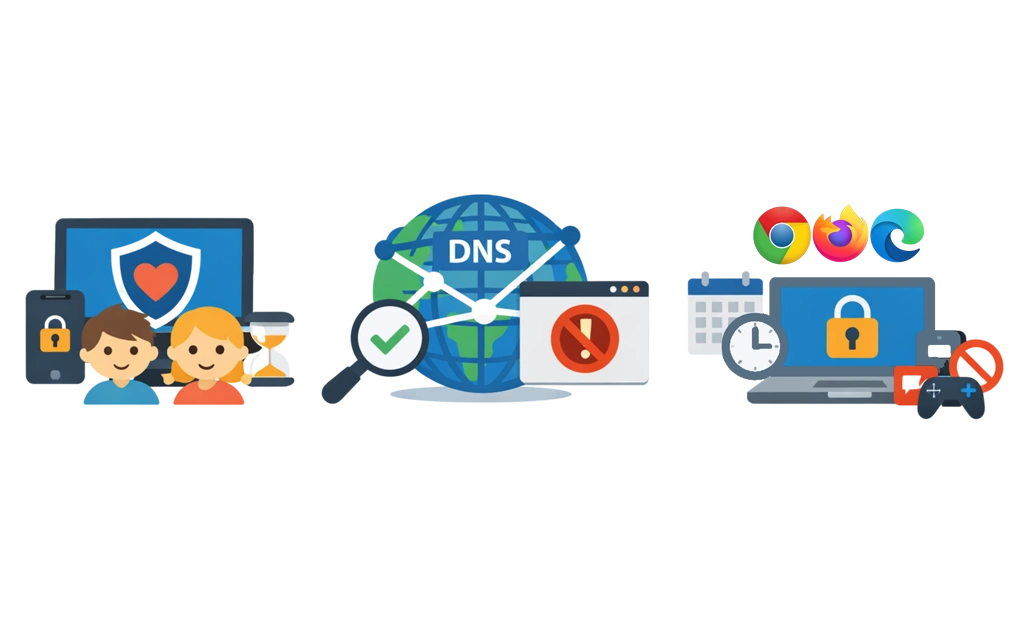
Windows offers several ways to help protect children online. Microsoft Family Safety is a useful starting point, but its web filtering only works in Edge. DNS filtering adds broader coverage across many browsers and apps. For stronger control on Windows, DigitalZen can add app blocking, scheduled restrictions, and multi-browser website blocking through supported browser extensions.
Key Takeaways
- Microsoft Family Safety only filters web content in Edge: Other browsers can be blocked or allowed, but Family Safety web filtering does not extend to them.
- DNS filtering adds broader protection across many browsers and apps: It works at the network level, but it is not foolproof on its own.
- Whitelisting is usually safer for younger children: It only allows approved sites instead of trying to block harmful ones after the fact.
- Children may bypass protections in different ways: Common workarounds include switching browsers, using VPNs, changing DNS settings, or using mobile data.
- For older teens, self-management tools can help build healthier habits: When parental controls no longer fit, tools like DigitalZen let teenagers manage their own focus and screen time.
Understanding Your Filtering Options
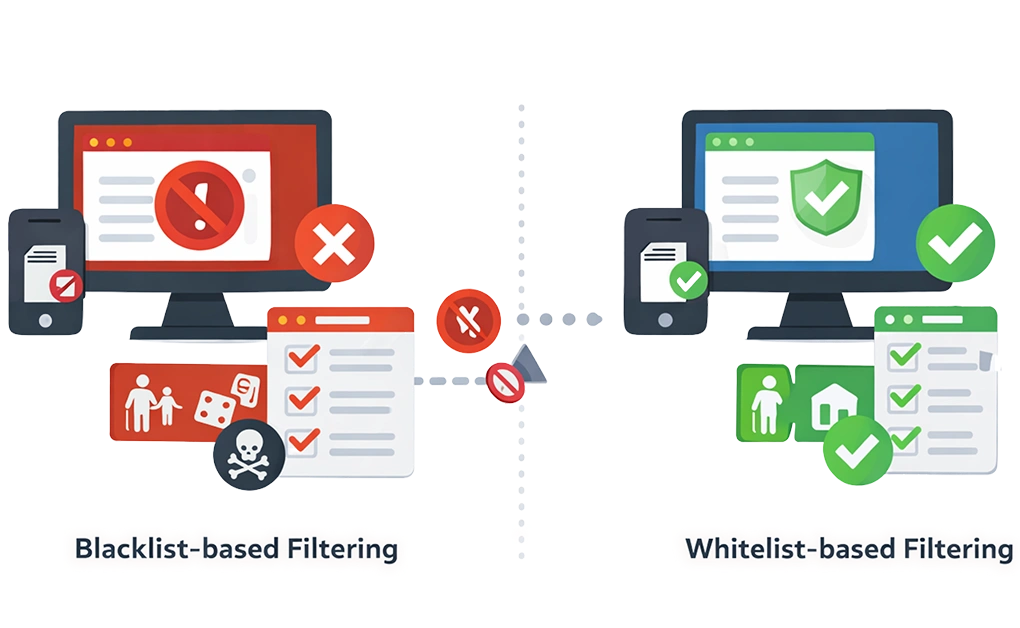
Content filtering usually works in two common ways, though many parental control setups also combine category filters, app controls, and device settings.
Blacklist-based filtering blocks known harmful sites or categories such as adult content, gambling, or violence, while allowing most other content by default. This approach is often a better fit for older children who need broader internet access, but it can miss newly created or uncategorized sites.
Whitelist-based filtering allows access only to approved sites and blocks everything else by default. This is usually the safer option for younger children or for kids who only need access to a small set of trusted websites. It offers tighter control, but it also requires more ongoing management as your child’s needs grow.
In general, stricter allowlist-style controls work better for younger children, while broader filtering with monitoring is often more practical for older children and teenagers.
1. Setting Up Microsoft Family Safety
Windows includes free parental controls through Microsoft Family Safety. These controls work best for web filtering in Microsoft Edge.
How to set it up:
- Go to family.microsoft.com or open the Microsoft Family Safety app.
- Sign in with your Microsoft account. You need to be the family organizer.
- Click Add a family member and add your child’s Microsoft account.
- Select your child’s profile and configure the settings below.
Content filtering options:
You can turn on the web and search filters for Edge. When enabled, Microsoft blocks mature websites and filters searches in Bing. You can also add specific URLs to your allowed or blocked lists, or switch to Only use allowed websites for a stricter setup. App and game restrictions let you apply age-based limits for downloads and access.
Microsoft Family Safety also lets you set daily screen time limits for your child’s Windows devices, including time allowances and schedules.
Limitations:
Web filtering only applies to Microsoft Edge when the child is signed in with their Microsoft account. Other browsers can be blocked or unblocked through app settings, but Microsoft Family Safety’s web filtering does not extend to Chrome, Firefox, or other browsers. Screen time can also continue counting down while the child is still signed in, even if the device is idle.
A Note on Edge Kids Mode
Some older guides still mention Edge Kids Mode as a browsing option for younger children. However, Microsoft has deprecated Kids Mode starting with Edge version 117, and it is no longer supported.
For Windows devices today, the more reliable option is to use Microsoft Family Safety for child accounts and combine it with broader system-level or network-level protections when you need coverage beyond Edge. Microsoft Family Safety still supports web and search filtering in Edge, as well as screen time and app restrictions for child accounts.
2. Adding DNS Filtering for Cross-Browser Protection
DNS filtering works at the network level. It can block many inappropriate or risky domains before they load, which makes it useful across browsers and many apps, not just one browser. It is a strong extra layer, though it is not completely bypass-proof on its own.
Option 1: CleanBrowsing Family Filter
CleanBrowsing is free and requires no account for its basic filter. The Family Filter blocks adult content, blocks mixed-content sites like Reddit, and enforces SafeSearch on Google, Bing, and YouTube.
DNS addresses:
- Primary: 185.228.168.168
- Secondary: 185.228.169.168
Option 2: OpenDNS FamilyShield
OpenDNS FamilyShield is free and preconfigured for simple family protection. It is designed to block adult content without requiring an account or custom setup.
DNS addresses:
- Primary: 208.67.222.123
- Secondary: 208.67.220.123
Option 3: Cloudflare Family
Cloudflare offers two free filtering options through 1.1.1.1 for Families. Use 1.1.1.2 to block malware only. Use 1.1.1.3 to block malware and adult content.
DNS addresses (malware + adult content):
- Primary: 1.1.1.3
- Secondary: 1.0.0.3
How to Configure DNS on Windows
- Press Windows + I to open Settings.
- Go to Network & Internet and open your active Wi-Fi or Ethernet connection.
- Find the DNS server assignment or IP settings area and click Edit.
- Switch from Automatic to Manual.
- Enable IPv4 and enter the DNS addresses from your chosen provider.
- Click Save.
Router-Level Setup
Configuring DNS on your router can extend filtering to many devices on your home network, including phones, tablets, gaming consoles, and smart TVs.
- Log in to your router’s admin panel, often at 192.168.1.1 or 192.168.0.1.
- Find the DNS settings under WAN, Internet, or similar network settings.
- Replace your ISP’s DNS addresses with the filtering DNS addresses.
- Save the changes and reboot the router.
Router-level DNS filtering usually applies automatically to devices that use your router’s DNS settings, though devices using VPNs, encrypted DNS, custom DNS settings, or mobile data may not be fully covered.
3. Using DigitalZen for Older Teens Who Need More Autonomy
Parental controls work well for younger children. But as kids grow into teenagers, the dynamic often shifts. Teens may know how to bypass restrictions, have their own laptops, or simply need more independence. At this stage, strict controls can backfire, and a different approach may work better.
Instead of adding more layers of restriction, some parents find it helpful to introduce self-management tools. These let teenagers take ownership of their own digital habits rather than feeling controlled.
When Parental Controls No Longer Fit
There comes a point where traditional parental controls stop working as intended:
- Teenagers learn to bypass DNS filters, switch browsers, or use VPNs
- Older teens have their own devices that parents cannot easily manage
- Strict restrictions can create friction and encourage workarounds rather than healthy habits
- Teens need to develop self-regulation skills before they leave home
For these situations, a productivity-focused tool that teens manage themselves can be more effective than another layer of parental control.
DigitalZen as a Self-Management Tool
DigitalZen is a productivity tool designed to help users manage their own focus and screen time. While it is not a parental control app, parents can introduce it to teenagers as a way to build healthier digital habits on their own terms.
DigitalZen’s Windows web and app blocker gives teens tools to manage their own distractions:
- Self-directed app blocking: Teens can block games, social media, or other distracting apps during homework or study time.
- Focus sessions: Set a timer, allow only the apps and websites needed for a task, and block everything else until the session ends.
- Scheduled restrictions: Create personal schedules that limit entertainment during study hours and allow it afterward.
- Adaptive locks: Options like cooldown timers or code entry add friction before unlocking distractions, helping teens pause and reconsider.
- Daily allowances: Instead of blocking completely, teens can give themselves limited time on distracting sites each day.
The difference is ownership. Rather than parents installing software to restrict access, the teenager sets up their own rules and manages their own focus. This approach helps teens build self-regulation skills while still having structure when they need it.
How Parents Can Introduce It
This approach works best as a conversation rather than an imposition:
- Talk with your teen about focus challenges they face, such as getting distracted during homework or staying up too late scrolling
- Introduce DigitalZen as a tool they can try, not something you are forcing on them
- Let them set up their own blocks, schedules, and focus sessions
- Check in occasionally to see if it is helping, but avoid micromanaging their settings
For families who have already set up Microsoft Family Safety and DNS filtering for younger children, DigitalZen fills a different gap: helping older teens who need autonomy develop their own habits instead of relying on external restrictions.
Preventing Children From Bypassing Protections
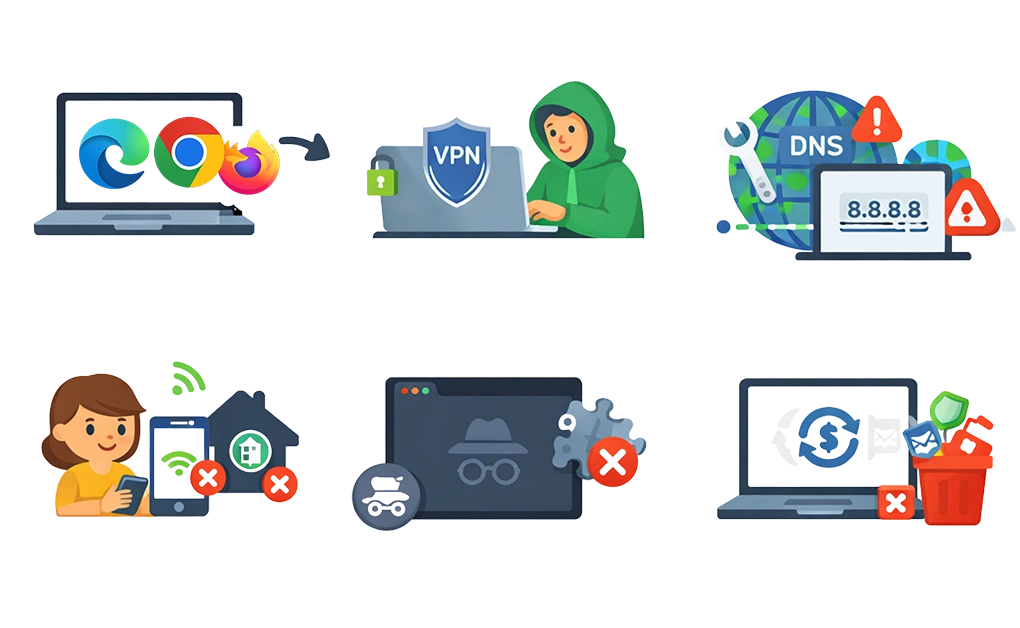
Children often look for workarounds, so effective protection means planning for common bypass methods as well as basic filtering.
- Switching browsers
Microsoft Family Safety’s web filtering works in Microsoft Edge. A child may try switching to Chrome, Firefox, or another browser to get around those filters.
- Using VPNs
VPNs encrypt traffic and can bypass DNS-based filtering by routing requests through the VPN instead of your local DNS provider.
- Changing DNS settings
A child may try changing device DNS settings to use an unfiltered resolver such as Google DNS.
- Using mobile data or hotspots
Children can use phone data or a hotspot to bypass home network restrictions completely.
- Incognito or private browsing
Some browser extensions are less effective in private browsing, and Chrome does not automatically run extensions in Incognito unless the user allows them.
- Factory reset
Resetting a device can remove locally configured parental-control apps and settings.
Best Practice: Layer Your Protections
No single tool catches everything. For younger children, use multiple layers together:
- Microsoft Family Safety for basic app restrictions, screen time controls, and Edge-based content filtering
- DNS filtering for broader website blocking across browsers and many apps
- A standard user account without admin rights to limit what your child can install or change
- Regular conversations about online safety so children understand the rules and the reasons behind them
For older teens who have outgrown strict parental controls, consider introducing self-management tools like DigitalZen instead of adding more restrictions.
Building a Safe Browsing Environment
Creating a safer browsing setup on Windows usually works best with layers. Microsoft Family Safety helps with screen time and basic content restrictions, while DNS filtering adds wider coverage across many browsers and apps. For younger children, these tools combined with a standard user account provide solid protection.
For older teenagers, the approach often needs to shift. Teens who know how to bypass restrictions or have their own devices may benefit more from self-management tools like DigitalZen. Instead of adding more parental controls, parents can introduce productivity tools that let teens build their own healthy digital habits.
Frequently Asked Questions
Does Microsoft Family Safety Work On Chrome Or Firefox?
Family Safety web filters only work in Microsoft Edge. Other browsers can be blocked or allowed. If they are allowed, web filtering does not apply to them.
My Child Is Tech-Savvy Enough To Bypass The Locks. What Can I Do?
For older teenagers who need more autonomy, you can also introduce self-management tools like DigitalZen, which allow them to create their own focus schedules and app restrictions on their devices.
What Is The Difference Between CleanBrowsing And OpenDNS?
Both are free DNS filters. CleanBrowsing Family Filter is stricter. It blocks adult content, Reddit, and enforces SafeSearch and YouTube Restricted Mode. OpenDNS FamilyShield is a simpler family-safe filter.
Can My Child Bypass DNS Filtering?
They can use a VPN, change DNS settings, or use mobile data. Router-level DNS helps, but it is not foolproof. Use it as one layer only.
Should I Use Whitelisting Or Blacklisting?
Use whitelisting for younger children. It only allows approved sites. Use blacklisting or category filters for older children who need broader access.
How Do I Block Adult Content Across Browsers?
DNS filtering is one of the easiest options. It works across many browsers and devices on your network. You can use CleanBrowsing, OpenDNS FamilyShield, or Cloudflare Family.
For more options, see our guide on Windows porn blocker.
Can I Set Different Restrictions For Different Children?
Yes. Microsoft Family Safety lets you set different rules for each child account. DNS filtering usually applies to the whole network.
How Do I Set Up Safe Browsing On Linux?
Linux needs different tools and setup steps. See our guide on setting up safe browsing for kids on Linux.
References:
- https://cleanbrowsing.org/filters
- https://cleanbrowsing.org/learn/configure-free-filtering
- https://support.microsoft.com/en-us/family-safety/filter-websites-and-searches-using-microsoft-family-safety
- https://cleanbrowsing.org/learn/how-to-enforce-safe-search
- https://support.microsoft.com/en-us/microsoft-edge/kids-mode-no-longer-supported-in-microsoft-edge-4bf0273c-1cbd-47a9-a8f3-895bc1f95bdd