
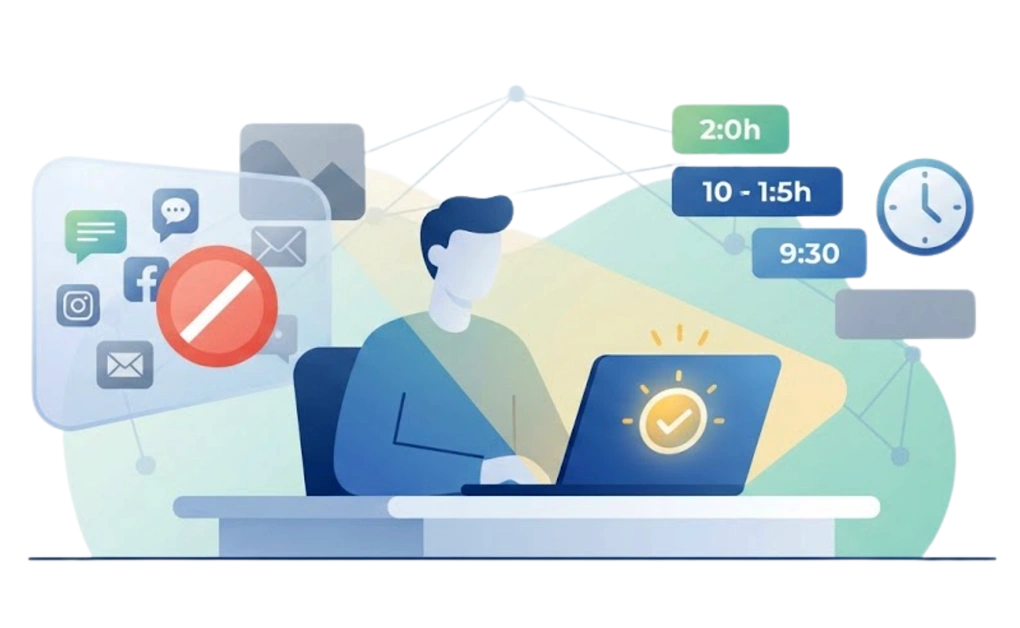
Remote work blurs boundaries between tasks and distractions, making focus harder to maintain. Distraction blockers help by structuring your day, blocking websites or apps, and automating focus periods. The tools vary in strength and flexibility, so the best choice depends on your devices, habits, and how strictly you need to control interruptions.
Key Takeaways
- Remote work often needs clearer start and stop cues: Scheduled blocks can help define work hours when there is no commute or office routine.
- Blocking coverage should match your distractions: A browser extension may be enough for websites. Desktop or cross-device tools are more useful when apps, phones, and extra browsers are involved.
- Recurring schedules reduce daily decisions: Automated routines can start focus periods without relying on you to remember every morning.
- The right level of structure depends on your workflow: Choose a setup that supports focus while still allowing flexibility for legitimate work or household needs.
- Each tool supports a different remote-work setup: DigitalZen focuses on flexible desktop structure, Freedom on cross-device sessions, FocusMe on customization, and other tools on strict lock-ins, browser blocking, or activity tracking.
Disclaimer: This article was published in September 2026. It reflects the app details available at the time of posting. Notice an error? Let us know and we’ll fix it!
The Real Enemies of Remote Focus

A lot of productivity advice assumes that work happens in a separate place. Remote work removes that boundary. The job, the distractions, and the rest of your life may all be sitting on the same desk.
Four common patterns can make remote focus harder.
- There is no clear signal that the workday has started.
Walking into an office creates a physical transition. Moving from the bed or kitchen table to a laptop is a much weaker cue.
Without a routine or set start time, the morning can drift. You may technically be online without ever feeling fully at work.
- There is less ambient accountability.
Coworkers do more than attend meetings. Their presence can create a quiet sense that the day has started and other people are working too.
At home, that signal is weaker or missing. You have more freedom, but you also have to create more of your own structure.
- The same device holds work and personal life.
The laptop running Slack may also hold Netflix, personal email, games, and shopping tabs. Moving from work to distraction can take one click.
That makes the boundary easy to cross, often before you notice you have crossed it.
- Household demands interrupt the day.
A delivery arrives. The laundry finishes. A child or partner needs something. Each interruption may be small, but several of them can break a focus block into pieces.
A useful setup should expect these interruptions instead of pretending they will never happen.
Key Insight: Remote focus often breaks not because the work is boring, but because the environment offers no transition cues. A tool that adds structure to the start, middle, and end of the day can replace the signals that an office provides by default.
Protecting work and life boundaries when home is the office becomes harder when both happen in the same space. This is where scheduled start times, evening limits, and clear transition routines can help. The tools below are evaluated around these remote-work problems, not just generic productivity features.
The Best Blockers for Remote Workers
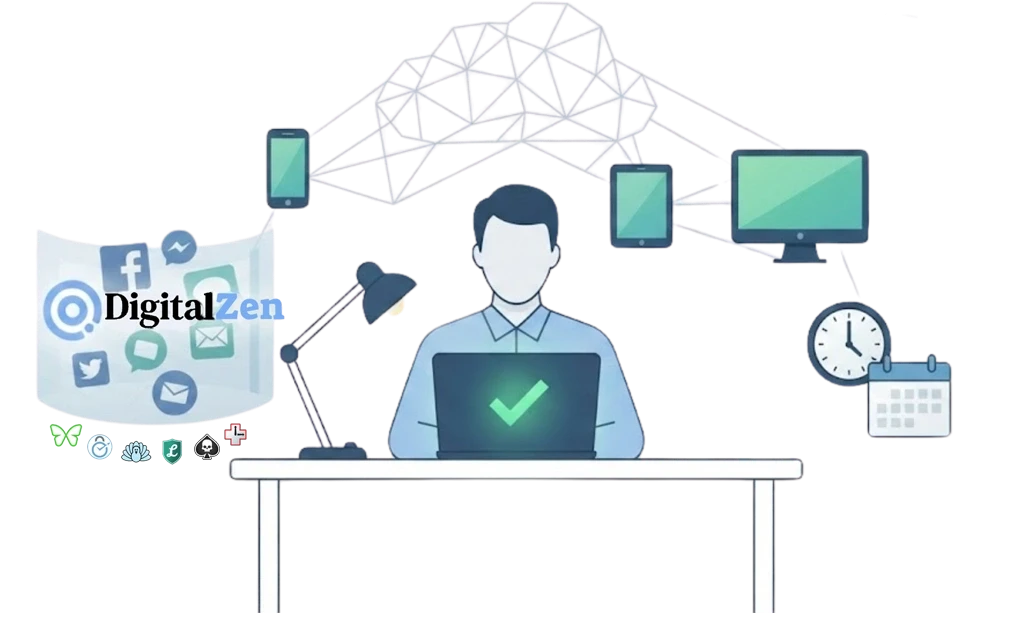
Seven tools are worth considering for remote work. Each takes a different approach to creating structure. The right fit depends on your platform, your devices, and how much friction you want the tool to add.
1. DigitalZen
DigitalZen is a productivity tool with strong blocking built in, not just a blocker with productivity features added on. It is designed to add structure to workdays that do not come with office routines built in.
Its enforcement can range from a gentle pause to a much firmer lock, giving you control over how strict the setup needs to be on any given day.
Strengths for remote workers:
- Team Focus: Focus with your team or with someone who works remotely. It brings back some of the focus and accountability of working in an office, even when you are at home in pajamas. This is where DigitalZen shines, especially for remote workers and students who need shared accountability.
- Recurring schedules can run automatically on selected days. Once configured, they can act as a digital “arrival at the office.”
- Focus Mode lets you keep approved work tools available while blocking everything else. You might allow Slack, your calendar, documents, and essential browser pages during work hours.
- Pomodoro timers and team focus sessions are included on the free plan. Pomodoro timers help break the workday into focused intervals with built-in breaks, and team focus lets you run shared sessions with remote coworkers or study partners for added accountability.
- Multiple lock types let you choose how much friction to add before a block can be changed or turned off. A normal day may need a short cooldown. A difficult deadline may call for a friend-approval lock or a schedule lock that holds until the session ends.
- A protection layer helps keep the setup in place while a block is running. Uninstall protection makes the app harder to remove on impulse, extension removal protection keeps the browser layer active, and the app cannot be quit or killed during an active block. For remote workers with no one else in the room to hold them accountable, this layer can matter more than any single lock option.
- Native desktop apps are available for Windows, macOS, and Linux. That makes DigitalZen useful for remote workers who move between different operating systems. To keep the rest of your setup consistent too, here is how to keep app settings in sync across devices.
Limitations:
- More advanced features are available in paid plans.
- Mobile support is emerging. For remote workers whose phone sits next to the laptop all day, pairing DigitalZen with a mobile-native tool or your phone’s built-in Screen Time settings can cover that gap while mobile support matures.
DigitalZen for freelancers and remote workers is built around exactly this situation, with scheduled blocks that hold across a self-managed day and adjustable strictness that fits solo work.
Best fit: remote workers whose workday runs entirely on desktop or laptop and who want structure that runs itself once configured.
2. Freedom
Freedom is designed for people whose distractions move between their laptop, phone, and tablet. Starting one session can help keep all of those devices aligned.
Strengths for remote workers:
- Cross-device sessions start on your supported devices at the same time. This makes it harder to shift from a blocked laptop to an unblocked phone.
- Recurring Sessions help create a consistent work routine without starting a new session every day.
- Premium Locked Mode makes it harder to end or change an active session before it finishes.
- Native apps for iOS and Android extend blocking beyond the desktop, which is useful when your phone is also part of your workday.
Limitations:
- Linux support is limited to a browser extension rather than a full desktop application. Users report that this means no app blocking and easier removal on Linux compared to the full desktop experience on Mac and Windows.
- Some advanced features, including Locked Mode, require a paid plan.
Best fit: Remote workers who want one tool to coordinate focus sessions across their desktop and mobile devices.
3. FocusMe
FocusMe is a feature-rich blocker with strong enforcement and detailed controls. It supports Windows, macOS, Linux, and Android.
Strengths for remote workers:
- Enforced Mode prevents an active plan from being stopped early. This can help when working alone makes it easy to renegotiate your own schedule.
- Recurring schedules and time limits let focus rules run automatically. You do not have to rebuild the same setup every morning.
- Desktop support includes Windows, macOS, and Debian-based Linux distributions. This makes it useful for remote developers and technical professionals who move between systems.
- FocusMe offers detailed controls for websites, apps, time limits, breaks, and allow-only sessions. It suits people who want to shape the tool around a specific routine.
- Layered protection includes stop delays, accountability partners, pause limits, and random character challenges.
Limitations:
- FocusMe is a paid product after its trial. Pricing depends on the billing term, and lifetime access costs more upfront.
- Its large feature set can create a steeper learning curve. With many settings and customization options, the initial setup may feel overwhelming for new users who want something simple.
- Linux support focuses on Debian-based distributions. Some features may also be more limited under Wayland.
Best fit: Remote workers who want extensive customization, automatic schedules, and strong enforcement across desktop and mobile platforms.
If you are deciding between these two, our FocusMe vs Freedom comparison covers cross-device sync, time limits, and offline blocking in more detail.
4. Cold Turkey
Cold Turkey is designed for people who want strong lock-ins with very few ways around them. It is available for Windows and macOS.
Strengths for remote workers:
- Frozen Turkey can lock your computer, internet access, or selected applications. When a client deadline means the next three hours are non-negotiable, this removes the option to make “just one quick check.”
- Five lock mechanisms (Timer, Random Text, Restart, Time Range, and Password) let you choose the level of commitment that fits your work style.
- Protection against Task Manager access and system time changes provides strong enforcement during active blocks.
- A straightforward interface keeps the focus on blocking distractions rather than configuring productivity analytics or extra features.
Limitations:
- No Linux desktop app, so it is not an option for many technical remote workers. Linux users can compare these Cold Turkey alternatives for Linux instead.
- No native mobile app. Phone distractions require a separate solution.
- Reviews report that the strong lock-ins can become frustrating when legitimate interruptions require immediate access to your computer.
Best fit: Windows or macOS remote workers who prefer rigid, commitment-style lockout and a one-time payment.
If you are weighing Cold Turkey’s strict lockout against FocusMe’s flexibility, our FocusMe vs Cold Turkey comparison breaks down locks, time limits, and pricing.
5. LeechBlock NG
LeechBlock NG is a free browser extension for people whose work and distractions both happen on the web.
Strengths for remote workers:
- Completely free and open source, with no subscriptions or premium tiers.
- Works with Chrome, Firefox, Edge, Brave, Opera, and Vivaldi, so you can use it with the browser that fits your workflow.
- Up to 30 configurable block sets let you create different schedules, time limits, and rules for different parts of your day.
- Delay pages and optional passwords or access codes add useful friction before you can change settings or access blocked sites.
Limitations:
- Browser only. Desktop apps such as Slack, Discord, games, and streaming apps remain outside its reach.
- It only protects the browser where it is installed. Switching to another browser bypasses the block.
- There is no cross-device sync, so each browser and computer must be configured separately.
Best fit: Remote workers whose work and distractions both stay inside the browser and who want a capable free blocker without a subscription.
6. SelfControl
SelfControl is a free, open-source blocker for Mac users who want strong commitment during a single focus session.
Strengths for remote workers:
- Completely free and open source, with no subscription or paid tier.
- Timed blocks can run for up to 24 hours. They continue even if you quit the app, restart your Mac, or delete SelfControl.
- System-level network blocking works beyond a single browser. This makes common browser-switching workarounds less effective.
- Setup is simple. Choose the websites or mail servers you want to block, set the timer, and start the session.
Limitations:
- SelfControl is available only for macOS. Windows and Linux users need another tool.
- It blocks websites, mail servers, and other network destinations, but not installed desktop apps such as Slack, Discord, or games.
- There are no built-in recurring schedules. Every session must be started manually.
- Strong lock-ins leave little room for mistakes. If you block something needed for an urgent task, you may have to wait until the timer ends.
Best fit: Mac-based remote workers whose main distractions are online and who want strong commitment for specific focus sessions.
7. RescueTime
RescueTime focuses on helping you understand how you spend your time before adding light blocking through Focus Sessions.
Strengths for remote workers:
- Automatic activity tracking shows where your workday actually goes. The reports often reveal patterns that are difficult to notice on your own.
- Native apps are available for Windows, macOS, Linux, Android, and iPhone.
- Weekly reports and productivity trends help identify your most focused hours, making it easier to build a routine around them.
- Focus Sessions add lightweight website blocking once you know which distractions are worth limiting.
Limitations:
- Blocking is lighter than dedicated system-level blockers. Its main strength is tracking and insights rather than broad app enforcement.
- Focus Sessions can be ended at any time, so there is no strong lock-in mechanism.
- RescueTime works best if you regularly review your reports and adjust your habits based on what you learn.
Best fit: Remote workers who want to understand their work habits first, then add light blocking to support better routines.
How to Build a Workday That Actually Ends
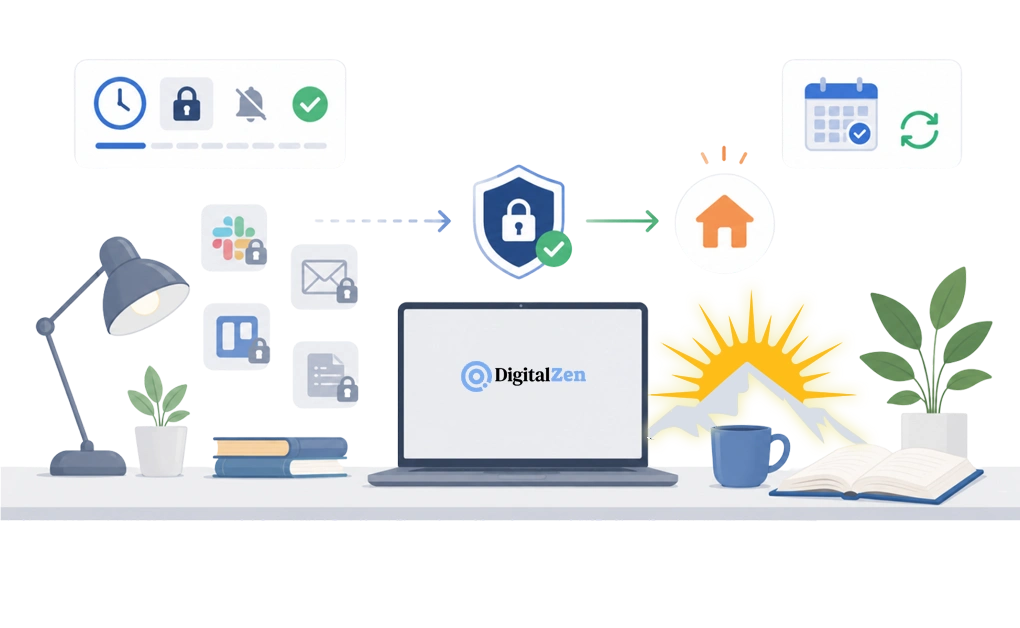
Starting work can be difficult when you work remotely. Ending it can be even harder.
In an office, leaving the building creates a clear transition. At home, work can drift into the evening because nothing signals that the day is over. These four patterns may help create stronger boundaries.
- Reverse the block after work hours. Instead of blocking distractions, schedule work apps such as Slack, email, and project tools to close or become harder to access after your chosen finish time. A softer warning may work better than a hard block if you sometimes need emergency access. The goal is to create a “leaving the office” cue, not trap you outside your inbox during a genuine crisis.
- Automate the start of the day. A recurring morning block can close personal apps before they pull you away. This removes the need to decide whether today is a focus day.
People who move between a personal laptop, work computer, and tablet may also need a setup for blocking across the devices you switch between. - Plan for household interruptions. Deliveries, family questions, laundry, and school pickup are part of many remote workdays. A useful setup should expect them.
Choose a level of enforcement that protects focus without treating every interruption like a personal failure. A slightly flexible system is often easier to keep using than a perfect plan that falls apart before lunch. - Create a closing ritual. At a scheduled time, close work apps, silence notifications, and switch the tools available on your device.
The ritual can be simple. Finish one final task, review tomorrow’s priorities, and let the scheduled block handle the rest. Your laptop may not have an office door, but it can still learn closing time.
These patterns are most useful when the main problem is structure. If your work requires long periods of sustained concentration, a roundup of focus tools for knowledge workers covers that setup in more detail.
The aim is not to create a flawless remote routine. It is to make the beginning and end of the workday easier to recognize, so work does not quietly take over the hours around it.
Bringing Structure to Your Remote Workday
The best remote-work setup is the one that gives your day clearer edges. It should help you start on time, protect focus while you work, and make it easier to stop when the day is done.
Choose a tool based on where your distractions happen and how much enforcement you can realistically sustain. Then test it during a normal work week, including the messy days. If the setup still works when meetings, deliveries, and household demands show up, it is probably a good fit.
For a broader look at features, platforms, pricing, and enforcement, see a full comparison of these blockers laid out side by side in a neutral reference grid.
You can start now for free across Windows, macOS, and Linux with DigitalZen. Begin with lighter blocking, schedule your work hours, and add stronger locks when the day needs more support.
Frequently Asked Questions
What Is the Best Way to Stay Focused While Working From Home?
Start by giving your workday more structure. Set a regular start time, protect a few realistic focus periods, and keep the tools needed for the task available.
Recurring blocks can help because they run without another daily decision. An allow-only setup may also work when you need only a small group of websites and apps. The routine and the blocker should support each other. Neither one needs to run your life like a tiny digital manager with a clipboard.
How Do I Handle Household Interruptions Without Feeling Like I Failed?
Household interruptions are a normal part of many remote workdays. A delivery, family question, or school pickup may require you to pause.
Plan some flexibility into your schedule instead of treating every interruption as a broken routine. You can also tell people when you need quiet time and leave small gaps between focus sessions.
The goal is not to remove every interruption. It is to protect enough focused time while making room for real life.
Do Remote Workers Actually Need a Distraction Blocker?
Many people find it helpful. A blocker may help if you regularly drift into personal browsing, struggle to begin focused work, or keep extending the workday because tasks never feel finished. Here is more on why blocking distracting apps and websites helps, from less task switching to better time awareness.
Before adding a tool, identify where the problem happens. A browser extension may be enough for website distractions. A desktop blocker may be more useful if chat apps, games, or multiple browsers are involved.
Recurring schedules can help when remembering to start the routine is part of the problem.
How Do I Block Work Apps in the Evening?
Create a recurring schedule that begins at the end of your workday. Add work apps and sites such as Slack, email, project tools, and work documents.
This reverses the usual setup. Instead of blocking personal distractions during work, you block work from following you into the evening.
DigitalZen, Freedom, and FocusMe support scheduled blocking for websites and apps. Available lock settings vary, so choose a setup that still gives you access when a genuine emergency appears.
What Is Different About Choosing a Blocker for Remote Work?
The tools are the same, but the problem may be different. Office workers often use blockers to protect a specific deep-work session. Remote workers may also need help creating start times, stopping points, and clearer boundaries between work and personal use.
Automated routines and cross-device coverage can matter more when your workday has little outside structure. Strong single-session locks may be more useful when the main problem is staying inside one demanding task.
Choose based on the part of your routine that keeps breaking, not on which tool has the longest feature list.
References
- https://digitalzen.app/
- https://digitalzen.app/pricing/
- https://digitalzen.app/use-cases/freelancers-and-remote-workers/
- https://digitalzen.app/blog/healthy-screen-time-balance/
- https://getcoldturkey.com/
- https://freedom.to/
- https://focusme.com/
- https://addons.mozilla.org/en-US/firefox/addon/leechblock-ng/
- https://selfcontrolapp.com/
- https://www.rescuetime.com/