
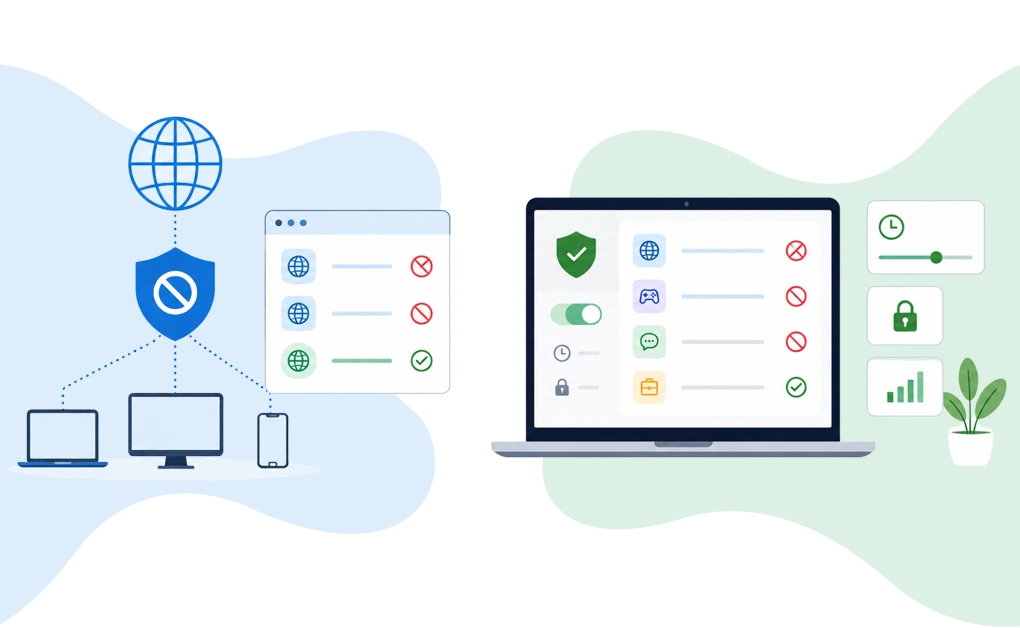
DNS filtering and app-level blocking manage distractions at different layers. DNS filtering blocks domains before connections, making it useful for broad network-wide website control. App-level blocking works directly on a device, allowing control over websites, apps, and schedules.
For personal focus and productivity, app-level blocking is often more useful, especially when distractions include apps, mixed-use sites, or focus sessions that need schedules and locks.
Key Takeaways
- DNS filtering and app-level blocking solve different problems: DNS filtering works at the network or domain lookup layer. App-level blocking works on the device itself.
- DNS filtering is useful for broad website filtering: It can apply rules across many devices when configured at the router or network level.
- App-level blocking gives deeper control on one device: It can block desktop apps, support schedules, and add focus controls that DNS filtering cannot provide on its own.
- DNS filtering is less precise than app-level blocking: It usually works by domain, while app-level tools can support app blocking, keyword rules, exceptions, and Focus Mode.
- For focus control, app-level blocking is often the stronger fit: DNS filtering can help with broad website rules, but app-level blocking is better when the problem happens on the computer where you work or study.
How DNS Filtering and App-Level Blocking Work
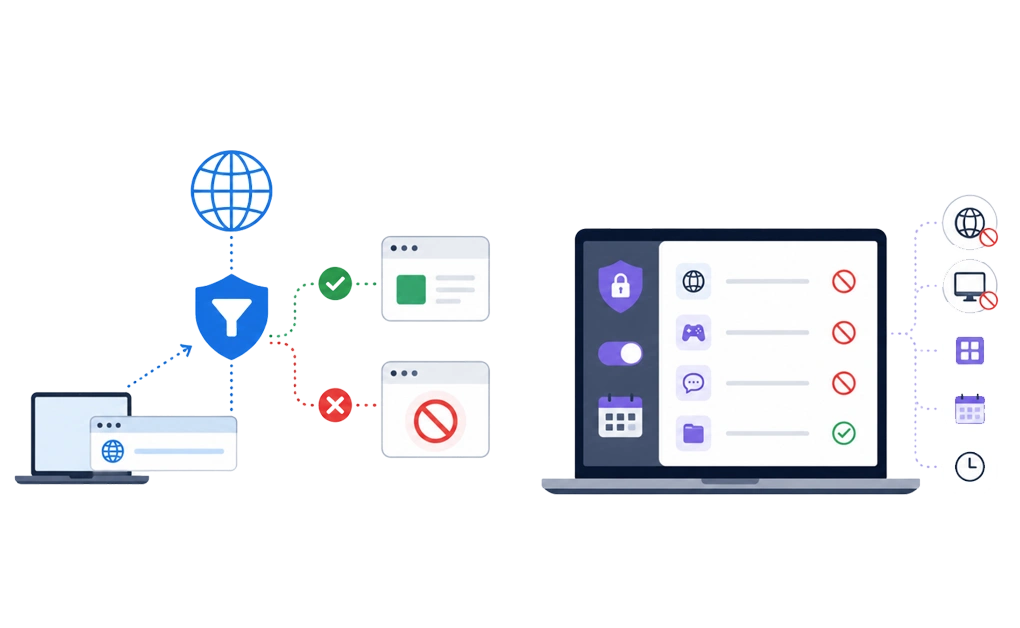
Before comparing DNS filtering and app-level blocking, it helps to understand what each method controls.
The difference is not just technical. It affects what each method can block, where it works, and what kind of backup protection you may need.
DNS filtering works at the domain lookup level. When you open a website, your device asks a DNS resolver to translate the domain name, such as reddit.com, into an IP address. A DNS filtering service checks that request first.
If the domain is allowed, the request continues. If the domain is blocked, the resolver returns a blocked response or prevents the real address from loading. This means the browser never reaches the site.
Services like NextDNS, CleanBrowsing, and Pi-hole use this general approach. Hosts-file edits work in a related way, but on a smaller scale. On Windows, the hosts file is checked before DNS is used, which is why it can override normal DNS lookup behavior.
App-level blocking works on the device itself. An app-level blocker runs on the computer or device where it is installed. Depending on how the tool is built, it can check websites, apps, browsers, or processes against your blocking rules.
This gives app-level blockers more control over what happens on that specific device. For example, they may block:
- Distracting websites.
- Installed desktop apps.
- Specific browsers.
- Keyword-based website rules.
- Scheduled work or study sessions.
The simple difference is this: DNS filtering asks, “What domain is this device trying to reach?” App-level blocking asks, “What is happening on this device?”
That one difference explains most of the comparison. DNS filtering is useful for broad network-level website filtering. App-level blocking is better suited for device-level focus control, desktop apps, schedules, and stricter blocking rules.
What DNS Filtering and App-Level Blocking Can Control
Coverage is where the two methods differ most.
DNS filtering works broadly at the network or device DNS level. It is useful when you want to block website domains across many devices. But it is limited to what DNS can see, which usually means domains rather than specific apps, page paths, or in-app behavior.
App-level blocking works more deeply on the device where it is installed. It can block websites, desktop apps, browsers, schedules, and stricter rules, depending on the tool. The tradeoff is that it usually needs to be installed on each device you want to protect.
| Blocking capability | DNS filtering | App-level blocking |
|---|---|---|
| Block websites by domain | Yes | Yes |
| Block specific URL paths | Usually no; DNS works mainly at the domain level | Yes, depending on the tool |
| Block desktop applications | No | Yes |
| Block based on time of day | Some DNS services support schedules | Yes, depending on the tool |
| Network-wide coverage | Yes, when configured at the router or network level | Usually no; installed per device |
| Cross-browser website coverage | Yes, at the DNS lookup layer | Yes, if the tool works at the system level |
| Cover unknown or new browsers | Yes, if they use the configured DNS resolver | Yes, if the blocker detects browsers at the system level |
| Keyword-based blocking | Usually no; DNS is mainly domain-based | Yes, depending on the tool |
| Exception lists | Limited; usually domain-based | Yes, depending on the tool |
The simple version is this: DNS filtering is broader, but less precise. App-level blocking is more precise, but more device-specific.
DNS filtering may fit better when you want broad website filtering across a household, office, or shared network. App-level blocking may fit better when you need stronger control on one computer, especially for desktop apps, study sessions, work schedules, keywords, or stricter focus rules.
Where Each Method May Need Backup Protection
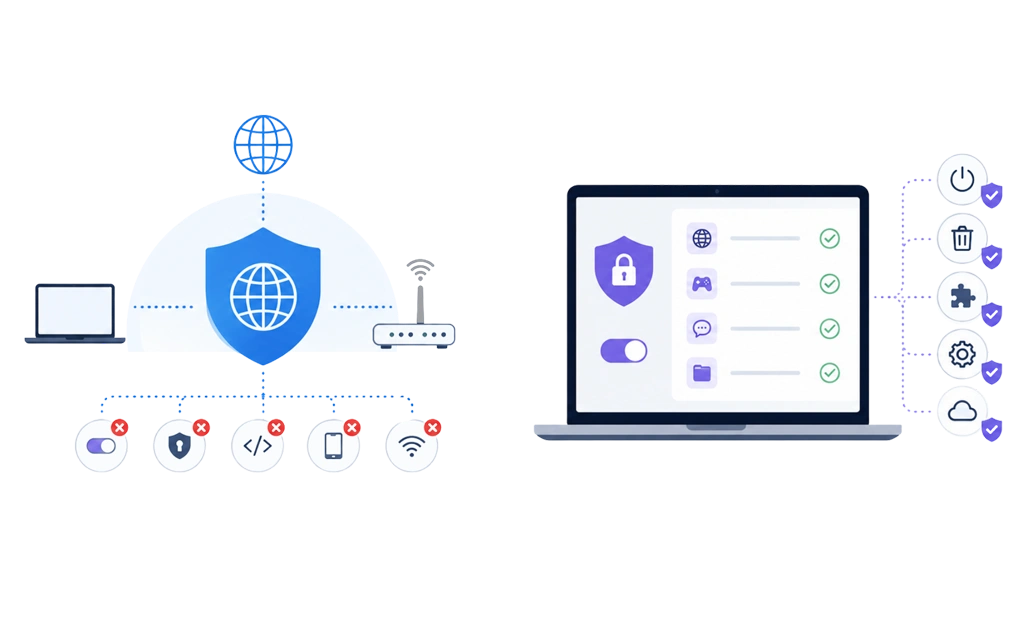
Both methods are useful, but they protect different layers. DNS filtering protects the lookup layer. App-level blocking protects the device layer.
That means each method has different gaps. Understanding those gaps helps you choose the right backup protection.
DNS filtering may need backup protection when:
- A device uses a different DNS resolver. If someone changes the DNS settings on a device, the filter may no longer see those DNS requests.
- A browser uses DNS-over-HTTPS. DNS-over-HTTPS sends DNS queries through an encrypted HTTPS connection to a compatible resolver. If the browser uses its own DoH resolver, it may not follow the DNS filter set at the router or system level.
- The device leaves the protected network. Router-level DNS filtering usually applies only to devices using that network. Cellular data or another WiFi network may need separate setup. This matters when a laptop moves between home, school, office, cafés, or cellular hotspots
- The filtering service is not available. If the DNS service has an outage or the device falls back to another resolver, the filtering layer may not apply as expected.
App-level blocking may need backup protection when:
- The tool does not start after a reboot. A stronger setup should run automatically, so the device is protected without manual steps.
- The tool can be removed too easily. Uninstall protection helps make removal harder during active blocks. This matters when removing the blocker is easier than waiting out the urge.
- A browser extension can be disabled too easily. Extension removal protection can help keep the browser layer in place.
- System permissions change. OS updates or permission changes can affect how some blockers detect apps, browsers, or traffic.
- The tool depends on cloud access. Some cloud-based blockers may be affected by connection problems. Local blocking tools are usually less exposed to this issue.
DNS filtering may need help when DNS requests move outside the filtered resolver. App-level blocking may need help when the tool itself can be changed, removed, or interrupted.
This is why layered protection works well. DNS filtering can add broad network coverage, while app-level blocking can add device-level control. There is also a longer discussion of why hosts-file blocking tends to fall short for serious distraction control, which is useful because hosts-file editing works like a smaller, local version of DNS filtering.
How Much Friction Each Method Adds
The real question is not whether a blocker is impossible to change. The better question is how much time, effort, and intention it takes before the protection can be changed.
DNS filtering and app-level blocking add friction in different places. DNS filtering protects the lookup layer. App-level blocking protects the device layer.
| Override route | DNS filtering | App-level blocking |
| Changing DNS servers | May reduce protection if the device uses a different resolver | You are still protected by the app-level rules on that device |
| Enabling browser DNS-over-HTTPS | May reduce router-level or system-level DNS filtering | You are still protected when the blocker works at the device or app level |
| Using a VPN | May affect DNS filtering, depending on the VPN setup | Not affected |
| Removing the blocking tool | Not the main issue | Harder with uninstall protection |
| Disabling a browser extension | Not the main issue | Harder with extension removal protection |
| Switching devices | May move outside the protected setup | May move outside the protected setup |
DNS filtering is useful because it can add broad protection at the network level. But if a device uses another resolver, browser-level DNS-over-HTTPS, cellular data, or a different network, DNS filtering may need backup protection.
App-level blocking is useful because it can add deeper control on a specific device. With the right tool, it can protect against common override attempts through uninstall protection, extension removal protection, schedules, and locks.
DigitalZen is built around this second kind of device-level protection. Its protection layer and multiple lock types add more friction before a block can be changed. Browser extensions can still be useful as an added layer, especially for browser-level support, but stronger distraction blocking usually needs more than an extension alone.
A stronger setup does not depend on one layer doing everything. It adds enough friction that changing the setup takes more effort, more time, and more intention.
Which Method Fits Your Actual Goal
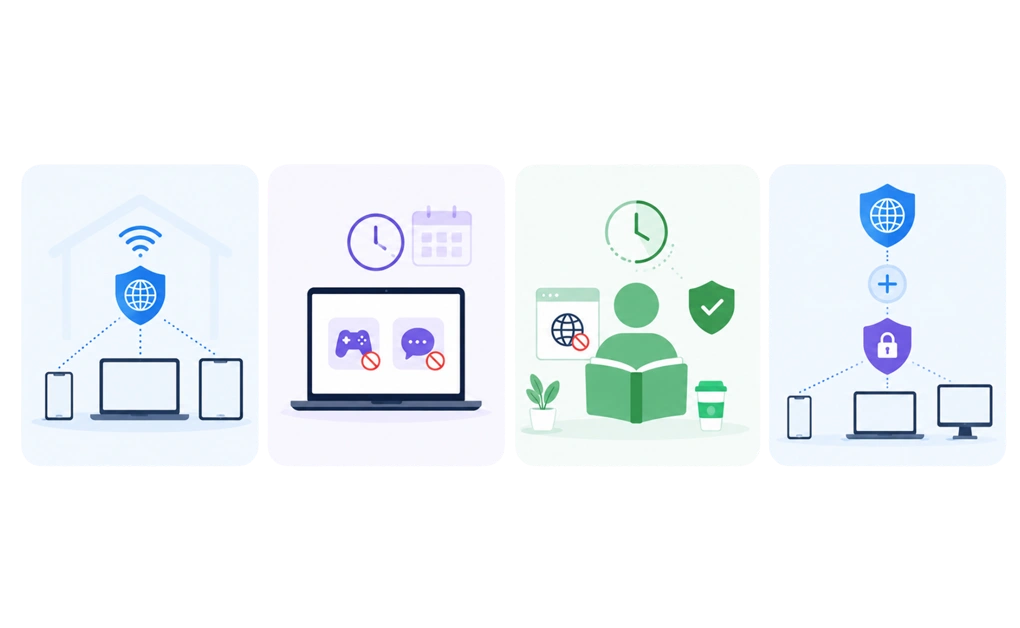
The right method depends less on which one is “better” and more on what you are trying to control. DNS filtering and app-level blocking solve different problems, so the best choice depends on the goal.
- “I want to block adult content across every device on my WiFi.”
DNS filtering is usually the better starting point. You can set a DNS filter at the router or network level so phones, laptops, tablets, and TVs using that network follow the same filtering rules. Installing app-level tools on every device can also work, but it usually takes more setup.
- “I want to stop myself from opening Discord and Steam during work hours.”
App-level blocking is the better fit. DNS filtering is designed for websites and domain lookups, not installed desktop apps. An app-level tool can block apps directly and pair those rules with schedules, focus sessions, or lock settings.
- “I want to block distracting websites during study sessions.”
Either method can help, but app-level blocking is usually stronger on a personal computer. DNS filtering can block distracting domains, while an app-level blocker can add schedules, Focus Mode, and lock options for extra friction during low-focus moments.
- “I want stronger layered protection.”
Use both methods together. DNS filtering can act as the network layer, while an app-level blocker can act as the device layer. If one layer has a gap, the other can still add backup protection. This is why layering DNS with an app-level blocker makes a website blocker harder to bypass than relying on either method alone.
For readers currently using manual blocking methods, there are better alternatives to hosts-file blocking that go beyond basic DNS-style filtering and offer stronger device-level control.
When DNS Filtering Is Not Strong Enough and DigitalZen Helps
DNS filtering works well for broad website blocking across a network, but it can fall short on a single device or inside installed apps.
An app-level blocker like DigitalZen adds device-level control for websites, desktop apps, schedules, focus sessions, and lock settings.
This can be useful when you need more than a network-level filter.
- Desktop app coverage: DNS filtering is built for websites and domains. It cannot reliably block installed applications like games, chat apps, streaming apps, or other desktop software. DigitalZen can block desktop apps alongside browser distractions, so more of the focus problem is covered in one setup.
- Keyword-based blocking and exception lists: DNS filtering usually works at the domain level. That can be too broad for mixed-use sites. DigitalZen can support more precise rules, including keyword-based blocking and exception lists. This helps when a site has both useful and distracting content.
- Uninstall, reboot, and tampering protection: DigitalZen includes multiple protection layers that help keep the app running in the background. These include uninstall protection, no-quit protection, reboot protection, and anti-tampering protection. Together, they help the system stay active when you are most likely to try to get around it.
- Multiple lock types: DigitalZen also offers multiple lock types, including Code, Cooldown, Friend, Schedule, and Money locks. These locks act as a UI layer that adds friction when you try to pause, change, or stop a block, helping prevent you from bypassing the system through normal controls.
- Linux desktop support: DNS filtering can work on Linux through network or device DNS settings, but app-level setup is different. For Linux users who want both website and desktop app blocking, our guide on how to block websites on Linux explains the setup options in more detail.
DigitalZen is a strong fit when DNS filtering covers the network layer, but you still need deeper control on the device where you work or study. It adds app blocking, keyword rules, schedules, and adjustable lock options that DNS filtering does not provide on its own.
What This Means for Your Setup Today
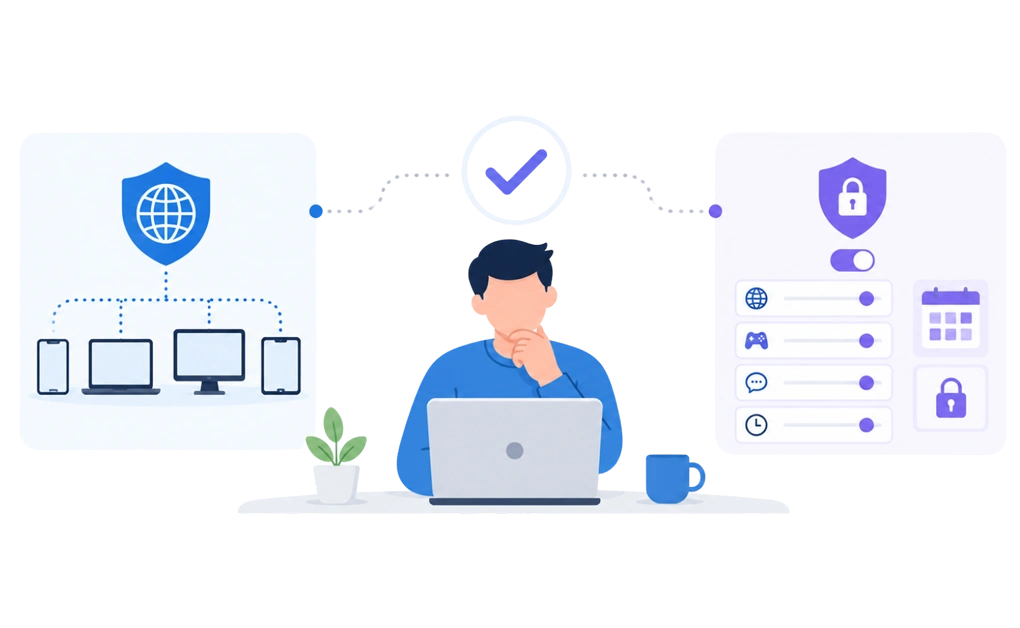
If you want broad website filtering across many devices, DNS filtering may be the better starting point. This can work well for household rules, shared networks, or general content filtering.
If you want stronger focus control on one computer, app-level blocking is usually the better fit. This matters when your distractions include desktop apps, multiple browsers, work-hour scrolling, study sessions, or sites that need more precise rules.
Most people do not need the most complex setup. They need something that fits their real situation and is easy to stick with. Start with the layer that solves your main problem first.
For focus and distraction control, DigitalZen gives you the app-level layer: website and app blocking, schedules, Focus Mode, keyword rules, exception lists, and adjustable lock options. You can start for free, set up one focused block, and see whether device-level blocking fits your normal day.
Frequently Asked Questions
Can DNS Filtering Replace an App-Level Blocker?
For focus and distraction control, usually not. DNS filtering can block websites by domain, which makes it useful for household rules, shared networks, and general content filtering. But it cannot directly block installed desktop apps like Discord, Steam, games, or streaming apps.
An app-level blocker is usually the better fit when you need device-level control, work-hour schedules, Focus Mode, app blocking, keyword rules, or lock options.
Does DNS-Over-HTTPS Affect DNS Filtering?
Yes, in some cases. DNS-over-HTTPS sends DNS queries through an encrypted HTTPS connection to a compatible resolver. If a browser uses its own DoH resolver, it may not follow the DNS filter set at the router or system level.
Some DNS filtering services offer DoH setup options, but this may require extra configuration. For users who want stronger focus protection on one computer, app-level blocking can add another layer that does not depend only on router-level DNS settings.
Can I Use DigitalZen and NextDNS Together?
Yes. DigitalZen and NextDNS work at different layers.
NextDNS can handle DNS-level filtering across devices and networks. DigitalZen can handle device-level focus control on the computer where you work or study. This includes desktop app blocking, website blocking, schedules, Focus Mode, keyword-based rules, exception lists, and lock options.
You may not need both. If your main goal is focus control on one computer, DigitalZen may be enough because it handles website blocking, app blocking, schedules, Focus Mode, and lock options on that device.
Which Method Adds Stronger Focus Protection?
For one personal computer, app-level blocking often adds stronger focus protection. It can block desktop apps, support schedules, and add lock options before a block can be changed.
DNS filtering is useful for broad website filtering across a network, but it is less precise. It works best for domain-level rules, not installed apps, mixed-use websites, or focus sessions.
For focus and distraction control, DigitalZen is usually the stronger fit because it works at the app and device level, not only at the DNS lookup level.
Which Method Is Harder to Bypass?
App-level blocking can be harder to intentionally bypass on a single machine, especially when uninstall protection, extension removal protection, schedules, and multiple lock types are enabled. DNS filtering can be easier to bypass if the user can change DNS settings, use another network, enable browser DoH, or move to cellular data. The stronger setup depends on the device, permissions, and how each layer is configured
References
- https://digitalzen.app/
- https://digitalzen.app/pricing/
- https://learn.microsoft.com/en-us/windows/powertoys/hosts-file-editor
- https://support.mozilla.org/en-US/kb/dns-over-https
- https://nextdns.io/pricing
- https://cleanbrowsing.org/pricing
- https://pi-hole.net/