
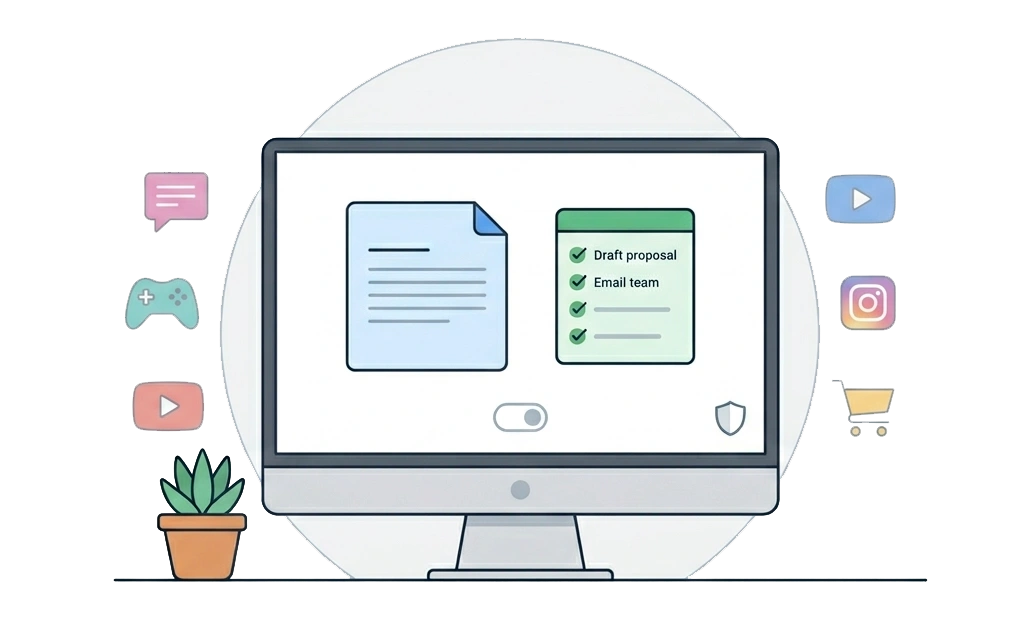
Blocking distractions works best when your setup still lets you use the tools you need. Instead of blocking everything, use granular controls. Daily allowances, Focus Mode whitelisting, scheduled blocks, and adaptive locks each solve a different access problem. This helps you limit distractions while keeping your computer useful for work, school, and daily tasks.
Key Takeaways
- Strict blocking can interrupt real work: The right setup blocks distractions while keeping the tools you actually need available.
- Granular controls often work better for daily use: Daily allowances, whitelisting, and scheduled blocks each solve a different access problem.
- Sort each site by how you use it: Block high-distraction tools, cap useful but distracting sites, schedule tools that only belong in certain hours, and leave essential work tools open.
- Match the feature to the situation: Use Focus Mode for deep work, allowances for limited access, schedules for repeat patterns, and adaptive locks when you need more friction before changing a rule.
- A usable setup is easier to keep: The best blocker is not the strictest one. It is the one that limits distractions without making your computer harder to use.
Why Strict-Only Blocking Often Breaks Real Work
Strict-only blocking can help in some cases. But it can also get in the way when you need a blocked site for real work.
For example:
- A developer may need Stack Overflow to debug an error.
- A marketer may need Instagram to check a client post.
- A student may need YouTube for a class tutorial.
When useful sites are locked with no clear exception, the blocker starts to interrupt the task. You may turn it off to finish the work. Then you may forget to turn it back on. Over time, the setup stops helping.
Many people find that blocking websites and apps can support productivity. The real question is how to block distractions without making your computer unusable.
Strict-only tools can work for people who want a hard wall with no exceptions. For many users, though, granular control is easier to keep using. Block what clearly gets in the way. Keep work tools open. Add limits for sites that are useful but distracting.
Decide What to Block, What to Cap, and What to Leave Open
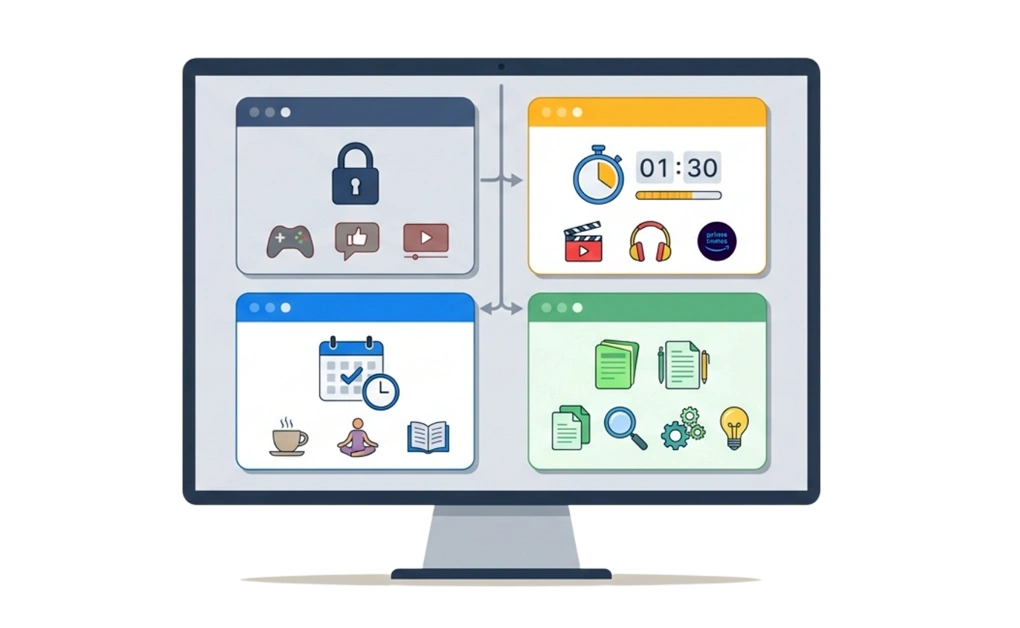
Before turning on any feature, the harder question is what to do with each site or app you use. Most failed setups come from one of two mistakes. You block too much, so real work gets caught. Or you block too little, so the real distractions stay open.
A simple four-part system can help you decide what to do with each site or app.
1. Block: High-Distraction, Low-Value Tools
These are sites or apps that do not support your work and often pull your attention away.
Common examples include:
- Gaming apps during work hours
- Casual social media you do not use for work
- News aggregators you do not read for work
- Shopping sites during work hours
These are good candidates for stricter blocks during focus hours. If a site has little real value during your workday, it usually does not need an easy way back in.
2. Cap: Useful but Distracting Tools
Some sites are useful, but they can turn into long browsing sessions fast. These should not always be blocked completely.
Common examples include:
- YouTube
- Twitter/X
- News sites
- LinkedIn, depending on your work
For these tools, a daily allowance usually works better than a full block. You can give yourself a set amount of time each day. Once that time runs out, the block starts. This keeps access available without leaving the site open all day.
3. Schedule: Tools You Need at Certain Times
Some tools are helpful during one part of the day and distracting during another.
Common examples include:
- Email during work hours, but not late at night
- News in the morning, but not during deep work
- Group chats during check-in times, but not during focus sessions
For these, use scheduled blocking. Set the times when the tool should be open and when it should be blocked. This keeps the rule tied to your real routine.
4. Leave Open: Tools You Genuinely Need
Some tools should stay open because blocking them would stop real work.
Common examples include:
- Stack Overflow and developer docs for engineers
- Google Docs for students
- Slack for remote teams
- Research databases for analysts
- Banking sites for life admin
These tools should not be part of a strict block. The goal is not to block everything. The goal is to keep your computer usable while removing the distractions that pull you away.
Once each site or app fits into one of these four groups, the right blocking rule becomes much easier to choose.
Use DigitalZen’s Granular Controls to Match the Framework
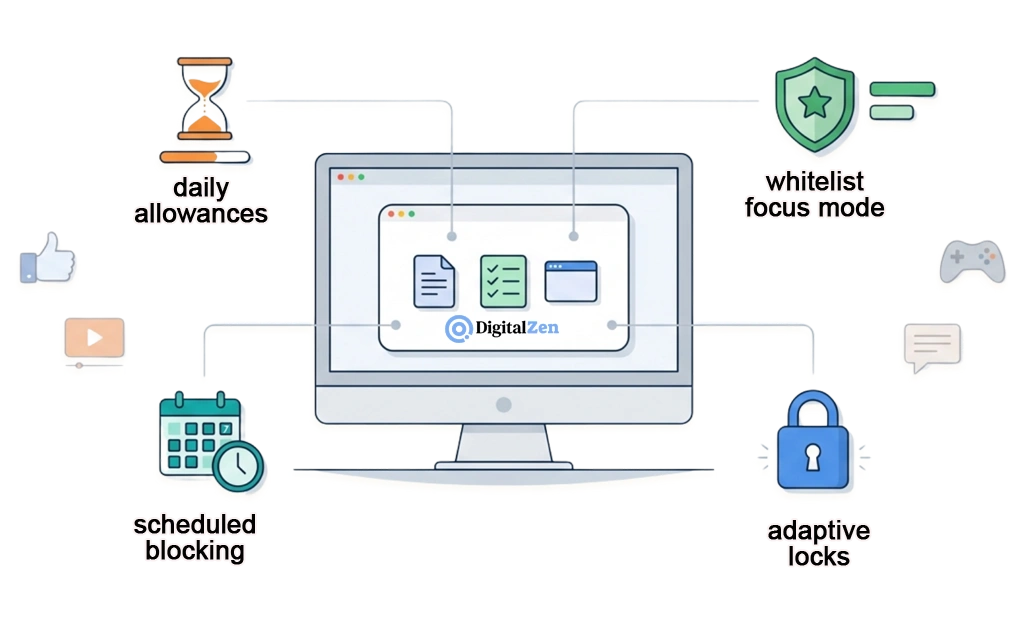
Each category in the framework has a matching feature in DigitalZen. You do not need to use every feature at once. Start with the access problem you want to solve first.
1. Daily Allowances for Time-Capped Access
Daily allowances give you a fixed amount of time on a distracting app or site each day. Once the time runs out, the block starts until the next day.
This works well for the “cap” category. You can still use the site when it has real value, but it does not stay open all day. For example, you might allow 30 minutes of Twitter/X or one hour of YouTube, depending on what you actually need.
Daily allowances are a practical way to learn how to limit app usage time across your day without using an all-or-nothing block.
2. Focus Mode Whitelisting for Deep Work
Focus Mode flips the default. Instead of choosing what to block, you choose what to allow. Everything else stays blocked.
This works best for focused work sessions, not as your default all-day setup. During a two-hour writing session, you might allow your writing app, one research site, and your reference docs. Everything else stays out of reach until the session ends.
The benefit is simple. You decide what matters before the session starts. Then everything else stays out of reach.
3. Scheduled Blocking for Predictable Cycles
Scheduled blocking turns blocks on and off at times you choose in advance.
You might block social media during work hours. You might block streaming apps from 10 p.m. to 7 a.m. You might allow email only during a morning and afternoon check-in.
This works best for patterns that repeat most days. Once the schedule is set, the block runs on its own. You do not have to decide each time again.
4. Adaptive Locks for Friction Without Lockout
Adaptive locks add a pause before you can turn a block off. They slow down an impulsive change. They are not meant to make your computer unusable.
DigitalZen offers lock options such as Code, Cooldown, Friend, Schedule, and Money. Each one adds a different kind of friction.
- Code lock. A generated code appears on screen. Typing it creates a pause before you can unlock.
- Cooldown lock. A timer starts when you try to unlock. You have to wait before the block can lift.
- Friend lock. The unlock code goes to a friend’s email, so you cannot unlock alone.
- Schedule lock. You set a future date, and the block stays active until then.
- Money lock. You set a small fine that you pay if you unlock early.
Pick the lock that fits the situation. Use a lighter lock for everyday distractions. Use a stronger lock for habits where you want more support. The goal is not to choose the strictest option. The goal is to choose the amount of friction you can actually keep using.
Key insight: a blocker should make distractions harder to reach while keeping real work easy to do. Sorting sites into the four categories first helps each feature serve a clear purpose.
How These Tools Look in Real Workflows
Different people need different blocking rules. The same framework can work for jobs, school, and remote work. But the setup should match what each person actually needs.
A Developer Who Needs Stack Overflow but Not Reddit
A developer may need Stack Overflow, GitHub, Notion, and documentation sites throughout the day. Those tools should stay open. Reddit and Twitter/X may be more distracting during work hours.
A better setup might look like this:
- Leave Stack Overflow, GitHub, Notion, and documentation sites open.
- Block Reddit during work hours.
- Cap Twitter/X with a daily allowance if it has some work value.
- Add a cooldown lock so opening Twitter/X takes more intention.
A Marketer Who Needs LinkedIn and Limited Instagram Access
A marketer may need LinkedIn for outreach, client research, and networking. They may also need analytics tools and content platforms. Instagram may be useful for client checks, but it can also turn into personal scrolling.
A better setup might look like this:
- Keep LinkedIn and analytics tools open.
- Use a daily allowance for Instagram if client work requires it.
- Block personal Instagram use during focus hours.
- Use scheduled blocks for times when social media is not part of the workday.
A Student Who Needs Google Docs and Limited YouTube Access
A student may need Google Docs, a school library portal, and reference databases. YouTube may be useful for tutorials, but it can also lead to unrelated videos. Discord may be useful socially, but distracting during study time.
A better setup might look like this:
- Keep Google Docs, school portals, and reference sites open.
- Schedule YouTube blocks during study hours.
- Allow YouTube later if it is not part of the study session.
- Cap Discord with a daily allowance.
- Add a cooldown lock to social media during study time.
A Freelancer or Remote Worker Who Needs Slack but Not Twitter/X
A freelancer or remote worker may use one laptop for client work, invoicing, research, email, and personal browsing. That makes all-or-nothing blocking hard to use.
A better setup might look like this:
- Keep Slack, client project tools, and invoicing software open during work hours.
- Cap Twitter/X with a daily allowance.
- Schedule personal email blocks during focus sessions.
- Use Focus Mode during deep work so only essential tools stay available.
For this kind of mixed-use setup, a tool built for freelancers and remote workers can help keep work tools available while limiting distractions.
The pattern is the same across all four examples. Sort each tool first. Then match it with the right rule: block, cap, schedule, or leave open.
When Granular Blocking Works Best
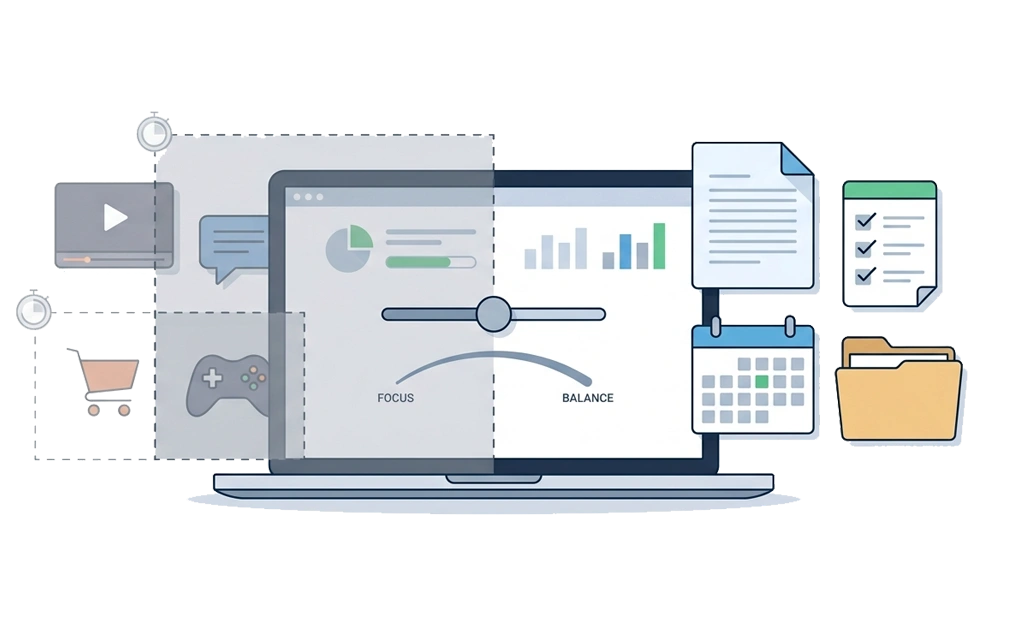
Granular blocking works best when you need the same computer for focus, work, school, and everyday tasks. It gives you more control than a strict all-or-nothing block. You can block the sites that clearly distract you, limit the ones you sometimes need, and keep essential tools open.
This approach is useful if strict blocking felt too rigid in the past. It can also help if no blocking leaves too many distractions open. The goal is not to make your computer harder to use. The goal is to remove the distractions that get in the way while keeping your real work accessible.
Granular blocking is not the right fit for every situation. Some people need a hard wall with no exceptions. If exceptions keep pulling you back into a serious habit, a stricter setup may work better. Flexible blocking tends to outlast all-or-nothing rules for everyday use, but a strict-only tool is sometimes the better fit for some situations.
For people weighing flexible enforcement against a stricter approach, our comparison of how Cold Turkey compares to DigitalZen covers the trade-offs directly.
Start With One Blocking Rule You Can Keep
A common reason this approach fails is trying to set up everything at once. A simpler path is to start with one habit, not ten. Pick the distraction that causes the most trouble this week, then choose the DigitalZen feature that matches it.
Start by listing your top five distractions. Sort each one into the four categories: block, cap, schedule, or leave open. Then choose one to handle first. Use a daily allowance for a site that needs capped access. Use a scheduled block for a timing problem. Use a cooldown lock if you tend to change the rule in the moment.
Try that setup for a week. Notice what works and what still gets in the way. Then add the next rule only when you need it. With DigitalZen, you can start for free. Sort your five distractions. Then turn on one block today. The goal is a setup you can keep using, not a perfect setup that feels too hard to maintain.
Frequently Asked Questions
Can I Use a Blocker Without Locking Myself Out of Work Tools?
Yes. Use a granular setup. Block the sites you do not need, cap the sites you sometimes need, schedule tools that only belong in certain hours, and leave your real work tools open. This helps you block distractions without making your computer unusable.
What Is the Best Way to Block Distractions Without Blocking Everything?
Use a different rule for each type of site. Use daily allowances for sites you need in small amounts. Use scheduled blocks for tools that should only be open at certain times. Use Focus Mode for deep work, when you only want a few tools available.
How Do I Decide What to Block and What to Leave Open?
Sort each site or app into four groups: block, cap, schedule, or leave open. Block tools that do not support your work. Cap useful but distracting sites with a daily allowance. Schedule tools that only belong in certain hours. Leave open the tools you need to get real work done.
Should I Use Focus Mode All Day or Only for Deep Work?
Focus Mode usually works best for short, focused sessions. It can help during writing, studying, coding, or deep work. For an all-day setup, it may feel too restrictive. Use scheduled blocking and daily allowances for the rest of your day.
Can DigitalZen Block Categories Like Social Media Without Blocking Specific Sites I Need?
Yes. DigitalZen has predefined templates that can block categories like social media or gambling. You can then whitelist specific sites you still need. You can also create custom blocklists if you want more control.