
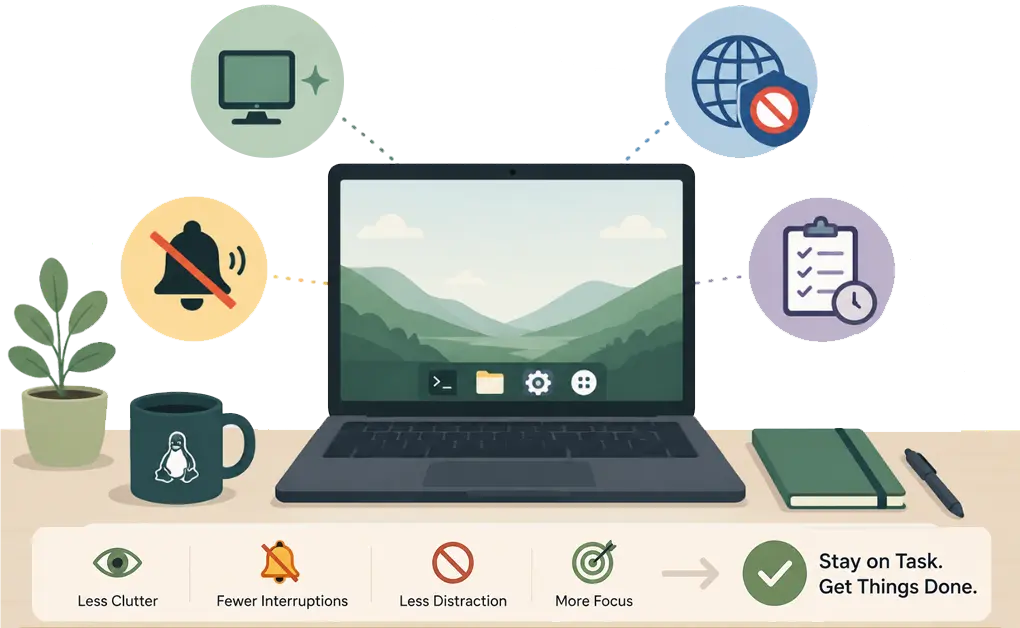
A distraction-free setup on Linux usually combines four layers: a cleaner desktop environment, quieter notifications, blocking for distracting sites and apps, and a workflow that makes it easier to stay on task. Together, these layers reduce visual clutter, interruptions, and the urge to drift into distractions.
Key Takeaways
- A distraction-free Linux setup has four layers: Desktop setup, notification control, blocking, and workflow design. Each handles a different kind of distraction.
- Desktop environment choices affect visual noise. Tiling window managers and minimal desktop setups can reduce clutter and keep attention on the work in front of you.
- Notification control removes constant interruptions. Disabling non-essential alerts helps reduce context switching during the day.
- DigitalZen handles website and app blocking: Scheduled focus sessions and blocklists make it harder to open distracting content during work time.
- Workflow design ties everything together. Virtual desktops, full-screen modes, and browser cleanup can make drifting off task less automatic.
1. Choosing a Desktop Environment for Focus
The desktop environment shapes how much visual noise you see while working. Some setups reduce distractions by design. Others can work well with a few adjustments.
Tiling Window Managers
Tiling window managers like i3, Sway, and Hyprland offer minimal interfaces. There are no icons, docks, or panels by default. Windows arrange themselves automatically, so you spend less time resizing and organizing.
These setups are keyboard-driven. Your hands stay on the keyboard more often, which can reduce mouse wandering and idle clicking. The learning curve is steeper, but many users find the tradeoff worth it.
Full Desktop Environments With Tweaks
GNOME and KDE can also work well for focus with a few adjustments:
- Remove or auto-hide docks and panels
- Disable desktop icons
- Use a minimal theme with muted colors
- Enable Do Not Disturb mode by default
These changes reduce visual triggers without requiring a full environment switch. KDE and Plasma both officially support Do Not Disturb mode for concentrating on work.
Which to Choose
Tiling window managers are better for people who are okay with setup work and keyboard shortcuts. Tweaked full desktop environments are better for people who want something more familiar with less clutter. The right choice depends on whether you want a very minimal setup or an easier way to clean up your workspace.
2. Managing Notifications on Linux
Notifications interrupt focus constantly, and most of them are not urgent. Turning off non-essential alerts removes one of the biggest sources of context switching.
Notification Daemons for Tiling Window Managers
If you use a tiling window manager, you may rely on a standalone notification daemon.
- dunst is a lightweight and highly configurable notification daemon often used in window-manager-centric setups.
- mako is a lightweight Wayland notification daemon commonly used with compositors like Sway.
Both give you more control over which notifications appear and which ones stay quiet.
GNOME Notification Settings
In GNOME, open Settings and go to Notifications. You can disable notifications per app, or turn on Do Not Disturb during focus time.
KDE Notification Settings
In KDE, open System Settings and go to Notifications. You can reduce or disable notifications per app, and use Do Not Disturb to silence alerts during focus time. KDE’s official Plasma pages use that wording directly.
What to Keep and What to Disable
Keep calendar reminders and critical system alerts. Disable notifications for email, chat apps, browsers, and software updates. If something does not need your attention right away, it probably does not need to interrupt your work.
3. Blocking Distractions With DigitalZen
Desktop tweaks and notification control reduce environmental distractions. Blocking handles the distractions you actively seek out. Social media, video streaming, news, and other time sinks fall into this category.
DigitalZen is a website and app blocker for Linux, macOS, and Windows that handles this layer of your distraction-free setup.
What DigitalZen Blocks
DigitalZen blocks distracting websites via a browser extension. It also blocks desktop applications that pull attention away. You can block entire categories like social media, streaming, or gaming.
Social media is often the first category to block. Controlling social media on Linux covers setup options in detail.
Scheduled Focus Sessions
You can set specific hours for blocking. For example, 9am to 12pm and 2pm to 5pm. Blocks activate automatically at those times, so you do not have to keep deciding again when it is time to focus.
The rotation feature alternates between focus time and breaks. This supports Pomodoro-style workflows without manual adjustments.
Lock Features
Lock features prevent you from disabling blocks mid-session. They add friction when urges hit. Even when motivation dips or the urge to check something kicks in, the blocks are harder to turn off.
For a deeper look at blocking methods, how to block websites on Linux covers additional options and configurations.
4. Designing a Focused Workflow
Even with a clean desktop, quiet notifications, and blocked distractions, workflow design matters. How you organize your work affects how easily you stay focused.
Virtual Desktops for Task Separation
Dedicate separate desktops to different tasks. One for coding, one for communication, one for research. Switching desktops creates a mental shift between contexts. Unrelated windows stay out of view, which makes it easier to stay inside the task you meant to work on.
Most Linux desktop environments and window managers support virtual desktops. Use them to keep your workspace organized by task.
Full-Screen and Focus Modes
Run your primary application in full-screen to eliminate peripheral distractions. Code editors, writing apps, and browsers all support full-screen mode.
Many applications also have built-in focus modes that hide toolbars and menus. These modes keep attention on the content rather than the interface.
Browser Cleanup
The browser is often where distraction starts, especially when one quick check turns into extra tabs, unrelated searches, or automatic scrolling. A few changes can help:
- Remove the bookmarks bar to reduce visual triggers
- Use a blank or minimal new tab page
- Limit open tabs or use a tab manager
- Consider a separate browser profile for work with no personal bookmarks
When designing your workflow, avoid the common workflow mistakes Linux users make that can undermine a distraction-free setup.
Building Your Distraction-Free Linux Setup in 30 Minutes
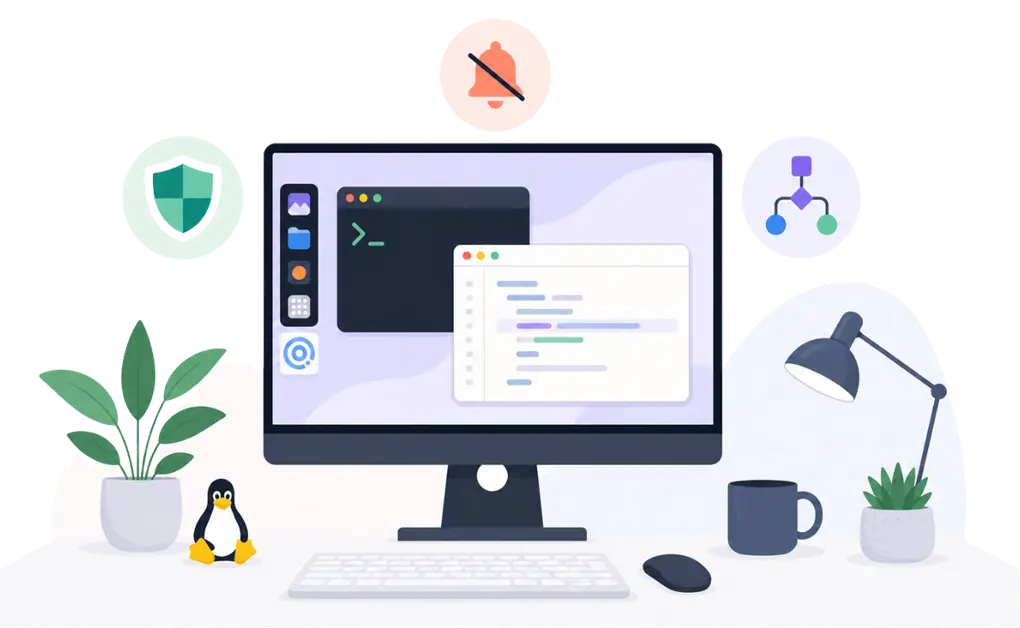
Here is a practical walkthrough to build your setup. Adjust based on your current environment and preferences.
Minutes 1-5: Desktop Environment Quick Tweaks
If using GNOME or KDE, hide the dock, disable desktop icons, and enable Do Not Disturb. If using a tiling window manager, confirm your basic configuration is in place. Set a simple, non-distracting wallpaper.
Minutes 6-10: Notification Cleanup
Open your notification settings. Disable notifications for email, chat, browser, and non-critical apps. Keep only calendar reminders and critical system alerts.
Minutes 11-20: DigitalZen Setup
Install DigitalZen. Add the sites you drift into most often, such as social media, YouTube, news, or Reddit. Add distracting apps if needed. Set up a scheduled focus session for your primary work hours. Enable lock features to prevent mid-session changes.
Minutes 21-25: Workflow Adjustments
Create virtual desktops for different task types. Set your primary work app to open in full-screen by default. Remove the browser bookmarks bar. Set a blank or minimal new tab page.
Minutes 26-30: Test and Refine
Start a focus session and work for a few minutes. Notice what still pulls your attention. Adjust blocklists, notifications, or desktop settings as needed.
Bringing the Four Layers Together
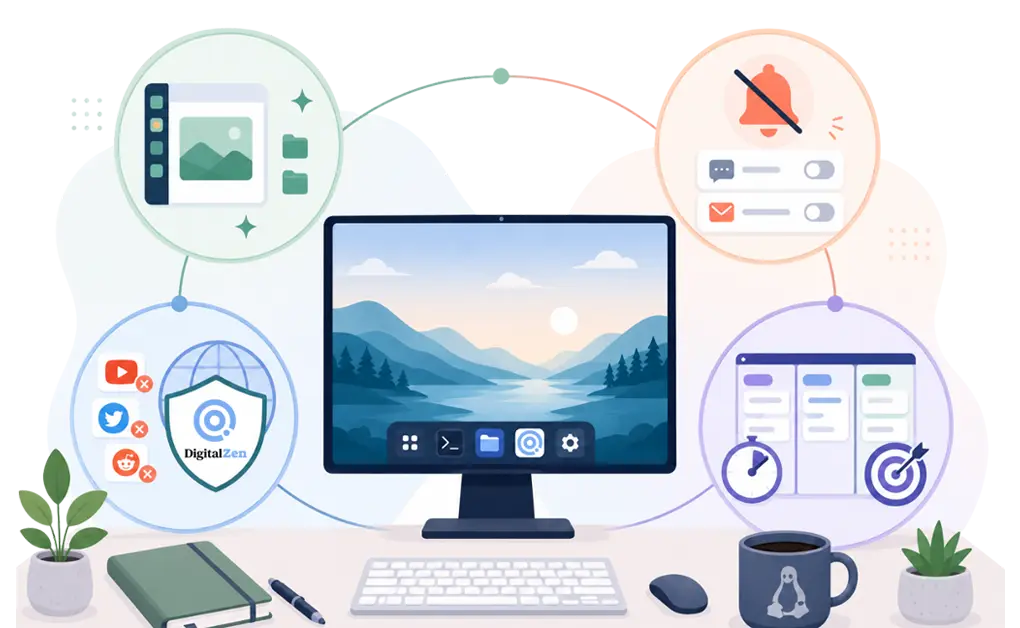
A distraction-free Linux setup works best when all four layers are in place. Desktop tweaks reduce visual noise. Notification control stops constant interruptions. DigitalZen blocks the sites and apps you drift into. Workflow design keeps your attention on the task you meant to work on.
Start with the layer that addresses your biggest distraction source. Add the others over time. Review your setup monthly and adjust as new distractions appear.
For additional workflow advice, Linux productivity tips cover habits and techniques that complement a distraction-free environment. If you want to adapt this setup for ADHD, staying focused on Linux with ADHD may help.
Frequently Asked Questions
What Is the Best Linux Desktop Environment for Focus?
There is no single best option. Tiling window managers like i3, Sway, and Hyprland are minimal by default. GNOME and KDE can also work well with tweaks like hiding docks, disabling desktop icons, and reducing visual clutter. The best choice depends on how comfortable you are with the configuration.
How Do I Disable Notifications on Linux?
In GNOME, go to Settings > Notifications and disable alerts by app. In KDE, go to System Settings > Notifications and use Do Not Disturb when needed. If you use a tiling window manager, configure your notification daemon, such as dunst or mako, to silence non-essential alerts.
What Should I Block for a Distraction-Free Setup?
Start with the sites and apps you check most often without thinking. For many people, that includes social media, video streaming, news sites, and gaming platforms. Keep work tools accessible. The goal is to block distracting content without making your computer harder to use for real work.
Do I Need a Tiling Window Manager to Stay Focused?
No. A tiling window manager can help, but it is not required. GNOME and KDE can also support a focused setup with the right adjustments. The main goal is to reduce visual noise and remove easy distractions.
How Long Does It Take to Build a Distraction-Free Linux Setup?
A basic setup can take about 30 minutes. That covers desktop tweaks, notification cleanup, blocking setup, and a few workflow changes. You can refine it over time as you notice what still pulls your attention.
References:
- https://kde.org/plasma-desktop
- https://dunst-project.org/
- https://github.com/emersion/mako