
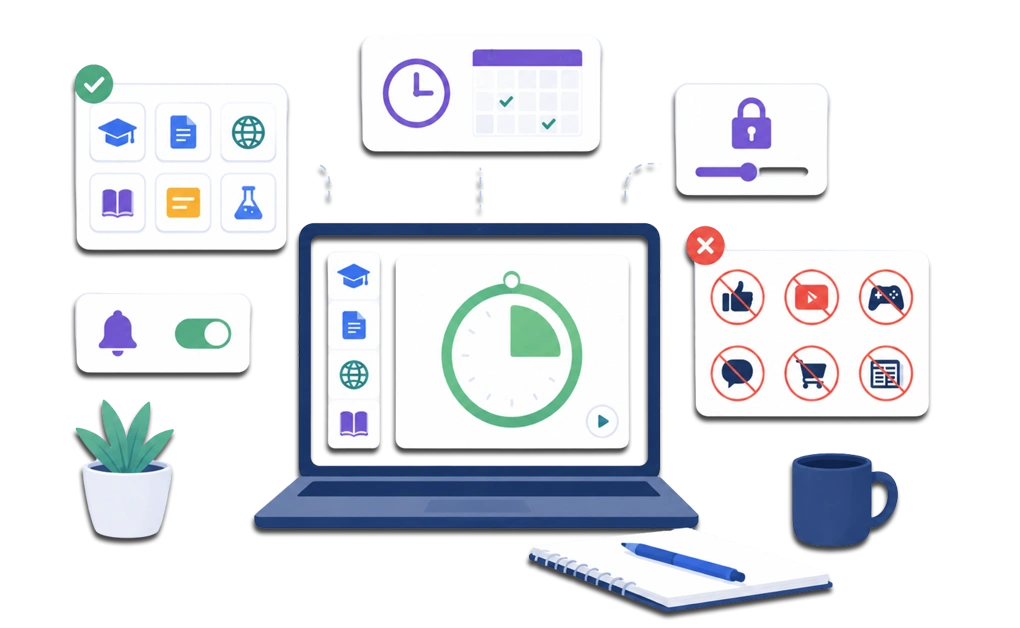
A computer study mode keeps essential study tools available while limiting distracting apps and websites. Add a timer, schedule, and adaptive lock based on how much structure you need. Built-in focus tools can reduce notifications. A dedicated blocker can also limit access when one quick check or tab switch starts pulling you away.
Key Takeaways
- A computer study mode can go beyond notification control: It can limit distracting apps and websites while keeping essential study tools available.
- Native focus tools have limits: Windows Focus, macOS Focus, and GNOME Do Not Disturb can reduce interruptions. However, they usually do not block apps or websites.
- An allowlist can simplify the setup: Keep only the tools you need. You do not have to identify every possible distraction.
- Timers and locks add different kinds of structure: A timer gives the session a clear endpoint. Adaptive locks make it harder to change or end the session early.
- Monk Mode offers a more structured DigitalZen option: It may fit important sessions when a standard Focus Mode setup does not provide enough structure.
What a Computer Study Mode Should Include
A study mode is a setup that keeps your study tools available while limiting access to distracting apps and websites. It can also run for a set period and add friction before you change or end the session early.
Phones have similar focus features. Android Focus Mode can pause selected apps. Apple’s Focus tools mainly manage notifications and content in supported apps. Desktop systems also have focus or do-not-disturb tools. However, these tools usually do not block websites or apps completely.
A stronger computer study mode combines four parts: an allowlist for essential study tools, blocking for known distractions, a defined session length, and a lock or delay that discourages early changes.
Together, these features reduce the number of choices you have to make during the session. Blocking websites and apps can support productivity, and a study mode applies that idea to a specific study period.
How to Set Up a Computer Study Mode With DigitalZen

DigitalZen’s focus app for students combines Focus Mode with website and app blocking, timers, templates, and adaptive locks. You can create a setup for one study session or schedule it to repeat during regular study hours.
A practical study mode can be built in six steps:
- Choose your essential study tools: Add only the apps and websites you need, such as your course platform, word processor, research databases, notes, flashcards, and subject-specific references. Keeping the list short reduces unnecessary switching.
- Block your usual distractions: Add social media, streaming services, games, news, shopping sites, and non-study chat apps. DigitalZen includes predefined templates that can give you a starting point, which you can then customize.
- Choose a session length: Match the block to the task and your available time. Try a 25-minute session with a short break for review work. For tasks that need more focus, try a 50-minute session.
- Add the right level of friction: A cooldown lock makes you wait before changing the block. A schedule lock keeps it active until a time you selected in advance. A friend approval lock involves someone you trust. Choose the option that fits how likely you are to change the rule mid-session.
- Define the task before starting: Decide what you plan to complete, such as outlining an essay, reviewing one chapter, or finishing a set of practice questions. A clear target gives the session a purpose beyond simply watching the timer.
- Start the session and follow the setup: Once Focus Mode begins, keep your attention on the selected study tools. The blocker limits access to the distractions you chose, while the timer gives the session a clear endpoint.
Students who work across several computers may also want a consistent setup on each device. This guide to syncing app settings across devices explains ways to keep productivity tools and configurations aligned across different machines.
When to Step Up From Focus Mode to Monk Mode
Monk Mode is an option within DigitalZen’s Focus Mode. DigitalZen describes it as a setting for “total focus.” Focus Mode lets you choose the apps and websites you want to use, block everything else, set a timer, and define a focus goal. Monk Mode gives you a more focused option when a standard session does not provide enough structure.
Standard Focus Mode may be enough for:
- Regular study sessions with a clear task and endpoint.
- Sessions where you only need to limit your usual distracting apps and websites.
- Study periods where a Pomodoro timer or another timed structure provides enough support.
Monk Mode may be useful for:
- Important study sessions before an exam or deadline.
- Long writing, coding, or problem-solving sessions where you want fewer openings for distraction.
- Sessions where you have previously ended Focus Mode earlier than planned.
For Linux students building a broader study routine, how to focus while studying on Linux covers the workflow around study mode, including planning, blocking, and managing study sessions.
Standard Focus Mode may fit everyday sessions where you want an allowlist, timer, and clear goal. Monk Mode may fit higher-priority sessions when you want a more structured version of that setup.
How to Adjust Study Mode for Different Study Tasks
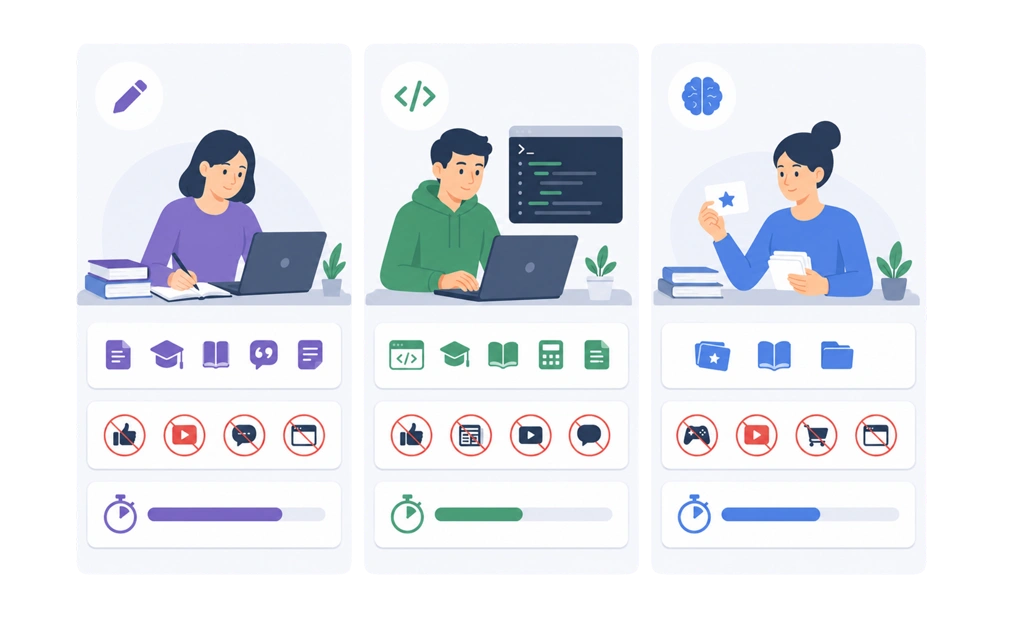
Different study tasks may need different tools, blocklists, and session lengths. Treat these examples as starting points. Adjust the tools, blocklist, and session length based on the task and your available time.
For writing-heavy work, such as essays and research papers:
- Keep available: your word processor, research databases, dictionary, citation manager, and relevant notes.
- Block: social media, streaming sites, non-study messaging apps, and unrelated browser tabs.
- Try: a 50- to 90-minute work period followed by a proper break. Longer sessions may help when you need time to settle into drafting or revising.
For problem-solving work, such as math, coding, or technical study:
- Keep available: your IDE or terminal, course materials, documentation, calculator, and approved reference tools.
- Block: social media, news, entertainment sites, and non-essential chat apps.
- Try: a 40- to 60-minute work period with a short break. Adjust the length if the task requires more uninterrupted time.
For memorization-heavy work, such as vocabulary, anatomy, or language study:
- Keep available: flashcards, course materials, and subject-specific references.
- Block: unrelated websites and apps that encourage switching.
- Try: a 20- to 30-minute review period followed by a short break. Shorter sessions may be easier to repeat across the day.
Remember that these configurations are only examples. You can change which apps and websites remain available, adjust your blocklists, and experiment with different session lengths until you find a setup that matches your learning style and the demands of the task.
Pomodoro and other timed approaches can work alongside study mode. The guide on how to limit screen time on Linux while studying explains how time limits can support the same study workflow.
The same approach can be adapted for university exams, certification study, and professional training. The tools and session length may change, but the basic setup stays similar: keep the resources you need available, limit unrelated distractions, and choose a realistic study period that works for you.
What Native OS Focus Modes Can and Cannot Do
Native focus tools work well when notifications are the main interruption. They are less useful when you keep opening the distracting app or site yourself.
- Windows Focus and Do Not Disturb: Windows Focus sessions can enable Do not disturb, hide taskbar badges, and reduce notifications during a timed session. You can also allow selected priority notifications. However, Windows Focus does not typically prevent you from opening apps, games, or websites.
- macOS Focus: macOS Focus can silence or allow notifications from specific people and apps. It also supports schedules and filters for apps such as Mail, Messages, Calendar, and Safari. These features reduce distractions but generally do not block third-party apps or websites.
- GNOME Do Not Disturb on Linux: GNOME’s Do Not Disturb hides desktop notifications. It reduces interruptions but does not restrict access to apps or websites.
If you want to limit access to apps and websites, a dedicated study-mode setup offers stronger controls, including blockers, timers, and extra friction before settings can be changed.
Build a Study Mode You Can Use Consistently

An effective study mode does not need to be rebuilt for every session. Start with a simple setup that keeps your essential tools available, blocks your usual distractions, and gives the session a clear endpoint. Reuse it, then adjust the blocklist, timer, or lock when your study needs change.
The right configuration depends on the task. Standard Focus Mode may be enough for regular study, while Monk Mode can provide more structure for important sessions. The goal is not to make every session as strict as possible. It is to create a setup you can use consistently without blocking the tools you genuinely need.
Students preparing for a major test can take this approach further. The companion guide on how to block distractions during exam prep explains how to tighten the setup as exam day approaches. With DigitalZen, you can create a study mode, keep your essential tools available, and schedule it for your next study session.
Frequently Asked Questions
Can I Create a Study Mode on Windows Without Extra Software?
You can create a basic focus setup with Windows Focus and Do Not Disturb. These tools can reduce notifications and run a timed session. However, they usually do not block apps, games, or websites. A dedicated blocker may be better when you also want to limit access to digital distractions. macOS Focus and GNOME Do Not Disturb have similar limits.
What Is the Difference Between Focus Mode and Monk Mode?
Focus Mode is the main DigitalZen feature for focused sessions. You can choose which apps and websites to keep available, block everything else, set a timer, use a Pomodoro structure, and define a focus goal. Monk Mode is an option within Focus Mode that DigitalZen describes as being for “total focus.” It may be useful when you want a more focused setup for an important study session.
How Long Should a Study Mode Session Be?
The right length depends on the task, your available time, and how long you can work effectively. You might try a 25-minute session for short review work, a 40- to 60-minute session for problem-solving, or a longer session for writing. Treat these as starting points and adjust them based on how the session goes.
Can I Schedule Study Mode to Start Automatically?
Yes. You can schedule DigitalZen blocks around regular study hours so the restrictions start automatically. You can also start a Focus Mode session manually when you need an extra study block.
Will Study Mode Block My Email and Messages?
Only if you add them to the blocklist or leave them outside your Focus Mode allowlist. You can keep email, course announcements, or study-group tools available when they are needed for the session. For independent study, blocking non-essential email and messaging apps may reduce unnecessary switching.
This helps when a study-group tool is necessary, but personal conversations are not. If your group studies on Linux, these study group apps for Linux work well inside a Focus Mode allowlist.
References
- https://support.microsoft.com/en-us/windows/notifications-and-do-not-disturb-in-windows-feeca47f-0baf-5680-16f0-8801db1a8466
- https://support.microsoft.com/en-us/windows/focus-stay-on-task-without-distractions-in-windows-cbcc9ddb-8164-43fa-8919-b9a2af072382