
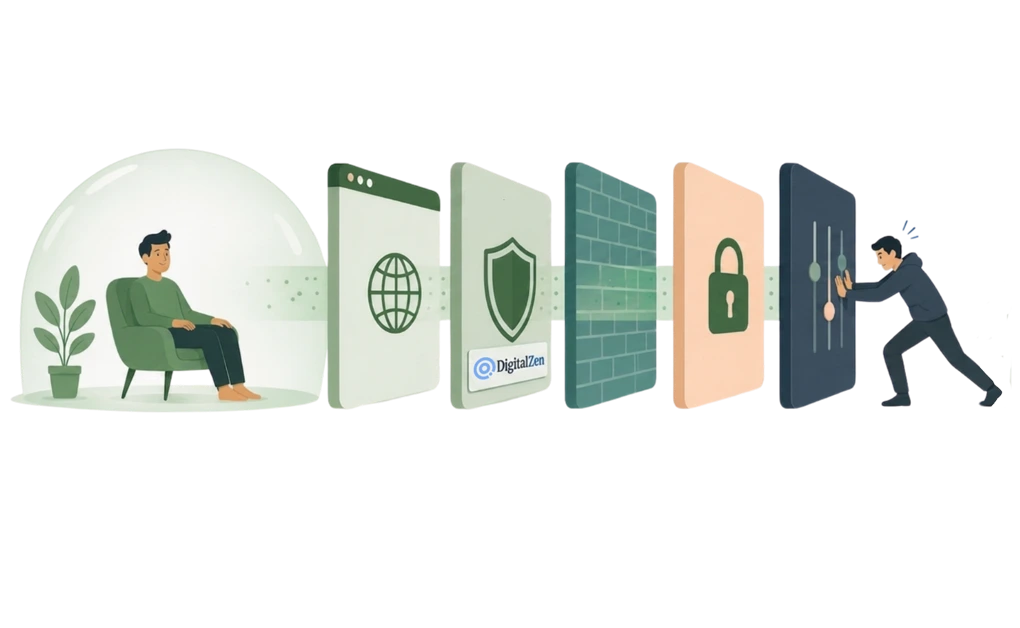
DigitalZen is designed to be hard to bypass, not impossible. Its desktop app blocks across browsers, resists removal, and adds adaptive locks that slow down an impulse. A determined person can still find ways around any blocker. That is why DigitalZen focuses on strong, layered guardrails instead of a promise no blocker can keep.
Key Takeaways
- DigitalZen protects against common workarounds: It blocks across browsers, resists extension removal, and makes uninstalling harder. It can also stop you from killing the app while a block is active.
- Browser protection covers more than a list of known browsers: DigitalZen detects and blocks any unsupported browser, including new ones not yet known. It also detects guest profiles, multi-profile setups, and attempts to bypass through file:// schemas.
- OS protection covers system-level workarounds: Clock tampering protection, protection against killing the app through Task Manager or the command line, protection against uninstalling through software managers, and protections against deleting files or removing the startup entry through the command line.
- Adaptive locks add self-imposed friction: Code, cooldown, friend, schedule, and money locks each create a pause before you can unlock. They are a self-imposed first layer, useful when the urge to bypass feels automatic.
- Honest take on bypass resistance: DigitalZen is built to add friction for someone who wants protection but needs help when temptation hits. If you are an admin on your own computer, determined, and have strong technical skills, you can find a way around the protection with enough time and effort. DigitalZen is designed to give you a decent fight, so an impulsive bypass becomes much less likely.
What DigitalZen Protects Against
DigitalZen protects against the workarounds people reach for most when willpower drops. These protections come from the desktop app, so they apply once the desktop agent is installed, not from the browser extension alone.
Here is what the desktop app guards against:
- Turning off a block: DigitalZen lets you lock yourself out of anything you do not want to access, and “throw the key” so a moment of low willpower does not turn the block off. The adaptive locks feature carries this self-imposed layer.
- Changing the device clock: If you set a block to start at 8pm and your fingers hover over the time settings to bypass it, DigitalZen can block clock changes too. The bypass route closes before it opens.
- Switching browsers: DigitalZen supports modern browsers and can block any unknown or unsupported browser, including new ones not yet on a list. It also detects guest profiles, multi-profile setups, and bypass attempts through file:// schemas. Opening a different browser does not slip past the block.
- Removing the browser extension: Extension removal protection keeps the extension in place. This helps when removing the extension would otherwise take only a few clicks.
- Uninstalling the app: Uninstall protection makes the app harder to remove on impulse, including attempts through software managers. This matters most when the urge to bypass is strongest, often late at night.
- Killing the app: While a block is active, DigitalZen can prevent you from quitting or shutting down the app, either through Task Manager or through the command line for more advanced attempts. This helps stop a quick bypass before it breaks the session.
- Deleting files or removing the startup entry: For crafty users who reach for command-line workarounds, DigitalZen protects against deleting its files through the CLI or removing its startup entry. These are the routes a more technical user might try when the front-door protections hold.
- Blocking crafty workarounds: DigitalZen’s community sometimes shares creative ways people have tried to shut down the protection. Several internal protections close those routes, and the company does not publish the full list publicly, since making them public would help defeat them.
On Windows, the desktop agent enforces blocks across the whole system rather than inside one browser. You can see the full feature set on DigitalZen’s website and app blocker for Windows. The same model applies on macOS and Linux, so the protection is consistent across platforms.
Why Extensions and Hosts Files Are Easy to Bypass, and How DigitalZen Differs
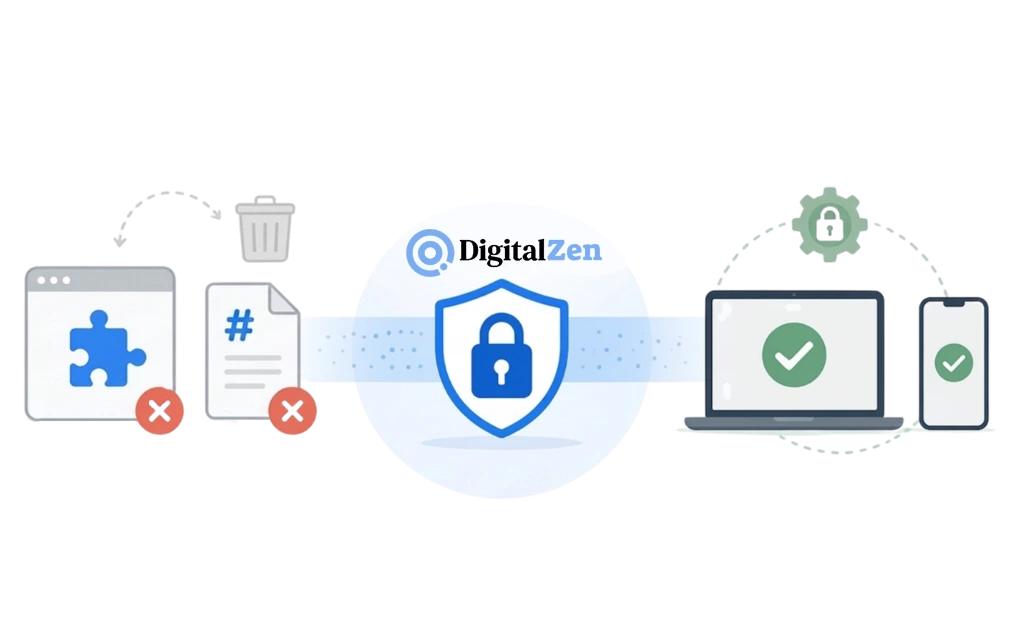
Browser extensions and hosts file edits are easy to undo. That is why they often fail when the goal is serious blocking. Both can be reversed in seconds by anyone who set them up, and that is usually the same person trying to get around the block.
A browser extension only controls the browser it sits in. You can disable it, remove it, or just open a different browser. This is part of why browser extensions alone are not enough for blocking. DigitalZen’s desktop app adds a layer an extension cannot provide, and extension removal protection keeps the extension from being switched off on a whim.
Editing the hosts file is another common do-it-yourself trick, but there are clear reasons why hosts file blocking tends to fail. It is simple to edit back, it only affects websites, and it cannot touch desktop apps. DigitalZen works at a different layer, so it does not depend on that method and can block apps as well as sites.
DigitalZen’s Adaptive Locks and How They Create Self-Imposed Friction
DigitalZen’s adaptive locks are a self-imposed friction layer. You set them up for yourself, and they sit on top of the protection layer. Each lock adds a pause between an impulse and the moment you turn a block off. The pause is the point. It gives the urge time to pass, so you can decide with a clearer head. This matters when you know the block is working but still feel tempted to undo it.
The locks are not the strict layer of DigitalZen. The protection layer above carries the bypass resistance. The locks add the friendly nudge that helps you respect your own boundaries.
Here is how each lock works:
- Code lock: A long generated code appears on screen. Typing it out takes time, which gives you a moment to reconsider.
- Cooldown lock: You wait before the block lifts. This can stop a quick urge from turning into another browsing session.
- Friend lock: The unlock code is sent to a friend by email, so you cannot unlock alone. This adds support and delay.
- Schedule lock: You set a future date, and the block cannot be lifted before then. This helps you set the boundary before the urge appears.
- Money lock: You set a small fine for yourself, which you pay to unlock. The user chooses the amount, and DigitalZen is not part of the payment. The cost speaks to the part of us that dislikes spending money.
These locks can be matched to the moment. A light cooldown may be enough on a steady day, while a friend or schedule lock suits a harder one. If the social angle appeals to you, here is how to set up an accountability blocker using the friend lock.
Key insight: Adaptive locks are the self-imposed friction layer, not the strict layer. They slow down an impulsive unlock so the urge can fade. The protection layer is what actually holds against bypass attempts.
What a Determined User Might Still Try
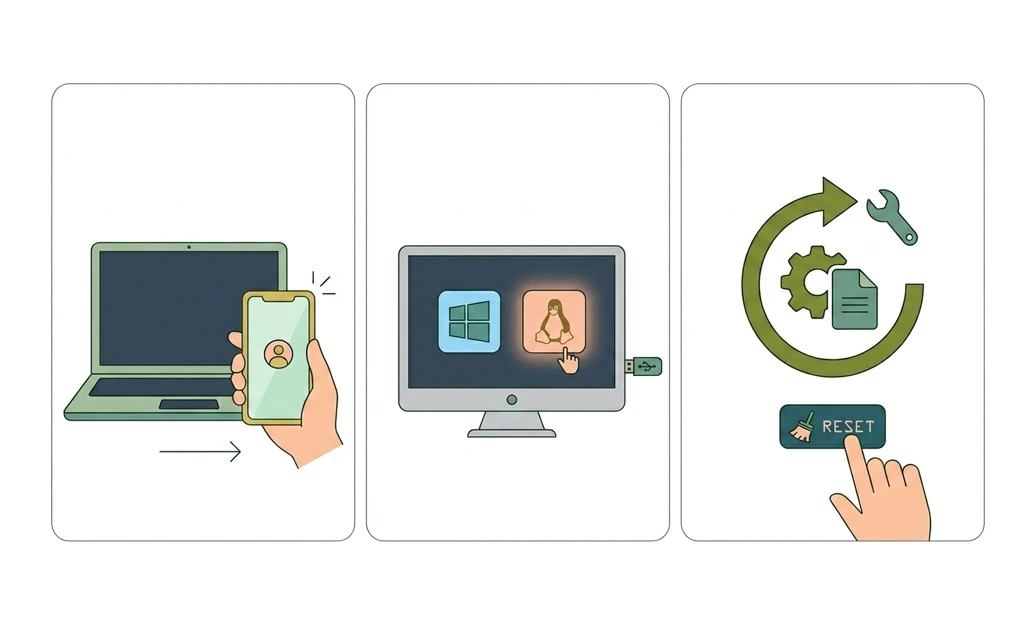
No blocker can stop a truly determined person, and DigitalZen is honest about that. The protections raise the effort needed to bypass a block, but a few routes are outside any app’s reach.
A determined user might still:
- Use a different device: A block on your laptop does not cover a second computer or another device. This can happen when a five-minute break starts turning into a long session on another screen.
- Boot into another operating system: Starting the machine from a separate OS can sidestep an app installed on the main one.
- Reset or reinstall the system: An hours-long full wipe and reinstall removes the app along with everything else, at real cost and effort.
DigitalZen is built for people who want protection but need help when temptation hits, not for people trying to defeat their own setup. It is a productivity app for the user who wants a strong protection layer, not a cage or a prison. The goal is to make a bypass slow and deliberate, so an impulsive slip becomes much less likely. Some people need the firmest possible setup to stay on track.
For that audience, blocking distractions on Linux when you have ADHD involves a stronger configuration.
How DigitalZen Compares With Other Blocking Methods
DigitalZen tends to be harder to bypass than browser extensions, hosts file edits, or DNS-only blocking, because it combines several layers in one tool. The table below compares common methods on bypass resistance and what each one covers.
| Method | Bypass resistance | Blocks apps? | Main weakness |
| Browser extension | Low | No | Easy to disable or remove; one browser only |
| Hosts file edit | Low | No | Simple to edit back; websites only |
| DNS-only filtering | Medium | No | Can be changed in network settings; websites only |
| Other app blockers | Medium to high | Often | Varies; some skip Linux or lack protection layers |
| DigitalZen (desktop app) | High | Yes | A determined user can still switch devices or switch OS |
The point is simple. The aim is firm protection that still fits a real day, because strong blocking does not have to feel like punishment. DigitalZen aims for the high end of bypass resistance while staying usable day to day.
The Bottom Line on Bypassing DigitalZen
The honest answer is that DigitalZen is hard to bypass, not impossible, and that is the right goal. A blocker that promised to be unbreakable would either be lying or would make your computer painful to use. DigitalZen aims for strong, layered guardrails that hold against an impulse and give a determined bypass attempt a decent fight.
If you want the firmest setup, start with the desktop app, turn on uninstall and extension removal protection, and add one or two adaptive locks that fit your habits.
A good next step is to install the desktop app and set up your first protected block. With DigitalZen, you can start with a free setup, then add stronger protection as you learn what you need.
Frequently Asked Questions
Can I Bypass DigitalZen If I Really Want To?
DigitalZen has self-imposed locks that you set on yourself. If you really want to open an adaptive lock, you can, but the lock creates the friction the setup is designed for.
As the admin of your computer, if you are determined, have the technical skills, and can spend a lot of time, you can always find a way to turn the protection off. The goal is to make a bypass hard enough that it stops being an impulsive shortcut. The protection is designed to give you a real fight, not to make a quick bypass easy.
Does DigitalZen Still Work If I Switch Browsers?
Yes. DigitalZen supports modern browsers. The desktop app can also block unknown or unsupported browsers. Opening a different browser does not get past the block. This is one reason the desktop app is stronger than a browser extension alone.
Can I Uninstall DigitalZen While a Block Is Active?
No, if uninstall protection is on. This feature makes the app harder to remove on impulse. It is meant to stop a quick uninstall when the urge to bypass is high. Like any protection, it raises the effort instead of making bypass impossible.
Does DigitalZen Need the Desktop App to Be Effective?
The desktop app is what provides the strongest protection. The browser extension handles website blocking, but features like blocking across all browsers, app blocking, uninstall protection, and extension removal protection all come from the desktop app. For serious enforcement, the desktop app is the core.
What Is the Most Secure Way to Set Up DigitalZen?
Combine the protections that fit your habits. Install the desktop app, turn on uninstall and extension removal protection, and add one or two adaptive locks, such as a friend or schedule lock. Using these together closes more gaps than any single feature on its own.
References:
- https://digitalzen.app/
- https://digitalzen.app/platforms/
- https://digitalzen.app/frequently-asked-questions/