
Yes, BlockSite works for everyday website blocking. Its browser extension can block distracting websites during normal browsing. However, Chrome and Edge require you to enable it separately for Incognito or InPrivate windows.
BlockSite also offers password protection to make it harder to change your settings on impulse. But setting up a block and keeping it in place are two different things. This is especially true when you’re the one who set it up. What matters is whether the block still works when you feel tempted to turn it off.
Key Takeaways
- BlockSite works for everyday blocking: Its browser extension blocks websites, categories, and keywords. It also supports scheduled blocks, but some features require a paid plan.
- Incognito needs permission: In Chrome and Edge, you must allow BlockSite to run in private windows. However, you can still disable the extension later.
- Password Protection makes changes harder: BlockSite suggests asking someone you trust to set and keep the password. This makes it harder to change your settings on impulse.
- Blocking can fail for different reasons: Missing browser permissions, disabled extensions, and unprotected browser profiles can affect blocking. Android accessibility services may also stop working.
- Stronger protection may help: If you often turn off your own blocks, DigitalZen offers system-level protection and lock options. These make common ways of getting around blocks harder.
Disclaimer: This article was published in November 2026. It reflects the app details available at the time of posting. Notice an error? Let us know and we’ll fix it!
Does BlockSite Work in Incognito Mode?
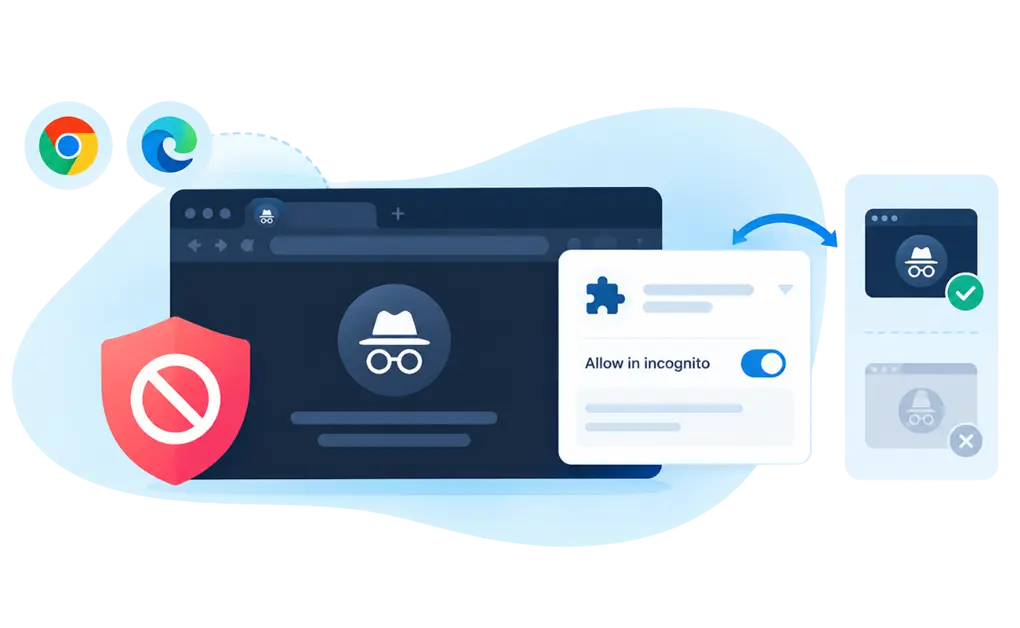
Not by default. In Chrome and Edge, BlockSite needs permission to run in private browsing windows. Without it, websites on your block list may still open in Incognito or InPrivate mode.
This is a browser restriction, not a problem unique to BlockSite. Chrome and Edge keep extensions disabled in private windows unless you explicitly allow them. The good news is that you can enable the permission yourself.
How to Enable BlockSite in Incognito
BlockSite provides official instructions for Chrome and Edge.
Google Chrome:
- Right-click the BlockSite icon in your toolbar.
- Select Manage extensions.
- Find the BlockSite extension settings.
- Turn on Allow in incognito.
Microsoft Edge:
- Right-click the BlockSite icon in your toolbar.
- Select Manage extensions.
- Find the BlockSite extension settings.
- Enable Allow in InPrivate.
Once enabled, BlockSite should apply your existing blocking rules in private windows. If a website still loads, check that it is on your block list and that the extension is active.
BlockSite’s guide covers Chrome and Edge. Firefox and Safari users should check their browser-specific instructions rather than assume the same steps apply.
Enabled Is Not the Same as Locked
Enabling BlockSite in private browsing solves the permission problem. It does not prevent you from disabling the extension later.
That distinction matters. The same extension settings that allow private browsing access also let users manage or turn off the extension.
For everyday distraction blocking, that flexibility may be enough. But if you already know you tend to disable your blocker when temptation strikes, enabling Incognito protection alone may not provide the friction you need.
When BlosckSite Works Well
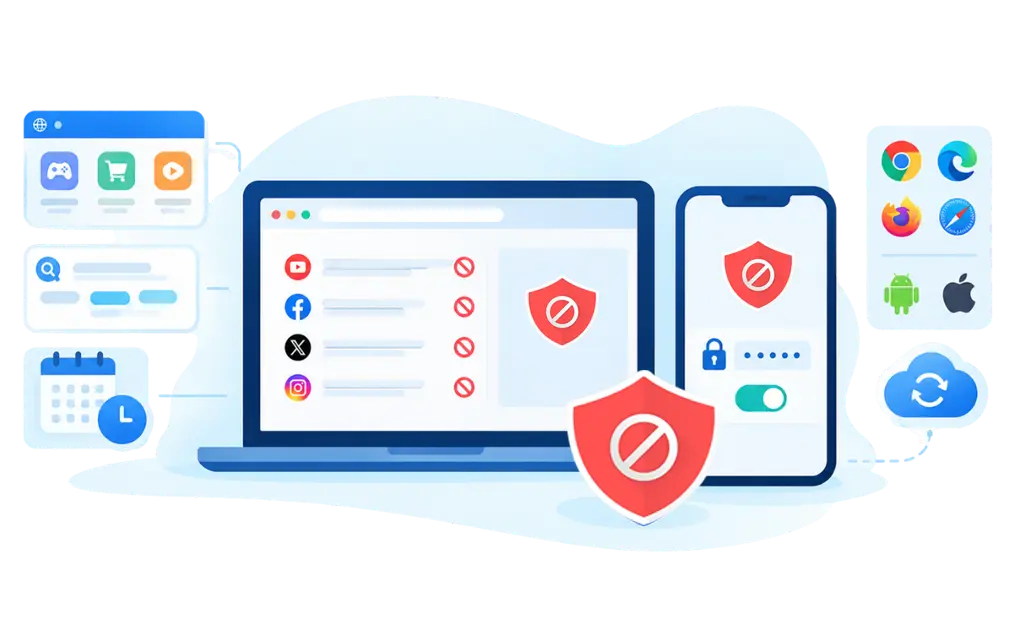
BlockSite is a good choice if you want to reduce everyday distractions without using a stricter blocking tool. Its strengths include:
- Everyday website blocking: Add distracting websites to your block list. BlockSite then restricts access when you use a supported browser.
- Categories and keywords: Block groups of websites by category. You can also use keywords to block related content without listing every website separately.
- Scheduled focus windows: Set times to block websites during work or study. Outside those hours, you can browse as usual.
- Password Protection: Use a password to protect your extension settings. This makes it harder to change them on impulse. BlockSite also offers password controls on mobile, but features vary by platform. Password Protection is not yet available for its Safari extension.
- Cross-platform availability and synchronization: BlockSite offers extensions for Chrome, Edge, Firefox, and Safari, plus apps for Android and iOS. Your settings can sync automatically across desktop browsers when you’re logged in. However, syncing between mobile and desktop is not yet available.
Some advanced features require a paid plan. Check which features are included in your version.
For everyday distractions, BlockSite may be enough. What matters is whether you can keep those blocks in place when you feel tempted to change or turn them off.
Why BlockSite Sometimes Does Not Work
If BlockSite is not blocking a website, the cause may be a browser setting, missing permission, or device issue. Here are five possible reasons to check.
- BlockSite is not enabled in private browsing. Chrome and Edge turn off extensions in private windows by default. You must allow BlockSite to run in Incognito or InPrivate mode, as explained above.
- The extension was disabled or removed. You can turn off or uninstall browser extensions. BlockSite offers Password Protection to make changing settings harder. However, this does not mean the extension itself cannot be removed.
- You switched to an unprotected browser or profile. BlockSite can sync settings across desktop browsers when you’re logged in. However, the extension must still be installed and active in each browser. A browser or profile without protection may leave some websites unblocked.
- The distraction is outside the browser. A browser extension cannot directly block a desktop app or game. BlockSite’s mobile apps offer separate blocking features, but these do not protect desktop applications.
- Android accessibility permissions stopped working. Some Android phones have battery settings that can interrupt BlockSite’s accessibility service. BlockSite confirms this issue and offers steps to fix it on different devices.
These issues do not always mean BlockSite is broken. Some can be fixed by changing your settings. Others are limits of browser-based blocking.
If you want to improve your current setup, you can make your website blocker harder to bypass without switching tools.
Known Limitations Reported by Users
BlockSite reviews run in both directions. Many users say it does the everyday job well, while others report it failing in ways that matter. These are the issues that come up most often.
- Password Protection does not stop removal.
An independent 2026 review found the password guards the options page but cannot prevent the extension being uninstalled. Once it is gone, every blocked site is reachable again. The same review concludes BlockSite is easy to use and customize, but not effective enough as enforcement.
- Sites blocked that were never on the list.
A Trustpilot reviewer (November 2024) was blocked from three news sites that had been categorized as adult content, with no blocking categories switched on. The independent review above gives the same advice when this happens, which suggests it is a known pattern rather than a one-off.
- Ease of bypass comes up repeatedly.
Across Trustpilot reviews (December 2023), the phrase “easy to bypass” appears even inside positive ratings from people who use it daily and otherwise recommend it.
- Even paid users describe the feature set as limited.
One reviewer who found the app worked well still called it limited even on the paid plan, and noted the absence of a customer service contact on the website.
- Some users report it blocking nothing at all.
A March 2026 reviewer said the tool did literally nothing for them, and pointed out that instructions for getting around it are easy to find online.
- The free version has been criticized for being a distraction itself.
A May 2025 reviewer described animated pop-ups appearing in the corner of the screen with no clear way to dismiss them, which led to the upgrade page when clicked. Their point was that a tool sold for removing distractions should not be adding one.
Is BlockSite Safe, and Is It Free?
Is BlockSite Safe?
BlockSite is a legitimate website-blocking tool, but it’s worth checking its privacy permissions before installing it.
Browser extensions may need access to website addresses and browsing activity to block websites. BlockSite’s privacy policy states that it collects some browsing and activity data. It may also share information with related companies to provide its services and for market research.
The policy also explains how users can limit certain types of data collection. However, changing some privacy settings may affect how BlockSite works.
This does not mean BlockSite is unsafe. It simply means you should know what data it collects, how that data is used, and what privacy choices you have.
Is BlockSite Free?
Yes. BlockSite offers a free version for basic website blocking, alongside paid plans with additional controls.
The free version may be enough if you only need to block a limited number of distracting websites. Premium features can include expanded blocking, scheduling, and additional protection settings.
When an Extension Is Not Enough
BlockSite’s own documentation points out a key limit of password protection. If you set the password yourself, you may still be able to change or remove the restriction.
To help prevent this, BlockSite suggests asking someone you trust to set and keep the password. This makes it harder to change your settings on impulse.
It is sensible advice. A password you know may be easy to enter when you want access again. Having someone else hold it makes that decision harder to reverse on your own.
But Password Protection is not the same as protecting the extension itself. BlockSite documents password-recovery options and an uninstall-notification feature, which should not be mistaken for uninstall prevention.
That is the distinction worth understanding. If you can quickly disable or remove the software enforcing your rules, a password alone may not provide the protection you need.
What DigitalZen Does at the System Level
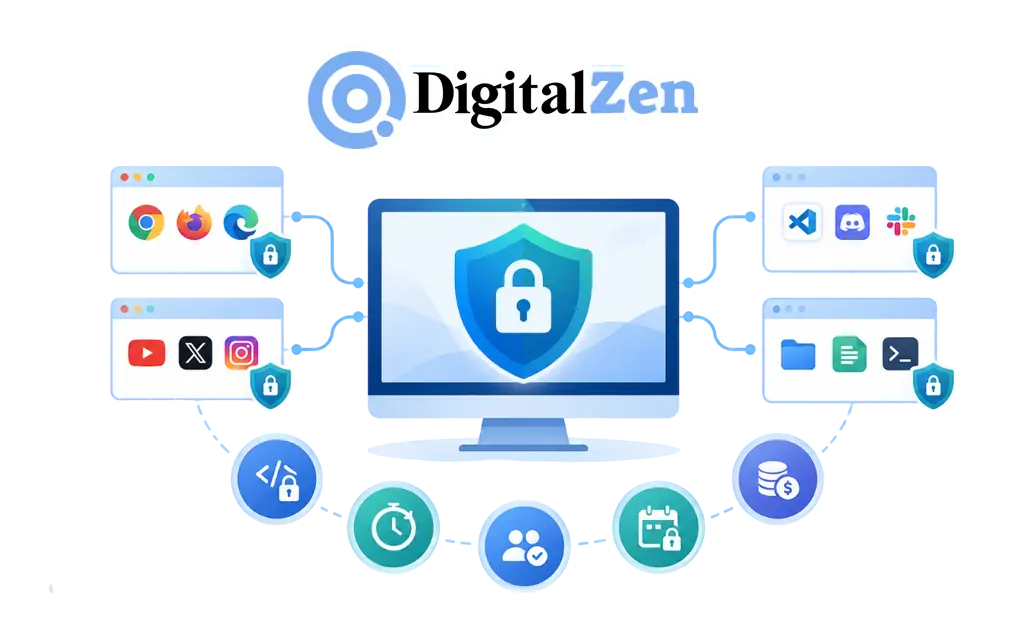
BlockSite relies mainly on browser extensions. It cannot block desktop apps or protect browsers without its extension. Users can also remove the extension itself.
DigitalZen goes further with system-level protection on Windows, macOS, and Linux. It blocks desktop apps and protects against attempts to stop the software, remove its browser extensions, or uninstall it. That’s why browser extensions alone may not be enough.
Instead of relying on basic blocking rules alone, DigitalZen includes features designed to make restrictions harder to bypass, disable, or override.
- Broader coverage: DigitalZen blocks distracting desktop apps and websites across supported browsers. It also offers a standalone browser add-on that can block websites without installing the desktop application.
- More flexible blocking rules: Advanced Blocking lets you create rules using keywords, regular expressions (regex), and whitelists. This gives you more control over which websites are blocked and which remain accessible.
- Stronger protection against bypass attempts: DigitalZen includes several safeguards designed to keep restrictions in place:
- App Uninstall Protection helps prevent users from easily removing DigitalZen to escape active restrictions.
- Killing & Stopping Protection makes it harder to force-close or terminate DigitalZen’s processes.
- Strong Add-on Enforcement uses operating-system-level policies to prevent browser extensions from being removed or disabled.
- Clock Tampering Protection helps prevent changes to system time from bypassing scheduled blocks.
- Windows Safe Mode Protection keeps protection active even when Windows starts in Safe Mode.
- Any Browser Protection uses heuristics and smart detection to help prevent users from bypassing restrictions by switching to an uncommon browser.
- DNS requests protection, so no matter which browser you use, the request is blocked.
DigitalZen also offers Focus Sessions, an Advanced Scheduler, and Smart Allowances to help users manage distractions while maintaining flexibility.
DigitalZen also offers six Advanced Lock options: Code Lock, Password Lock, Schedule Lock, Friend Lock, Self Fine (Money Lock), and Timeout Lock (Cooldown Lock). These make it harder to change or disable blocking restrictions impulsively.
No blocker can guarantee protection against every possible workaround, especially on a device you fully control. The goal is to make impulsive changes and common bypass attempts more difficult, helping you maintain your digital boundaries.
If You Want to Switch
If browser-extension protection isn’t enough for your needs, our BlockSite alternatives roundup compares other options.
For stronger desktop blocking, explore DigitalZen’s website and app blocker for Windows.
DigitalZen supports Windows, macOS, Linux, Android, and ChromeOS, along with a standalone browser add-on. iOS support is coming soon.
A free tier is available, along with Premium plans billed monthly, annually, or as a one-time lifetime purchase. A 14-day Premium trial is also available, with no credit card required.
Frequently Asked Questions
Does BlockSite Work on Incognito?
Yes, but you must enable it first. In Chrome and Edge, BlockSite needs permission to run in Incognito or InPrivate windows. Once enabled, its blocking rules should apply there, provided the extension is active and configured correctly.
Why Is BlockSite Not Blocking a Site?
Possible causes include disabled private-browsing permissions, an inactive extension, an unprotected browser or profile, or content accessed outside the browser. On Android, battery-management settings may also interrupt BlockSite’s accessibility service.
If you use multiple desktop browsers, BlockSite supports block-list synchronization when you are logged in, but the extension still needs to be installed and active.
Can BlockSite Be Password-Protected?
Yes. BlockSite offers Password Protection for its browser extension and mobile apps. It can restrict changes to settings and block lists, although the feature is not currently available on its Safari extension.
BlockSite recommends having a trusted person set and retain the password to make impulsive changes harder. Password-recovery options also exist.
What Blocks Sites Even in Incognito?
If your website blocker stops working in Incognito or private browsing, check whether the browser requires additional permissions for its extension.
For users who need stronger protection against bypass attempts, DigitalZen combines website blocking across supported browsers with system-level safeguards, including Strong Add-on Enforcement, Any Browser Protection, and Advanced Locks.
These features help make blocking restrictions harder to disable or bypass.
References:
- https://blocksite.zendesk.com/hc/en-us/articles/36383792971037-How-to-Enable-BlockSite-in-Incognito-or-InPrivate-Mode
- https://blocksite.zendesk.com/hc/en-us/articles/33218870559005
- https://blocksite.zendesk.com/hc/en-us/articles/33219027982877-How-to-enable-Password-Protection-on-the-Browser-Extension
- https://blocksite.zendesk.com/hc/en-us/articles/33219576942749-How-to-prevent-myself-from-bypassing-BlockSite
- https://blocksite.zendesk.com/hc/en-us/articles/17524362978845-BlockSite-not-blocking-or-disabling-itself-Accessibility-Android
- https://blocksite.zendesk.com/hc/en-us/articles/360019408357-What-is-BlockSite
- https://blocksite.co/privacy/
- https://blocksite.co/privacy-app-and-web/
- https://blocksite.zendesk.com/hc/en-us/articles/32609425309853-Does-BlockSite-sync-between-mobile-and-desktop-browsers