
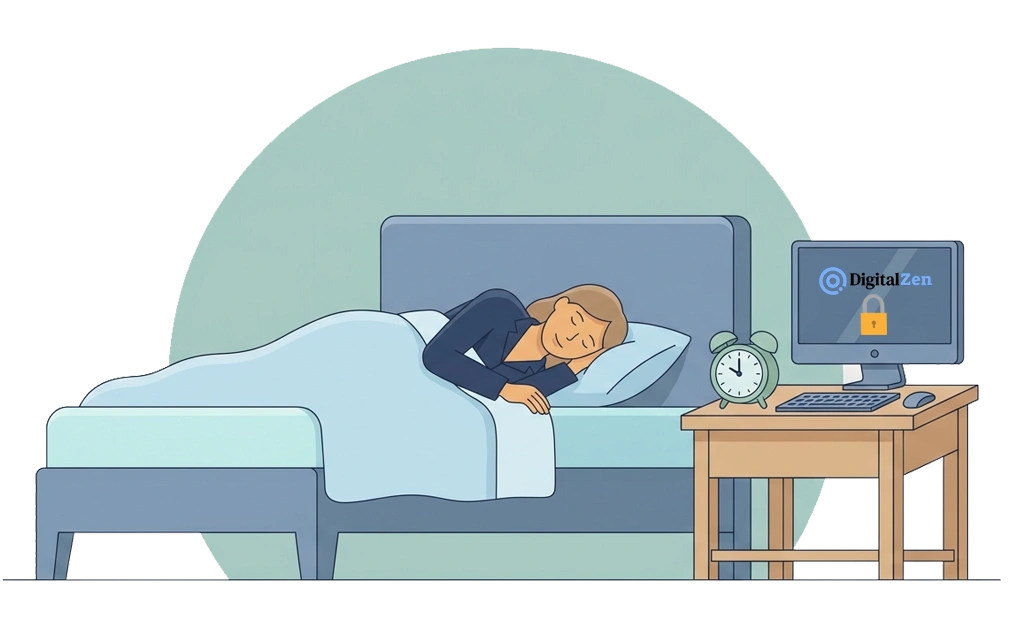
To block apps at night, set a schedule that turns on automatically when you want to wind down. Built-in OS tools and DNS filters can help. But they often skip desktop apps or are easy to override. DigitalZen runs scheduled blocks on Windows, macOS, and Linux. It also adds adaptive locks, so a late-night urge is harder to turn into another long session.
Key Takeaways
- Nighttime can be hard for self-control: At the end of the day, “just five more minutes” can stretch into an hour. This is why automatic schedules work better than deciding in the moment.
- Built-in OS tools have real limits: Windows Focus Assist and macOS Focus modes hide notifications but do not block desktop apps on a schedule. Phone screen time only covers phones.
- DNS filtering adds a useful layer: It blocks distracting sites at the network level, though it only covers websites and can be changed in network settings.
- DigitalZen handles scheduled blocking across desktop platforms: A schedule, daily allowances, and adaptive locks work together. They help the block hold when a late-night urge shows up.
- Start small, not strict: Pick one app and one cutoff time first. This is easier to keep than blocking everything at once.
Three Steps to Block Apps at Night
Blocking apps at night comes down to three steps. Pick what to block. Set a schedule that turns on while you wind down. Then add a lock, so a late-night urge cannot undo the plan.
- Pick the apps and sites. Start with the worst offenders, often social media, streaming, news, and games. Keep messaging open for real emergencies.
- Set the schedule. Choose a cutoff time that fits your life, such as 10 pm to 7 am. The schedule should run automatically, so you do not have to remember to turn it on.
- Add a lock. A cooldown timer or schedule lock makes a 1am override slower. It turns one quick click into a more deliberate choice.
Each step is worth a closer look, especially if you are setting this up for the first time. DigitalZen’s solution for night owls walks through the basics.
Why Nighttime Is the Hardest Time to Self-Regulate
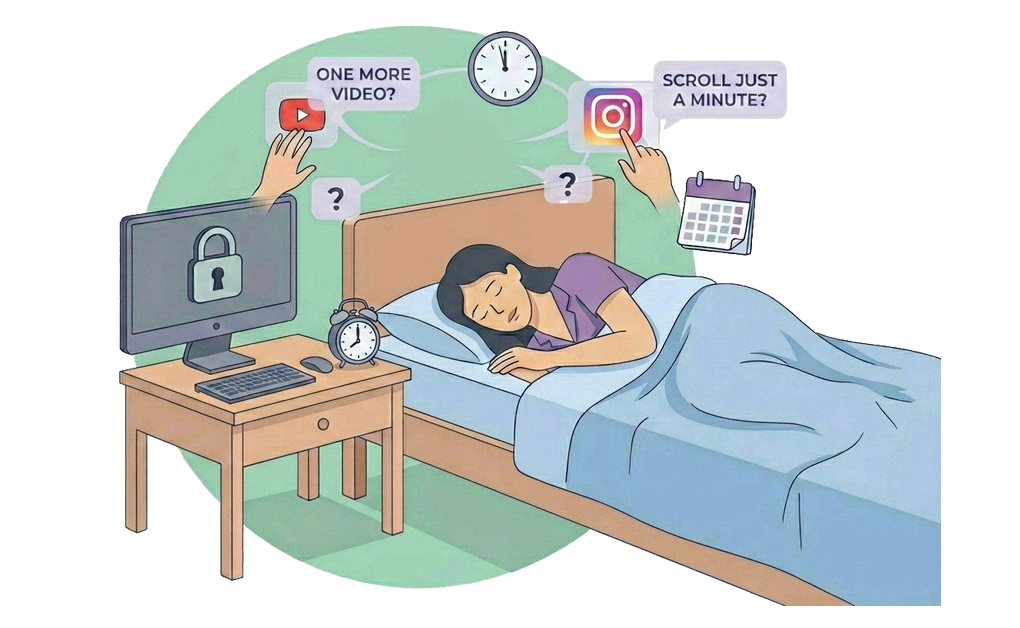
Late evening can be one of the hardest times to stop yourself. That is why nighttime blocking often needs stronger guardrails than morning blocking. After a long day of work or study, decisions feel harder, and “just one more video” turns into an hour. A schedule that turns on while you wind down takes that decision off your plate.
At night, the habit can move faster than the plan. You may open the same app before you even decide to. An automatic block removes the small moment of choice that an urge needs to take hold.
There are physical reasons too. Bright screens and stimulating content may make it harder to fall asleep, especially close to bedtime. When scrolling replaces sleep, the next day starts on a deficit, and the same cycle tends to repeat. Late-night scrolling can also stretch from a quick check into hours, and there are practical ways to stop doomscrolling that tend to help more than telling yourself to stop.
The goal is not to force you off your computer. It is to let an evening close the way you actually want it to. A wind-down that holds starts with knowing what to block and what to leave open.
What to Block at Night and What to Keep Open
The right nighttime blocklist removes the apps that pull you in. It keeps the tools you actually need. The line is roughly between content that grabs attention and tools that quietly support a calm evening.
A common nighttime block list looks like this:
- Social media: the main culprits, since the feeds are designed to keep you scrolling. Practical steps for how to control social media use can help you decide which platforms to block first.
- Streaming and video: YouTube and similar apps. One more video is rarely just one more.
- News: late-night news can be more stressful than informative.
- Gaming: games can run for hours without you noticing the time.
- Group chats with constant notifications: if these keep pulling you back, block or mute them.
A common nighttime keep-open list:
- Messaging apps for real emergencies, with notifications turned down rather than off.
- Music or audiobooks for winding down. Calm audio is part of the routine, not a distraction.
- E-reader apps, if you read on a screen before sleep.
- Smart-home controls for lights, thermostats, or alarms.
The goal is not to cut off your whole device. It is to remove the apps that keep turning bedtime into more screen time. If you want a head start, a ready-made list of sites to block gives you a base you can adapt for your nighttime schedule.
The Limits of Built-In OS Tools for Nighttime Blocking
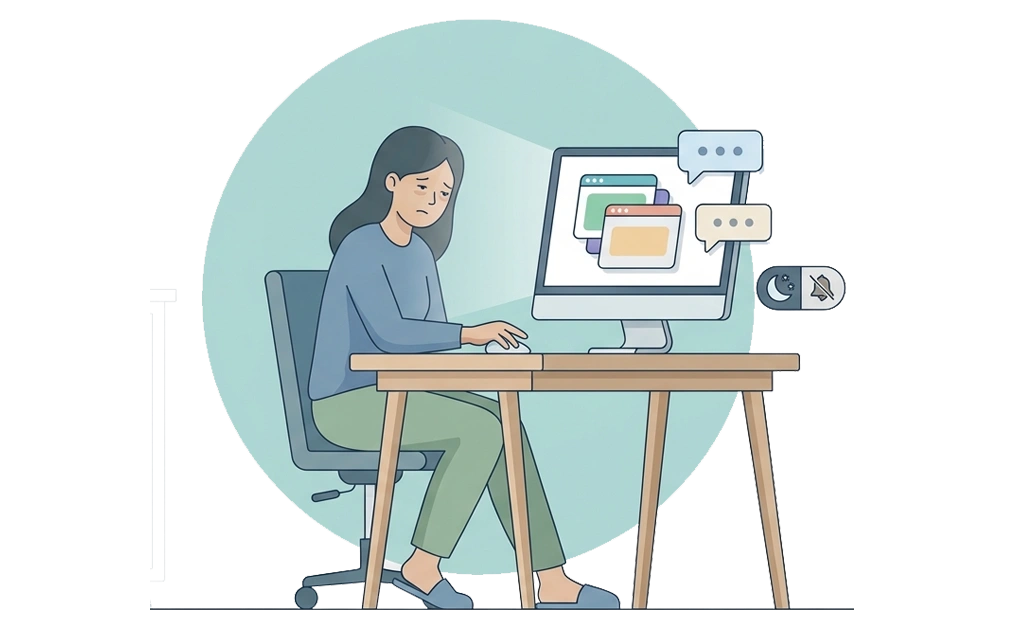
Built-in OS tools can help at night, but they have real limits. Most of them mute notifications or set quiet hours rather than block apps from running. That can be useful for focus during the day, but it tends to fall short for a real wind-down.
Here is what each system offers, and where it stops:
- Windows Focus Assist hides notifications and can be set on a schedule, but it does not block apps from opening. If you launch a social media app at midnight, Focus Assist does not stop you. A deeper guide on how to limit screen time on Windows walks through the native options and where they fall short.
- macOS Focus modes work in a similar way. They filter notifications and can switch automatically by time, but the apps themselves stay open. They are useful for quieter evenings. But they do not stop a late scroll.
- Linux has no single built-in tool for nighttime app blocking. Some users piece together cron jobs or scripts. For a broader look at the options, how to limit app usage time on Linux covers the practical ones.
- Phone screen time features on iPhone and Android can limit phone use at night, but they do not limit your use of your laptop or desktop. They help with one part of the problem. They do not cover your full desktop setup.
The pattern is consistent. Native tools nudge you. They do not enforce a real cutoff. For that, you need a dedicated app or a network-level filter.
Setting Up Nighttime Blocking With DigitalZen
DigitalZen handles nighttime blocking through scheduled blocks, daily allowances, and adaptive locks. The setup takes a few minutes, and once it is in place, the schedule runs itself.
Here is how the pieces fit together:
- Scheduled blocking. Set a window when distracting apps and sites are blocked, such as 10 pm to 7 am. The block turns on automatically every night. It turns off in the morning. You do not have to decide again at bedtime. You can use the Wellness template as a starting point and adjust from there.
- Daily allowances. Give yourself a fixed amount of time per day on a tempting app or site. If you use most of it during the day, you run out before bed. By the time you would normally scroll, the block is already in place.
- Adaptive locks. Pair the schedule with a lock, so overriding at 1 am is harder. A cooldown timer adds a long pause before the override goes through. A schedule lock holds the block until a future date you set. A friend lock sends the unlock code to someone you trust, so you cannot unlock it alone.
When the workday is over but you keep drifting back to the laptop, this setup can help. The schedule does the work. The lock catches the moments the schedule alone would not.
A practical starter setup: pick one or two distracting apps, such as social media or streaming, block them from 22:00 to 07:00, and add a 15-minute cooldown lock on overrides. Turn on the desktop app’s uninstall protection so the setup cannot be removed in a late-night moment.
DNS Filtering as a Nighttime Layer
DNS filtering blocks distracting websites at the network level. It stops them before your browser loads them. Paired with the DigitalZen setup above, it adds a second layer for nighttime blocking, since it works at the connection itself rather than on the device.
DNS filtering has limits, though. It only covers websites, not desktop apps, and it lives in your network settings, which means you can change it back if you really want to. That is why pairing DNS with DigitalZen tends to be stronger than either layer alone. DNS helps most when websites are the main issue. It helps less when the distraction is a desktop app, a game, or a second device.
Quick definition: DNS filtering means stopping distracting sites at the network level, before they reach your browser. It is one layer of a multi-layer setup, not a full solution on its own.
Building a Nighttime Routine That Lasts
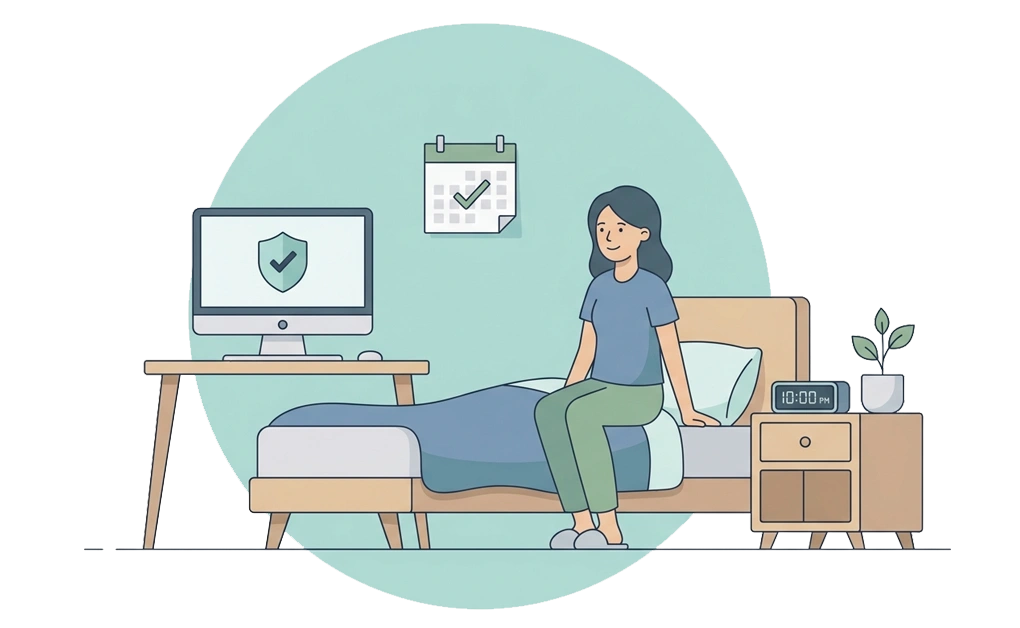
The best nighttime blocking setup is the one you actually stick to. A perfect block list that you uninstall after a week is worse than a smaller block list that holds for months.
Start with one habit, not ten. Pick the app that pulls you in most often after 10 pm, and block only that one for a week. Notice how the evening changes. Then add another app, or add a stricter lock, only when the first change feels normal. Small, steady steps tend to build routines that last.
A good next step is to install DigitalZen and set up your first scheduled block. You can start free, pick one app to block tonight, and adjust the schedule once you see how a quieter evening feels.
Frequently Asked Questions
What Is the Best App to Block Apps at Night?
The best app is one that blocks on a real schedule, covers desktop apps as well as websites, and holds against a late-night override. DigitalZen does this on Windows, macOS, and Linux. Browser extensions and native OS tools can help, but they tend to fall short on at least one of those points.
Can I Block Apps at Night on Windows, macOS, and Linux?
Yes. DigitalZen runs on all three desktop operating systems, and the same scheduled blocking features are available on each. Settings stay consistent across platforms, which helps if you use more than one device. Phone blocking is not currently supported.
What Time Should I Start Blocking Apps at Night?
A common starting window is one to two hours before your usual bedtime, such as 10pm if you aim to sleep by 11pm. That gives the brain time to settle without bright screens and stimulating content. The right time varies, so it can help to start with one cutoff and adjust based on how your evenings actually go.
How Do I Decide Which Apps to Block Before Bed?
Block what pulls you in past your cutoff, and keep what helps you wind down. For most people, that means blocking social media, streaming, news, and games, while keeping messaging, music, and e-reader apps open. The right list depends on your habits, so it can help to track which apps you actually open after 10 pm for a week before locking in the list.
Can I Bypass DigitalZen’s Night-Time Schedule If I Really Want To?
With enough effort, yes. DigitalZen is designed to be hard to bypass, not impossible. Adaptive locks and protection layers raise the effort needed to override a block, which helps against impulsive slips. A determined user can still switch devices or reset the system, which no single tool can fully prevent.