
You can block YouTube on Windows using browser extensions, the hosts file, Windows Firewall, DNS filtering, or system-level tools. Browser extensions are easiest but only work in one browser. The hosts file blocks YouTube across all browsers. System-level tools like DigitalZen offer the strongest enforcement with wildcard URL blocking for nuanced control.
Key Takeaways
- Browser extensions only block YouTube in one browser: Users can bypass by switching browsers, opening incognito mode, or disabling the extension.
- The Windows hosts file blocks YouTube across all browsers: Free and effective, but tech-savvy users can reverse the changes.
- Windows Firewall can block YouTube PWAs and third-party YouTube apps: It does not affect browser access without additional configuration.
- DNS filtering blocks YouTube at the network level: It affects all devices on the network but can be bypassed with VPNs.
- System-level tools like DigitalZen offer wildcard URL blocking: Block Shorts while allowing playlists. Block recommendations while keeping specific channels accessible.
5 Ways to Block YouTube on Windows

The methods below range from quick browser fixes to system-wide blocking. Browser extensions take seconds to set up but are easy to bypass. System-level tools require more setup but offer stronger enforcement. Choose based on how strict you need the block to be.
Method 1. Block YouTube With a Browser Extension
Browser extensions are the fastest way to block YouTube. Install one from your browser’s extension store and add YouTube to the block list.
How to set it up:
- Open your browser’s extension store (Chrome Web Store, Firefox Add-ons, or Edge Add-ons).
- Search for a site-blocking extension and install it.
- Open the extension settings.
- Add youtube.com to your block list.
- Set a password to prevent easy changes.
Most extensions offer additional features. You can schedule blocks for specific hours. Some allow URL-specific blocking. For example, you can block youtube.com/shorts/* while keeping the rest of the site accessible.
Limitations:
Browser extensions only protect the browser where they are installed. Users can bypass them by switching to another browser. They can open an incognito window. They can disable the extension entirely. For these reasons, browser extensions have fundamental limits when it comes to enforcing focus.
Method 2. Block YouTube by Editing the Hosts File
The Windows hosts file maps domain names to IP addresses. By pointing YouTube’s domains to localhost (127.0.0.1), you block access across browsers and apps that rely on standard DNS resolution.
How to edit the hosts file:
- Press Windows + S and search for Notepad.
- Right-click Notepad and select Run as administrator.
- Click File and then Open.
- Navigate to C:\Windows\System32\drivers\etc.
- Change the file type filter from Text Documents to All Files.
- Select the hosts file and click Open.
- Scroll to the bottom and add these lines:
127.0.0.1 youtube.com
127.0.0.1 www.youtube.com
127.0.0.1 m.youtube.com
127.0.0.1 youtu.be
127.0.0.1 youtube-nocookie.com
8. Save the file (Ctrl + S).
9. Open Command Prompt as administrator and run: ipconfig /flushdns
This flushes the DNS cache and applies the block immediately. No restart required.
Limitations:
Anyone with administrator access can undo the changes. The hosts file does not block YouTube PWAs or standalone apps. It also does not block YouTube videos embedded on other websites. For a more detailed guide on blocking websites system-wide, see our article on how to block websites on Windows.
Method 3. Block YouTube Apps With Windows Firewall
Windows Firewall can block specific applications from accessing the internet. Use this method to block YouTube PWAs installed via Chrome or Edge, or third-party YouTube apps.
How to create an outbound rule:
- Press Windows + S and search for Windows Defender Firewall with Advanced Security.
- Click Outbound Rules in the left panel.
- Click New Rule in the right panel.
- Select Program and click Next.
- Browse to the YouTube app executable. For PWAs installed via Chrome, check C:\Program Files\Google\Chrome\Application. For Edge PWAs, check C:\Program Files (x86)\Microsoft\Edge\Application.
- Select Block the connection and click Next.
- Apply the rule to Domain, Private, and Public networks.
- Name the rule (e.g., “Block YouTube App”) and click Finish.
Limitations:
Finding the executable path for PWAs can be complicated. This method does not block YouTube in web browsers. Users with administrator access can disable the rule.
Windows Firewall works best alongside other methods. Block the app with the firewall. Block browser access with the hosts file or a system-level tool.
Method 4. Block YouTube With DNS Filtering
DNS filtering blocks websites at the network level. Instead of blocking on your computer, you configure your network to use a DNS service that filters YouTube.
How to configure DNS filtering on Windows:
- Press Windows + I to open Settings.
- Go to Network & Internet and select your connection type (Wi-Fi or Ethernet).
- Click your network and find the DNS server assignment. Click Edit.
- Switch to Manual and enable IPv4.
- Enter a filtering DNS server address that restricts YouTube (e.g., CleanBrowsing Family Filter: 185.228.168.168).
- Save and restart your browser.
For network-wide filtering, configure DNS on your router instead. CleanBrowsing’s Family Filter enforces YouTube Restricted Mode and blocks adult content across all devices on your network. This limits YouTube to age-appropriate content rather than blocking it entirely.
Limitations:
Users can override DNS settings on their device. VPNs bypass DNS filtering entirely. Most free DNS filters enforce YouTube Restricted Mode rather than blocking YouTube completely. For full YouTube blocking via DNS, you need a service with customizable categories like OpenDNS Home (requires account) or a paid option.
Method 5. Block YouTube With DigitalZen
DigitalZen is a system-level blocker that works across supported browsers and apps. It can block YouTube across supported browsers and desktop apps from a single configuration. It also includes features to prevent bypassing.
Why DigitalZen works well for YouTube:
- Cross-browser blocking. Block YouTube in Chrome, Firefox, Edge, Brave, and other supported browsers from a single configuration.
- Desktop app blocking. Block YouTube PWAs and third-party YouTube apps installed on your system.
- Wildcard URL blocking. Block specific parts of YouTube while allowing others. Block youtube.com/shorts/* to eliminate Shorts. Allow youtube.com/@channelname/* to keep specific channels accessible.
- Lock mechanisms. Cooldown timers, friend verification, and future-date locks prevent impulsive changes.
- Daily allowances. Allow 30 minutes of YouTube per day instead of blocking completely. This helps you limit screen time on Windows without going cold turkey.
Pricing: Free basic version. Premium costs USD 3 per month. Lifetime access costs USD 119.
How to Block Parts of YouTube Without Blocking Everything
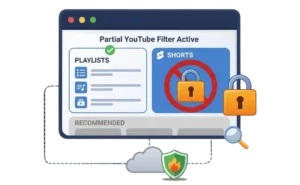
YouTube is tricky to block because users often need partial access. You might want to block distractions while keeping educational content. The sections below address common use cases.
Block YouTube Shorts Only
YouTube Shorts are short, addictive videos designed to capture attention. Many users want to eliminate Shorts while keeping regular videos accessible.
- Browser extension approach: Some extensions can hide Shorts from the YouTube interface. Others support URL-specific blocking. Add youtube.com/shorts/* to your block list.
- System-level approach: Use DigitalZen to block youtube.com/shorts/* while allowing the rest of YouTube. This blocks all Shorts URLs at the system level.
Block the Homepage and Recommendations Only
The YouTube homepage and recommendation sidebar are designed to keep you watching. You might want to block these while still accessing specific videos or channels.
- Browser extension approach: Some extensions hide the homepage feed and recommendation sidebar. Search results and subscriptions remain accessible.
- System-level approach: Use DigitalZen to block youtube.com/feed/* and the homepage. Allow specific channel URLs like youtube.com/@channelname/*. You can still access your subscriptions and search without the addictive feed.
Allow Only Specific Playlists or Channels
Some users need YouTube for educational content only. They want access to course playlists or tutorial channels while blocking everything else.
Many guides say this is not possible. They stop there. But DigitalZen’s wildcard blocking makes it work.
How to do this:
- Block youtube.com entirely in DigitalZen.
- Add an exception for the specific playlist or channel URL.
- Example: Allow youtube.com/playlist?list=PLxxxxxx for a course playlist.
- Example: Allow youtube.com/@channelname/* for a tutorial channel.
This approach works well for students who need a reliable website blocker while studying. It also helps professionals who use YouTube for work-related tutorials.
Why YouTube Still Gets Through After You Block It
Blocking youtube.com does not always block every way YouTube content appears on Windows. Videos can still show up through embedded players on other websites, related YouTube domains, cached browser data, or search-result previews. This can make it look like your block failed even when the main domain is restricted.
The hosts file and DNS filtering are especially prone to this issue if they only target the main YouTube domain. In some cases, clearing your DNS cache or browser cache helps the block apply properly. In others, you may need to block additional YouTube-related domains like youtube-nocookie.com, youtubei.googleapis.com, and youtube.googleapis.com. These handle embedded players and app connections that the main domain entries miss.
This is why some methods work for basic blocking but struggle with complete enforcement. If you want to stop both direct visits and indirect access, you usually need broader coverage than a single browser rule or domain entry can provide.
Which Method Should You Use
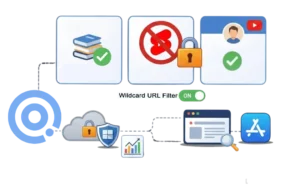
The right method depends on your goals. Browser extensions work for casual blocking but are easy to bypass. The hosts file blocks YouTube across all browsers but requires manual editing. DNS filtering covers your entire network but can be overridden on individual devices.
The real challenge with YouTube is nuanced control. Most methods block everything or nothing. If you need to block Shorts while allowing educational playlists, or block the homepage while keeping specific channels, you need wildcard URL blocking. Basic methods do not support this.
DigitalZen handles both complete blocking and nuanced control. It works as a Windows website and app blocker that enforces rules across browsers. Lock mechanisms prevent impulsive changes. Daily allowances let you moderate usage instead of blocking entirely. For users who need more than all-or-nothing blocking, it fills the gap that other methods leave open.
Frequently Asked Questions
How Do I Block YouTube on Windows 10 vs Windows 11
The methods are identical. The hosts file is in the same location. The Windows Firewall interface is the same. System-level tools work on both versions. If you are blocking YouTube on Linux, the process differs. But on Windows 10 and 11, the steps are the same.
Can I Block YouTube Shorts Without Blocking All of YouTube
Yes. Browser extensions can hide Shorts from the interface. DigitalZen blocks youtube.com/shorts/* at the system level while allowing the rest of YouTube.
Will Blocking YouTube in the Hosts File Block Embedded Videos
Not completely. Embedded videos often use different domains like youtube-nocookie.com, youtubei.googleapis.com, and youtube.googleapis.com. You can add these to the hosts file, but some embeds may still work. System-level tools provide more complete coverage.
Can VPNs Bypass These Blocking Methods
VPNs can bypass DNS-based and some network-level blocking methods by routing traffic through external servers. System-level tools with lock mechanisms make bypassing harder. Some can prevent users from changing settings during active blocks, though VPN bypass depends on the specific tool’s enforcement features.
What Is the Most Bypass-Proof Way to Block YouTube on Windows
System-level tools with lock mechanisms offer the strongest enforcement. DigitalZen provides cooldown timers, friend verification, and future-date locks. These prevent impulsive changes even when willpower is low.
Can I Block YouTube and Other Social Media Together
Yes. Most methods that block YouTube can also block other sites. Add social media domains to your hosts file or blocking tool. For a complete guide, see our article on how to block social media on Windows.
References: