
Knowledge workers need focus tools that fit the way they actually work. The best options protect your deep-work time in several ways. They may block websites, control desktop apps, automate schedules, or add stronger enforcement. The right setup depends on your workflow and devices. It also depends on where your biggest distractions live.
Key Takeaways
- Different tools solve different focus problems: Some specialize in browser distractions, while others protect both websites and desktop applications.
- Preventing interruptions is often more effective than tracking them: The real cost of a distraction is usually the time it takes to regain your focus, not the interruption itself.
- Automation makes habits easier to maintain: Recurring schedules and focus routines remove the need to remember to start a session every day.
- The right tool depends on where your distractions actually live: Browser-only problems may need a lighter extension, while distractions that span desktop apps, multiple browsers, and work-hour schedules usually call for a system-level blocker with stronger enforcement.
Disclaimer: This article was published in August 2026. It reflects the app details available at the time of posting. Notice an error? Let us know and we’ll fix it!
What Actually Breaks Deep Work for Knowledge Workers

Generic productivity advice often misses what happens when a writer, developer, analyst, or researcher tries to do deep work on a computer. The problem is not simply that social media is distracting. Several kinds of interruption can break focus, even when they look harmless or work-related.
1. Interrupted flow states are expensive.
A quick Slack glance may take only thirty seconds, but returning fully to the original task can take much longer. Research on workplace interruptions has found that people may need around 23 minutes, on average, to resume an interrupted task. That does not mean every notification steals exactly 23 minutes. It does mean the real cost is often the mental reload, not the glance itself.
A tool that logs interruptions can show you the pattern. A tool that prevents them can protect the focus window before it disappears.
2. Communication tools can masquerade as deep work.
Slack, email, and shared documents are part of the job, but they are not always the work that needs your full attention. They are the connective tissue around it. A blocker that stops Instagram but leaves every chat notification untouched may not be protecting much.
3. Passive tab creep turns research into wandering.
Knowledge work often requires several tabs, and each one creates another possible detour. Allow-only setups can be useful here. Instead of chasing an endless list of distractions, you approve the tools and pages needed for the task.
Many knowledge workers find that blocking websites and apps can support productivity, especially on meeting-heavy days when focus windows are already small.
4. Long sessions eventually lose their edge.
There is no universal three-hour ceiling for deep work. Some people can stay absorbed longer, while others work better in shorter blocks. What matters is whether the tool supports realistic sessions and breaks instead of expecting eight straight hours of flawless concentration. That plan may look impressive on paper, but it often breaks down during real work.
Remote workers may feel these interruptions more sharply. Work, communication, and home life often happen in the same environment. If you work remotely, the roundup of distraction blockers for remote workers highlights tools and strategies that can help you stay focused throughout the workday.
Best Focus Tools for Deep Work
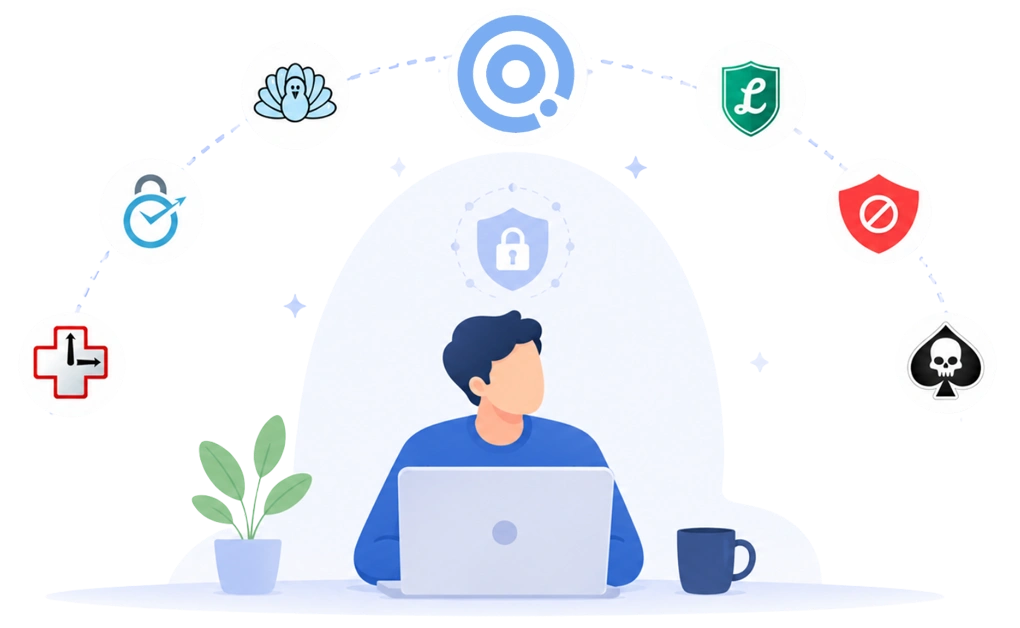
Seven tools are worth considering for knowledge work. Each offers a different mix of platform coverage, blocking depth, and enforcement style. The right pick depends on your setup and how much friction you want the tool to add.
1. DigitalZen
DigitalZen is a productivity tool with strong blocking built in, not just a blocker with productivity features added on. Its adjustable enforcement lets you start with light friction and tighten the setup when a deadline gets closer, giving you control over how strict the day needs to be.
Strengths for knowledge workers:
- DigitalZen supports Windows, macOS, and Linux. Its main website-blocking, app-blocking, scheduling, and Focus Mode features are available across its desktop platforms.
- It reaches installed applications, not just browser tabs. Apps such as Slack, Discord, Steam, and other desktop distractions can be included in a block.
- Focus Mode lets you approve the websites and apps needed for a task, then block everything else. That often fits knowledge work better than maintaining an endless list of things you should not be looking at.
- Pomodoro timers and team focus sessions are included on the free plan. Pomodoro timers help break longer sessions into focused intervals with built-in breaks, and team focus lets you run shared focus sessions with classmates or coworkers.
- Multiple lock types, including cooldown, code, friend approval, schedule, and money-based options, let you choose how much friction to add before a block can be changed or turned off.
- A protection layer helps keep the setup in place during active blocks. Uninstall protection makes the app harder to remove on impulse, extension removal protection keeps the browser layer active, and the app cannot be quit or killed while a block is running. These protections work alongside the lock options so the blocking setup is harder to undo in a weak moment.
- Keyword-based blocking, advanced URL patterns, and exception rules give you more control over mixed-use websites. You can block pages by keyword rather than just by domain, restrict distracting parts of a site while keeping useful pages available, or allow specific URLs on an otherwise blocked domain.
Limitations:
- Mobile support is emerging. If your phone is part of your distraction loop, coverage is improving but not yet fully mature on mobile.
- Some advanced features require a paid plan. You may need to upgrade if you want deeper focus controls or stronger enforcement.
Best fit: Professionals and students whose distractions span websites and installed desktop apps. It is especially useful for people who work across Windows, macOS, and Linux. Here is how to sync app settings across devices so the rest of your setup matches too.
Knowledge workers on Windows can find the full feature details in DigitalZen’s Windows website and app blocker, which explains its website blocking, desktop app controls, Focus Mode, allowances, and lock options.
2. Cold Turkey
Cold Turkey is a rigid-lockout blocker for Windows and macOS. Its philosophy is simple: if you decide it is time to focus, the software should make changing your mind as difficult as possible.
Strengths for knowledge workers:
- Frozen Turkey can lock your computer, the internet, or selected apps. It is useful when one project needs your full attention and everything else feels like a threat.
- Multiple lock types include Timer, Random Text, Restart, Time Range, and Password. You can choose the level of commitment that fits your working style.
- Cold Turkey also protects against common bypass methods, including Task Manager and system time changes. That makes active sessions much harder to override.
Limitations:
- There is no Linux desktop app, which rules it out for many developers, systems engineers, and technical writers.
- There are no native iOS or Android apps, so phone distractions require a separate solution.
- Reviews report that the strict enforcement can become a drawback when legitimate interruptions happen. If you suddenly need to look something up or respond to an urgent client message, flexibility is intentionally limited. That is the point, but it is also the trade-off.
Best fit: Windows or macOS knowledge workers who prefer rigid, commitment-style lockout and a one-time purchase over an ongoing subscription.
If you are torn between Cold Turkey’s lockout and Freedom’s cross-device sessions (next on this list), our Cold Turkey vs Freedom comparison weighs the trade-offs.
3. Freedom
Freedom is the cross-device option for knowledge workers whose phone and laptop are equally determined to interrupt them.
Strengths for knowledge workers:
- Cross-device sync lets one focus session cover your phone, tablet, and computer. If blocking the laptop usually sends you reaching for the phone, this closes that escape route.
- Recurring Sessions and Advanced Sessions support daily focus routines without making you rebuild the setup every morning.
- Locked Mode on the Premium plan prevents you from quitting a session early. That adds useful commitment when future-you starts negotiating with present-you.
- Focus Sounds provide ambient audio and music for concentration, calmer work sessions, or winding down.
- Freedom supports Mac, Windows, iOS, Android, Chromebook, and Linux. Chromebook and Linux support are browser-based, so they cover websites rather than desktop applications.
Limitations:
- Linux and Chromebook support is limited to the Chrome extension. Users report that this means no app blocking and easier removal on Linux compared to the full desktop experience on Mac and Windows.
- The free plan supports basic blocking across unlimited devices. Longer sessions, recurring schedules, Advanced Sessions, and Locked Mode require Premium.
- Freedom offers broad cross-device coverage, but its strongest desktop app controls are available only on Mac and Windows.
Best fit: Knowledge workers whose desktop and mobile distractions pull equally hard and who want one focus schedule to follow them across devices.
If you mainly work on one Windows machine and want stricter locks or different pricing, our roundup of Freedom alternatives for Windows compares the options.
4. FocusMe
FocusMe is a feature-rich blocker with strong enforcement and detailed controls across Windows, macOS, Linux, and Android.
Strengths for knowledge workers:
- Forced Focus prevents you from pausing or ending a session early. Once you decide it is time to work, FocusMe makes that decision harder to undo. That matters when your resolve starts fading around hour two.
- Native desktop support covers Windows, macOS, and Linux. This makes FocusMe a strong option for developers and technical professionals who work across different operating systems.
- Automatic Scheduler lets recurring focus blocks run on their own. Your deep-work routine stays protected without becoming another daily task.
- An optional random password can be up to 2,000 characters long. That creates a much stronger barrier than a short override code when standard locks are not enough.
Limitations:
- FocusMe has a steeper learning curve than many competitors. The extensive feature set is powerful, but new users may need more time to find their way around.
- There is no native iOS app, so iPhone users need a separate mobile solution.
- Some of the strongest enforcement features are available only on paid plans.
Best fit: Knowledge workers who want extensive customization, strong enforcement, and do not mind spending time learning the tool in exchange for more control.
5. LeechBlock NG
LeechBlock NG is a powerful, free browser extension for knowledge workers whose work and distractions both live in the browser.
Strengths for knowledge workers:
- Completely free and open source, with no premium tier or subscription. It does what it does without asking for money.
- Supports Chrome, Firefox, Edge, Brave, Opera, Vivaldi, and other compatible Chromium- and Firefox-based browsers.
- You can create up to 30 configurable block sets. Each set can have its own schedule, time limits, and access conditions.
- Delay pages and optional access codes add useful friction. They make impulsive overrides harder without using heavy system-level enforcement.
Limitations:
- Browser-only. Desktop applications such as Slack, Discord, games, and native development tools remain outside its reach entirely.
- Blocking applies only to the browser where LeechBlock NG is installed. Opening another browser without the extension bypasses the restrictions, even accidentally.
- Settings do not sync across devices, so each browser and computer must be configured separately.
Best fit: Knowledge workers who spend most of their day in browser-based tools such as Google Docs, web-based Notion, or cloud development environments. It is especially well suited when your biggest distractions also live on the web.
6. SelfControl
SelfControl offers one of the strongest single-session commitment tools for macOS users. It uses system-level network filtering that is extremely difficult to bypass once a session begins.
Strengths for knowledge workers:
- Free, open source, and privacy-friendly. All blocking happens locally on your Mac.
- Timers can run for up to 24 hours. They continue even if you quit the app, restart your computer, or reinstall SelfControl. Once a session starts, you stay committed until the timer expires.
- System-level network filtering blocks websites and mail servers below the browser layer. That makes common workaround methods much less effective.
- Simple setup. Choose your blocklist, set a timer, and get back to work instead of configuring dozens of options.
Limitations:
- Available only for macOS. Windows and Linux users will need a different solution.
- Blocks websites and mail servers, but not desktop applications such as Slack, Discord, or development tools.
- Does not support recurring schedules or automated routines. Every focus session must be started manually, which means another small decision each morning.
- The same irreversibility that makes SelfControl effective can also become inconvenient if you accidentally block something you genuinely need. There is no undo button, and that cuts both ways.
Best fit: Mac users whose biggest distractions are web-based and who want one of the strongest single-session commitment tools available. Not for people who change their minds often.
7. RescueTime
RescueTime is an analytics-first platform that combines detailed productivity tracking with lighter Focus Sessions to help reduce distractions. Where most tools on this list start with enforcement, RescueTime starts with a question: where does your time actually go?
Strengths for knowledge workers:
- Detailed productivity tracking helps reveal patterns that are easy to miss. If you are not sure where your time goes, a few weeks of tracking can shift the entire conversation before you add any blocking at all.
- Supports Windows, macOS, Linux, iOS, and Android, making it easy to collect activity data across the devices you use throughout the day.
- Weekly reports, productivity ratings, goals, and customizable categories encourage long-term awareness instead of focusing only on individual work sessions.
- Focus Sessions can temporarily block distracting websites and applications, letting you combine tracking with lightweight enforcement when you need uninterrupted work.
Limitations:
- Focus Sessions are designed to support concentration rather than enforce it. They can be ended whenever you choose and do not include the stronger anti-bypass protections found in dedicated blocking tools.
- RescueTime is built primarily around measurement and insights. If you rarely review your reports or adjust your habits based on them, you may get less value from it.
- Blocking options are intentionally lighter than tools designed primarily for strict distraction prevention.
Best fit: Knowledge workers who want to understand their work habits first and add light distraction blocking based on what the data actually shows them.
What Distinguishes a Deep-Work Tool From a General Blocker
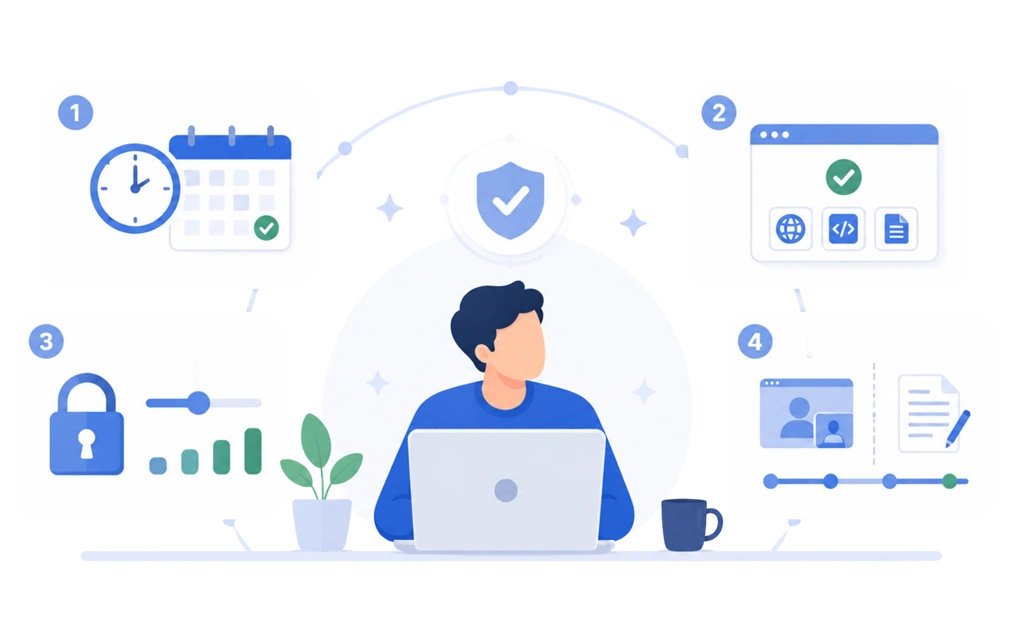
Not every focus tool is designed for the way knowledge workers actually work. Four practical qualities help separate tools that fit real routines from tools that look impressive for a week and then quietly disappear.
- Schedule automation over manual sessions: A tool that requires you to start a session every morning creates another decision before the work even begins. Recurring schedules remove that step. Once configured, the block runs in the same context each day, which can make the routine easier to maintain over time.
- Allow-only mode over an endless blocklist: New distractions appear faster than most people can list them. Allow-only mode flips the setup. You approve the small set of websites and apps needed for the task, then block everything else. That often fits knowledge work better because the work tools are limited, while the internet has clearly never heard of boundaries.
- Lock strength that matches your real needs: The strictest setting is not automatically the most useful. A lock should create enough friction to stop an impulsive override without getting in the way of legitimate work. The best level may also change from one day to another. A normal workday may need a short delay, while a deadline may call for something that takes the override option off the table.
- Flexibility for meeting-fragmented days: Knowledge-worker calendars are often broken into smaller focus windows by meetings, email, and messages. A useful focus tool should handle a short gap between calls as well as a longer deep-work session without requiring a different setup for each.
Developers working with terminals, IDEs, and cross-platform builds have their own requirements. A separate roundup of distraction blockers for developers compares the tools through that more technical lens.
Different features contribute to how well a tool fits your workflow. The better test is whether it can automate your routine, protect the right tools, offer a usable level of enforcement, and adapt to the shape of your workday.
For a broader comparison of platforms, blocking capabilities, enforcement, and pricing, the side-by-side comparison of website blockers covers the same tools in more detail.
Building a Focus Setup That Fits Your Actual Work
A good focus setup should fit the way your workday already moves. Start by identifying where distractions actually happen, whether that is in the browser, inside desktop apps, or across multiple devices.
Choose a level of enforcement you can realistically maintain. A setup that feels slightly inconvenient may help. One that constantly blocks legitimate work will probably get switched off by Wednesday. Start lighter, then increase the friction when deadlines or difficult projects call for it.
Test the setup during a normal work week, including meeting-heavy days and short gaps between calls. Pay attention to whether it protects your focus without creating extra maintenance. The right setup should make deep work easier to begin, not become another system you have to manage.
DigitalZen offers a free way to test this approach across Windows, macOS, and Linux. You can start with lighter blocking, add stronger locks when the work demands it, and schedule focus periods around the work you actually do.
Frequently Asked Questions
What Makes a Focus Tool Good for Knowledge Workers?
A good focus tool should protect the places where your work actually happens. That may include websites, desktop apps, or both. Recurring schedules also help because you can set up your focus routine once instead of rebuilding it every morning.
Allow-only mode can be especially useful for deep work. You approve the small set of tools needed for the task, then keep everything else out until the session ends.
Do I Need Both a Website Blocker and an App Blocker?
You may need both if your distractions include installed applications such as Slack, Discord, Steam, or games. A browser-only blocker cannot control what happens in desktop apps or in another browser without the same extension.
Some desktop tools block both websites and installed applications. DigitalZen is one example that offers both in a single tool. RescueTime’s Focus Sessions can also block websites and apps, although its enforcement is lighter than the stronger lock features found in dedicated blockers.
If all your distractions live in one browser, an extension may be enough. There is no need to bring a bulldozer to a tab problem.
Which Tool Works Best for Developers on Linux?
DigitalZen is the strongest fit if you need native Linux blocking for both websites and desktop applications. DigitalZen supports Debian-based, Red Hat-based, and Arch-based distributions with major Wayland compositor support. FocusMe supports Debian-based distributions through its desktop application, with more limited Wayland support.
RescueTime also has a Linux desktop app, but its main strength is activity tracking and lighter Focus Sessions rather than strict lock-in.
Freedom and LeechBlock NG can work in a Linux browser, but they do not provide a full Linux desktop blocker. Cold Turkey and SelfControl do not support Linux. If you use multiple operating systems, the guide on blocking websites across Windows, Mac, and Linux covers platform-specific options in more detail.
How Long Should a Deep-Work Session Be?
There is no single ideal length for everyone. The right session depends on the task, your energy, and how long you can maintain useful attention without the quality of your work slipping.
A shorter session may suit dense or difficult work. A longer block may work better for writing, coding, or research once you have built enough context. Start with a length that feels manageable, take a real break, and adjust based on the quality of the work rather than how heroic the timer looks.
Can I Use Multiple Focus Tools at Once?
Yes, when the tools serve different purposes. For example, you might use a desktop blocker on your computer, built-in wellbeing controls on your phone, and a tracking tool to understand where your time goes.
There are tools with wider coverage, such as DigitalZen, that can handle both websites and desktop apps in one place. Using a single, more comprehensive tool like this can simplify your setup and reduce the need to combine multiple strict blockers.
If you do choose to use more than one tool, make sure their roles are clearly defined, since overlapping rules can make troubleshooting harder and may block something you genuinely need.
References:
- https://digitalzen.app/
- https://digitalzen.app/pricing/
- https://digitalzen.app/blog/how-blocking-websites-and-apps-boost-productivity/
- https://getcoldturkey.com/
- https://freedom.to/
- https://focusme.com/
- https://addons.mozilla.org/en-US/firefox/addon/leechblock-ng/
- https://selfcontrolapp.com/
- https://www.rescuetime.com/
- https://ics.uci.edu/~gmark/chi08-mark.pdf