
The best website blockers for night owls combine automatic schedules, app coverage, and locks that add friction before late-night changes. DigitalZen, Cold Turkey, FocusMe, and Freedom each handle nighttime blocking in different ways. LeechBlock NG works as a free browser-only option, while native OS focus modes mainly reduce notifications rather than block apps.
Key Takeaways
- Nighttime blocking is its own problem: It is easier to set a block earlier in the evening than to follow it when you are tired. The right tool should run automatically.
- Automatic scheduling matters: A recurring schedule that turns on by itself is more reliable than a manual block you have to remember every night.
- Locks should slow down late-night changes: Cooldowns, schedule locks, random text, Locked Mode, and Forced Mode add friction before a block is turned off.
- App coverage matters at night: Nighttime distractions often include streaming apps, games, and social apps, not just browser tabs. Browser-only tools may miss those.
- The best choice depends on your main distraction: DigitalZen, Cold Turkey, FocusMe, and Freedom each fit a different nighttime pattern. The right choice depends on whether you need desktop coverage, mobile support, Linux support, or stricter locks.
Disclaimer: This article was published in July 2026. It reflects the app details available at the time of posting. Notice an error? Let us know and we’ll fix it!
What to Look For in a Nighttime Blocker
A good nighttime blocker needs more than a basic block button. Late-night browsing is different from daytime distraction. You are often tired, less patient, and more likely to keep going longer than planned.
Look for four things:
- Scheduling that runs automatically. Can you set a recurring schedule, such as 10 p.m. to 7 a.m., that starts on its own? A manual session can work, but it is easier to miss when you have to remember it every night.
- A lock that adds real friction. Once the schedule is active, the tool should make it harder to turn the block off too quickly. A one-click pause or simple password may not be enough at night. When you are tired, the fastest option is often the one you choose first.
- Coverage for apps, not just websites. Late-night distractions often include streaming apps, games, and social apps, not just browser tabs. A browser-only tool may miss those. This also matters for people focused on stopping social media use before bed, since many social apps are used outside the browser.
- A setup that needs little evening attention. The best night setup runs quietly in the background. The less you have to manage it at night, the easier it is to keep using.
A tool that covers all four areas is usually stronger for nighttime blocking. It leaves fewer gaps when you are tired and tempted to keep going. A tool that covers only two or three may still help, but it may leave gaps depending on where your late-night distractions happen.
How Each Blocker Performs at Night

Six tools cover the most common nighttime blocking needs. Each one is reviewed using the same four points: scheduling, lock strength, app coverage, and how much attention it needs each evening.
1. DigitalZen
DigitalZen is built for users who want scheduled blocking and flexible friction. It can turn blocks on during wind-down hours and use adaptive locks to make late-night changes harder to make.
Nighttime strengths:
- The Wellness template includes predefined schedules for weekends and nighttime use, which can make setup faster than starting from scratch.
- Scheduled blocking can run automatically on Windows, macOS, and Linux.
- Adaptive locks include Schedule and Cooldown. Schedule lock lets you set a future date that the block holds until. Cooldown lock adds a timer before an unlock can happen.
- Daily allowances can limit distracting sites earlier in the day, so access is already reduced by nighttime.
Limitations: Some features require a paid plan. The free tier covers website blocking, Focus Mode, schedulers, and Team Focus.
Fits well if: you want to set a block earlier in the day and have it run at night with little input. This helps when you know you will not want to make the decision later. DigitalZen is built around the night owl problem.
2. Cold Turkey
Cold Turkey is a strict desktop blocker for Windows and macOS. Its nighttime strength is how much friction it can add once a block is active.
Nighttime strengths:
- The drag-and-drop schedule editor can help you create recurring night blocks.
- Random Text and Restart locks can make late-night overrides harder because they add extra effort before changes can be made.
- Frozen Turkey can lock, log off, or shut down the computer for a set period.
- Cold Turkey can block Task Manager and system time changes, which helps close common gaps during active blocks.
Limitations: Cold Turkey does not support Linux, ChromeOS, Android, or iOS. It also does not offer mobile blocking or cross-device sync. Its strict style may fit some users better than others.
Fits well if: you want a very strict nighttime blocker for Windows or Mac and prefer a one-time payment.
3. FocusMe
FocusMe is a feature-deep blocker for Windows, macOS, Linux, and Android. Its nighttime strength is its Forced Focus Mode and detailed scheduling options.
Nighttime strengths:
- The Automatic Scheduler can set recurring night blocks across the week.
- Forced Focus Mode is designed to prevent pausing or editing a plan once it starts.
- Enforced Screen Breaks can help remind users to step away during long evening sessions.
- A random password generator of up to 2,000 characters can add strong friction before a plan is changed.
Limitations: FocusMe has a broad feature set, which may take more time to set up. Its cited product pages list Android, but not iOS.
Fits well if: you want a feature-rich blocker with strict plan protection and detailed scheduling.
4. Freedom
Freedom is a cross-device blocker that works across desktop and mobile. Its main nighttime strength is that one session can sync across devices, including a phone.
Nighttime strengths:
- Recurring Sessions and Advance Sessions can pre-schedule night blocks on paid plans.
- Cross-device sync can extend a session across your phone, laptop, tablet, or desktop.
- Locked Mode helps prevent ending a session early on paid plans.
- Focus Sounds offer music and ambient sound options inside the app.
Limitations: Locked Mode requires a paid plan. Some features vary by platform. On Linux, for example, Freedom runs only as a Chrome extension, so Linux users may want to compare these Freedom alternatives for Linux.
Fits well if: your phone is a major nighttime distraction, or you want one blocking session to cover several devices.
5. LeechBlock NG
LeechBlock NG is a free browser extension with flexible scheduling. It can work well if your nighttime distractions happen mainly inside one browser.
Nighttime strengths:
- It supports up to 30 separate block sets.
- Each block set can have different times and days.
- It can block sites during fixed time periods or after a time limit.
- It is free and relatively quick to set up.
Limitations: LeechBlock NG is browser-based. It does not block desktop apps, streaming apps, or games outside the browser. If you use another browser without the extension, the block may not apply there.
Fits well if: you want a free option and your nighttime distractions are mostly websites in one browser.
6. Native OS Focus Modes
Windows Focus and macOS Focus can help reduce distractions, but they are not full website blockers. They are better for quieting notifications and shaping your work environment.
Nighttime strengths:
- They are built into the operating system.
- Windows Focus can turn on Do Not Disturb and temporarily hide taskbar badges and flashing alerts.
- macOS Focus can filter apps like Calendar, Mail, Messages, and Safari.
- They can help make your computer feel quieter during evening hours.
Limitations: Native focus modes do not work like dedicated website or app blockers. They can reduce alerts and filter some app behavior, but they do not stop you from opening distracting sites or apps on their own.
Fits well if: you only need fewer notifications at night and do not need strict website or app blocking.
Comparing the Tools on Nighttime Suitability
The table compares each tool against the four nighttime criteria from earlier in this guide.
| Tool | Automatic Night Scheduling | Friction Against Late-Night Changes | App and Website Coverage | Runs Without Daily Attention |
| DigitalZen | Wellness template plus custom recurring schedules | Adaptive locks such as Schedule and Cooldown | Apps and websites on Windows, macOS, and Linux | Yes, once the schedule is set |
| Cold Turkey | Drag-and-drop recurring schedules | Random Text, Restart, and Frozen Turkey | Apps and websites on Windows and macOS | Yes, once the schedule is set |
| FocusMe | Automatic Scheduler with recurring sessions | Forced Focus Mode plus random password options up to 2,000 characters | Apps and websites on Windows, macOS, Linux, and Android | Yes, once the schedule is set |
| Freedom | Recurring and Advance Sessions on paid plans | Locked Mode on paid plans helps prevent ending a session early | Apps and websites across desktop and mobile, with feature differences by platform | Yes, with synced sessions |
| LeechBlock NG | Up to 30 block sets with schedules | Password, random access code, and delay countdown options | Websites only, within browsers where the extension is installed | Yes, within the configured browser |
| Native OS Focus Modes | Scheduled focus periods or Focus settings | No dedicated website or app blocking lock | Notifications and selected app behavior, not full app or website blocking | Yes, but mainly for reducing alerts |
Dedicated blockers are stronger for nighttime use when they combine automatic schedules, app coverage, and real friction. These layers matter most when you are tired and tempted to keep going.
Browser extensions can help with web-only distractions, but they do not cover desktop apps. Native focus modes are useful for quieting alerts, but they are not full website or app blockers.
What Makes Nighttime Blocking Different From Daytime Blocking
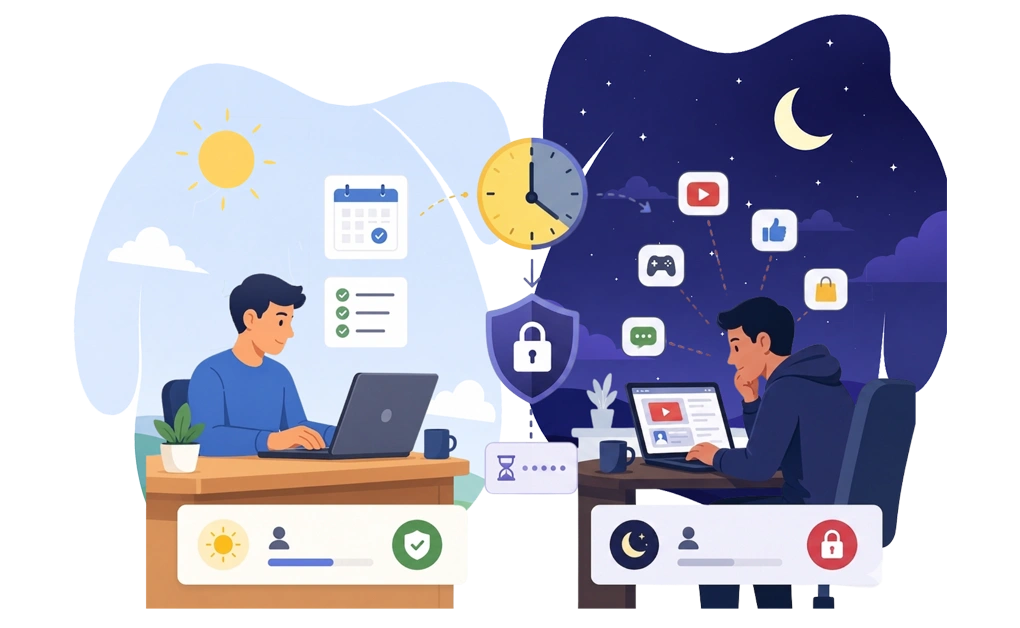
It is often easier to set a block at 9 p.m. than to follow it at 1 a.m. By then, many people are tired and more likely to keep scrolling, streaming, or gaming longer than planned. That is why nighttime blocking works best when the setup is already in place before the evening starts.
A good daytime blocker may depend on you starting a session manually. That can work during the workday, when you are more alert and thinking about your schedule. At night, it is easier to forget the block or delay it with “just five more minutes.” A better nighttime setup turns on automatically and adds friction before you can turn it off.
There is a wider habit angle here too. Late-night scrolling can start as a quick check and turn into a much longer session. There are practical ways to reduce doomscrolling before bed that work better than only telling yourself to stop. This guide focuses on the blocker side of that setup.
Set Up One Nighttime Block Before You Need It
The best nighttime blocker is the one you set up before the evening starts. Instead of trying to fix every late-night habit at once, start with the device and app that cause the most trouble.
- Choose where the block needs to work. If your phone is the main issue, Freedom may be a better fit because it supports mobile and cross-device syncing. If the problem is laptop streaming, desktop gaming, or social apps, a desktop blocker like DigitalZen, Cold Turkey, or FocusMe may work better. If everything happens inside one browser, LeechBlock NG may be enough. If you switch browsers or use apps, a desktop blocker may fit better.
- Set a recurring schedule. A nightly schedule is easier to maintain than a manual block you have to remember. Start with a simple window, such as 10 p.m. to 7 a.m., then adjust it based on your routine.
- Add the right amount of friction. Use a lock that matches how you usually turn the block off. A cooldown can help with quick changes. Random Text or Forced Mode can add stronger friction. A schedule lock can help when you want the block to stay active until a set time.
Start with one recurring block and improve from there. If apps are the main issue, this guide on how to block apps at night can help you configure the setup more directly.
For a wider angle, the leading website blockers compare differently when judged for general productivity than for nighttime use specifically.
Choose the Nighttime Blocker That Fits Your Evening Pattern
A nighttime blocker is useful only if it fits the way your evenings actually work. The right tool should turn on before you need it, reduce the pull of late-night apps or sites, and stay easy enough to keep using.
Each tool handles that problem differently. DigitalZen combines scheduled blocking with adaptive locks for users who want flexible friction. Cold Turkey is better for people who want a stricter desktop lock on Windows or Mac. FocusMe pairs recurring schedules with Forced Mode, which is designed to be hard to bypass while active. Freedom is a better fit when your phone is part of the nighttime problem.
Pick the tool that matches your main evening distraction, then set one recurring block before tonight. With DigitalZen, you can start for free. Set a 10 p.m. cutoff before the late-night scrolling starts. Then adjust the setup once you see what works.
Frequently Asked Questions
What Is the Best Website Blocker for Late-Night Distractions?
The best blocker depends on where your late-night distractions happen. If they are on your laptop or desktop, DigitalZen, Cold Turkey, and FocusMe are strong options. If your phone is the main problem, Freedom may be a better fit because it supports mobile and cross-device syncing.
Can I Block Apps and Websites Only at Night?
Yes. Many blockers support recurring schedules. You can set a block to turn on at a set time, such as 10 p.m., and turn off in the morning. This is useful for night owls because the block can run without needing to start it manually each night.
Does Windows Focus Assist Actually Block Distracting Apps?
No. Windows Focus helps reduce notifications, sounds, and alerts during focus sessions. It does not stop you from opening apps or websites. macOS Focus can also reduce distractions and filter some app behavior, but it is not a full website or app blocker.
Which Nighttime Blocker Is Hardest to Override at 1 a.m.?
DigitalZen has adaptive locks such as Schedule and Cooldown, which work well for nighttime blocking because they add friction before a block can be changed. Cold Turkey adds stronger lockout-style friction with Random Text, Restart locks, and Frozen Turkey.
FocusMe has Forced Focus Mode, which is designed to be hard to bypass while active. All three can be strong options, but no blocker is impossible to bypass.
Are There Free Website Blockers for Nighttime Use?
Yes. DigitalZen has a free tier with website blocking, Focus Mode, schedulers, and Team Focus. LeechBlock NG is also free and supports scheduled browser-based blocking. Native OS focus modes are free too, but they mainly reduce notifications. They do not block apps or websites like a dedicated blocker.
References
- https://getcoldturkey.com/
- https://freedom.to/
- https://focusme.com/
- https://chromewebstore.google.com/detail/leechblock-ng/blaaajhemilngeeffpbfkdjjoefldkok
- https://support.apple.com/en-ph/guide/mac-help/mchl613dc43f/mac
- https://support.microsoft.com/en-us/windows/focus-stay-on-task-without-distractions-in-windows-cbcc9ddb-8164-43fa-8919-b9a2af072382