
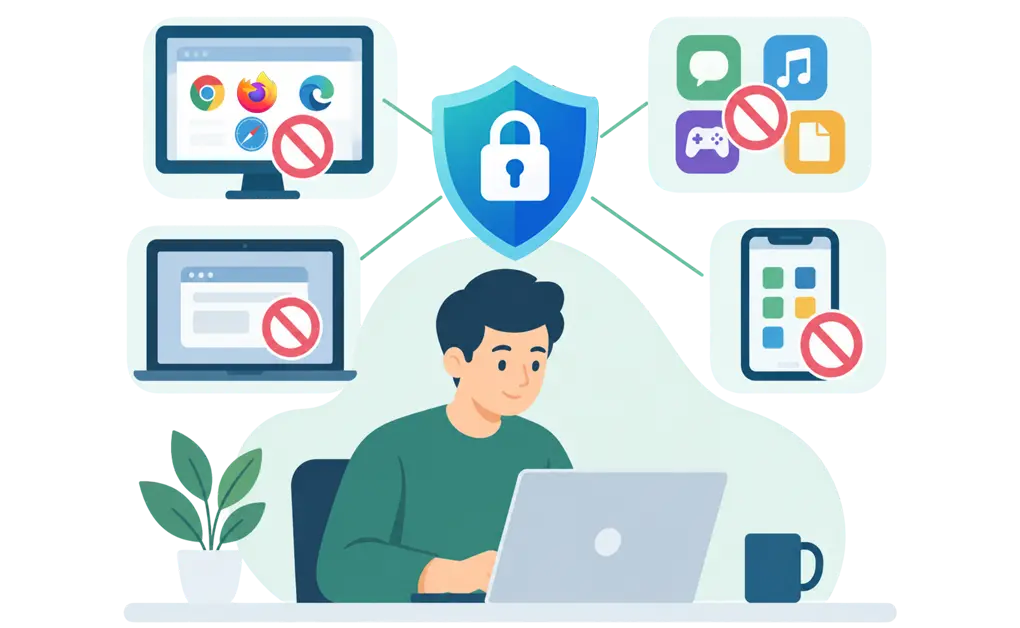
The best website blocker for productivity is one that works across your entire system, not just a single browser. System-level blockers like Cold Turkey, DigitalZen, Freedom, and FocusMe can block multiple browsers and desktop apps at once, which makes them harder to get around than browser extensions such as StayFocusd or LeechBlock. The right choice depends on how hard you need the block to hold.
Key Takeaways
- System-level blockers cover more ground than extensions: They work at the operating system level, blocking every browser and desktop apps at the same time. Browser extensions only work inside the browser where they are installed.
- Bypass resistance is the thing that separates these tools: Extensions come off in seconds. Desktop blockers vary widely in how many exits they close, and no tool is impossible to remove on a machine you administer.
- Free options are genuinely enough for a lighter problem: If you have never disabled a blocker mid-session, a free extension will probably hold. The paid tiers exist for people who already know they will try.
- Platform coverage decides several of these outright: Only DigitalZen and FocusMe run natively on Linux but with different coverage. Freedom is better suited to mobile-heavy setups. SelfControl is macOS only.
- Pricing models vary more than prices: One-time purchases, annual subscriptions, monthly subscriptions, and permanently free tools are all represented here.
Disclaimer: This article was published in March 2026 and updated in October 2026. It reflects the app details available at the time of posting. Notice an error? Let us know and we’ll fix it!
Quick Comparison
| Tool | Type | Cross-browser from one setup | App blocking | Platforms | Uninstall protection | Pricing model |
| Cold Turkey | Desktop | Yes | Yes | Windows, macOS | Not documented | Free tier plus one-time purchase |
| DigitalZen | Desktop, mobile support, plus extension | Yes, including unsupported browsers | Yes | Windows, macOS, full Linux support, Android | Yes | Free tier, subscription, or one-time lifetime |
| Freedom | Desktop plus mobile | Yes | Yes | Windows, macOS, iOS, Android, Chromebook | Not documented | Free tier, subscription, or lifetime |
| FocusMe | Desktop plus mobile | Yes | Yes | Windows, macOS, basic Linux support, Android | Yes | Trial, then subscription or lifetime |
| BlockSite | Extension plus mobile | No | Mobile apps only | Browser extension, iOS, Android | Varies by platform | Free tier, subscription, or one-time |
| SelfControl | Desktop | Yes, network level | No | macOS | Block survives deletion | Free |
| LeechBlock NG | Extension | No | No | Browser extension | No | Free |
| StayFocusd | Extension | No | No | Chrome, Edge | No | Free |
Cross-browser from one setup means blocking every browser from a single configuration. Extensions marked No are available for several browsers but must be installed and configured in each one separately. Not documented means the vendor does not state either way, so we have not assumed an answer.
For a wider grid covering more tools and more features, see the full feature-by-feature blocker comparison.
How We Judged These Tools
Four things decide whether a blocker survives contact with a normal working week.
1. Bypass resistance comes first. A blocker you can switch off in one click is a reminder, not a block. What matters is how many exits it closes: a second browser, Task Manager, the uninstaller, the system clock. If that is your only concern, we rank tools on that single criterion in our guide to blockers ranked purely on bypass resistance.
2. Coverage. Whether the tool reaches every browser on the machine, and whether it reaches installed applications as well as websites.
3. Flexibility. Whether you can allow a site for twenty minutes rather than banning it outright, and whether blocks can run on a schedule without being switched on each day.
4. Cost against what you actually need. A free extension is the right answer for plenty of people, and paying for strictness you will not use is a good way to cancel in week three.
The Best Website Blockers and App Blockers

1. Cold Turkey
Best for: strict enforcement with a one-time payment.
Cold Turkey is a desktop app for Windows and macOS with a well-documented set of protections against working around an active block.
Notable features:
- Blocks Task Manager and prevents system time changes during an active block
- Frozen Turkey locks you out of the computer entirely for a set period
- Random text lock requiring up to 999 characters before settings change
Limitations: No Linux desktop app, no native mobile app, and no cross-device sync. Its strong lock-ins can be frustrating when legitimate interruptions require immediate access.
Pricing: Limited free tier, with a one-time purchase for Pro. No subscription.
For a detailed comparison, see Cold Turkey vs Freedom and Cold Turkey vs DigitalZen.
2. DigitalZen
Best for: cross-browser enforcement with adjustable lock strength.
DigitalZen is a website and app blocker for Windows, macOS, and Linux that blocks every modern browser from one configuration, including browsers it does not explicitly support.
Notable features:
- Blocks all browsers from a single setup, and blocks unsupported browsers rather than leaving them open
- A protection layer that resists app termination, extension removal, and uninstalling during an active block, and restores active blocks after a restart
- Five lock types on top of that protection: code, cooldown, friend approval, schedule, and money fine
Limitations: The protection layer raises the effort required to remove a block; it does not make removal impossible, and no tool on this page does. More advanced features are in paid plans.
Pricing: Free Basic tier. Subscription or USD 119 one-time for a lifetime license. There is a 14-day Premium trial and no card is required.
3. Freedom
Best for: people whose phone is part of the problem.
Freedom runs on Windows, macOS, iOS, Android, and Chromebook, with sessions that sync across every device at once. It is a good fit when blocking needs to include phones, tablets, and desktop devices.
Notable features:
- Sessions sync across all your devices simultaneously
- iOS and Android app blocking support
- A free tier that blocks websites and desktop apps on unlimited devices, which is unusually generous
Limitations: The free tier is capped at Start Now sessions of up to two hours, with no recurring sessions, no scheduling ahead, and no Locked Mode. Locked Mode, which restricts ending or changing an active session, is the feature that makes Freedom hard to quit early, and it needs Premium.
Pricing: Free tier for basic Start Now sessions, with Premium needed for longer sessions, scheduling, recurring sessions, and Locked Mode.
For a detailed comparison, see Freedom vs DigitalZen.
4. FocusMe
Best for: rationing access over weeks and months rather than blocking outright.
FocusMe is built around time limiters. Instead of banning a site, you allow thirty minutes of it per day and the tool closes it after that.
Notable features:
- Time limiters set hours per day, week, or month for specific sites
- Launch limiters control how often and how long an app can be opened
- Random text lock requiring up to 2,000 characters
Limitations: There is no permanent free tier, only a trial, so it is not a free long-term option. Long-term use may cost more than a one-time purchase tool, depending on the plan. On Linux, FocusMe ships a generic .bin installer, while DigitalZen provides native Debian, Red Hat, and Arch packages, which matters if you want it managed by your package manager.
Pricing: Free trial, then a monthly or annual subscription, with a lifetime option.
For a detailed comparison, see FocusMe vs Cold Turkey.
5. BlockSite
Best for: blocking on a phone and browser without installing full desktop blocker software.
BlockSite is a browser extension paired with iOS and Android apps. It covers category blocking, keyword blocking, and scheduled focus modes.
Notable features:
- Category and keyword blocking rather than only named domains
- Mobile apps for both iOS and Android
- Password protection for settings, with uninstall-prevention features on some platforms
Limitations: No desktop application, so it cannot block installed programs on Windows, macOS, or Linux. Like any extension, it covers only the browser it is installed in.
Pricing: Free tier, with paid plans for stricter features.
6. SelfControl
Best for: a free, strict-timed block on macOS.
SelfControl is an open-source macOS tool that blocks websites, mail servers, and other internet destinations at network level for a timer you set.
Notable features:
- Blocks at network level, so it can affect every browser and apps that rely on the blocked network destinations
- An active block continues if you quit the app, restart the Mac, or delete the application
- Free and open source, with no account required
Limitations: macOS only. No recurring schedules, no allowances, and no way to end a session early by design. That strictness is useful for commitment sessions, but it leaves little room for mistakes.
Pricing: Free.
7. LeechBlock NG
Best for: free scheduling flexibility inside one browser.
LeechBlock NG is a free extension for Chrome, Firefox, Edge, Brave, Opera, and Vivaldi with flexible scheduling and time-limit controls.
Notable features:
- Up to 30 separate block sets, each with its own schedule
- Time limits allowing a set number of minutes per hour or per day
- Optional password or random access code before accessing the options page
Limitations: Browser extension only, with no app blocking. Switching to another browser sidesteps it entirely unless you install and configure it there too.
Pricing: Free.
For more options, see StayFocusd alternatives.
8. StayFocusd
Best for: a free, simple starting point on Chrome.
StayFocusd is a widely used Chrome and Edge extension with a strict mode and in-page content filtering.
Notable features:
- Nuclear Option prevents settings changes until the block expires
- In-page blocking can hide distracting elements such as Shorts, comments, and recommendations.
- Require Challenge adds a typing task before settings can be modified
Limitations: Built mainly for Chrome and Edge, with no desktop app blocking. It is quick to disable or remove compared with system-level blockers, and switching browsers can avoid the block.
Pricing: Free.
How to Block Websites for Productivity (Quick Setup)

Most people install a blocker, use it for four days, and abandon it. The setup below takes about fifteen minutes and survives longer, mainly because it front-loads the decisions.
1. Pick the layer that matches your problem. If you have never disabled a blocker mid-session, a browser extension is enough and it is free. If you have taken one apart before, or your distractions include desktop apps and a second browser, you need something at system level. Be honest at this step, because everything after it follows from the answer.
2. Build the block list from what actually happened this week. Not a category list copied from an article. Open your browser history, find the three or four sites that ate the most time, and start there. Short lists get kept. Long lists get deleted the first time they block something you needed.
3. Decide what is allowed rather than only what is banned. Most tools support a daily allowance, so a site closes after twenty minutes instead of disappearing. Total bans are the ones people abandon, because they turn one useful visit into a reason to switch the whole thing off.
4. Protect the setup before relying on locks. A lock helps you hold a decision, but the protection layer is what keeps the blocker from disappearing through quick exits like quitting the app, removing the extension, uninstalling, or restarting. DigitalZen combines that protection layer with five lock types: code, cooldown, friend approval, schedule, and money fine. A money fine adds a self-chosen cost, not a DigitalZen fee.
5. Put the block on a schedule. A block that starts by itself on weekday mornings removes a daily decision. A block you have to remember to switch on will eventually go unswitched on exactly the day you needed it.
6. Leave it alone for a week. The first few days are the worst of it. Adjust the setup every time it frustrates you and you end up with nothing.
Best Free Website Blockers
Free tools are often enough when the problem is light or browser-based. The right free option depends on where the distraction happens and how easily you tend to work around your own setup.
1. LeechBlock NG is a free choice if you work mainly in one browser. It offers detailed schedules, time limits, and multiple block sets without a paid tier.
2. StayFocusd suits Chrome or Edge users who want a simple starting point.
3. SelfControl is free and strict for macOS users. It can hold a timed block even if you quit the app, restart the Mac, or delete the application, but it does not offer scheduling or allowances.
4. DigitalZen Basic gives users a free system-level option across supported desktop browsers. That makes it a better fit when the problem includes more than one browser, though advanced features still belong in the paid plans.
The honest limit is that free browser extensions are easier to work around. They do not block desktop apps, and switching browsers can avoid the setup unless each browser is configured separately. If you already know you will try to bypass your own block, treat the free option as a starting point rather than the final setup.

The right website blocker is the one that matches where your distractions happen and how much friction you need. Browser extensions can work for casual website blocking. If your distractions include desktop apps, a second browser, or your phone, you may need something with broader reach.
Start with the level of blocking you think you need, then upgrade if you find yourself working around it. That escalation is normal. It is often better than buying the strictest tool on day one and resenting it.
Among the desktop options, DigitalZen combines cross-browser coverage, app blocking, and a protection layer that helps keep active blocks in place. Lock options can add more friction when needed, from a short cooldown to friend approval. What makes a tool dependable over months rather than days is covered in our guide to what makes a website blocker reliable.
If you are not sure what to block first, start with our list of sites to block for productivity.
For Studying
Study sessions often fail when the block gets switched off during a break and never goes back on. A schedule can help by tying blocking to set hours instead of relying on you to restart it manually.
Team Focus can also help when you want a shared session with other people working at the same time. Both features reduce the number of decisions you have to make during a study block, which can make the setup easier to keep.
Frequently Asked Questions
What’s the Difference Between a Browser Extension and a System-Level Blocker?
Browser extensions work inside one browser, while system-level blockers can cover multiple browsers and desktop apps from one setup. If you only need light website blocking, an extension may be enough. If you have already worked around one, a system-level blocker usually gives you more coverage.
Which Website Blocker Is Hardest to Bypass?
DigitalZen and Cold Turkey both close more exits than a simple browser extension. DigitalZen adds protection against app termination, extension removal, and uninstalling before adding lock options, while Cold Turkey can block Task Manager and system time changes during an active block.
What Is the Best Free Website Blocker?
LeechBlock NG is a free choice for browser-based scheduling, while StayFocusd is a simple free starting point for Chrome or Edge. SelfControl is free and strict on macOS. DigitalZen offers a free Basic tier with system-level blocking across supported desktop browsers.
Can Website Blockers Block Desktop Apps?
System-level blockers can block desktop apps as well as websites. Cold Turkey, DigitalZen, Freedom, and FocusMe all include desktop app blocking. Browser extensions cannot block installed desktop apps, and BlockSite does not provide full desktop app blocking on Windows, macOS, or Linux.
References:
.
- Cold Turkey, getcoldturkey.com
- Freedom, freedom.to
- FocusMe, focusme.com
- BlockSite, blocksite.co
- SelfControl, selfcontrolapp.com
- LeechBlock NG, proginosko.com
- StayFocusd, stayfocusd.com